Basic Use and Navigation
Navigation and Use
The Climate Web's learning curve is short. All you really need to know is summarized in the bullets below, and more information is available to you as needed through the "HELP, VIDEOS, FAQs" thought pinned to the top left of your screen.
You can also take advantage of our FREE Climate Web 101 course which organizes everything you need to know to become a power user.
For First-Time Users
If you're new to the Climate Web, we know you may find the interface unfamiliar, and that the amount of information being organized and presented can be intimidating. But the learning curve for TheBrain software (and the Climate Web) is very short. Through the bullets below, and the HELP and FAQs thought at the top of your screen, you can be an advanced user very quickly. You may even want to experiment with using TheBrain for your own knowledge management needs! You can download it for free to find out.
The bigger issue for first-time users to be aware of is that the TheBrain's web-based interface is a lot slower and less powerful than the laptop and mobile versions of the software. Some of the software's features just don't work via the web-based interface, including the ability to view almost any URL or video just by hovering your mouse over the thought containing the link. (Instead you'll see a link that you have to click on which opens a new Tab in your browser, and that you then have to close). These an other limitations are specific to the web-based interface, and they don't exist with Premium Access which allows you to download the Climate Web to your own computer.
Even with these limitations, however, you can use the web-based interface to take advantage of tens of thousands of climate change knowledge curation by the Climatographers. But to take full advantage of the Climate Web, consider taking advantage of Premium Access.
Climate Web Navigation Tips and Tricks
- The "HOME" thought is always available at the top of your screen to bring you back to the "front door" of the Climate Web.
- CLICK on a thought to center it on your screen. Thoughts can be linked to “parent,” “child,” or “jump” thoughts (jump thoughts link to the left of a thought).
- HOVERING over a thought will show any information contained in its “Label,” while HOVERING over any Thumbnail Image (at the far left of a thought) will EXPAND the image to full size (can take 2-5 seconds on-line). (NOTE: We're gradually transitioning thumbnail images into the Notes field for easier viewing)
- Thought "GATES," are the small circles just below, above, and to the left of all the thoughts on your screen. Empty circles signal that there are no thoughts attached to that Gate that you can't currently see. Solid green Gates indicate the presence of thoughts you aren’t seeing right now. Clicking on a thought will make those thoughts visible.
- The Notes Field (where you are right now) contains any explanatory text, as well as PDFs, URLs , or videos linked to an individual thought. The small triangles at the bottom of the dividing line between the Notes Field and the "Plex" can open or close the Notes field (we do use the Notes field extensively, so would recommend you keep it open). But you can drag the bar between the main Notes Field and Plex to resize either.
- If you are accessing the Climate Web on-line, you can only retrace one step via your Browser's Backspace key. But there is also a breadcrumb trail at the bottom of the Plex that may show more than one of your activated thoughts.
- You can SEARCH the Climate Web. The on-line and desktop search capabilities are different. Click on the appropriate link for more information. Web Search Function Desktop/Laptop Search Function
- Perhaps the best way to explore the Climate Web on-line is through its Index. You can learn much more about the Index and how it works at this thought.
- To give you a better sense of the thousands of topics and topical collections you can access in the Climate Web, click on the "Advanced Elements - Dashboards" thought in the Plex at left.
- We use visual icons to tell you something about thoughts you are seeing in the Climate Web. Different kinds of thoughts have different icons and often different colors as you can see in the Legend just below. “Headings” refer to thoughts we used to organize the associated subsidiary materials. “Sources Headings,” for example, organize “Individual Sources.”
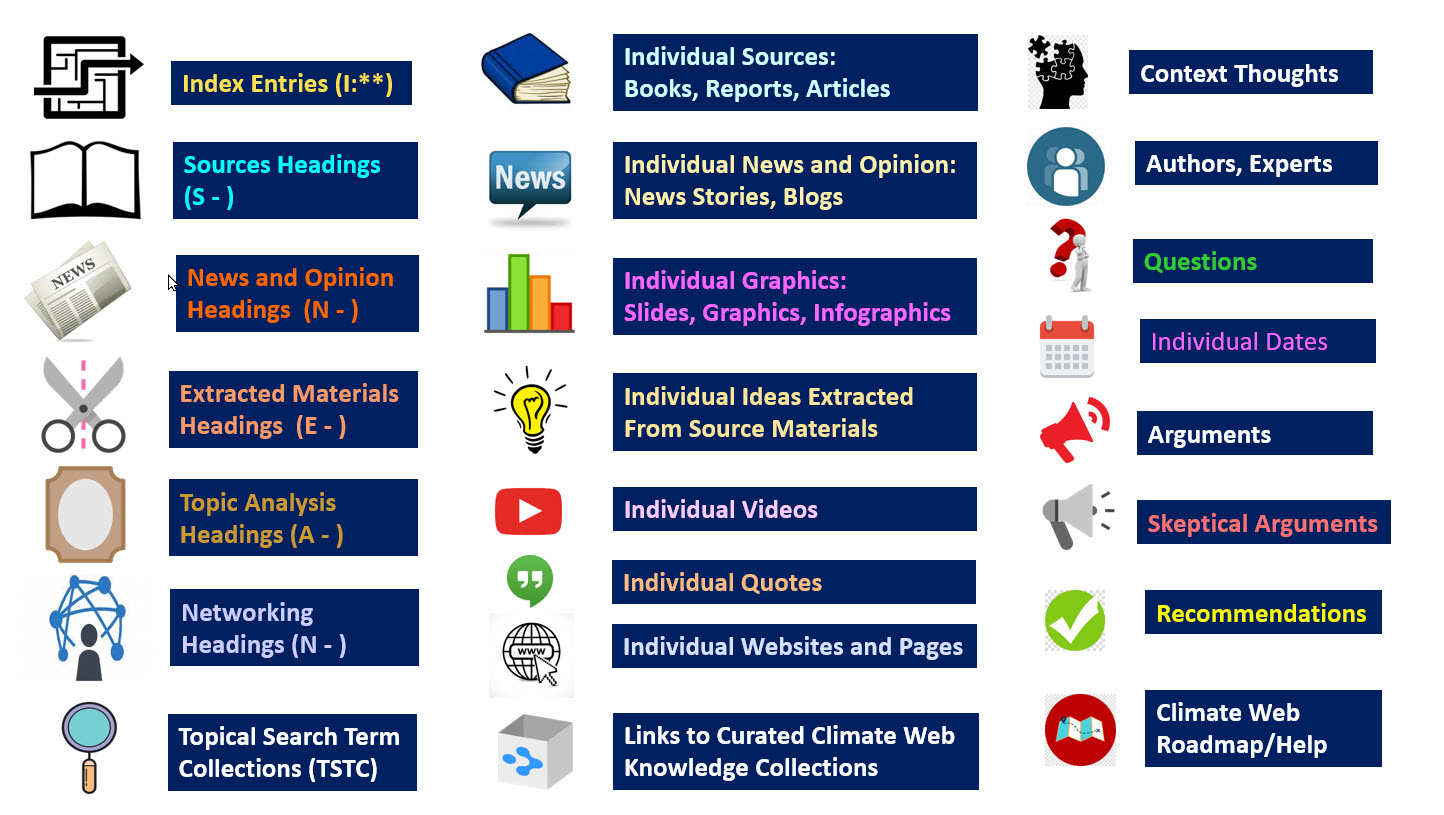
That's all you really know to navigate the Climate Web. Much more information is available through the two Child thoughts linked to this one in the Plex at left, as well as the HELP, VIDEOS, and FAQs thought pinned to the top of your screen.
Still have questions? Our contact information is also pinned to the top left of your screen.