Basic Premium Access Climate Web Navigation
Navigating TheBrain Software
If you're new to TheBrain software, you may find the interface unfamiliar but the learning curve is very short.
- Thought "GATES," are the small circles just below, above, and to the left of thoughts. Empty circles signal that there are no additional thoughts linked to that Gate. Solid green Gates indicate that there are linked thoughts that you aren’t currently seeing on your screen. Clicking on a thought with filled-in gates will make those thoughts visible.
- A thought’s Notes Field can contain text, like this one, as well as PDFs, URLs, or videos. You can drag the bar between the Notes Field and Plex to enlarge the space for attachments to display (most won’t display directly on-line, but some like videos and PDFs will).
- While you can only Backspace once, on-line, there is also a breadcrumb trail at the bottom of the Plex showing recently activated thoughts. You can click on breadcrumb thoughts to activate them.
Navigating the Climate Web
Before diving into the Climate Web, we recommend spending a few minutes getting to understand it using one of our two dedicated sites.
Overview of the Climate Web
The Climate Web Through a Business Lens
As already noted, the web-based TheBrain interface has significant limitations. The most obvious will likely be a spinning circle with the message: “Thoughts Loading,” particularly if you’ve clicked on a thought with numerous child thoughts. That’s why the FAST ACCESS! thought at the top of your screen lays out other options where the Climate Web’s response is basically instantaneous, and where you don’t even have to click on a thought to see its content!
Here are some navigation tips and tricks specific to the Climate Web.
- The "HOME" thought is always available at the top of your screen to bring you to the "front door" of the Climate Web.
- We use visual icons to tell you something about thoughts you are seeing on your screen. Different kinds of thoughts have different icons and often different colors as you can see in the Legend just below.
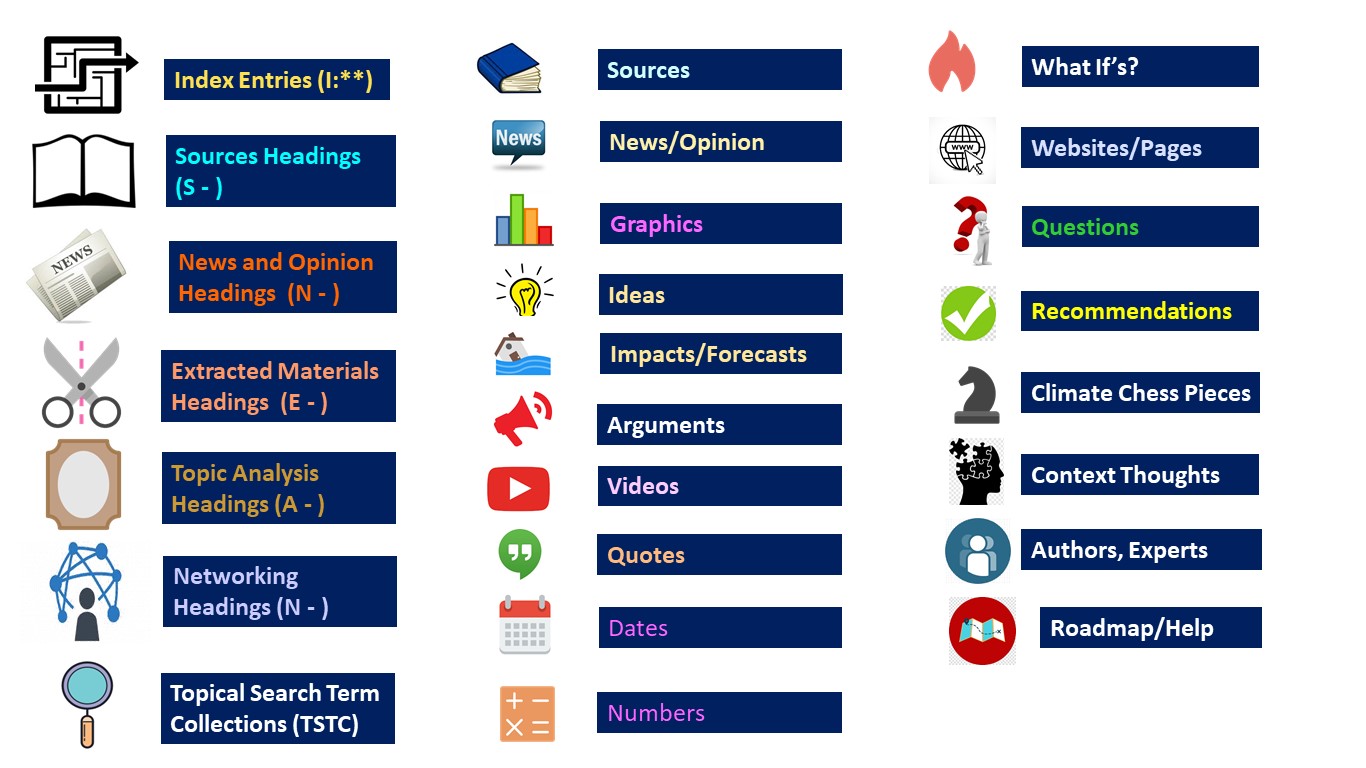
- The easiest way to rapidly navigate through the Climate Web’s HOME screen is through the hierarchy of thought with the checkered flag “thought icon,” representing topics and sub-topics.

- Clicking on those thoughts will take you to collections of thoughts with the “Climate Web” icon shown below, representing topical questions, issues, and topic-specific resources collections you can explore in depth. Note that there are two kinds of thoughts, one being “Tags,” the other being regular thoughts. The first-order difference is their shape, and the fact that Tags display first in a collection of thoughts, but the second-order difference is much bigger. Regular thoughts are physically linked to their “child thoughts,” so when you click on a child thought, you’ll still see the now “parent thought” above it. Tags are not physically linked to their child thoughts, so when you click on a child thought the Tag parent will disappear. Combined with the 1- Backspace problem, it makes on-line navigation harder.


- Another great way to explore the Climate Web is through its 3,500-entry Index. Index Entries are all vertically linked, so any parent or chile thought of an Index Entry will also be an Index Entry. You can literally click your way through the A to Z of climate change.

- All Index Entries are preceded by an "I:" and lack spaces in the body of the entry. This makes it a lot easier to use the Search function (described next). Carbon pricing, for example, has an Index Entry of I:CarbonPricing. Searching for that Index Entry will quickly get you where you want to go. Searching for "carbon pricing," on the other hand, will generate hundreds of hits with no obvious pattern or hierarchy.