User Guide
Unlike our other climate change knowledge solutions, the Climate Web and Your Climate Toolbox, this Climate Change on LinkedIn Knowledgebase is uniquely simple to navigate. That’s possible because LinkedIn posts are the only content it organizes.
The Knowledgebase is built with the same powerful TheBrain personal knowledge management software we’ve used in our other tools. You can visit TheBrain’s website for all kinds of support materials, including weekly webinars. That’s also where you can download TheBrain software (for FREE) to build your own “brains!” The Climatographers highly recommend TheBrain as a simple to use knowledge software with all kinds of uses.
In this User Guide we’ll cover everything you need to know to navigate the Knowledgebase. Brains can act a a bit differently depending on how you’re accessing them (mobile browser, laptop browser, mobile download, laptop download) that’s not a significant issue for the Knowledgebase given its simplicity.
TheBrain’s On-Line Toolbar
Only a few of the Toolbar elements introduced below are relevant for the Knowledgebase.

- You can click on the top-left icon at any time to go to the brain’s “front door.”
- The “Pins” drop-down menu lets you instantly navigate the Knowledgebase, including jumping to the front door and User Guide. Hugely convenient!
- Ignore the “Types” drop-down.
- Ignore the “Tags” drop-down - it will be more confusing than not. Use the “Pins” drop-down instead.
- Ignore the “Select” option.
- TheBrain’s SEARCH function is powerful, but you may not need it. That said, there are a lot of topics and hashtags that don’t have “their own” tagged collections (see below). If you’re particularly interested in geothermal energy, for example, you could search for “geothermal” to see thoughts in which that word appears.
- Ignore the “eye icon.” It switches your view from the Knowledgebase’s “NoPlex” default to the “Plex” mode, but there’s no reason to do that.
- Ignore the user-specified settings for visualizing the Knowledgebase. Not relevant to you.
- Make sure you’re logged into your TheBrain account for your subscriber content to show up. You can easily tell because “Login” is replaced with your initials.
Tagged Collections
The Knowledgebase uses “Tags” to organize LinkedIn posts chronologically, topically, and more. Tags represent virtual rather than physical links, and simplify your navigation. When you click on a tagged collection in the Knowledgebase as a subscriber you’re likely to see something like this (e.g. posts “tagged” as Week 43 (out of 52).
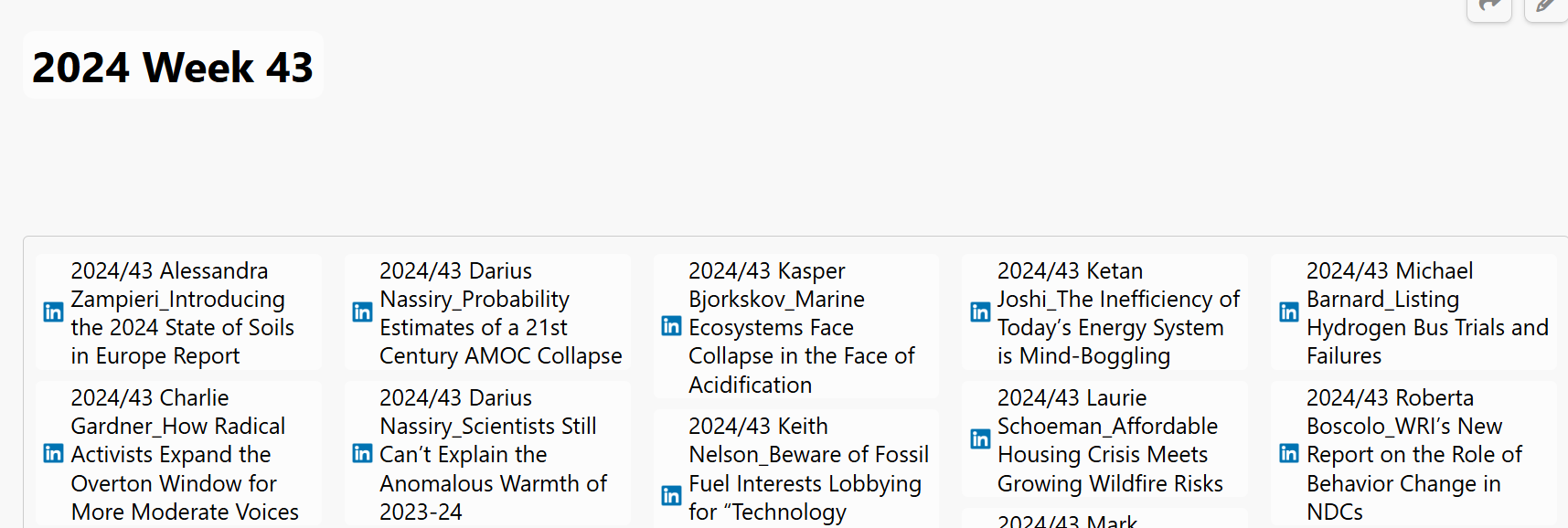
When you click on an individual post from, what you’ll see is shown below. Namely the date, author, and “name” of the post. Since posts don’t actually have names, we’ve inferred one based on its content. You’ll also see a short AI-generated summary of the post and AI-generated keywords, intended to give you more information about whether you want to access the post and its associated thread via your browser by clicking on the link.
Note that you can also see all of the tagged collections this post is a part of, and instantly jump to any of them. Between that and the “Pins” drop-down menu you can rapidly navigate the Knowledgebase. From the thought shown below, for example, you can:
- Jump to the post and its thread in LinkedIn (and easily return to the Knowledgebase)
- Jump to the larger collection of “General Interest Posts”
- Jump to the temporary collection of posts being considered for Issue #2 of the Newsletter
- Jump to all of Ketan Joshi’s posts
- Jump to the topical collection of posts relevant to the low-carbon transition
- Jump to the collection of posts from week 43 on LinkedIn
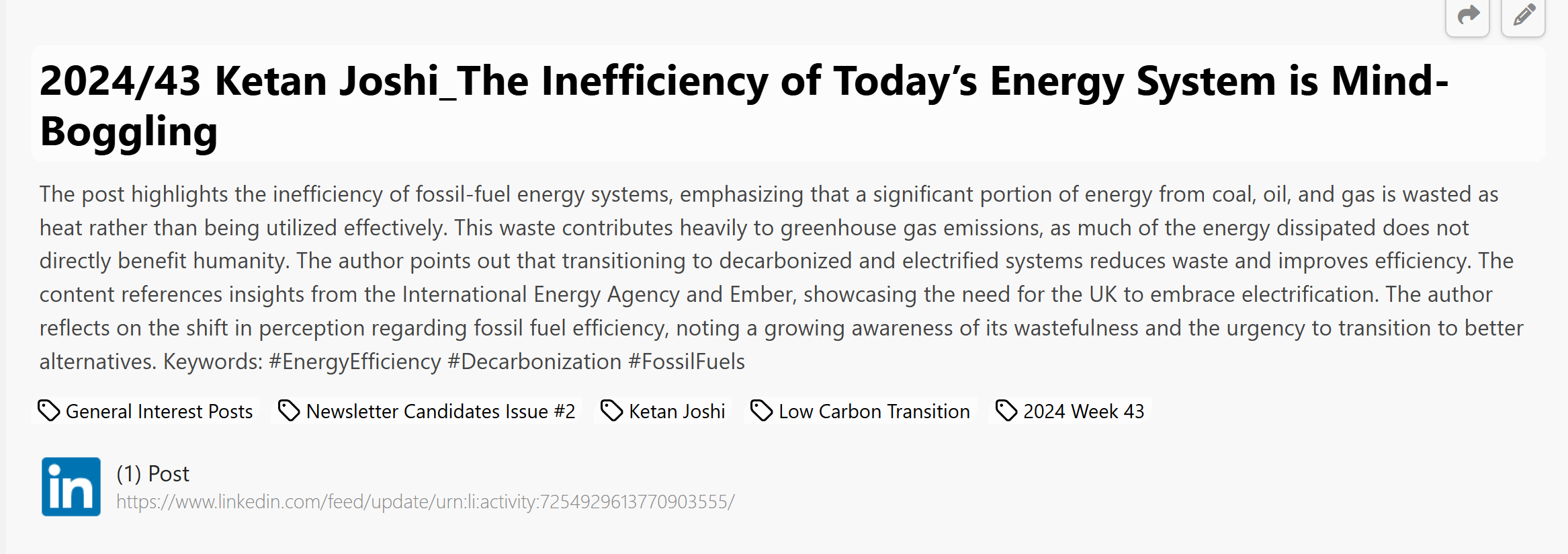
With a learning curve of less than 2 minutes, it could not be simpler to navigate the Climate Change on Linked In Knowledgebase.
TheBrain’s Laptop/Desktop Software
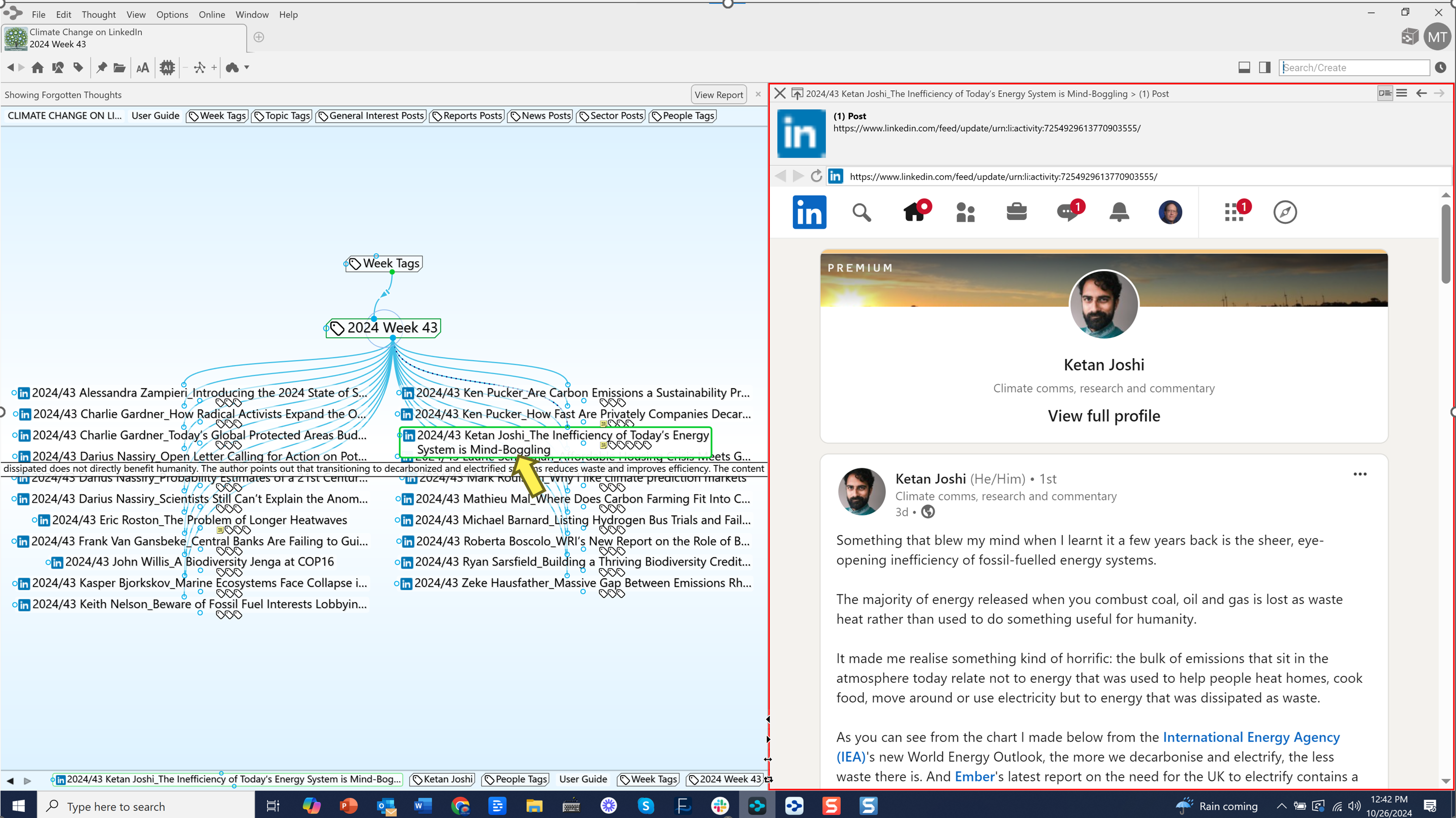
As mentioned above we recommend the “No-Plex” view of the Knowledgebase if you’re accessing it on-line or via your mobile devices. The one exception is TheBrain’s laptop/desktop software, since it does not have a “No-Plex” view. When you subscribe to the Knowledgebase you’ll have the opportunity to download it to your laptop, taking advantage of a FREE version of the TheBrain software.
The reason you might want to do that is because of the unique “hover” and “internal browser” features of the laptop software. As you can see in the screenshot below, simply hovering your mouse over a thought in the “Plex” (to the left), will cause the associated LinkedIn post to open in TheBrain’s internal browser. This is great for surveying posts quickly without having to even leave the Knowledgebase.
As mentioned on the “home page” of the Knowledgebase, subscribing to all of its content will ultimately cost $5.99/month, but as part of our launch, and recognizing that the knowledgebase will grow and become more valuable over time, we’ve created coupon codes for early subscribers. The first 100 subscribers will receive an 80% discount with code “LinkedIn80.” The next 100 subscribers will receive a 66% discount ($2/month) with code “LinkedIn66.” Click Here to Subscribe!