Creating Check Box Lists
You can create a quick check box list and mark the items as complete or incomplete. You can either create the list as you type or turn any existing text into a check box list after you select it.
- Click in the note where you want to type the first item to appear, click in any paragraph, or select multiple paragraphs.
- Click the Toggle Checkbox List button in the content area toolbar.
- When a task is complete, click the check box to display a check mark or click it again to remove the check mark if you decide the task isn’t complete after all.
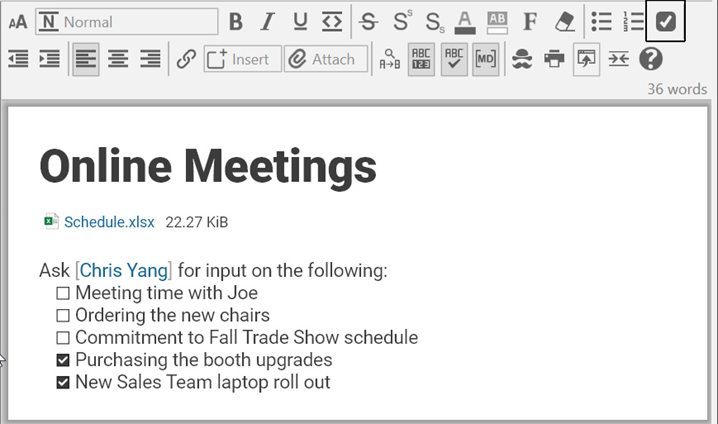
Figure 214. Formatting Text as a Check Box List
Checklists can also be added manually using keyboard shortcuts. Just start a line with a dash and a space “- “ to create a checkbox. Starting a line with a plus sign and a space “+ “ will create a pre-checked checkbox.
To see ALL of your To-Do items in one place:
- Click the Right Panel button in the upper-right area next to the Search box or click the To Do List command on the View menu.
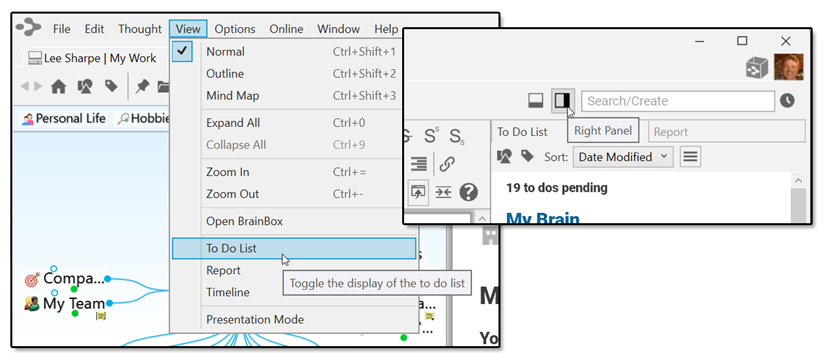
Figure 215. Two Ways to Open the To Do List for All Thoughts
The To Do List panel is displayed:
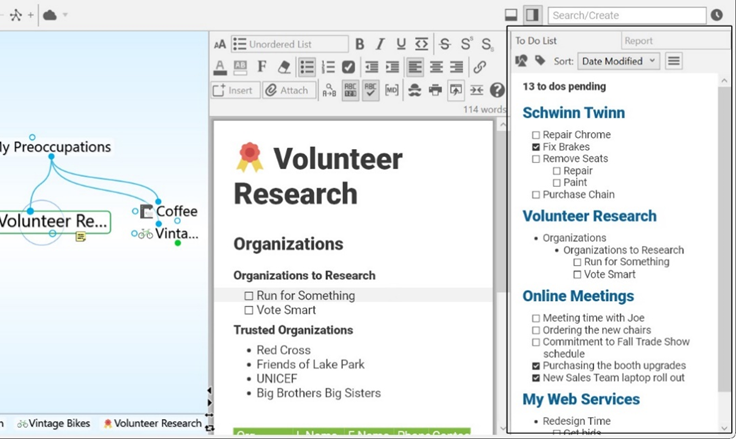
Figure 216. A To Do List for All Thoughts
 When you click a check box in one location, such as the To Do List panel, it is automatically checked off in the other location (the thought) and vice versa.