Quick Thoughts
Overview
Quick Thoughts is a small inbox that belongs to your account, not to any one brain. It exists so you can write something down the instant it occurs to you — from inside TheBrain, from a browser extension, from a global keyboard shortcut on your desktop, or from a widget or tile on your phone — without first deciding which brain or which thought it belongs to. Every note lands in the same inbox on every device you are signed in to, and later, when you have a moment, you open the Quick Thoughts panel and move each note into a brain with one click. The inbox is meant to empty out: material you want to keep for reference belongs in a brain, where it can be linked and searched.
The panel is where notes are read, edited, and filed: as a new child thought, as an addition to a thought's notes, or as an attached Markdown file, in any of your brains, not just the one you have open.
Quick Thoughts needs a signed-in TheBrain account, on any plan. If you are using the desktop app as a guest, the button does not appear.
Quick Thoughts is separate from BrainBox. BrainBox is the inbox for files, links, and web clippings; Quick Thoughts is for notes you write yourself, which can carry links and files along with the text. Both buttons sit together in the toolbar.
How to Open the Quick Thoughts Panel
The panel opens as a dialog on top of whatever you are doing, both inside a brain and from the brains list. On the desktop app it opens in a window of its own, which you can place anywhere and keep open while you work; you can open more than one.
- Click the Quick Thoughts button — the lightning-bolt icon — in the top toolbar, next to the BrainBox button. The same button appears on the brains list.
- Or press the default shortcut
Ctrl+Alt+N(⌥⌘Non Mac). Like every shortcut, you can change it in Settings > User > Keyboard.
On a phone
Inside a brain, open More Actions on the action bar and tap Quick Thoughts. You can pin it to the action bar like any other button. On the brains list, tap the lightning-bolt button in the toolbar.
On a phone the panel is a sheet. You see the inbox list first; tapping a note opens it, and the Notes button at the top returns you to the list. Swipe the sheet down to close it.
On the Mac desktop app
In the Mac desktop app, the menu bar also lists Quick Thoughts under View > Panels, next to BrainBox.
Reading Your Quick Thoughts
The top of the panel shows Quick Thoughts with a count of the notes waiting in it, and a New button. On the left, a Filter box narrows the list as you type. Notes are grouped by date, newest first, and each row shows the note's first line as its title, a short preview, when it was captured, and which device it came from. A note with links shows a link icon and how many it has; a note with only links and no text takes its title from its first link. A note with attached files shows a paperclip and how many files it has, and the Filter box matches file names as well as text.
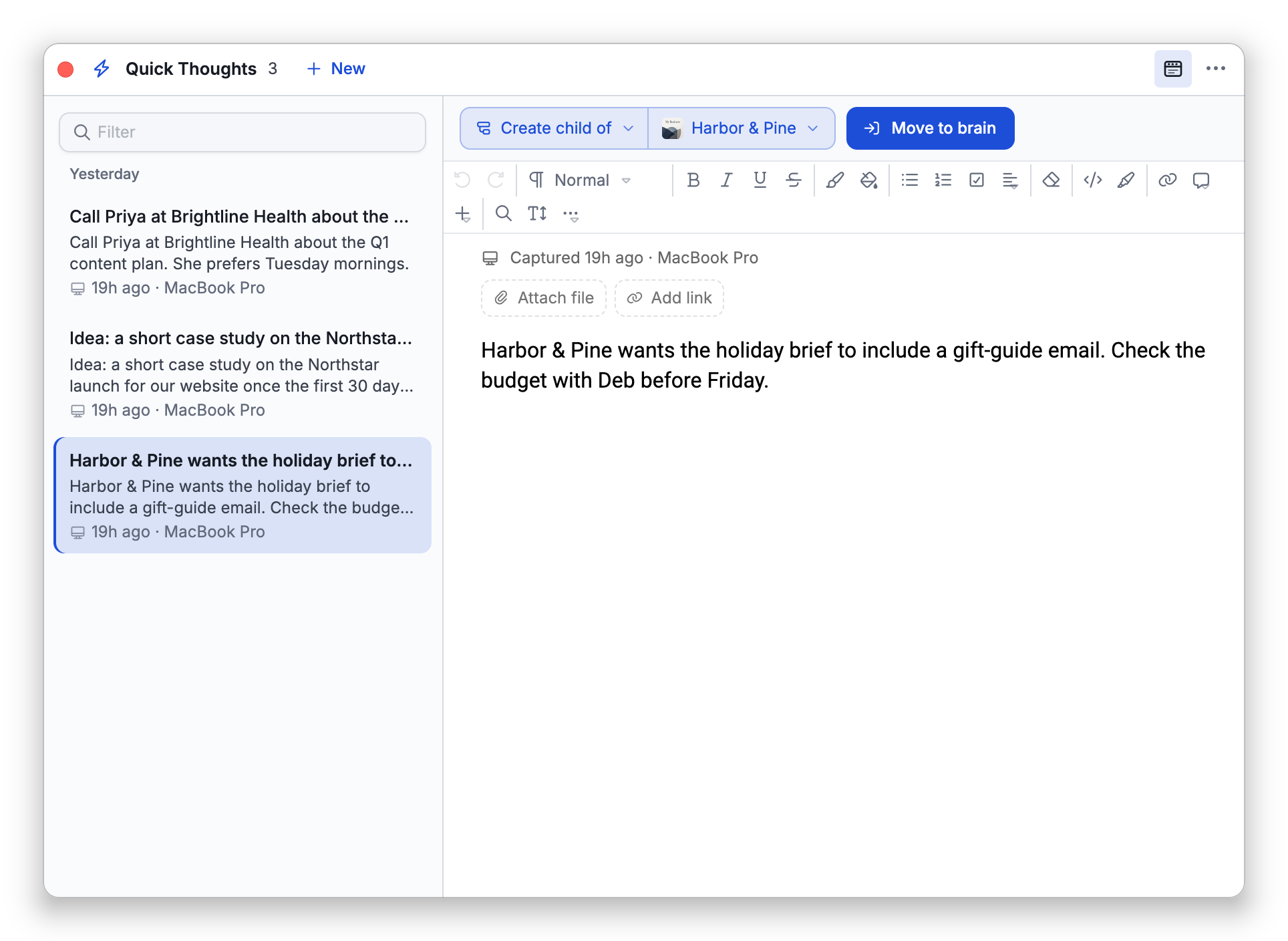
Select a note to read it on the right. The top of the note shows when it was Captured and, if it has been changed since, when it was last edited.
The filter box is also the keyboard home: with the cursor in it, the ↑ and ↓ keys move through the list, and Enter puts the cursor into the selected note's text.
The Filter box matches only what the list holds for each note: its title (the first line, up to 50 characters), its preview (the first 200 characters of the note's text), the name of the device it came from, and the names of its attached files. Upper and lower case make no difference. A word further down a long note is not found by the filter. To find it, ask Cerebro, which can search the full text of your quick thoughts, or file the note into a brain where it can be searched.
The panel loads your inbox when you open it and then checks for new and changed notes every 30 seconds for as long as it stays open, so a note captured on another device appears within about half a minute, briefly highlighted in the list. Closing the panel and opening it again checks right away, and on phones and tablets the inbox is also refreshed whenever you return to the TheBrain app. Nothing announces a new quick thought: TheBrain shows no notification for it, and the Quick Thoughts toolbar button carries no count or badge. The number of notes waiting is shown in the panel's title row.
If a note was captured with formatting that could not be converted, the note carries a Plain text chip and a notice that some formatting from the original capture could not be converted; the text itself is intact.
Writing a Note in the Panel
- Click New. An empty note opens on the right with a placeholder row at the top of the list that reads New note · Not saved yet.
- Type. The panel saves automatically: a small hollow dot next to the date reads Unsaved while you type, pulses as Saving…, and fills in as Saved before fading out. There is no Send button in the panel.
- Leave the note whenever you like. An empty new note that you walk away from is simply discarded; anything with text in it is already in your inbox.
The editor is the same rich-text editor used for thought notes, with a slightly smaller toolbar: text styles, lists, tables, images, links, math, diagrams, find and replace, and text size. On desktop the toolbar button at the right end of the panel's title row shows or hides the formatting toolbar. Images you insert are stored with the note and become real attachments when you file it. Inserting a link to a thought requires a brain to be open.
You can also drag text, or a link, from another app or a web page and drop it into the note. It goes in where you drop it, just as if you had pasted it there. Dragging a selection within the note moves it; hold Ctrl (⌥ on Mac) as you drop to copy it instead.
The text size control in the panel affects only the panel, and only until you close it; it does not change the size of your thought notes. Each time the panel opens, the text is back at its normal size and the formatting toolbar is shown.
Size limits
Quick thoughts have size limits, which in practice only images reach (attached files upload separately and have limits of their own; see Attaching Files to a Note). A note is refused when a save would send more than 5 MB, and TheBrain Cloud also limits how many images one note can hold and how large they can be. To keep notes small, a large picture you paste or insert is scaled down and re-compressed automatically (GIF and SVG images are left as they are).
When a note goes over a limit it shows a Not saved chip and a message naming the limit, such as This note is too large to save (limit 5 MB). What you wrote stays in the editor. Remove some images, or split the note into two, and it saves on its own once it fits.
Adding Links to a Note
A quick thought can carry web links beside its text. They appear as chips in a strip above the note's text, whether the note was written in the panel or captured with the browser extension, which can add the page you were on (see Quick Thoughts Capture Shortcuts).
- Click Add link above the note's text.
- Paste a web address into the Paste a link box and press
Enteror click Add. Only web addresses are accepted — a bare address likeexample.comgetshttps://added for you — and anything else shows This isn't a web address. - To change a link's title or address, click its pencil (Edit link) button, edit the Title and address, and press
Enter. To take a link off the note, click its x (Remove link). Click a link's title to open it in your browser.
A note can carry up to 20 links. Link changes save automatically along with the note. When you file the note, its links become web link attachments on the destination thought, in the same order and named with their titles.
Attaching Files to a Note
A quick thought can also carry files: a PDF, a photo, a spreadsheet, anything you want to file along with the note. They appear as chips at the start of the same strip, before the links, and become real attachments on the thought when you file the note.
- Click Attach file in the strip above the note's text and choose one or more files. You can also drag files from your computer anywhere onto the panel. An image file dropped onto the note's text goes into the text as a picture instead. A file you attach is read once, when you attach it; the original on your computer or phone is never changed, moved, or deleted.
- Each file starts uploading at once, and its chip shows how far along it is (Uploading, 40%, or Waiting for connection while you are offline). You can keep typing meanwhile. A note that has only files and no text appears in the inbox once its first file has uploaded, titled with that file's name.
- Once a file has uploaded, click its name to open it: the web app downloads it, and the desktop and phone apps open a copy in the app your device uses for that kind of file. Click its pencil (Rename file) to change the name it will have on the thought, or its x (Remove file) to take it off; removing asks Remove name? first, because the file is deleted for good.
Limits: up to 100 MB per file and 10 files per note. A file over a limit turns into a red chip that says why (for example Over the 100 MB limit, or Inbox full with how much is used); remove it, and file or delete quick thoughts with attachments to make room.
On the desktop and phone apps, uploads carry on after you close the panel, and an upload interrupted by quitting the app picks up where it left off the next time you open the app. Closing the panel asks first only while a file is still being added (Files are still being added, with Keep adding and Stop and close). On the web, an upload needs the page: closing the panel mid-upload asks Files are still uploading (Keep uploading or Stop and close), and the browser warns before you leave the page.
A file being uploaded from another of your devices shows as Uploading from that device with its progress, and turns into a normal chip when it arrives.
A note with files shows only in versions of TheBrain that support attachments. If it is missing from your Quick Thoughts on one of your devices, update TheBrain on that device.
The capture tools have Attach file too: the browser extension, the desktop capture window, and the phone capture card (where it offers Photos & videos or Files). There the files upload while you write, and Send waits until they have finished, showing their progress. See Quick Thoughts Capture Shortcuts.
How to File a Note into a Brain
The bar above the note reads like a sentence: an action, a destination, and a Move to brain button.
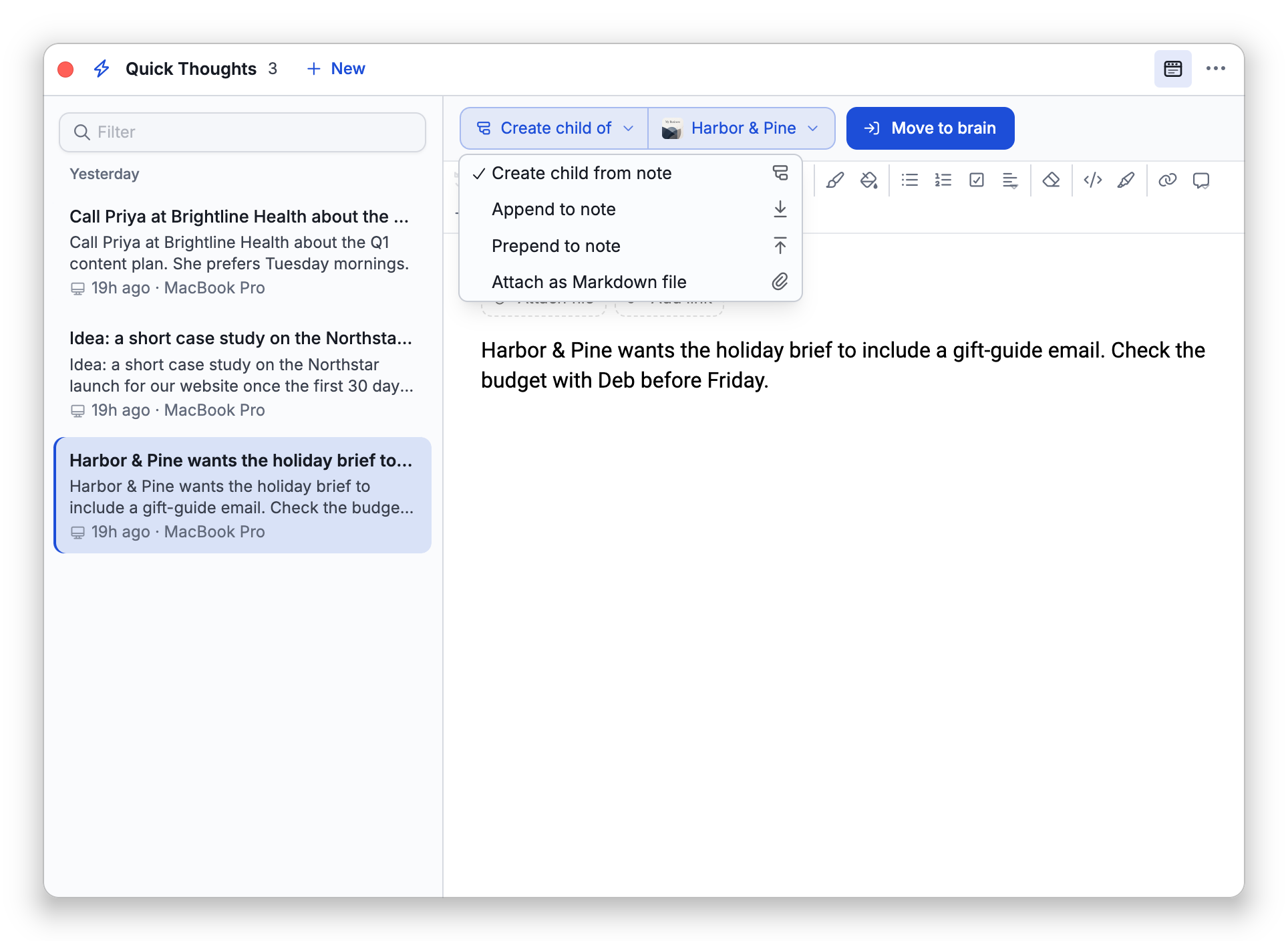
- Select the note in the inbox.
- Click the action chip on the left and pick one of:
- Create child from note — makes a new child thought under the destination thought. The thought is named from the note's first line, and the rest of the note becomes its notes. (The first line is left out of the notes so the name is not repeated.) A one-line note becomes a thought with no notes. The name is the note's title, which stops at 50 characters: a longer first line is cut off there in the name, and the whole line then stays at the top of the notes. A note with no text is named from its first link, or from its first attached file's name when it has no link, or Untitled note when it has neither, as with a note that holds only an image.
- Append to note — adds the whole note to the end of the destination thought's existing notes.
- Prepend to note — adds the whole note to the start of the destination thought's existing notes, above what is already there. Useful for logs kept newest first.
- Attach as Markdown file — saves the whole note as a Markdown file attached to the destination thought, named from the note's title.
The chip then reads Create child of, Append to, Prepend to, or Attach to. Your choice carries from note to note for as long as the panel stays open, which suits working through a batch. It is not kept after that: each time you open the panel, the action starts on Create child from note again.
While Append to note or Prepend to note is picked, the same menu also shows Separate with a line. When it is checked (the default), a horizontal line sets the added note apart from the existing notes; uncheck it to separate them with just a blank line. TheBrain remembers this choice on all your devices, and it applies to the AI's filing as well.
- Click the destination chip. Inside a brain it starts as the active thought (on the desktop app, the active thought of the tab you opened the panel from, when you opened it); click it to search for another thought — in this brain or any of your other brains. Recent thoughts are listed first, each with its brain's icon so you can tell them apart. Opened from the brains list, the chip starts as Choose destination and you pick the target the same way.
A destination you pick applies to the note you are on. When you select another note, start a new one, or finish a move, the chip goes back to where it started (the active thought, or Choose destination). When you search in the picker, the results come only from brains you can edit, so thoughts in brains you can only read, and in public brains, are left out. If the brain you have open is one you cannot edit, the chip starts as Choose destination, and Move to brain stays dimmed until you pick a destination.
- Click Move to brain. On a phone the button is an icon without the label.
After a successful move, a confirmation under the filter box reads Moved: followed by the thought's name, with an Open thought link that takes you to the new child (for Create child) or to the destination thought (for Append, Prepend, and Attach) — even if it lives in another brain. A thought in another brain opens in the tab where that brain is already open, or in a new tab (a new browser tab on the web). The note leaves the inbox. If filing fails, the note stays in the inbox unchanged and the panel says so: Couldn't file the note — it was not deleted.
If the note has links, they are attached to the destination thought — the new child for Create child from note, the destination thought for the other three actions — as web link attachments. A link the thought already has is skipped rather than attached twice. A note with only links and no text, filed with Attach as Markdown file, just adds the links, without an empty Markdown file.
Files go the same way: they become file attachments on the new child, or on the destination thought for the other three actions (beside the Markdown file for Attach as Markdown file), in the order they had on the note. A note with only files, filed with Create child from note, makes a child named after its first file, without the file's extension. A file is never skipped and never replaces anything: if the thought already has a file of that name, the new one is added with a number, such as report (1).pdf.
Moving a note with files takes a moment, because the files are downloaded first. The button reads Moving with how far along it is, and while the files download, a Cancel button beside it stops the move and leaves the note in Quick Thoughts with nothing changed. If a file is still uploading when you click Move to brain, the panel says so and offers Move without it: the note moves now, and the file arrives as a quick thought of its own when it finishes. On the web, a note whose files would take you over your storage is not filed: Not enough storage for this note's files. It was not filed.
Right after a move, Undo in the brain takes the whole move back in one step and puts the quick thought, files and all, back in your inbox. Redo files it again.
Notes are filed in whatever format the destination brain uses for its notes, so they read correctly in both standard-Markdown brains and brains using TheBrain's own note format.
How to Delete a Note
- Select the note.
- Click the ⋯ (More actions) button at the end of the bar — on a phone it floats in the corner of the sheet — and choose Delete note.
- Confirm at the Delete this note? prompt. On desktop, a trash icon also appears when you hover over a row in the list.
On a phone, tablet, or other touch screen you can also swipe a note's row to the left in the inbox list, which reveals a Delete button. Tapping that button deletes the note right away, without the Delete this note? prompt, because the swipe itself is the confirmation. Tap anywhere else in the list to close the button and keep the note.
Deleting a quick thought cannot be undone. If you want to keep the text, file it into a brain instead.
Working Offline
Quick Thoughts lives in TheBrain Cloud, so the panel needs a connection to fetch your notes. What you see depends on what the app already has:
- If the cloud cannot be reached and nothing is cached, the panel shows Can't reach TheBrain Cloud with Your notes are safe. They'll show up as soon as you're back online. and a Retry button.
- If a list was fetched earlier, it is shown with an Offline strip that says when it was last refreshed. Opening a note whose body has not been loaded yet shows Couldn't load this note. Check your connection and try again.
- Edits you make while offline are kept and retried. A note you wrote that has never reached the cloud appears in a Waiting to save group at the top of the inbox with the message Couldn't reach the cloud. Retrying. — click it to keep editing. Changes to an existing note show a Save pending chip on the note until they go through; the panel retries whenever it opens, after every successful refresh, and when you click Retry.
Notes You Started Elsewhere
The capture tools on your desktop and phone use an explicit Send button, so it is possible to type something in one of them and forget to send it. When that happens on the device you are using, the panel shows a strip reading Unsent note in the capture window with an Open link that brings that capture tool back so you can finish and send. See Quick Thoughts Capture Shortcuts for the tools themselves.
Asking Cerebro
Cerebro, TheBrain's AI assistant, can see your Quick Thoughts inbox. You can ask it what is in your quick thoughts, to find the note about a particular subject, or to file a note under a thought in the current brain. Filing through Cerebro is a write action and asks for your confirmation first, subject to your tool permissions (see Cerebro Tools and Permissions). Cerebro cannot delete quick thoughts. It sees the files attached to each note and can find a note by a file's name; filing moves the files along with the note, and if one is still uploading, Cerebro tells you which and asks whether to wait or to file the note without it.
Settings
- Settings > Device > General (desktop app only) — turn on and choose the global capture shortcut, decide whether TheBrain keeps running in the system tray when its windows are closed, and use Get the browser extension to find the extension for your browser. See Quick Thoughts Capture Shortcuts, and Tray Icon, Quitting, and Starting at Login for the tray and startup options.
- Settings > User > Capture Devices (web app) — the browser extensions and apps you have connected for capture, with the option to disconnect any of them.