Spell Checking
 A spell checker is automatically at work for your notes. Possible misspellings are automatically highlighted and you can right-click to view suggestions. Click the suggestion of your choice to replace the misspelled word. You can customize the dictionary by adding words to it.
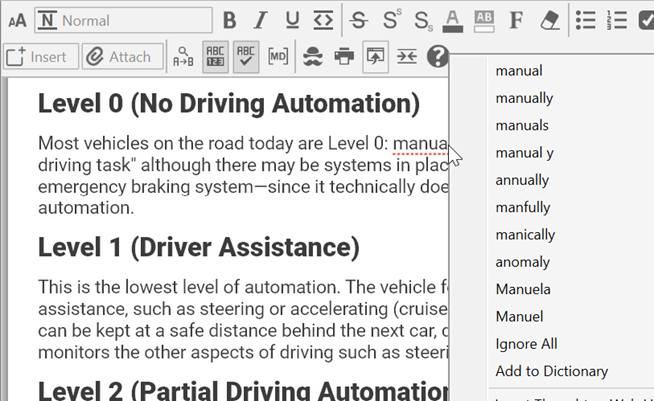
Figure 211. Spell Checker in a Note
If you prefer not to see misspellings flagged as you type:
- Click in the Notes tab, click the More button, then click the Check Spelling as You Type command (or just click the Check Spelling as You Type button if the toolbar is expanded).
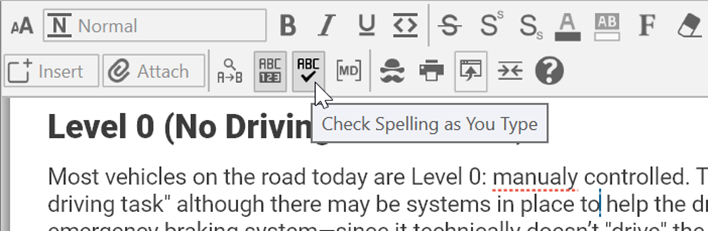
Figure 212. Disabling Spell Checking
 This is a toggle command. When you want to turn the feature on again, follow the same procedure.
Real-time spell-checking also applies to creating and editing thought names.