Creating Web Links
Web links can easily be inserted, edited, and identified within your notes for the active thought. Use any of these three ways:
- Type in the URL, or
- Paste in the URL from the clipboard after you copy it (any selected note text is automatically linked to the URL), or
- Drag the URL in from a browser
The web link will be identified and processed automatically.
Hyperlinked text in notes can be displayed and activated in several different ways. In TheBrain Preferences open the Notes Editor tab. Under User Interface, the option to Show Link Target in Pop-Up can be selected. This will show the full URL of a hyperlink in Notes when clicking on the linked text. Additionally, the option for Clicking Links in Notes can be set to Follows Link (automatically launches URL in default browser) or Moves cursor (places cursor in the text without activating the URL).
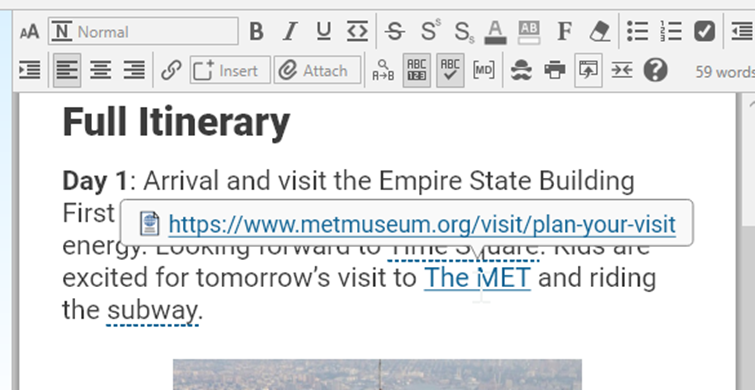
Figure 217. A Target Link Pop-Up on Hyperlinked Text
 Videos from YouTube are embedded into notes in a playable form automatically. Just drag and drop from your browser into your notes.
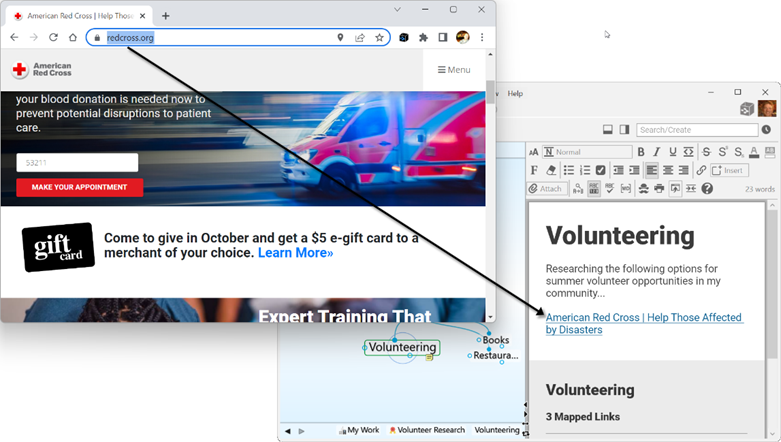
Figure 218. Dragging a Web Link into a Note
- The URL will be replaced with the title of the page it links to—and you can easily edit the title by clicking within it and using standard typing and deleting techniques. If you delete the brackets around the link text, the connection to the URL will be broken—just use the Undo command on the Edit menu or press Ctrl+Z if you delete a bracket by accident.

Figure 219. Revising Link Text in a Note
 Copying an image pasted in a note will put the image on the clipboard.