Attaching Web Pages
 Adding URL attachments to your brain is a simple process. TheBrain’s built-in browser will display each web page in the content area.
The easiest method for linking a web page into your brain is to simply drag and drop it into your brain. Click on the URL icon in the address bar of any browser and drag into one of several different locations to add the web page as an attachment:
- Drag and drop to the plex to create new thoughts. The thought name will be the URL of the web page or what is contained in the <title> tag of the URL, which you can easily rename as you would any other thought. A link to the page will appear under the thought name in the content area and clicking that link will open the page in TheBrain’s built-in browser. Online non-HTML content, such as online .PDF files will be renamed with the file name.
- Drag and drop onto existing thoughts in the content area. This will simply add the web page as an additional attachment link. The thought name will not be updated.
- Drag and drop into the body of an existing note for a hyperlink.
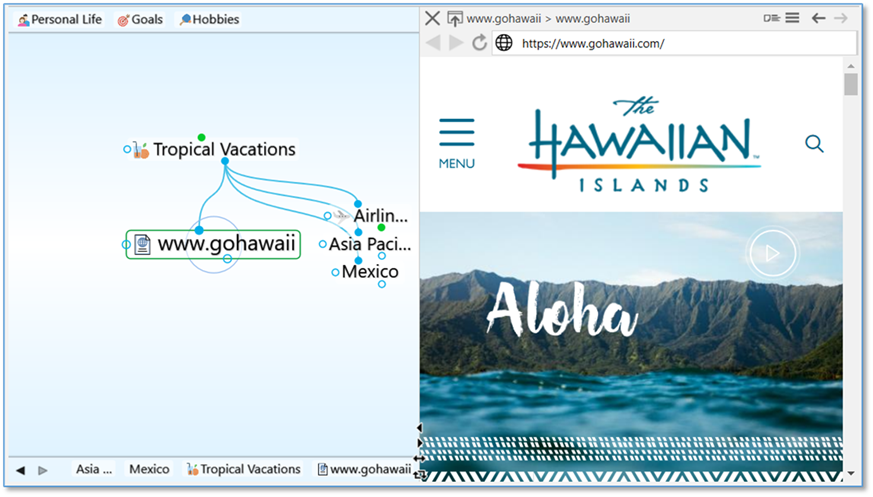
Figure 228. TheBrain’s Built-In Web Browser
Adding a Web Page by Typing or Pasting its URL
You can also add a web page attachment to the active thought by clicking the Attach button in the content area.
§
Click Link to URL, paste or type the URL address into the empty field, then press the Enter key.
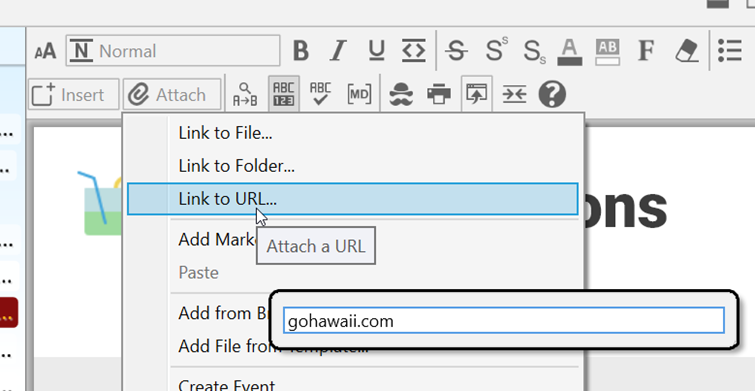
Figure 229. Adding a Web Page Attachment using the Attach Button
If the URL you are attaching to your thought already exists as an attachment on another thought, you’ll have the option to cancel, add, navigate to the Attachment or replace the attachment.
The name of the duplicate URL will be displayed in the warning message.
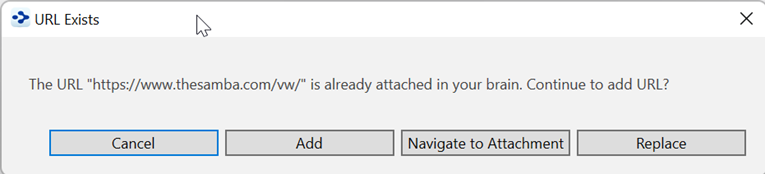
Figure 230. URL Exists
 TheBrain’s built in browser allows you to open archived web pages for attached URLs. In the context menu for any URL attachment, select Open Using Wayback Machine.