Opening a Brain
When you log into TheBrain 13, and no brain is open, all local, synced or online brains will be displayed as thumbnails in the Brains tab, as shown below. This is assuming that you have already created one or more brains. Clicking on a brain thumbnail opens that brain. Or, hold down the Ctrl key as you click to open a brain in a new tab, leaving the Brains tab open.
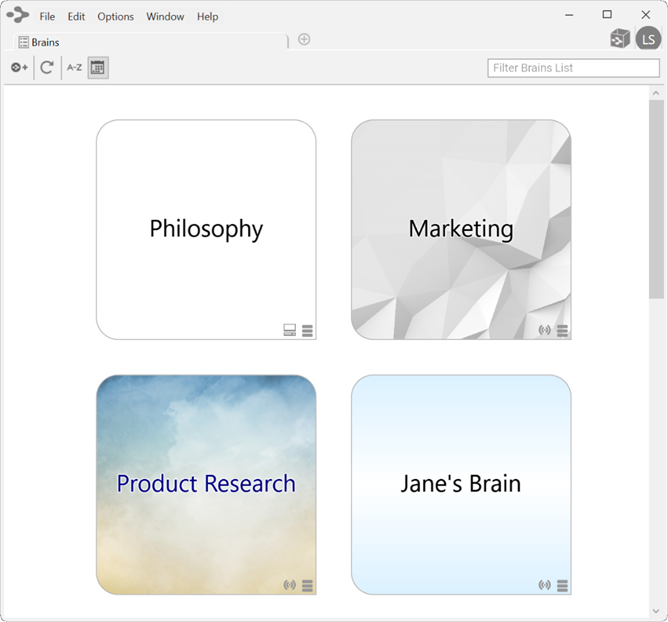
Figure 20. Example of Four Available Brains on the Brains Tab
By default, brains are listed according to how recently they have been accessed. You can also see the list of brains sorted alphabetically using the Brains tab toolbar, shown below. All brains that are locally available are shown first, followed by brains that are available online.
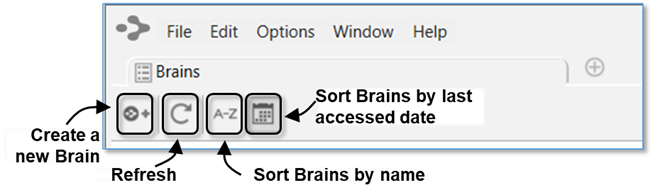
Figure 21. The Brains Tab Toolbar
The status of whether each brain is available locally, online, or both is also displayed. Each brain in the Brains tab will have an icon appearing in the lower-right corner of the thumbnail. Right-click on a brain or click on the status icon to display a menu of options for that brain, as shown below. The appearance of the icon(s) help you identify whether the brain is Local, Synced (local and online) or Cloud (Online only).

Figure 22. Icons Indicating Local, Synced, or Cloud

Figure 23. Status Indicator Icons