Two-Factor Authentication
Overview
Two-factor authentication (2FA) adds a second step to signing in: after your password, you enter a one-time code from an authenticator app on your phone. This protects your account even if your password is exposed.
Enabling 2FA
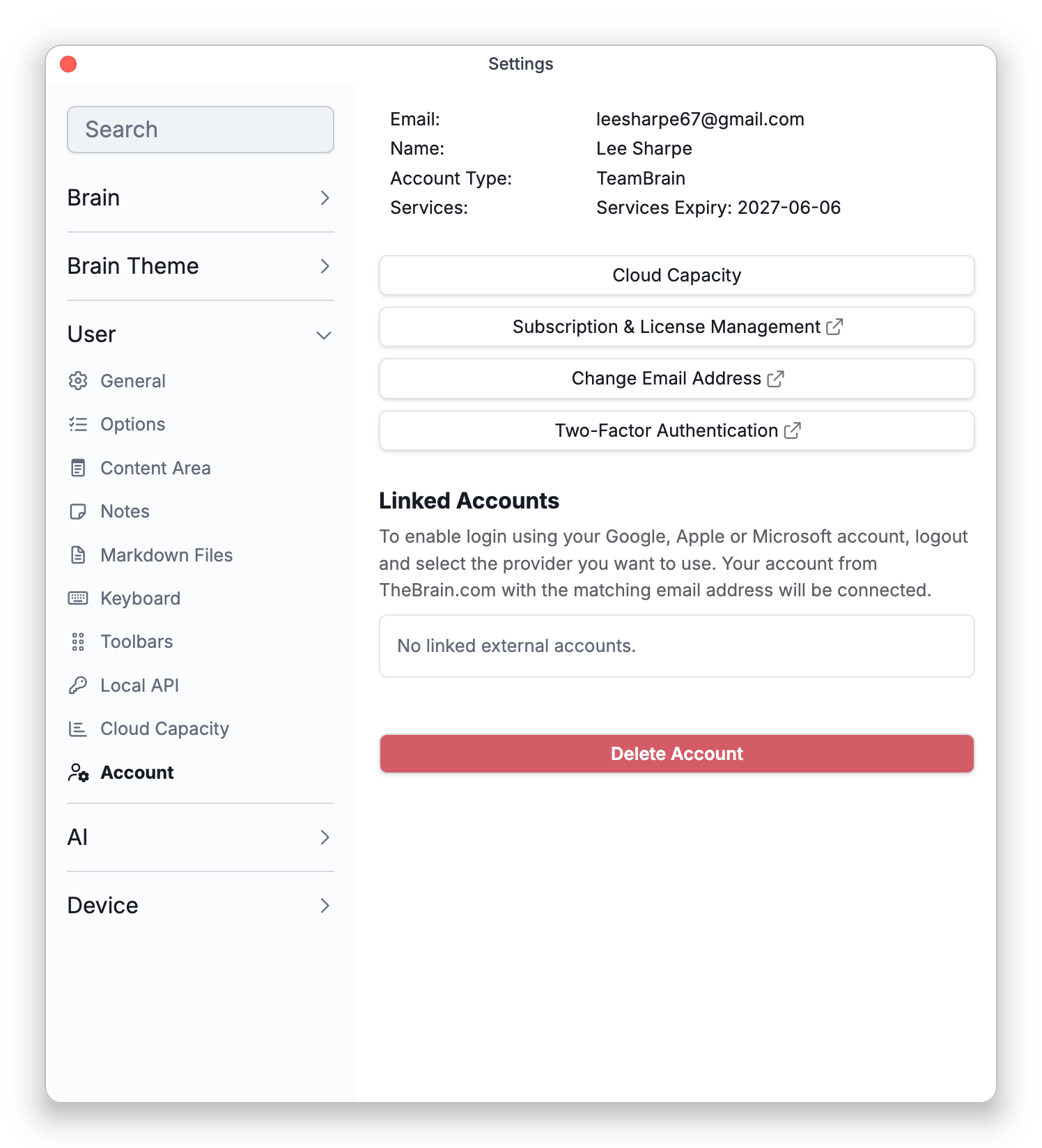
Open Settings > User > Account and choose Two-Factor Authentication. (On the web, you'll first confirm your password; on the desktop and mobile apps this opens in your browser.) To turn it on, choose Enable Two-Factor Authentication, then:
- Scan the QR code with an authenticator app (such as Google Authenticator), or enter the secret key manually.
- Enter the 6-digit code from the app to Verify and Save.
Once enabled, you'll be asked for a code each time you sign in (see Signing In).
Saving Your Secret Key
When 2FA is configured, TheBrain shows a secret key to save somewhere safe. It can be used to recover your 2FA if you lose access to your authenticator app — and there's no way to view it again once you close the dialog, so save it then. Losing both your authenticator app and the key can mean permanently losing access to your account and brains.
Moving 2FA to a New Phone
To move two-factor authentication to another phone or authenticator app, set a new secret key while you are signed in:
- Open Settings > User > Account and choose Two-Factor Authentication.
- With 2FA already on, the dialog offers Set New Secret Key as well as Disable Two-Factor Authentication. Choose Set New Secret Key.
- TheBrain shows a new QR code. Scan it with the authenticator app on the new phone, or choose Show to reveal the new secret key and enter that manually.
- Enter the 6-digit code from the new phone and choose Verify and Save.
- Save the new secret key when it is shown.
The new key replaces the old one. You have to be signed in to get to this dialog, so if you no longer have the old phone, first add your saved secret key to an authenticator app on the new phone so that it can generate your login codes.
If It Asks for a Password You Don't Have
Before the Two-Factor Authentication dialog opens, TheBrain asks for your TheBrain password. An account created by signing in with Google, Apple, or Microsoft has no password yet, so first set one with Reset Password on the login screen (see Signing In), then come back.
Disabling 2FA
From the same screen, choose to disable two-factor authentication (TheBrain confirms first).
- An internet connection is required to sign in with 2FA.
- TheBrain sends you an email whenever two-factor authentication is enabled, changed to a new secret key, or disabled.
- The dialog warns that login from legacy client apps does not work while 2FA is enabled, so update TheBrain to the latest version on all your devices before turning it on.