Turn OFF AI features in TheBrain
Turn Off AI in TheBrain v. 15
Within the hamburger menu on the top left of the toolbar, select Settings.
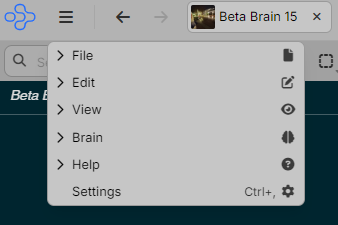
- Then search for AI.
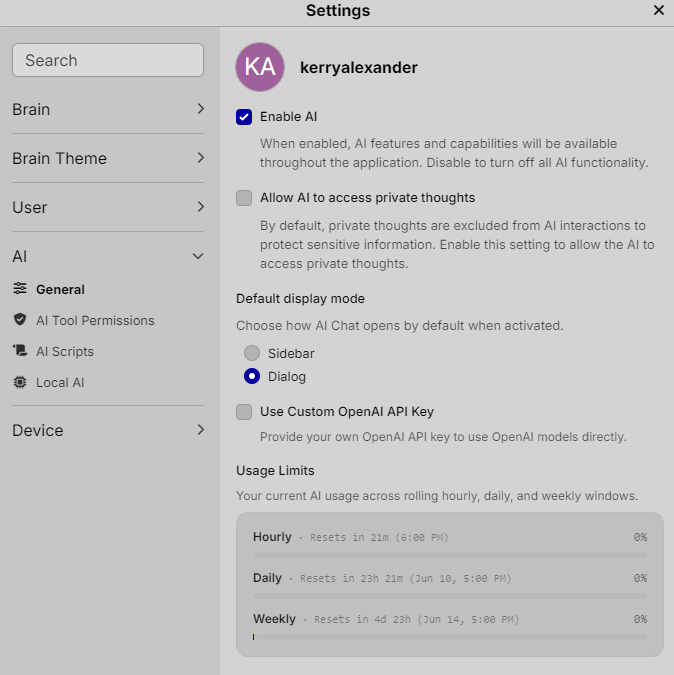
- Under
AI General, make sure the first 2 boxes are unchecked if you want to Turn OFF AI.
Now a different topic:
Use Custom OpenAI API Key

Concept: “Use Custom OpenAI API Key”
In general, a Custom OpenAI API Key setting means:
- The application can work with OpenAI’s models.
- Instead of the app using its own built‑in API access, it allows you to enter your own OpenAI API key.
- All model usage (chat, completion, embeddings, etc.) is then:
- Governed by OpenAI’s policies under your account.
- Billed to your OpenAI account.
- Potentially configurable (e.g., which models you’re allowed to use).
Typical implications:
| Billing | Tokens/requests are billed to your own OpenAI account. |
| Limits | You’re subject to your own rate limits and quotas in OpenAI. |
| Privacy | The app passes data to OpenAI’s API using your key; data handling is then governed by OpenAI’s policies. |
| Control | You can rotate/revoke the key in your OpenAI dashboard at any time. |
Security best‑practices around a custom OpenAI key:
- Treat the key like a password—never paste it into public notes.
- If you store it in your brain at all, store it only in encrypted or heavily restricted locations (or better yet, don’t store it there; just store instructions).
- Periodically rotate (regenerate) the key in the OpenAI dashboard and update any tools that use it.
Turn Off AI in TheBrain 14
Click on Options > Preferences (TheBrain > Preferences on macOS) and click on the Experimental tab.
Place a check in the box next to `Use custom OpenAI API Key. Simply enter an invalid key such as `ABCDEFG`.
The AI buttons in the desktop app will still look like they are going to work, but will result in a warning message that just says `Invalid API Key`.