More markdown typing shortcuts in notes
According to the current TheBrain documentation, these Markdown shortcuts format text as you type:
| Type this at the start of a line | Result |
|---|---|
#–###### + Space | Heading 1–6 |
* + Space | Bulleted list |
1. + Space | Numbered list |
- + Space | Unchecked checkbox |
+ + Space | Checked checkbox |
>–>>>>>> + Space | Blockquote, with increasing depth |
[ ] + Space | Unchecked GitHub-style checkbox |
[x] + Space | Checked GitHub-style checkbox |
` | Code block |
Inline Markdown also converts live:
**bold***italic*~~strikethrough~~==highlight==$$…$$for math
A line containing --- creates a horizontal rule. Markdown characters can be escaped with a backslash, such as \*.
To display a literal backslash, escape it with another backslash:
\\The first backslash escapes the second, so the rendered result is:
\For example, to display \* literally—including both characters—you would type:
\\\*That escapes the backslash and the asterisk separately.
I want to use "Find and Replace" to undo the escape
turn on Use regular expression and search for:
\\
In a regular expression, the first backslash escapes the second, so \ \ matches one literal .
To replace an escaped Markdown character such as \*, search for:
\\\*
This matches the literal sequence \*:
\\ → literal backslash
\* → literal asterisk
For ordinary literal searching with regular expressions off, enter the actual backslash directly:
\
In Find and Replace, the option is called Use regular expression:
- Open Find and Replace with Ctrl+F (Cmd+F on Mac).
- Enable Use regular expression to search using regex patterns.
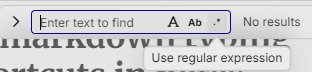
- Disable it to search for literal text.
For a literal backslash:
- Regex off: search for
\ - Regex on: search for
\\
The in-note search applies only to the current note. The same option is available in the brain-wide Find and Replace dialog.
In Find and Replace how do I search for the end of a line? So I can replace with a pipe to create a table row.
Use a regular expression:
$$ matches the end of each line.
To append a pipe to every line:
- Open Find and Replace.
- Enable Use regular expression.
- Find:
$- Replace with:
\|- Preview first, then choose Replace.
The official documentation confirms regular-expression searching and preview-before-replace, but does not specifically document $; this is the standard regex end-of-line anchor.
The documentation does not identify which of these were specifically added after v. 15.0.561; it only describes the currently supported shortcuts.