Settings User, Content Area, Layout
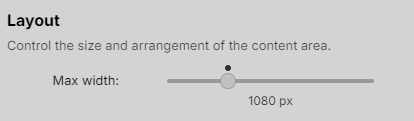
The “Content Area → Layout → Max width” setting only changes how wide the entire notes/content pane can be. It does not directly change table text size, and it does not remove the need to stay within a practical table width.
Let me break down the behavior in terms of what we can be confident about from typical rendering logic and your symptoms:
1. What the “Max width” slider actually does
- It sets a maximum pixel width for the content area (where your notes and tables display).
- Example: if it’s set to
1080 px, the notes pane will not grow wider than 1080 pixels, even if your monitor/window is much wider. - This affects:
- How many columns of a wide table can be visible at once.
- Where line-wrap happens for normal text paragraphs.
It does not:
- Change font size.
- Change the internal layout of the table itself (number of columns, column order, etc.).
2. How it relates to text size in a table
- The font size of table text is generally independent of the content-area max width.
- When you adjust Max width:
- Text does not get smaller or larger just from this change.
- What changes is how many characters/columns fit horizontally before you hit the edge of the content area.
So, in your situation: changing Max width from 1080 px to something else will not “fix” small or large text; it just gives more or less horizontal space for that text.
3. What happens if the table is wider than the content area?
This is the key part for your table issue:
- If the table’s total width > content area max width, then one of two things must happen:
- The table is clipped or compressed in some way (columns squeezed, wrapped, or layout distorted), or
- A horizontal scrollbar appears, letting you pan left/right inside the notes pane.
From your earlier table-width problems (where columns felt too constrained / forced to wrap badly), it sounds like your environment is not automatically giving you a nice, independent horizontal scroll just for the table content. Instead, the table is being forced to “fit” the content-area width, causing layout issues.
Because I don’t have direct confirmation from your UI context that there is a horizontal scrollbar specifically for too-wide tables inside notes, I cannot say “yes, it will definitely show a horizontal scroll for oversized tables.” What your earlier experience suggests is:
- You are effectively still bound by a hard, usable width limit: the content area’s max width.
- Tables larger than that are being squeezed rather than simply scrolled.
4. Will changing “Max width” solve the table width limits we ran into?
Partially at best; it doesn’t fundamentally change the constraint:
- If you increase Max width (e.g., from 1080 px to 1400–1600 px):
- You get more horizontal room.
- Your table can be a bit wider before it starts hitting the limit.
- This may reduce wrapping or make some columns look better.
- But:
- There will still be a ceiling: whatever you set as max width.
- Very wide tables (many columns, or wide text in cells) will still run into that ceiling.
- If no reliable horizontal scroll appears for the table itself, the underlying issue remains: the table must still be designed to fit reasonably within the max width.
So in terms of your question:
Would this solve our table width limits we have now?
- No, it doesn’t truly “solve” them.
- It can relax the limit by allowing a larger maximum note width, but you still have a fixed maximum, and the table must be designed with that maximum in mind.
5. Practical recommendation for your use case
Given how your tables have behaved up to now:
- Keep Max width at a value that matches your monitor and comfort
- If you have a large display and like wide tables, try increasing beyond 1080 px (e.g., 1300–1500 px) and see if that visually helps.
- But stay at a width that’s still comfortable for reading normal notes; too wide can hurt readability.
- Design tables for that target width:
- Limit the number of columns.
- Shorten column labels and cell text where possible.
- Use multiple, narrower tables instead of one mega-table.
- Consider splitting content into subtables or separate thoughts if needed.
- Empirical check on your side (important):
- After you set Max width higher, create a “test” table that is clearly wider than that limit (e.g., 10–12 narrow columns).
- Scroll horizontally in the notes pane:
- If you see a horizontal scrollbar for the content area or for that table, then you can rely on horizontal scrolling as a partial workaround.
- If you do not get a scrollbar and columns are just getting compressed/wrapped, then you know that you must design the table to fit strictly within the max width.
If you’d like, tell me:
- Your current Max width value that feels comfortable for reading, and
- An example of your typical table (how many columns / approximate content)
I can then suggest a concrete column-count/layout strategy that should reliably stay within your content-area width so you’re not fighting with the layout anymore.