Three more Thought Tips, Article
Three more Thought Tips
Using our tools faster and with more personalization can assist us in using our tools more often and receiving more value from them. In this article, I cover three more tips associated with Thoughts to help you use TheBrain software with improved efficiency.
The comma (,)
The use of the comma while creating new Thoughts can be rather powerful. If you leverage my Note-taking for Meetings in TheBrain media, this tip can save precious seconds when starting a meeting.
Below each company I have a meeting with, I like to store the Alumni and Meeting notes. So if I were adding a meeting note about Amazon, I would have to add Amazon as a retailer then below the Amazon thought, I would add a new thought and type:
Amazon, Alumni; Amazon, Meetings
The comma (,) allows TheBrain software to hide Amazon in the plex when viewed, but when I search for something like Alumni, I can quickly see which company a given Alumni Thought is referring to.
The semicolon (;) allows me to add multiple Thoughts simultaneously.
But what I learned is I don’t have to add the company. Instead, I can just use the comma by just typing:
, Alumni; , Meetings
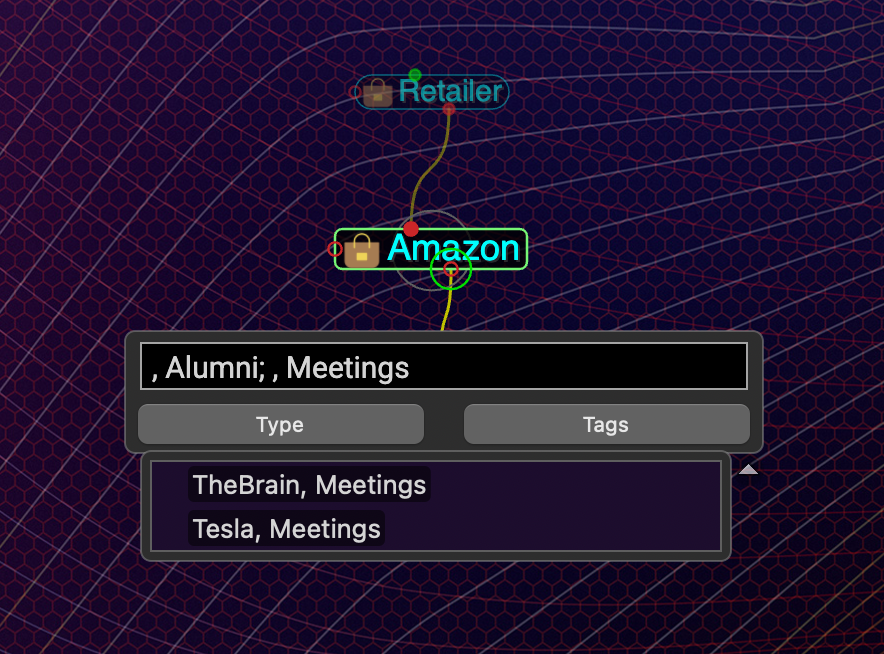
This gives me the same results but with much fewer keystrokes. As my typing degrades under pressure, this makes life much easier for me.
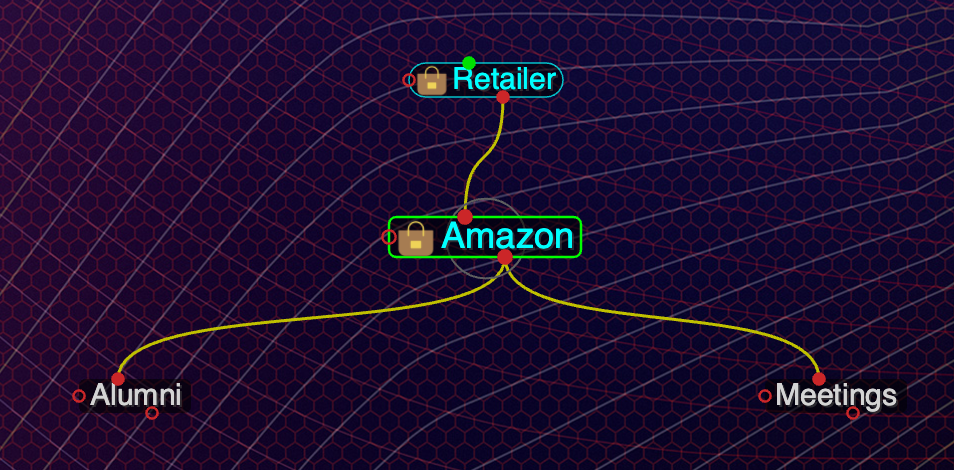
Dynamic Wallpaper
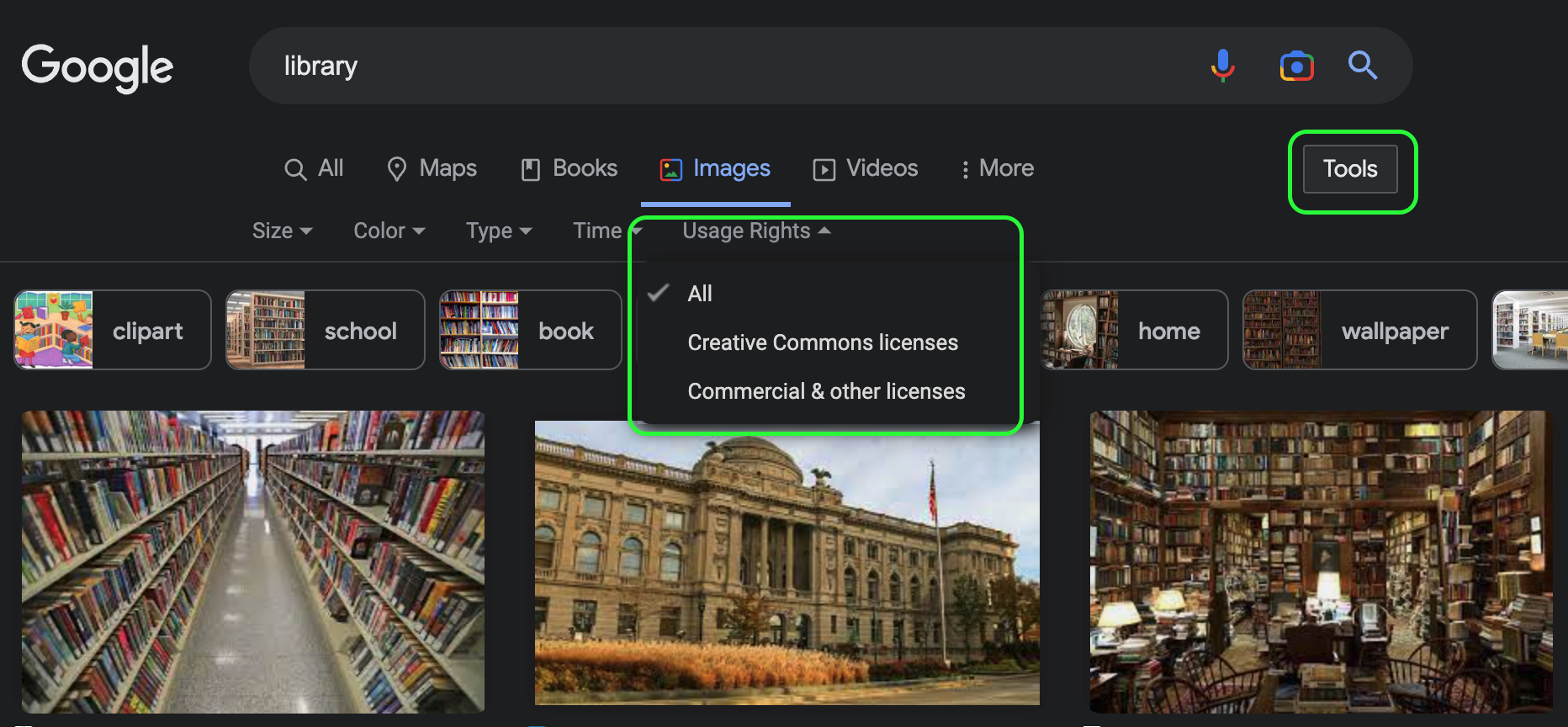
I touched on Thought Type Tips in prior media, but there is always more to discuss. In this case, I use a feature new to TheBrain v13 — Dynamic Wallpaper. To do this, I start with a search engine. I start with Google, which allows me to narrow my search to images using the Creative Commons license.
Let’s follow the path for me to add an image to my “Knowledge Acquisition” thought types. When I think of knowledge acquisition, I think of a library. I was lucky enough to have a good library at my school and the ability to frequently go to the public library during the summer to continue to add to my knowledge. So naturally, I think of libraries when I think of knowledge acquisition.
I start by searching Google for “library.” I then switch over to images. Just below the search field, there is a “Tools” option. Clicking this allows you to filter further by Size, Color, Type, Time, and (most importantly) Usage Rights. I select “Creative Commons licenses” to find an image to use.
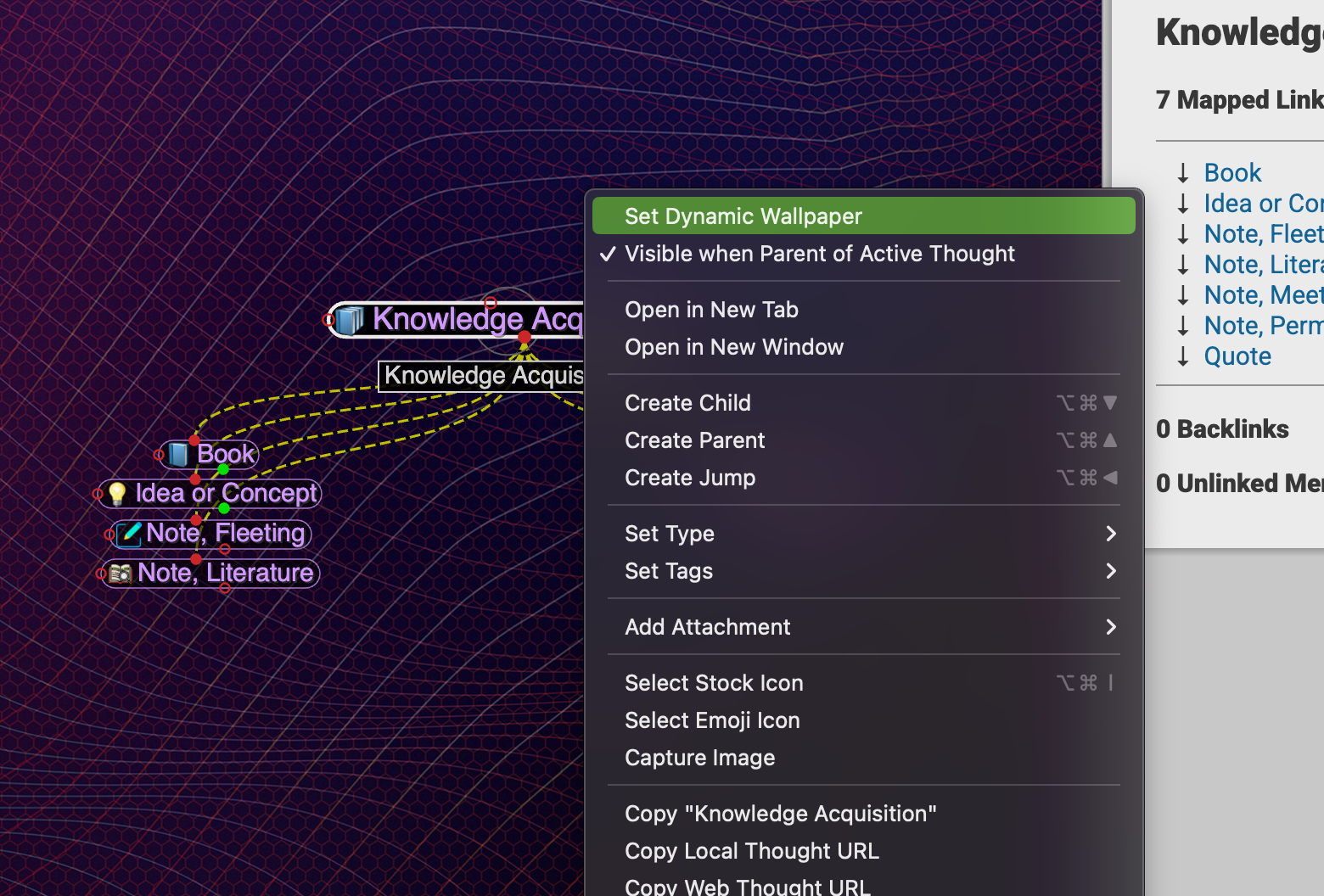
Once you have downloaded the image you want to use, you can go back to TheBrain software and right-click on the Thought Type you wish to add a dynamic wallpaper to. This will be the first option in the right-click menu. Navigate to where you have the image you want to use and select it.
Now when you go to a Thought with that thought type, the background of the plex will change to the dynamic wallpaper. This is just one more signal of what kind of data you are capturing.
Custom Icons
The prior Thought Type Tips included a recommendation to set custom icons for thought types but did not dive into where to find suitable icons or how to apply them. Let me correct that.
The most important thing to remember is that an “icon” in TheBrain does not have to be a small image that one might think of as an icon. It can be a full-size picture — like the cover image for Book Thoughts. This means we can use the image search technique described in the Dynamic Wallpaper section above, use existing images of any size, or use paid image sources.
I use Flaticon.com. I have used the site to make my presentations look better for years by finding the correct small image to help guide my audience to the mental connections I prefer. But I also use it to make my Thought Types show exactly the icon I want to help me make similar mental connections.
There are other sites where you can search for icons and images, I am just comfortable with this one, so I will talk about how I use Flaticon.
For example, let’s say I wanted a new icon for the “Note, Fleeting” Thought Type. I think about what this means to me. The first thing I came up with is that we write temporary notes in pencil. Let’s look at what Flaticon has for “pencil.” As I use a dark theme, I always look for icons with color, so I select just the Color style.
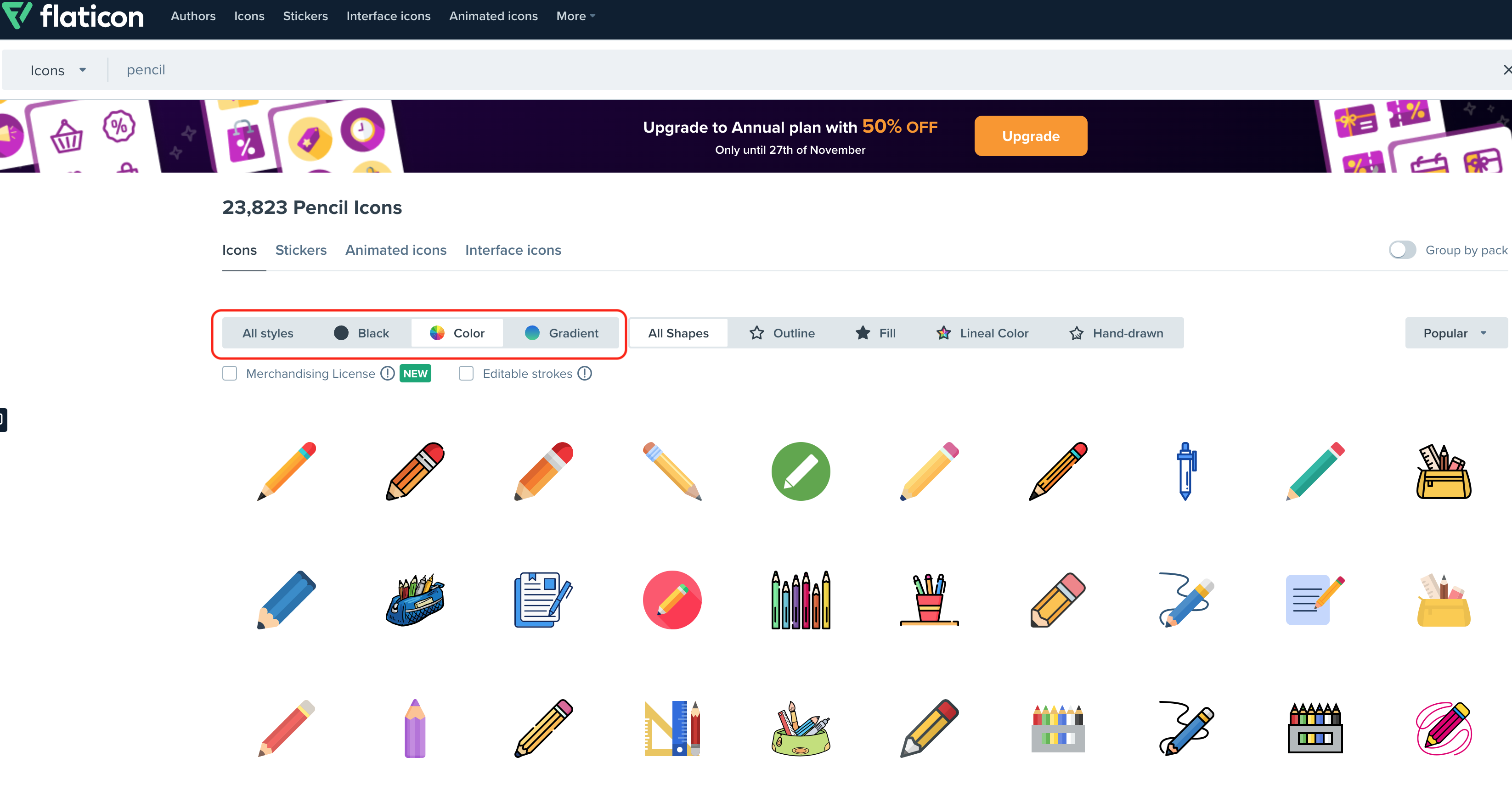
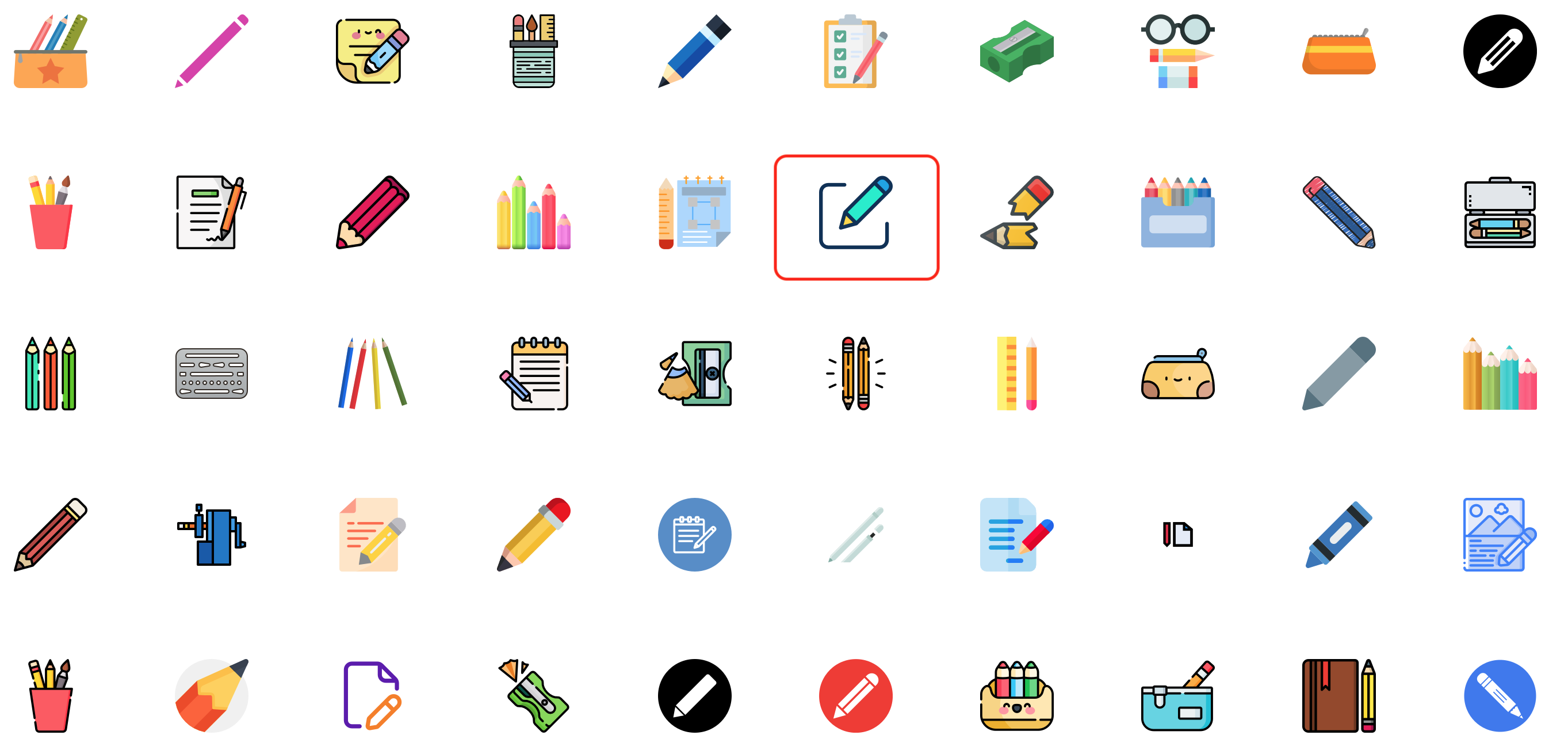
After scrolling down a bit, I find an icon that catches my interest, but I want to see if there are color variations. So I click on it.
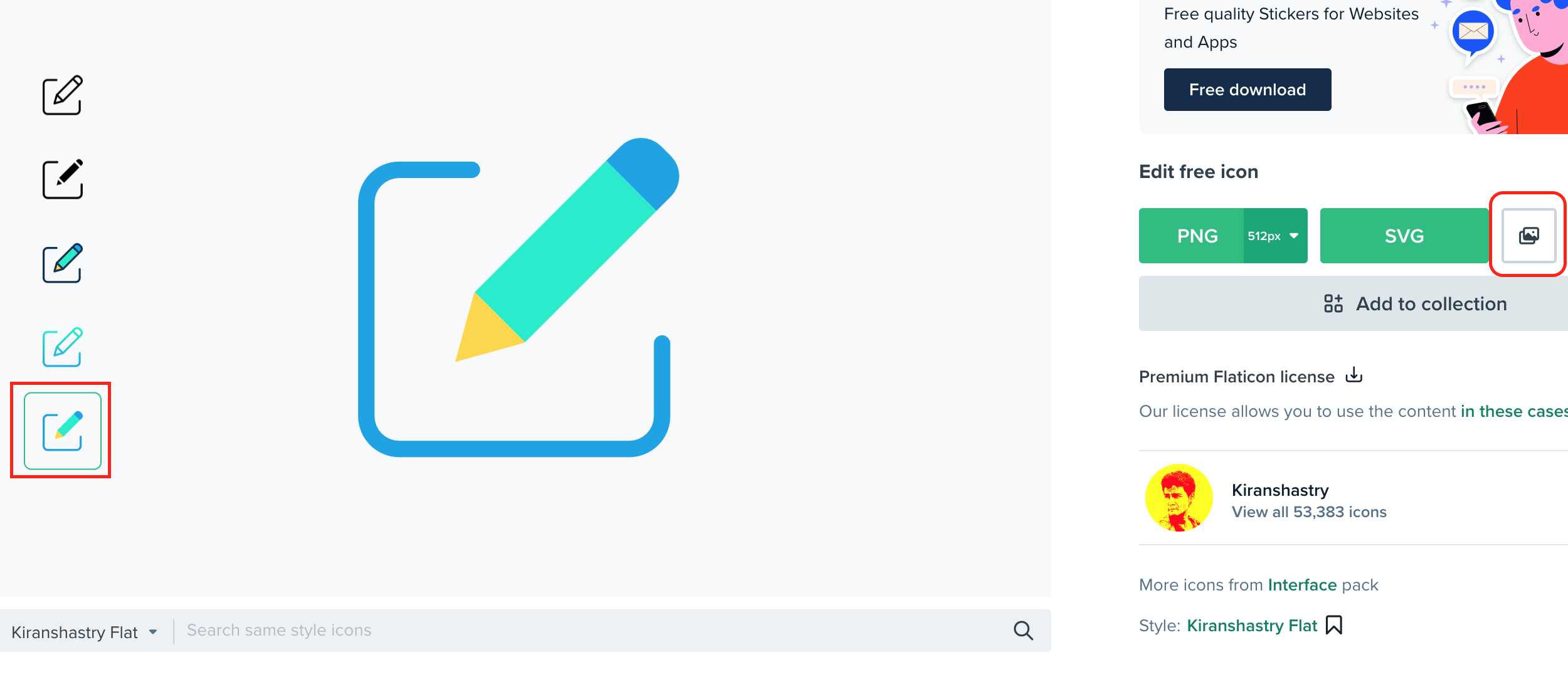
In this case, there are five variations of this icon. I select the variation I like best on the left-hand side and then copy the image to the clipboard on the right-hand side of the screen.
With the image in question loaded into our clipboard, we go back to TheBrain and navigate to the Thought, or Thought Type, we want to attach it to. By right-clicking, we can select “Paste Icon” to attach the icon or image we have in the clipboard.
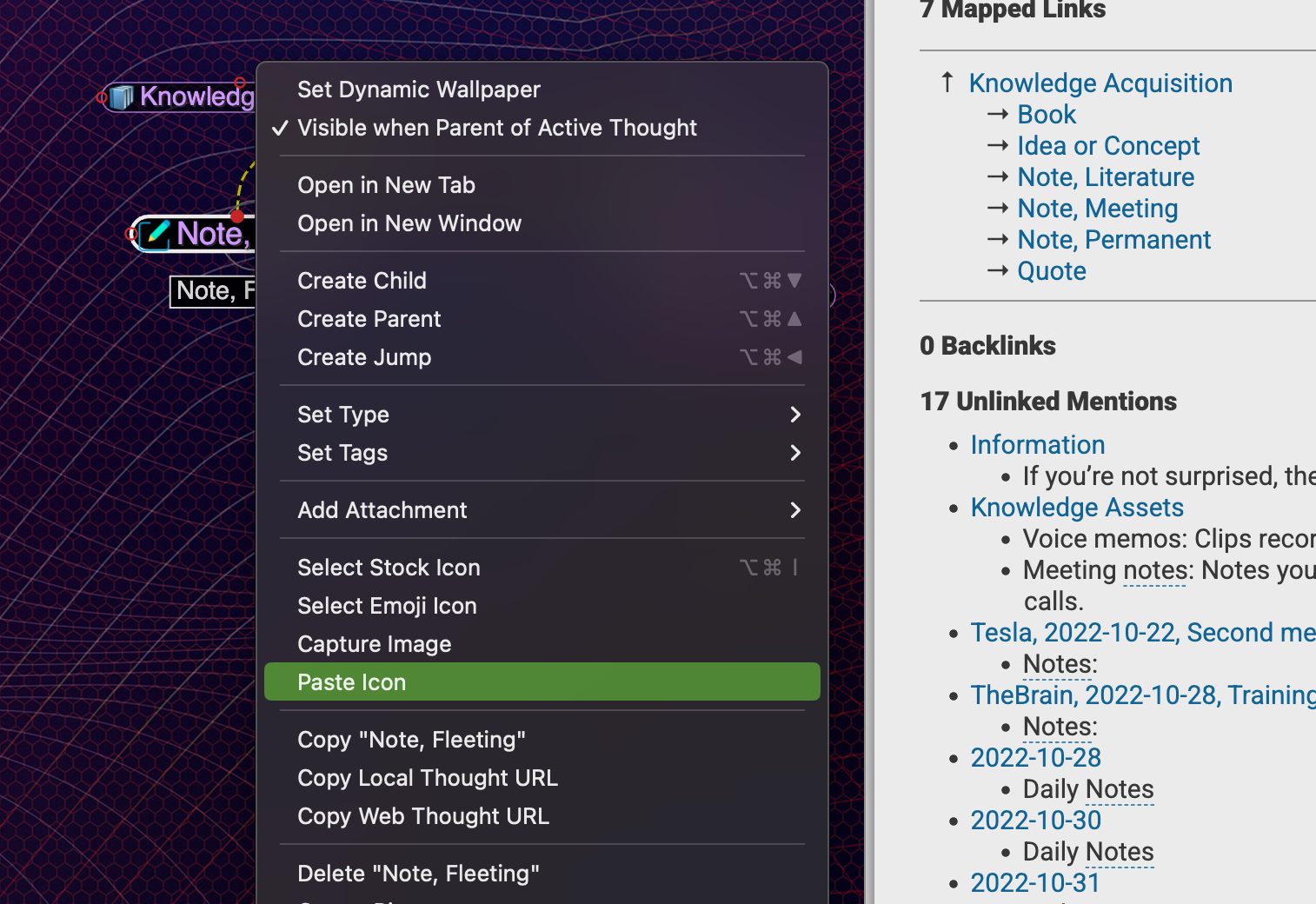
With that, you have added a bit more personalization, and hopefully faster information orientation to your PKM.
Resources:
YouTube companion: https://youtu.be/YyTEchk-fYg
The Training Brain that I use can be found at: https://app.thebrain.com/brains/bbe70a2d-fe50-4a7a-b2dd-ee6fe08120d6/thoughts/2d2f9420-bbe2-4ffd-9607-a3349c124ebe/notes
You can discuss TheBrain and other productivity software on my Discord: https://discord.gg/nEBWkG49