Today’s Next Person
Installing the tailwind.config.js file
The Tailwind configuration file file gets installed into the root folder of your project. You can run the following command from your terminal to install the file, as explained in the Tailwindcss documentation.
npx tailwindcss initThis auto-generated file contains minimal scaffolding that you can flesh out with details, including color themes, for your project. Its contents look like this:
/** @type {import('tailwindcss').Config} */
export default {
  content: [],
  theme: {
    extend: {},
  },
  plugins: [],
}
Note: You can also install a Typescript version of the file by using:
npx tailwindcss init --tsHowever, this project does not do that.
Defining New Color Names
This is for Tailwind version 3.1 and up. (Defining Themes is covered last in this page. Scroll down for that.) This section covers general information at first, hen gets into the step-by-step process of adding custom theme colors to your project.
module.exports = {
  theme: {
    colors: {
      esther: 'rgb(var(--color-esther) / <alpha-value>)',
      maximus: 'rgb(var(--color-maximus) / <alpha-value>)',
      linx: 'rgb(var(--color-linx) / <alpha-value>)',
    },
  },
}
The above code shows you how to create custom colors by name in the tailwind.config.js file. In this example from Stackoverflow.com, it’s creating three custom colors. The CSS vars that are used to define the actual color shades are in the styles.css file.
NOTE: The above example OVERWRITES the Tailwind defaults. You can use extend to add to the defaults, like this example from the Internet:
module.exports = {
    theme: {
        extend: {
          colors: {
            green: '#59981A',
	        'green-yellow': '#ECF87F',
	        'green-lime': '#81B622',
	        'green-olive': '#3D550C',
      },
        },
    },
}
The above, I believe, overrides green and adds the other three color names, with their definitions. You can improve this example by using the CSS variables as with the previous example.
That same web page also shows a nice way to organize the colors into pallets in this way:
module.exports = {
    theme: {
        extend: {
           colors: {
              green: {
	            default: '#59981A',
	            yellow: '#ECF87F',
	            lime: '#81B622',
	            olive: '#3D550C',
	      },
        },
    },
}
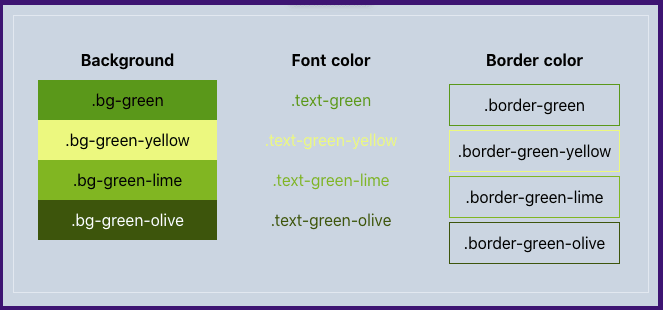
All the added color palettes are available under generated classes with the following syntax:
${prefix-for-css-property}-${color-key}-${modifier}Example: bg-green-yellow
You can still refer to Tailwind classes in the usual way to invoke the custom colors, like this:
Defining Palettes
The tailwind.config.js file can leverage customizations to the tailwind.css file. Tailwind.css (in the assets/css folder) can import a custom css file where the actual css color variables are defined. This custom css file can contain all the standard palettes for a website or application. (You can also just define them in the tailwind.css file.)
For example, from the web page above, the following custom css file could contain the palette colors.
/* ~/assets/css/palettes.css */
:root {
  --green-default: #59981A;
  --green-yellow: #ECF87F;
  --green-lime: #81B622;
  --green-olive: #3D550C;
}
Then, the tailwind.css file can import that to get the values defined in it.
/* ~/assets/css/tailwind.css */
@import './palettes.css'; /* Our custom palettes */

@import 'tailwindcss/base';
@import 'tailwindcss/components';
@import 'tailwindcss/utilities';
Then, inside the tailwind.config.js file, the colors can be defined as below:
/* ~/tailwind.config.js */
module.exports = {
  theme: {
    extend: {
      colors: {
        green: {
          default: 'var(--green-default)',
          yellow: 'var(--green-yellow)',
          lime: 'var(--green-lime)',
          olive: 'var(--green-olive)',
        },
      },
    },
    },
}
See also the Palette Generator for Tailwind. This tool can make it easy to create palettes and to include them in Tailwind projects.
IMPORTANT! According to this web page, “Tailwind encourages you to define all variables in the config, and personally I agree that it’s a better approach. It means that the config file can be a single source of truth rather than (potentially) ending up with multiple places to define your colors and other theme values.”
This method enables the creation of various palettes, such as a green, blue, red, and gray palettes. But what about color themes?
Defining Themes
The approach shown here uses the data attribute approach to make it a slight bit easier to switch color modes.
Step 1: Define the site’s theme needs
For the Launchpad site, if it “takes off”, there will be a need for a different theme for each subsite. Each subsite represents a category of educational material. For the Launchpad, these might be:
- NinjaScript Programming
- Web Application Development
- Trading
- Theory of Constraints
In addition to these, if the Launchpad is opened up to other educators, each educational content owner could be assigned their own set of themes.
Each subsite will have three themes, one each to support light, dark, and sepia color modes. So, with the four defined subsites, there will be a need for 12 themes.
Step 2: Define the full set of color names (the palette structure of context colors) for a theme
These color names are not found in the Tailwind base of colors. There is an example in this web page that touches on this concept. It’s shown in the code below. Notice, though, that this uses classes and the Launchpad will use data attributes, so instead of “.dark {...”, it would say, for a div if that is the expected container, “div[data-color-theme='[topicname]-dark'] {....” (where [topicname] might be ninjascript or other subsite topic name).
The :root CSS pseudo-class matches the root element of a tree representing the document. In HTML, :root represents the <html> element and is identical to the selector html, except that its specificity is higher.
@layer base {
  :root {
    --bg-primary: 255, 255, 255;
    --bg-secondary: 245, 246, 247;
    --bg-tertiary: 238, 238, 238;

    --text-primary: 0, 0, 0;
    --text-secondary: 56, 63, 74;
    --text-tertiary: 255, 255, 255;
  }

  .dark {
    /*
    * update all colors:
    * --bg-primary: ...
    */
  }

  .coffee {
    /*
    * update all colors:
    * --bg-primary: ...
    */
  }
}
To come up with the necessary color names to be defined, you’ll need to know at least the basics of how your web pages will be structured, what standard elements will need colors defined for them, and what Tailwind comes with out of the box.
Here’s an example from OnJSDev that shows a few “standard”, or “Context” color types that make up a theme. From the Context reference, note the following quote:
“The hard part is a: determining your context color philosophy, and b: permeating these colors throughout your markup ”
module.exports = {
  theme: {
    extend: {
      colors: {
        primary: '#3490dc',
        secondary: '#6574cd',
        accent: '#ff9900',
        dark: '#333333',
        light: '#f4f4f4',
        // You can add more colors as needed
      },
    },
  },
  // ...
}
When developing the website, you may discover new context colors that need to be defined. Be careful to try and not depend on specific colors (red, blue, etc.) if possible. Instead, try to classify the nature of the color in comparison to other colors in the pallet and either use a color from the pallet or define a new standard pallet color name.
For example, let’s say that you decide that a new standard element type is needed for your subsites, and none of the standard color types fits the bill. This web page uses a “Call To Action” (CTA) component as an example. (That web page is a good one to review.)
In that example, it defines a cta class, as well as cta__heading and cta__button.
See this page for some insights into “Color Systems”. Below are some quotes from it, taken , in turn, from “Material”.
Primary Color:
A primary color is the color displayed most frequently across your app’s screens and components. It can also be used to accent elements, if you don’t have a secondary color.
To create contrast between elements, you can use lighter or darker tones of your primary color. The contrast between lighter and darker tones helps show division between surfaces, such as between the status bar and a toolbar.
Secondary Color:
A secondary color is used to accent select parts of your UI. It can be complementary or analogous to your primary color, but it should not simply be a light or dark variation of your primary color. It should contrast with elements that surround it and be applied sparingly as an accent.
Secondary colors are best used for:
- Buttons, floating action buttons, and button text
- Text fields, cursors, and text selection
- Progress bars
- Selection controls, buttons, and sliders
- Links
- Headlines
Using a secondary color is optional. It’s not necessary if you use variations of your primary color to accent elements (ex: primary, onPrimary, secondary, onSecondary, error, warning, etc.).
See Material Color System and Material Add-on Color Roles for examples of Context Colors.
See the attached Refactoring UI, starting on page 118 to learn about creating color palettes. See the attached Color Palettes document for some prepared palettes, however, they don’t follow the Material Design’s Context Colors patterns. You’ll have to convert or improvise.
Use the Palette Designer Template to design your Context Color Structure
Step 3: Create the default context color palette
This step involves two aspects: 1) Define CSS variables to hold the custom color values in the tailwind.css file and 2) configuring the tailwind.config.js file for the custom color names.
Follow the example in Color Themes: tailwind.css for instructions on how to seet up the tailwind.css file with the CSS variable names for your themes.
Given those CSS variables defined in the CSS file, the tailwind.config.ts file can specify its colors as shown below. Thi suses the example in Color Themes: tailwind.css.
/** @type {import('tailwindcss').Config} */
export default {
  content: [],
  theme: {
    extend: {
      colors: {
        surface: {
          50: "var(--color-surface-50)",
          100: "var(--color-surface-100)",
          200: "var(--color-surface-200)",
          300: "var(--color-surface-300)",
          400: "var(--color-surface-400)",
          500: "var(--color-surface-500)",
          600: "var(--color-surface-600)",
          700: "var(--color-surface-700)",
          800: "var(--color-surface-800)",
          900: "var(--color-surface-900)",
          950: "var(--color-surface-950)",
        },
        onsurface: {
          50: "var(--color-onsurface-50)",
          100: "var(--color-onsurface-100)",
          200: "var(--color-onsurface-200)",
          300: "var(--color-onsurface-300)",
          400: "var(--color-onsurface-400)",
          500: "var(--color-onsurface-500)",
          600: "var(--color-onsurface-600)",
          700: "var(--color-onsurface-700)",
          800: "var(--color-onsurface-800)",
          900: "var(--color-onsurface-900)",
          950: "var(--color-onsurface-950)",
        }
      }
    },
  },
  plugins: [],
}
Step 4: Set the theme for the page and apply styles
Continue with this example by following the steps in Color Themes: Setting the current theme.
Given the above, you can use Tailwind utility classes to specify different types of colors, such as the following:
text-onsurface-500
bg-surface-500
border-x-onsurface-200
The colors that are used depend on the value of the html data attribute, data-color-theme.
		useHead({
		  htmlAttrs: {
	    'data-color-theme': "default-light",
		  }
		});
In the layout’s .vue file, in the setup script, you can set the html dta attribute like this:
useHead({
  htmlAttrs: {
   'data-color-theme': "autumn-light",
  }
});