Sheduling Sessions
Scheduling sessions on the ENGin platform is a very important component of volunteering with ENGin. This is required in order to meet with your student, and you are responsible for logging each session you complete. Please review the instructions below to learn how to schedule ENGin sessions.
Once you and your student have agreed on a time to meet, you can begin scheduling sessions.
🎥 Find Video Instructions Here:
How to schedule, join and track ENGin sessions
Scheduling a Session
You should schedule all sessions at least several days in advance. If you’ve already met with a student but forgot to schedule the session on the platform, you can also schedule past sessions using the same process.
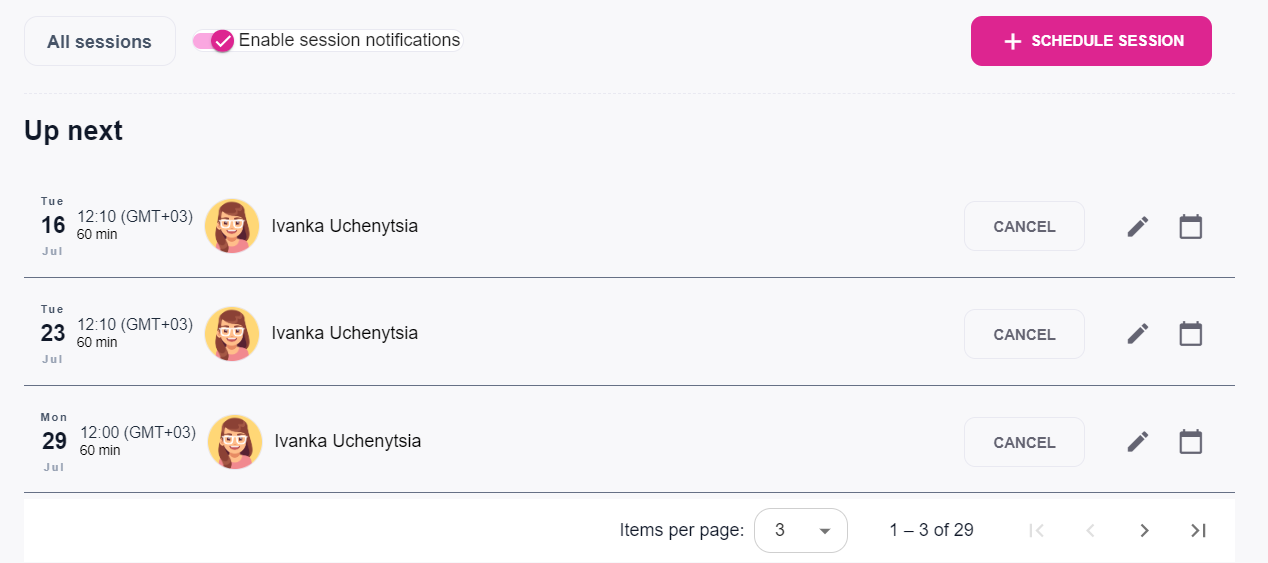
To get started, you will log into your ENGin account. Once you’re logged in, you’ll automatically land on the Home Page. From there, go to the Sessions tab. To schedule a session, please click on the pink “Schedule Session” button.
You will see a pop-up with several fields. Here is how to fill them out: 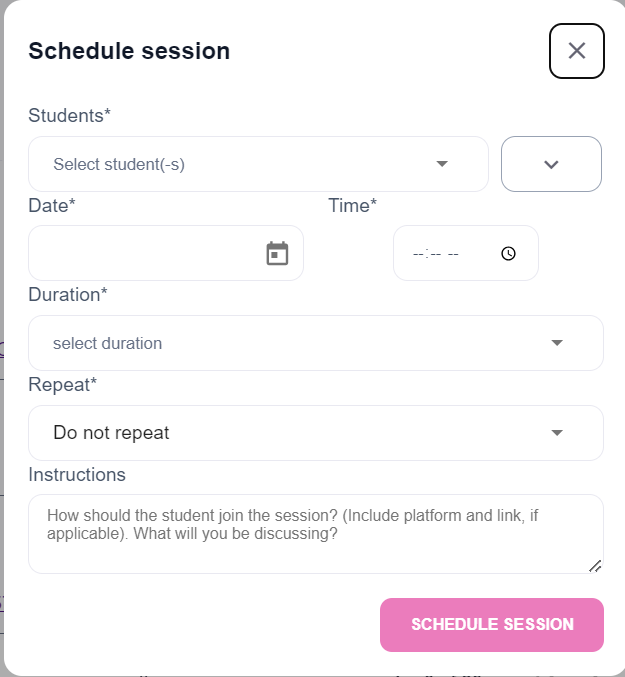
Students: Choose the student you will be meeting with.
Date/Time: Enter the date and time in your time zone, including AM or PM. Your student will automatically see the time in their time zone.
Duration: The planned duration for the session. (Don’t worry, it’s okay if you end up spending more or less time speaking with your student!)
Repeat: You may choose to have the session logged as a one-time session or repeated weekly. This second option will save you some time if your meetings are held on the same day and time each week.
Instructions: This field is optional! You can include preparation instructions, planned session topics, or any other information that may be relevant to your session. If you prefer to email this information to your student directly, you can leave this field blank.
💡Our integrated video chat will generate an automated meeting link for each scheduled session. There’s no need to paste or send it—your student will see it in their profile.
Once you have completed all of the fields, click on the pink “Schedule Session” button.
Once you schedule a session, you will be taken back to your sessions screen. By clicking on “All Sessions”, you can see your upcoming sessions and past sessions.
Adding a Session to Your Personal Calendar
You can add scheduled events from the ENGin platform directly to your personal calendar!
How It Works:
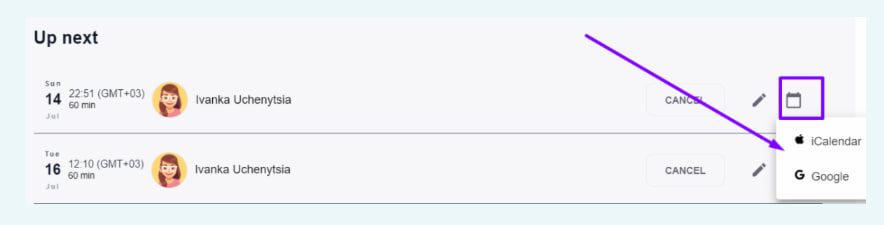
👉Near each scheduled session, you’ll see a calendar icon on the right. Simply click on it and choose either Google Calendar or iCalendar (depending on your preference). With a single click, the chosen session details will be automatically added as an event in your selected calendar.
❗️NOTE: This feature will add an individual event to your personal calendar. It will not automatically add the event to your student’s calendar unless you include their email address in the event participants field.
How to Join the Session Through the ENGin Video Chat Feature on The Platform
When it’s time for your session, you have two ways to join: from the Home Page or from the Sessions tab.
On the Home Page, scroll down to the “Upcoming Sessions” section. You’ll see a list of your upcoming sessions. About 10 minutes before the scheduled start time, the “Join Session” button next to that day’s session will appear and turn pink — that means it’s active and ready to use!
Click the “Join Session” button, and a new tab with your video meeting will open.
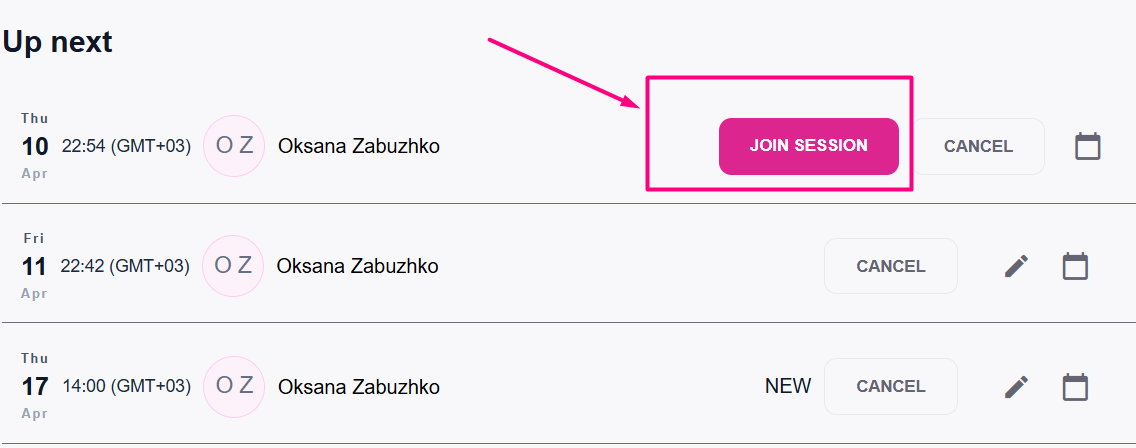
Your student will join the session the same way — by logging in to their profile and clicking their Join button.
The same instructions apply when joining from the Sessions tab. In the “Up Next” section, you will see a list of your upcoming sessions. The “Join Session” button will become active ten minutes before the session starts. Click the button to open your video meeting.
Keeping Track of Sessions: Confirmation and Duration
When you hold your sessions on the ENGin platform via our video chat, we can automatically track whether the session took place and how long it lasted.
- Your student does not need to confirm the session duration — everything is recorded automatically.
- You will be able to see the time recorded in the Past Sessions section.
❗️NOTE: The system only counts session time when both participants are present in the call.
For example, if you and your student are in the call together for 30 minutes, and then you stay in the meeting for another 20 minutes alone, only the 30 minutes with both of you present will be recorded as official session time.
If you feel the time was not correctly recorded, please inform us at info@enginprogram.org.
⚠️Important: We cannot record your sessions or collect any other personal data, so your sessions remain private and secure!
🔔 Please note: If a session was not held using the ENGin video chat feature, you need to update the status and duration of these sessions manually. Please see the instructions here.
It is very important that all sessions are scheduled using the ENGin platform. To operate our program, we need to know whether our volunteers and students are actively meeting and when.
From all of us on the ENGin Team - Thank you! We really appreciate you taking the time to volunteer with us and meet with your student!