Table Controls
Edit any cell by clicking inside that cell and using the available buttons in the content area toolbar. Only formatting options that are available will be accessible, others will be greyed out.
Click and drag on any bar in your table to adjust the column width. Select arrows on the left for rows and on the top for columns to then drag and drop to move its location in the table.
Click anywhere in an existing table and then click on the table icon on the upper left-hand corner of the table to activate a Table Controls Bar below the content area toolbar.
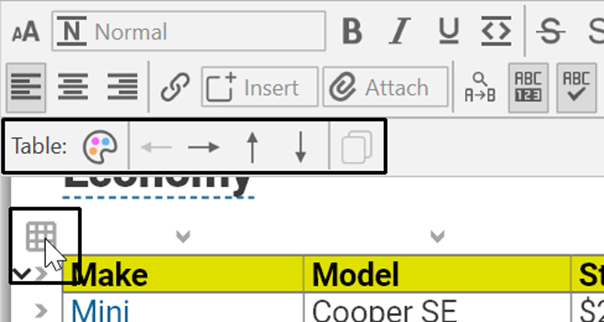
Figure 207. Table Control Bar
From here, you can move selected rows and columns left, right, up, down or duplicate the selected cells. Buttons will only appear for options that are possible depending on which cells are selected. From the Table Controls Bar, the Table Theme Editor can also be opened.
 Additional commands are available by right clicking in a table, such as Move, Justify, Select All in Table, Split Table and Toggle Table Toolbar.