Adding Tables
Create tables inside of the content area by clicking on Insert and selecting Insert Table. Tables can also be created by copying and pasting from Excel, Word or tables in other notes. When Show Markdown is active, to start a new table, type a word or sentence surrounded by pipe symbols, such as: “|this is a new table|.” Tables can include formatting and images, and cells can be right, center or left justified, using the content area toolbar buttons or with markdown formatting.
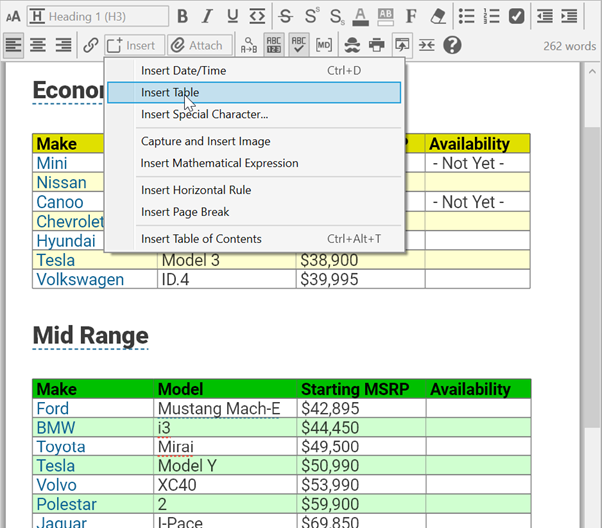
Figure 205. A Table Inserted in the Content Area
When adding a table, you may select the number of columns and rows. More can be added at a later date if necessary.
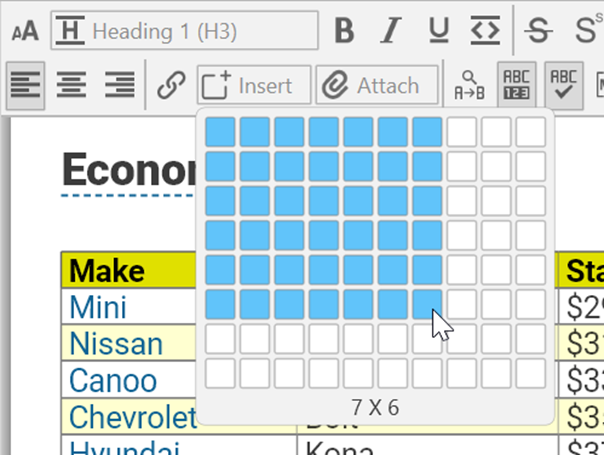
Figure 206. Inserting a New 7x6 Table
 To make a table with no header, leave the cells in the header row empty (only pipe characters and optional justification tags). The header will not be visible when editing and will completely disappear when printed or in view mode.
Multiple cells can be selected at once for group formatting by clicking and dragging, or use the arrows above or next to a column or row. Right click on an arrow to select from the following options:
- Justify Left
- Justify Center
- Justify Right
- Duplicate
- Delete
- Move Up/Left
- Move Down/Right
When multiple cells are selected:
- Press the delete key to clear the cells. If an entire row or column is selected, it will be removed.
- Cut, copy and paste can be used to move cells within a table or from one table to another.
- You can even select a group of cells, copy it, then paste elsewhere in the document to create a new table.
- If normal content (not made of multiple cells) is copied and then multiple cells are selected prior to pasting, the content will be duplicated into every selected cell.