GUIDE TO RESEARCH BRAIN
WELCOME TO MY RESEARCH BRAIN
Click on GUIDE TO THE RESEARCH BRAIN or the HOME ICON to get back this Home Screen
Please keep in mind this is a research project in process and is in no way complete. My objective is to provide accurate information that is intuitively accessible allowing for considerable time savings doing Due Diligence research. I try to post accurate information but cannot declare it so and urge all to do their own due diligence.
THIS IS NOT INVESTMENT ADVICE
What is the Research Brain?
BRAIN STRUCTURE AND LAYOUT
- Information on more than 1,000 Junior Resource and Mining Companies
- Details on more than 1,000 Fundings/Financings
- 600+ Published NI 43-101 Documents
- More than 2,700 Mining/Exploration Projects PLUS Associated Drill Results
- Links to hundreds of relevant Videos
- Much More to be added
I utilize an App called TheBrain
( www.thebrain.comTheBrain: The Ultimate Digital Memory , tutorials available) to collect items of research I come across and want to be able to recall easily.
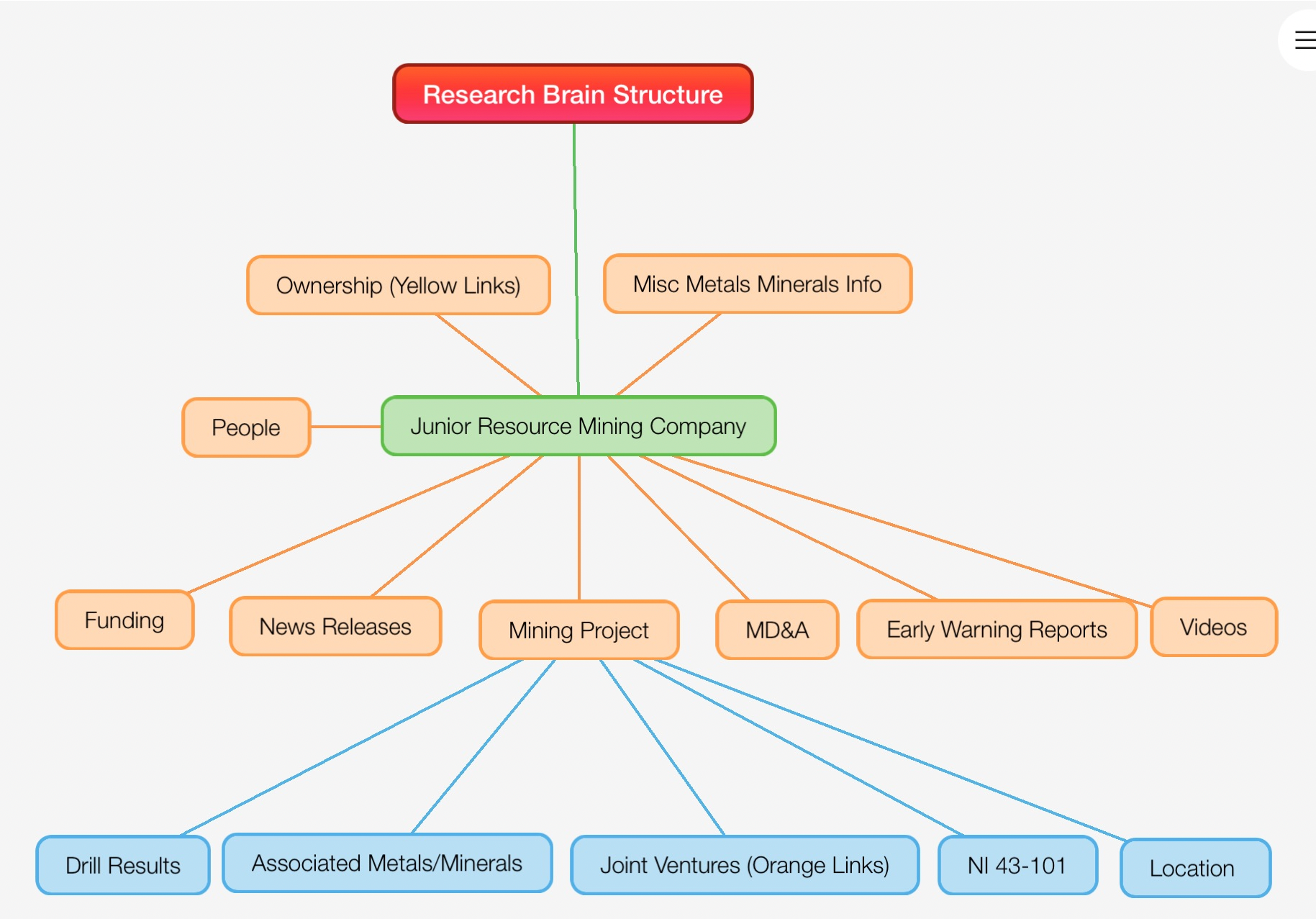
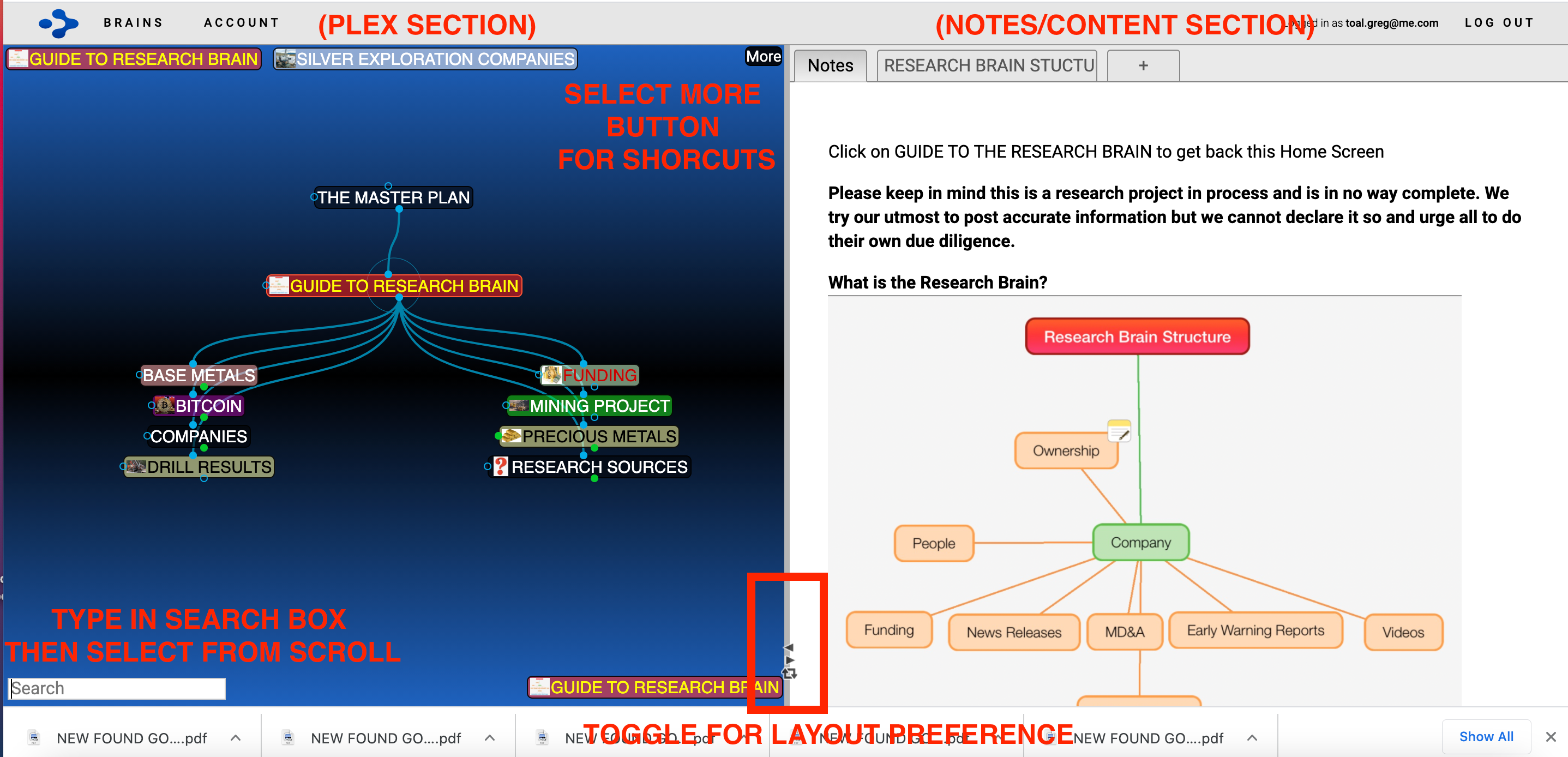
First just a brief introduction to what you see. The screen is divided into two parts The PLEX section and the NOTES/CONTENT section resizing with click and drag width control in the middle. At the bottom of the middle bar there are toggles to maximize PLEX or NOTES and also adjust screen layout. Click on any link within the PLEX and it becomes the focal THOUGHT. Keep the Structure layout in mind as you navigate. If the focal thought is a “Mining Project” then the Parent thought would be “Company”, “Country” and child thoughts would be “Drill Results”, “Property News Release”
The Research Brain is primarily focused on Junior Resource/Exploration and active mining Companies which are sub-grouped under thought types listed below.
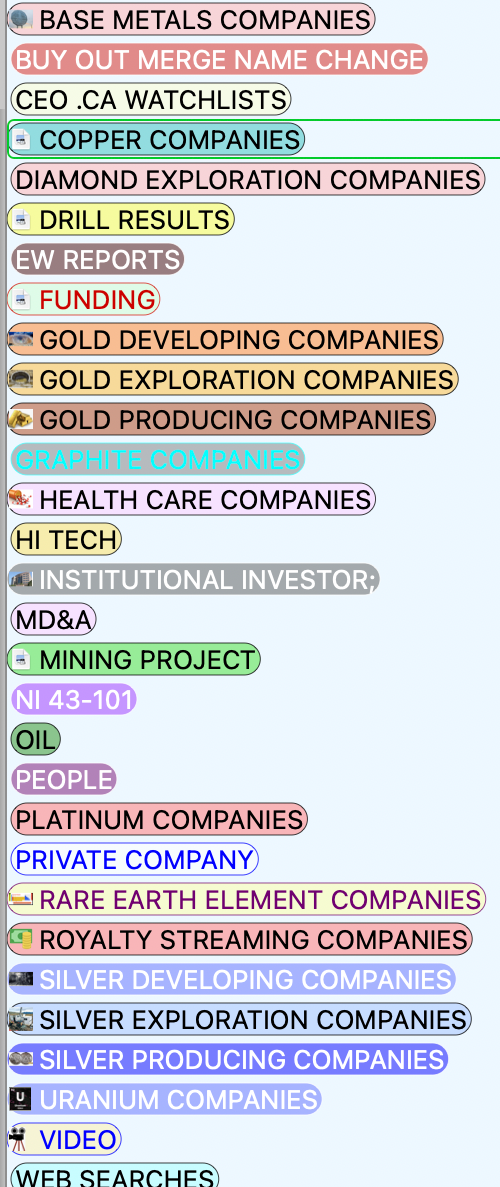
The list above identifies the “Thought Types” or Major Categories that Companys are filed under. A Company can only be identified by one type and is color coded per the list above depending on what the Company is focused on. Exploration/Developer are combined under one type and Producer separate. When in doubt input the Company Name in the “Search Box” located lower left hand corner then scroll through the options available.
The “LINKS” between thoughts can also be labelled with a “ LINK TYPE”.
CURRENT LINK TYPES
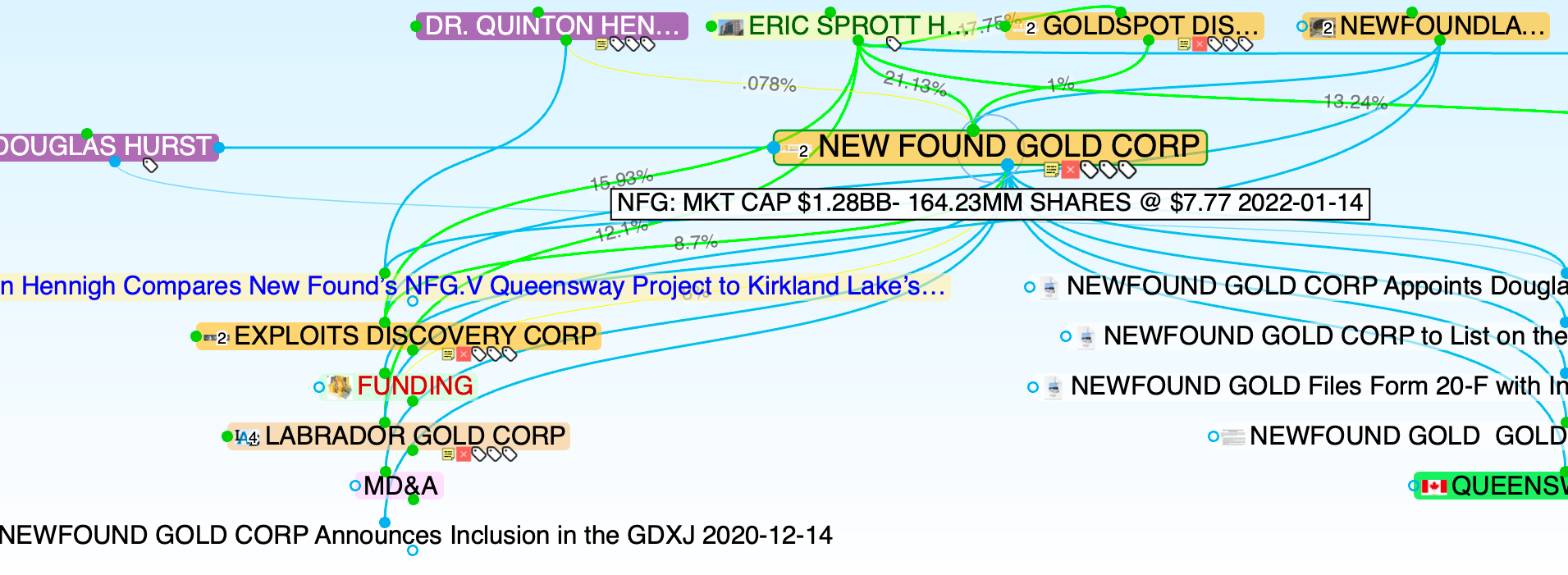
OWNERSHIP LINK: COLOR CODE GREEN DISPLAYS % OF OWNERSHIP WITH SUPPORT DOCS FILED
SAMPLE OF OWNERSHIP LINKS
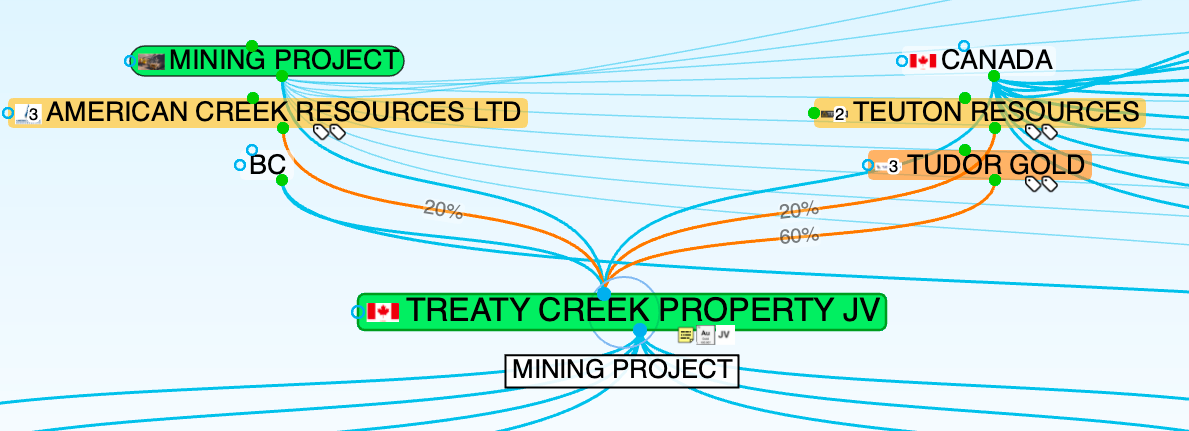
JOINT VENTURE LINK COLOR CODE ORANGE DISPLAY % OF JV ASSUMING EARN IN REQUIREMENTS MET
SAMPLE OF JV LINKS
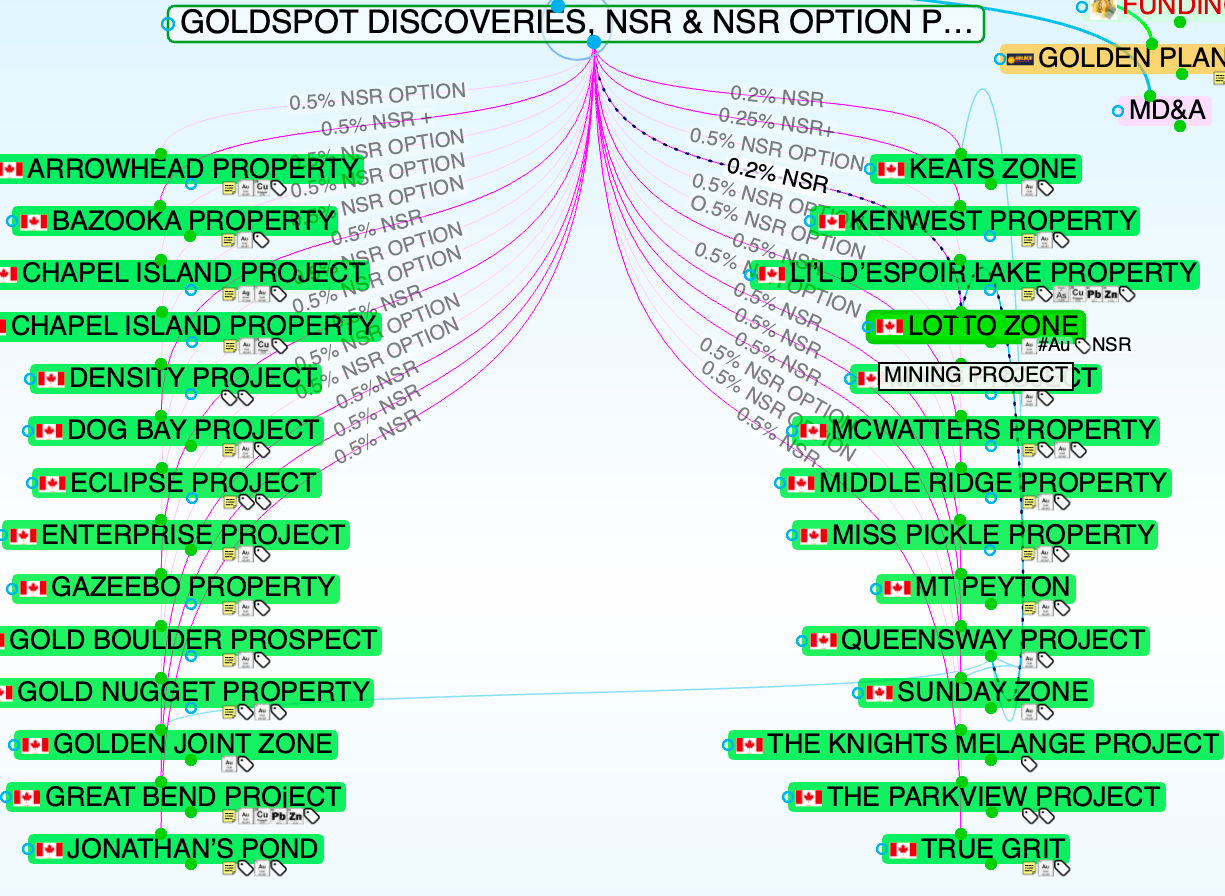
NSR ROYALTY LINK COLOR CODE DEEP MAUVE
NSR OPTION LINK COLOR CODE PASTEL MAUVE
SAMPLE OF NSR ROYALTY AND NSR OPTION LINKS
When a Company is added to the Research Brain, links to their home page and the CEO Company page are displayed in the notes section. Company information is labelled, dated and added directly per News release or SEDAR filing. This shows up as a THOUGHT in the PLEX with copy of supporting docs in the NOTES/CONTENT section.
STRUCTURE:
The basic structure (see Graphic at top of page) is Company>Mining Project> Drill Results. I’ve also included Funding, MD&A , Misc News and Videos under Company. When you click on a specific thought icon it becomes the focal point revealing both upstream (PARENT THOUGHTS) and downstream (CHILD THOUGHTS) links.
HOVER FUNCTION:
Quick reference may be available when you hover over a thought icon highlighting content before opening a thought. For example, hover over a Drill Results Thought and Highlights are displayed. Hover over Company name to reveal Logo,Ticker Symbol and Market Cap. * IF HOVER REVEAL IS TOO SMALL TO READ, RIGHT CLICK OR HIT THE “OPTION KEY” TO MAGNIFY.
SHORTCUTS:
Shortcuts to specific thoughts are displayed across the top of the screen with additional items listed under “More” button.
SEARCH BOX:
THEN THERE IS ALWAYS THE “SEARCH BOX”! START TYPING AND A LIST OF CHOICES CAN BE SCROLLED THROUGH TO MAKE A SELECTION..
TAGS:
Unfortunately attached tags do not display in Public Web viewing but they are still accessible to you. For example all “Mining Projects” (bright green) are tagged with the relevant minerals and all tags associated with these projects have prefix # followed by the periodic table symbol. There are more than 2,700 individual mining/exploration properties listed displaying flag of country location, tagged with #Periodic Table Symbol and linked to relevant Company. If looking for gold type #Au, or Lead type #Pb or silver type #Ag in Search Box located lower left corner then select your choice. TAGS are in process of be added for Ticker Symbols, requiring prefix $. (EXAMPLE: $NFG - New Found Gold)
MINING PROJECTS:
Mining Projects are also accessible by company or country and easily identified with flag icon. Canada and USA are further defined by province/state and particular mining zones. Again just type your query in the Search Box then scroll and select. For example you can retrieve all the mining projects in Newfoundland by typing “NFLD” in the search box or look up projects in Finland, Nevada, BC etc. All relevant Mining Projects will appear in the Plex for you to browse. As you select a Mining Project it will appear under the Company parent thought and all drill results will be child thoughts of the the project. Hover over the drill results for a snap shot or view the actual Press Release in the Notes Section. Note if the project is a Joint Venture - the Link will be ORANGE and display the percentage of participation in the JV.
COMPANY
When a company is selected Parent Thoughts include individuals and other Companies that have an Ownership stake.
Ownership - the Link will be GREEN
Jump Thoughts linked to the side of the company icon are people, usually Board Members or key Personnel. This section is not fully populated but the intention is to track Individuals through their links and associations with different companies.
Another new feature in process is a visual graphic of drilling results Highlights when hovering over Icon. Drill results are linked to the relevant Mining Project. Select the “ DRILL RESULTS” button to display all drill results listed alphabetically by Company. A HUGE time saving feature screening reports.
Work through any initial frustration because it’s worth it!
Motto: “Do an hour’s worth of DD in 10 minutes”
The below section provides a text version of the layout in the Plex and allows for an alternate way to navigate the Research Brain. it will also show additional thoughts that are not directly linked but may be relevant to the focal Thought. You can navigate through the brain by clicking on text item and the plex will reflect the change