Adding Attachments
Overview
Any thought can carry attachments — files and web links kept alongside its note. This is how you keep a document, a PDF, an image, or a reference URL with the idea it belongs to, so everything about a topic lives in one place. You add attachments from the Add Attachment menu, which opens from the paperclip (Attach) button on the notes toolbar.
Adding an Attachment
Open the Add Attachment menu and choose:
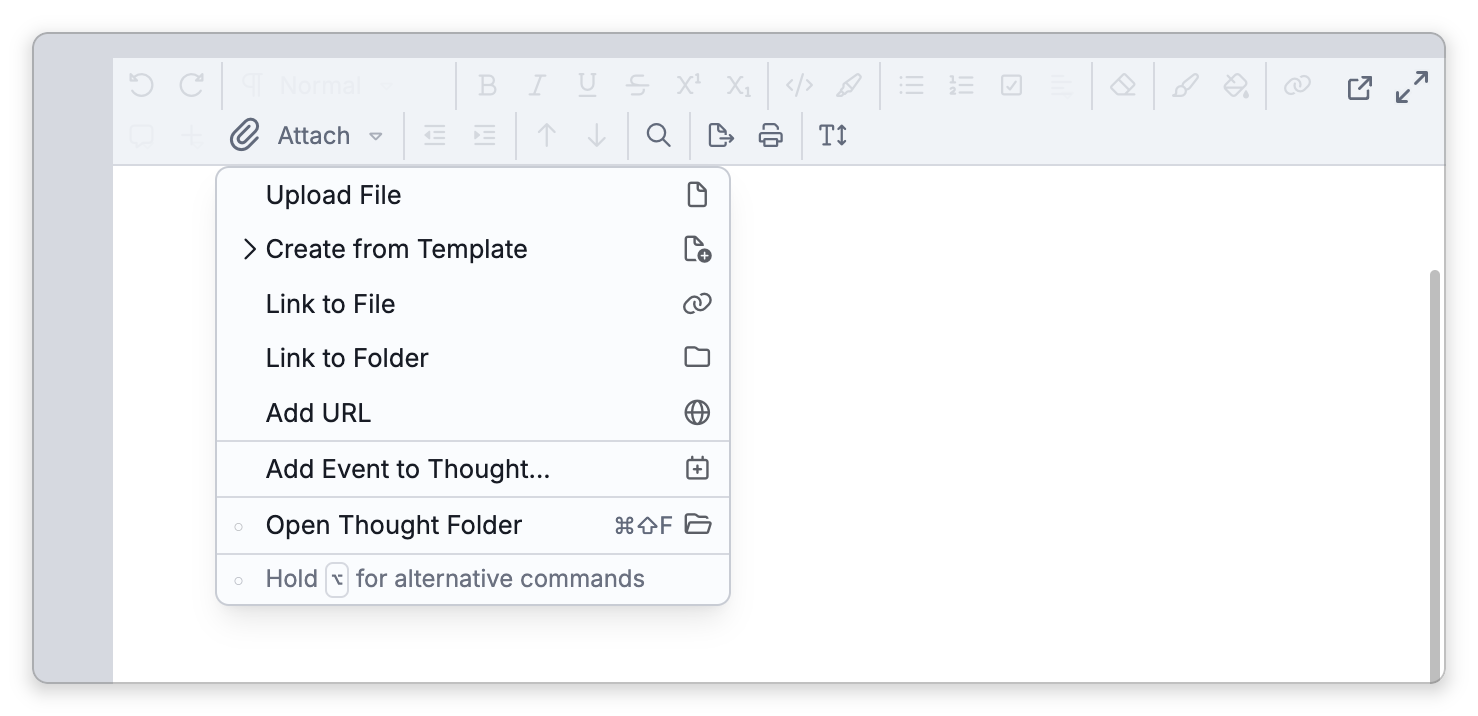
- Upload File — Add a file from your device into the brain. In the mobile app, on phones and tablets, the upload dialog also has Upload Photo, to pick a picture from your photo library, and Take Photo.
- Add URL — Attach a web link as a reference.
The menu also holds Add Event to Thought... (see Events).
Desktop-Only Options
On the desktop app, the same menu adds:
- Link to File — Reference a file on your computer without copying it into the brain. You can pick several files at once.
- Link to Folder — Reference a folder on your computer.
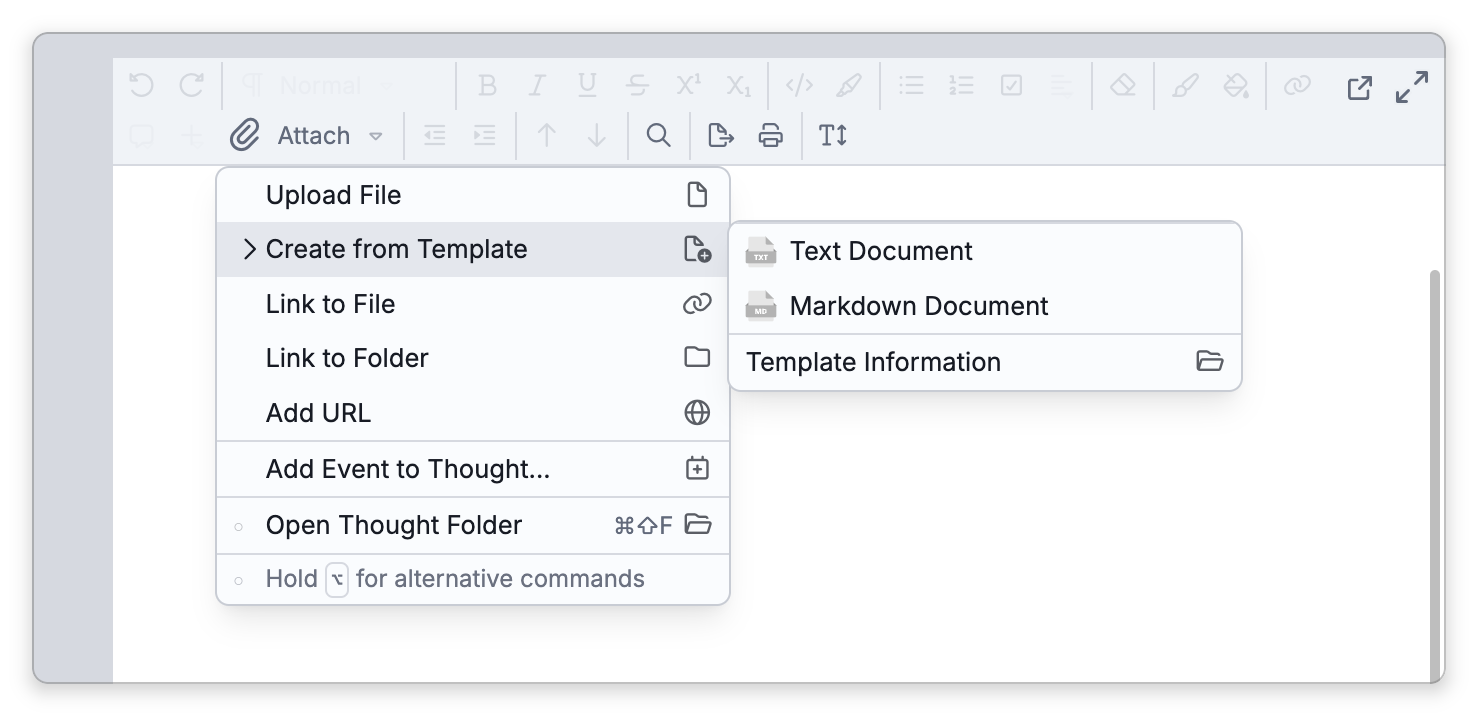
- Create from Template — Start a new file from a template: the built-in Text Document and Markdown Document, or a template of your own. See Creating a File from a Template below.
- Open Thought Folder (Open Link Folder for a link) — Open the folder on your computer where this thought's attachments are stored. The default shortcut is
Ctrl+Shift+F(⇧⌘Fon Mac). While the menu is open, holdShift(⌥on Mac) to get Copy Folder Path in its place, which copies that folder's path.
Dragging Files and Links In
On both the desktop app and the web app, you can drag files and folders from your computer and drop them on TheBrain. Where you drop decides what happens:
- On the content area — they are attached to the thought shown there.
- On a thought in the plex — they are attached to that thought.
- On the parent, child, or jump drop zone around the active thought — each file or folder becomes a new thought, named after it, with the item attached.
In the web app, dropped files and folders are uploaded into the brain, and one drop can hold at most 10,000 items.
You can also drag a web address — a link on a web page, or the address from your browser's address bar. Dropped on the content area or on a thought, it is attached as a web link. Dropped on a parent, child, or jump zone, it creates a new thought for that page, which is named with the page's title once TheBrain has fetched it.
On the desktop app, a file drop copies the file into the brain unless you've changed On File/Folder Drop under Settings > User > General. To choose for a single drop, hold a modifier key as you drop (on Linux the modifier keys have no effect while dragging):
- Link to the file where it is — hold
Alt(⌃on Mac). - Copy it into the brain — hold
Ctrl(⌥on Mac). - Move it into the brain — hold
Shift(⇧on Mac).
See Linking to External Files and Folders for every way to create a link and what a link means for storage.
Pasting from the Clipboard
A file, an image, or a web address on the clipboard can be attached with the Paste command. It is the first item in the Add Attachment menu, and the first item in the menu you get by right-clicking a thought. The command is named for what the clipboard holds — Paste File, Paste Files, Paste Folder, Paste Image, or Paste URL — and it appears only when the clipboard holds one of those. On iPhone and iPad it always reads Paste on Thought/Link.
- Files and folders — Copy them in Finder or File Explorer, then paste. Each one is copied into the brain, and the original stays where it was.
- Images and screenshots — An image or screenshot on the clipboard is attached as a file named
Pasted Image.png. - Web addresses — A copied address is attached as a web link.
Files, folders, and images can be pasted in the desktop app. In the web app, only a copied web address can be pasted this way. A pasted file or image never replaces one the thought already has: if the name is taken, it is added under a numbered name such as name (1).ext.
Choosing the paste command after right-clicking the plex background, instead of a thought, creates a new thought for each pasted file, image, or address.
Copying an Attachment to Another Thought
On the desktop app, right-click the attachment and choose Copy Attachment, then use the paste command on the other thought. The paste adds a copy, and the original attachment stays on the first thought — this is true after Cut Attachment too — so to move an attachment, paste it and then delete the original.
Files Left Out of a Folder
When you add a folder, the files and subfolders inside it are attached with it, except for hidden files and the temporary and lock files that other apps keep while a document is open. TheBrain recognizes these by name, and leaves out every file or folder inside the folder whose name:
- Starts with a dot (
.) — hidden files and folders such as.DS_Storeand.git, and the temporary files of LibreOffice, Vim, and other editors. - Starts with a tilde (
~) — such as the~$Report.docxfiles that Word, Excel, and PowerPoint keep beside a document while it is open. - Starts with a dollar sign (
$). - Ends with
~lock~— the lock files of Affinity Designer. - Ends with
.Ignore— TheBrain's own temporary files and old note backups.
A folder whose name matches is left out together with everything in it. A left-out file isn't listed when you open the folder, isn't found by search, and isn't synced to your other devices. Rename it, for example by removing the leading ~ or $, if you want it attached.
What happens to left-out files depends on how the folder comes in:
- Copied in — when you drop or paste a folder, or upload one in the web app, they aren't copied, and the originals stay where they are.
- Moved in — when a drop on the desktop app moves the folder (with
Shiftheld, or with On File/Folder Drop set to Move), they move into the brain along with the rest of the folder and stay unlisted, so nothing is lost when the original folder is removed. - Copy Folder into Brain or Move Folder into Brain — they come along with the folder and stay unlisted (see Managing Attachments).
The same names are skipped in a thought's folder on your computer: a file with one of these names that you put there in Finder or File Explorer isn't picked up as an attachment. A file or folder that you attach yourself is kept up to date whatever its name — for example a $Budget.xlsx you drop on its own — though a change you make to it outside TheBrain can take a few minutes to show.
Links
The desktop app doesn't add symbolic links — files or folders that point to another file or folder. When something you drop, paste, copy into the brain, or move into the brain is a link, or a folder you add contains one, nothing is added, and a Can't Add a Link message names the link it found. A link that would be left out anyway doesn't count, such as one inside a .venv or .git folder or one whose name starts with ~. To add such a folder, remove its links or add a .zip copy of it instead. Link to File and Link to Folder still work with links, because nothing is copied into the brain. A link that you put in a thought's folder in Finder or File Explorer isn't picked up as an attachment.
Creating a File from a Template
On the desktop app, Add Attachment > Create from Template starts a new file from a template and attaches it to the thought. Two templates are built in, Text Document and Markdown Document, and your own templates are listed above them.
To create a file from a template:
- Open the Add Attachment menu and choose Create from Template, then pick a template.
- Enter a name for the new file. The thought's name is suggested, and the file extension is added for you.
The new file is attached to the thought as a file stored in the brain. With one of your own templates it starts as a copy of the template; the built-in templates start empty.
To add your own template:
- Open the Add Attachment menu and choose Create from Template > Template Information.
- In the Templates Folder prompt, click Open to open the Templates folder on your computer.
- Put a file in that folder — for example a Word or Excel document already set up the way you like. Each file in the folder is a template, listed under its file name the next time you open the menu.
To have the suggested file name include the name of your own template (as Thought name, Template name), turn on Include template name in file name when creating from template under Settings > User > Options. It is off to begin with. The Templates folder is kept on that computer, so your own templates aren't synced to your other devices.
If a File with That Name Is Already Attached
When you add a file whose name matches a file the thought already has, TheBrain asks before doing anything, with an Attach File prompt reading File with the name "…" already exists. Choose:
- Replace — Swap the existing file for the new one.
- Keep Both — Attach the new file alongside the old one under a numbered name,
name (1).ext(thenname (2).ext, and so on). - Stop — Leave the existing file as it is and don't attach the new one.
The same name (1).ext naming is used when two devices each attach a different file under one name to the same thought before they sync — see Working Offline and Sync Recovery.
- To move a file into the brain or out of it later, see Managing Attachments.
- Linked (external) files and folders don't count toward your cloud storage, because only the link is kept in the brain — see Linking to External Files and Folders.
- For pictures you want to appear inline within the note text rather than as a separate attachment, see Images in Notes.