Events
Overview
An event is something scheduled — a meeting, a deadline, an appointment — with a date and time, shown in the Timeline. Events can stand on their own or be tied to a thought, so a project's milestones live with the project. They can also repeat on a schedule.
Creating an Event
- From the Timeline — in the Day Navigator panel, choose Create Event to make one on the selected day; in the Timeline Bar, click the date and time scale along the bottom of the bar. See Timeline and Calendar.
- From a thought, choose Add Event to Thought... to create an event already linked to it; the steps are under Adding an Event to a Thought below.
In the event dialog you set the summary, start date and time, and duration — or mark it All day (an all-day event can span multiple days with an end date). You can also optionally set a location, description, color, an associated thought, and a reminder (see Reminders). The associated-thought picker can create a thought on the spot — type a name that doesn't exist yet and choose to create it; you stay in the event dialog.
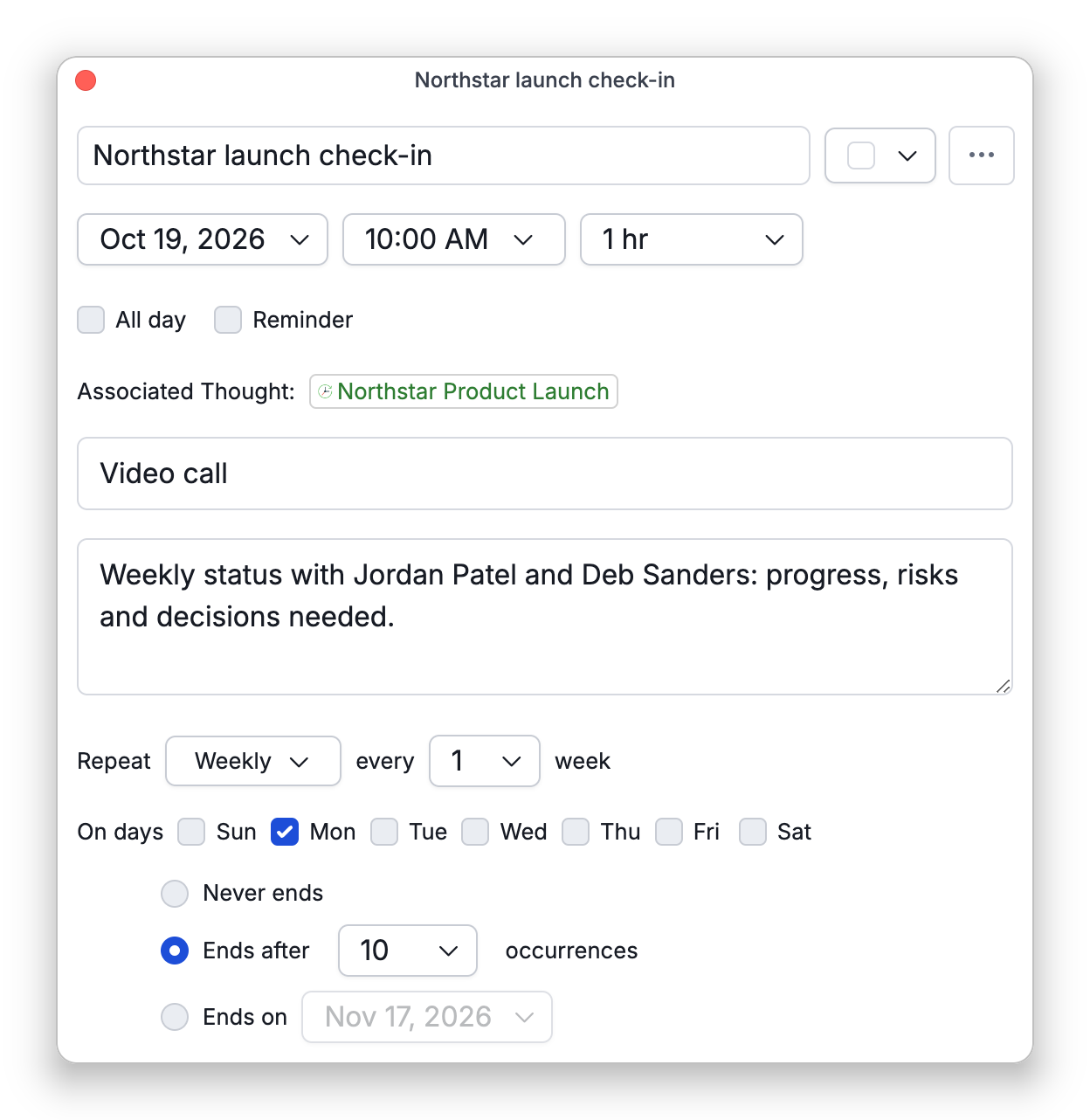
The event dialog has no Save button: whatever you changed is saved when you close it, however you close it. A new event with neither a summary nor an associated thought is simply discarded. If you changed an occurrence of a recurring event, closing the dialog first asks which occurrences the change applies to; choosing Cancel there takes you back to editing.
On the desktop app, the event dialog opens in a window of its own beside the brain window, and you can keep working in the brain while it is open. Each event gets its own window, so you can have several events open at once; opening an event that is already open brings its window to the front. The window closes, saving your changes, when you close its tab or switch to another tab; for a recurring event, the change then applies only to the occurrence you were editing.
Adding an Event to a Thought
To put a date, a deadline, or an appointment on a thought, create the event from the thought itself:
- Right-click the thought and choose Add Attachment > Add Event to Thought.... The paperclip (Attach) button on the notes toolbar, in the thought's content area, opens a menu with the same command.
- The event dialog opens with that thought already set as the associated thought. Set the date and time and any other details.
- Close the dialog to save the event.
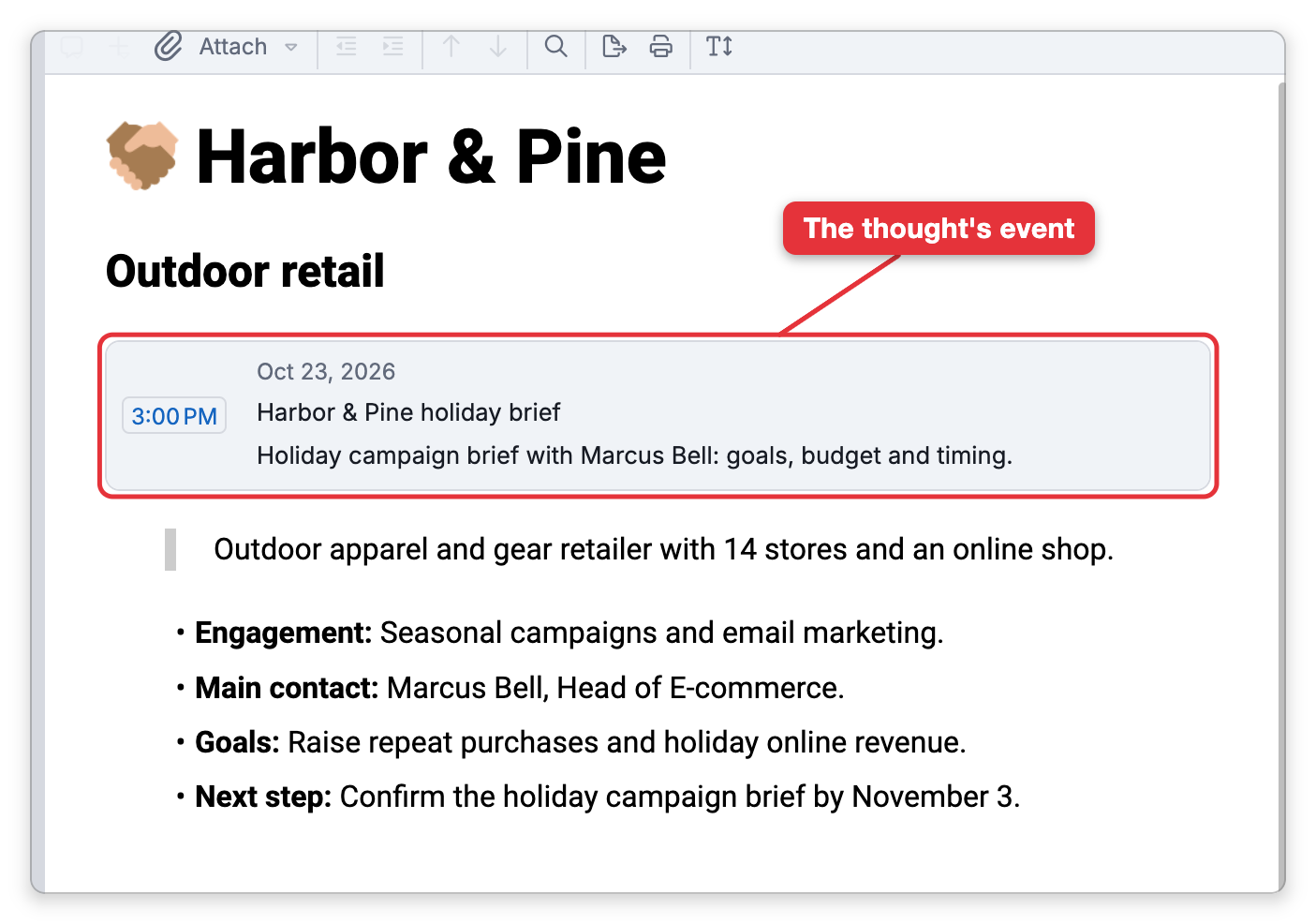
The thought's events are then listed in its content area, below its attachments, in date order, and they appear in the Timeline. Click an event in that list to open it. Adding an event needs a brain you can edit.
Repeating Events
Set Repeat to make an event recurring — Daily, Weekly, Monthly, or Yearly, with an interval (e.g. every 2 weeks), specific days of the week (for weekly repeats), and an end condition (never, after a number of occurrences, or on a date).
Editing and Deleting
- Edit Event changes its details; Delete Event removes it. Both are in an event's right-click menu, along with Set Reminder; Delete Event is also under the Actions (three-dot) button in the event dialog.
- Delete Event removes a one-time event right away, without asking you to confirm. A recurring event asks first when you delete one of its occurrences in the Timeline, as described next. In a thought's content area a recurring event is listed once, and Delete Event there deletes the whole series right away, without asking.
- For an occurrence of a recurring event, TheBrain asks whether a change or deletion applies to only this occurrence, all the following, or all in the series. (When you edit a recurring event and shift its start date or time, that change can only apply to the single occurrence you moved.)
Undoing an Event Change or Deletion
Creating, editing, and deleting events are all recorded in the brain's undo history. If you deleted or changed an event by mistake, choose Main Menu > Edit > Undo to bring the event back or reverse the change — the default shortcut is Ctrl+Z (⌘Z on Mac). This works as long as the brain hasn't been closed since; see Undo and Redo.
- Permanently deleting a thought also deletes the events tied to it.