Managing Attachments
Overview
Once a file or link is attached, you can manage it from its right-click menu — rename it, remove it, download a copy, and (on the desktop app) move it between the brain and your computer or turn an image into the thought's icon. Which actions appear depends on your platform, since some file operations only make sense on the desktop.
Everywhere
- Rename Attachment — Give the attachment a clearer name. For a file or folder this renames the actual file — see What Renaming Does to the File below.
- Delete — Remove the attachment from the thought. See Recovering a Deleted Attachment below for how to get one back.
- Edit Location — For a web-link (URL) attachment, update the address it points to. (This only appears on link attachments.)
- Download Attachment — Save a copy of the attachment to your device. This one is on the web app only, for file attachments.
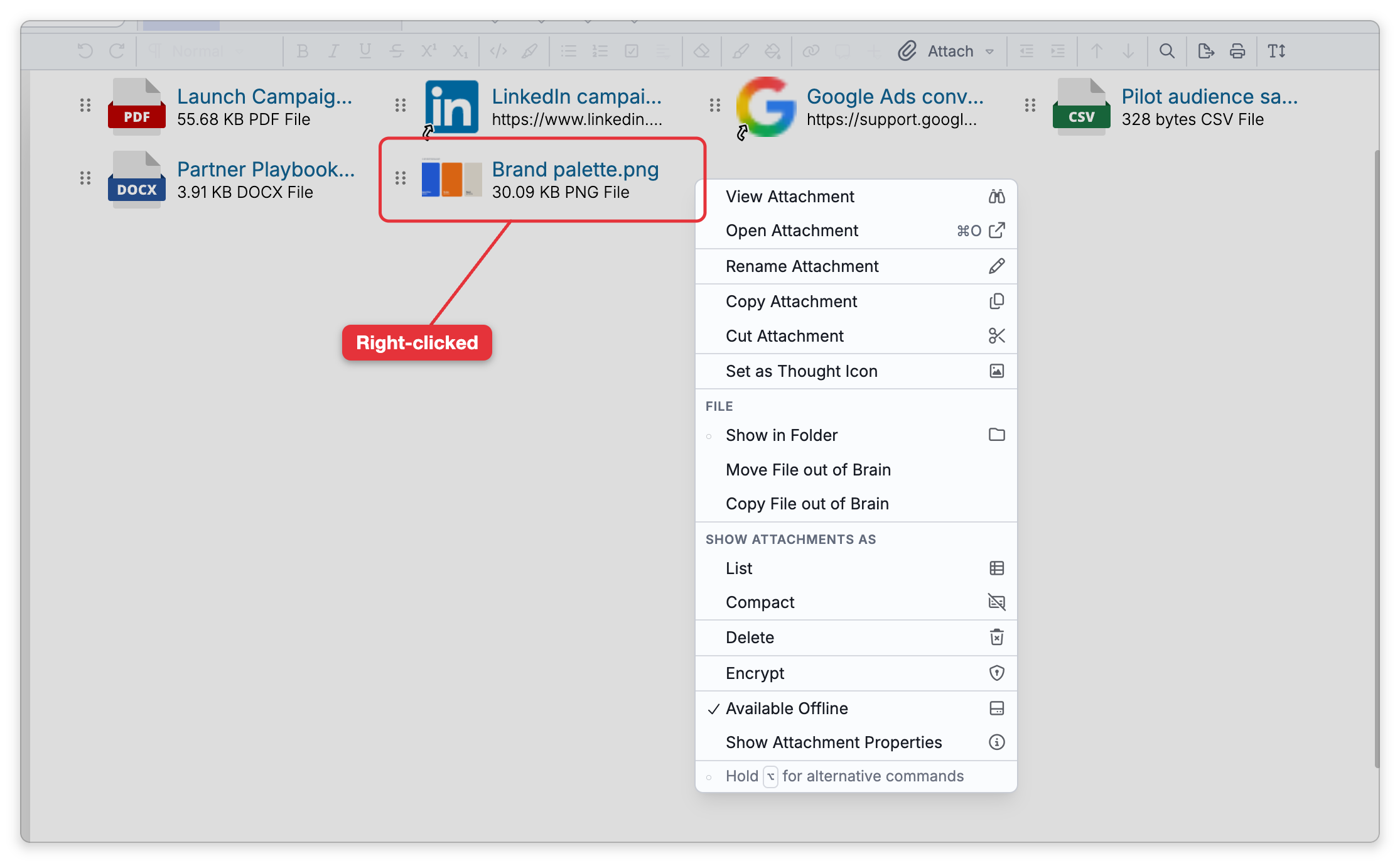
Reordering Attachments
When a thought has several attachments, you can drag them into a different order — the new order is saved with the thought. This works on both the web and desktop.
- Desktop app — Drag an attachment by the dotted grip handle at its left edge. The handles appear when a thought has two or more attachments. Dragging the attachment itself does something else there: it drags the file, folder, or link out of TheBrain to another app or folder.
- Web app — There is no handle; drag the attachment itself to its new place.
There is no command that sorts attachments by name or date; you arrange them by dragging.
Desktop App
On the desktop app, an attachment's menu also offers:
- Copy Attachment / Cut Attachment — Put the attachment's file or folder on the clipboard, so you can paste it onto another thought (for a web link, Copy Attachment copies its address). Pasting onto a thought always adds a copy and leaves the original attachment where it was, even after Cut Attachment, so to move an attachment, paste it and then delete the original. See Adding Attachments for the paste commands.
- Set as Thought Icon — Use an image attachment as the thought's icon, or use a web link's site icon (favicon) as the thought icon (see Thought Icons).
- Move in or out of Brain / Copy in or out of Brain — Move or copy a file or folder between the brain's internal storage and your computer. The menu names the direction for the attachment you clicked, such as Move File out of Brain or Copy Folder into Brain. Moving a file out of the brain leaves the attachment as a link to the file's new location, and moving or copying a linked file into the brain makes it an internal file. If the thought's note shows the file as an image, or shows images from the folder you move out, the note keeps a copy of each of those images, so they still show in the note. Copying a file out of the brain only saves a copy and leaves the attachment as it was. A folder copied or moved into the brain brings all of its files, but hidden files, temporary and lock files, and other files whose names start with a dot,
~, or$or end with~lock~or.Ignorearen't listed in it, found by search, or synced — see Files Left Out of a Folder in Adding Attachments. TheBrain doesn't copy or move a symbolic link into the brain, or a folder with a link among the files it would list — see Links in Adding Attachments. Linked files don't count toward cloud storage — see Linking to External Files and Folders. - Show in Folder, Copy File Path, and Show Attachment Properties — Work with the underlying file on disk. A few of these items, such as Copy File Path, appear only while you hold the alternate-commands key,
Shift(⌥on Mac), with the menu open.
What Renaming Does to the File
Rename Attachment changes the real item, not just a label in TheBrain:
- A file or folder stored in the brain — the copy inside the brain is renamed. If the thought's note shows the file as an image, or shows images from the folder, the note's paths to them are changed to the new name, so the images keep showing. Undo reverses this in two steps: first the note's paths, then the name.
- A linked file or folder (desktop app) — the original on your disk is renamed. It stays in the same folder, and the link follows the new name.
- A web link — only the name shown in TheBrain changes; the address stays the same.
If you delete a file's extension while renaming it, TheBrain asks whether to Keep Extension or Remove Extension. A rename can be reversed with Undo, which puts the old file name back. In the web app, a folder or a linked file or folder can't be renamed.
Recovering a Deleted Attachment
Deleting an attachment removes it from the thought right away, with no confirmation, unless the thought's note shows it as an image. Then TheBrain asks first, because the note would show a missing image in its place; the same goes for a folder whose images the note shows. Cancel is the choice when you press Enter. To get it back, use Undo: choose Main Menu > Edit > Undo, or press Ctrl+Z (⌘Z on Mac). The undo history lasts as long as the brain stays open on that device — syncing doesn't clear it — so undo before you close the brain (see Undo and Redo). This works on the web app too.
On the desktop app, a file or folder that was stored inside the brain gets a second safety net: when you delete it, a copy is also placed in your computer's trash — the Finder Trash on Mac, the Recycle Bin on Windows, or the trash on Linux — under the attachment's own file name. You can restore it from there like any other file, even after the brain has closed and the undo history is gone. This applies only to files and folders kept inside the brain that you delete yourself; on the web and mobile apps, undo is the only way back.
A linked external file or folder is never moved: deleting the attachment only removes the link, and the original on your disk is untouched.
Conflict Copies
A file whose name starts with [Conflict] — for example [Conflict] report (Ada Lovelace 2026-09-20 1405 UTC).txt or [Conflict] Notes (…).md — is a version TheBrain saved so it wouldn't be lost: the same file was edited on two devices before they synced, or Undo Anyway put a note or file back over a change that had arrived in the meantime. (A note edited on two devices is merged instead, with any clash shown inside the note as a pair of Conflict callouts, so sync makes no copy for it.) The name gives whose version it was and when that edit was made (in UTC). It's an ordinary attachment, so open it and compare it with the note or file that won. Once you're satisfied that the current version has everything it should — or you've merged in what was missing — delete the conflict copy; it has served its purpose. If you'd rather keep it as a document in its own right, rename it without the prefix. See Working Offline and Sync Recovery for the rules behind these copies.
- Encryption is covered separately — see Encrypting Attachments.