Presentation Mode
Overview
Presentation Mode strips away the toolbars and panels for a clean, full-screen view of your brain. It's meant for showing a brain to other people — on a projector or a shared screen — and it works just as well for distraction-free focus when you want only your thoughts in front of you. Presentation Mode is in the desktop and web apps; the mobile app doesn't offer it.
How to Turn It On and Off
Presentation Mode is a toggle. The default shortcut is Ctrl+Alt+F (⌥⌘F on Mac). You can also turn it on from Main Menu > View or by right-clicking empty space in the Plex or Cards view. Use the same shortcut or menu item again to exit — or just press Esc.
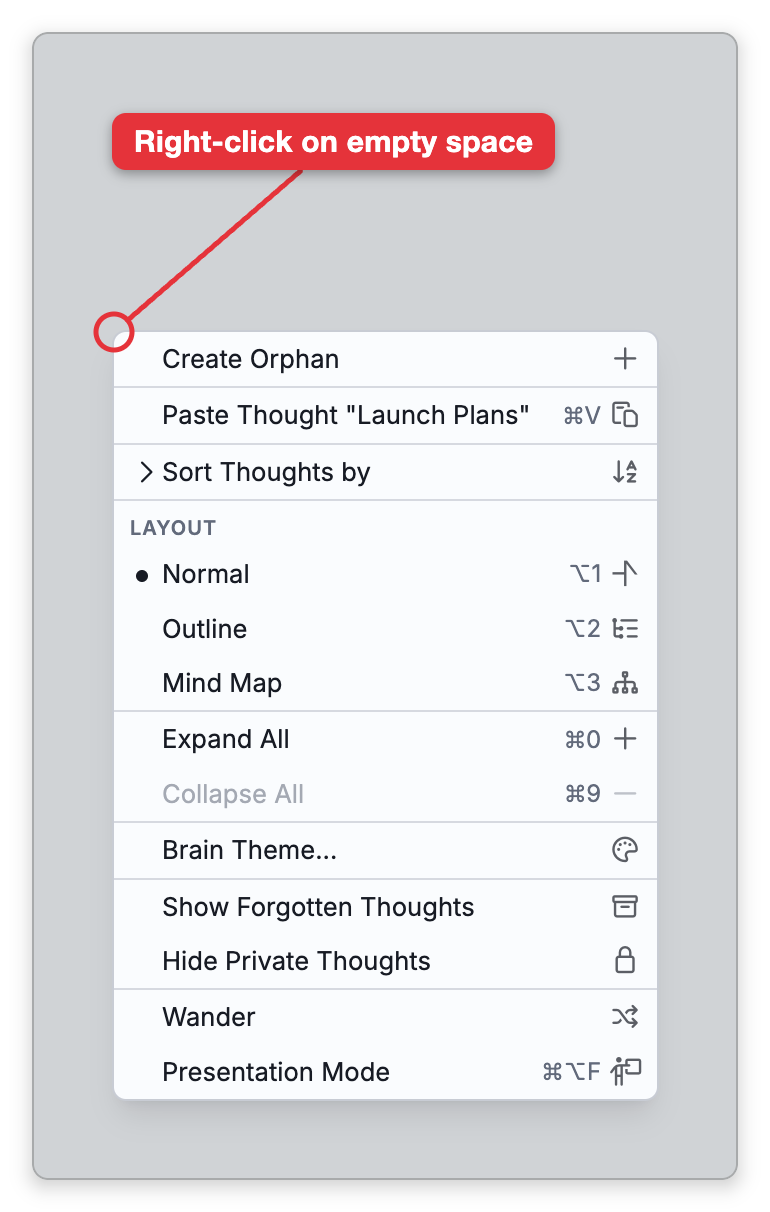
While it's on, you still navigate normally — click thoughts to activate them and move through the brain — just without the surrounding interface.
What Presentation Mode Hides
Presentation Mode puts the window in full screen and hides:
- The brain toolbar, including the search box.
- The tools sidebar and its toolbar.
- The Timeline Bar along the bottom of the brain page.
- In the desktop app, the window's title bar and tabs.
The navigation and content sides keep the layout you had, so your notes are still shown if the window was split. To show only the Plex, choose Maximize Navigation before you start, or click the button at the top-right corner of the navigation side, which is still there in Presentation Mode — see Split and Window Layout.
Presentation Mode and full screen go together. If you leave full screen another way — with the browser's own full-screen exit on the web, or the window's full-screen control in the desktop app — Presentation Mode switches off too.
How to Find a Thought While Presenting
The search box is hidden along with the toolbar, but you can still jump to another thought: just start typing.
- Type the first character of what you're looking for — any letter, number or punctuation mark. A small search box opens at the top left of the screen with that character already in it. (This works when you aren't editing a note or typing in another text field.)
- Keep typing, then choose a result to activate that thought.
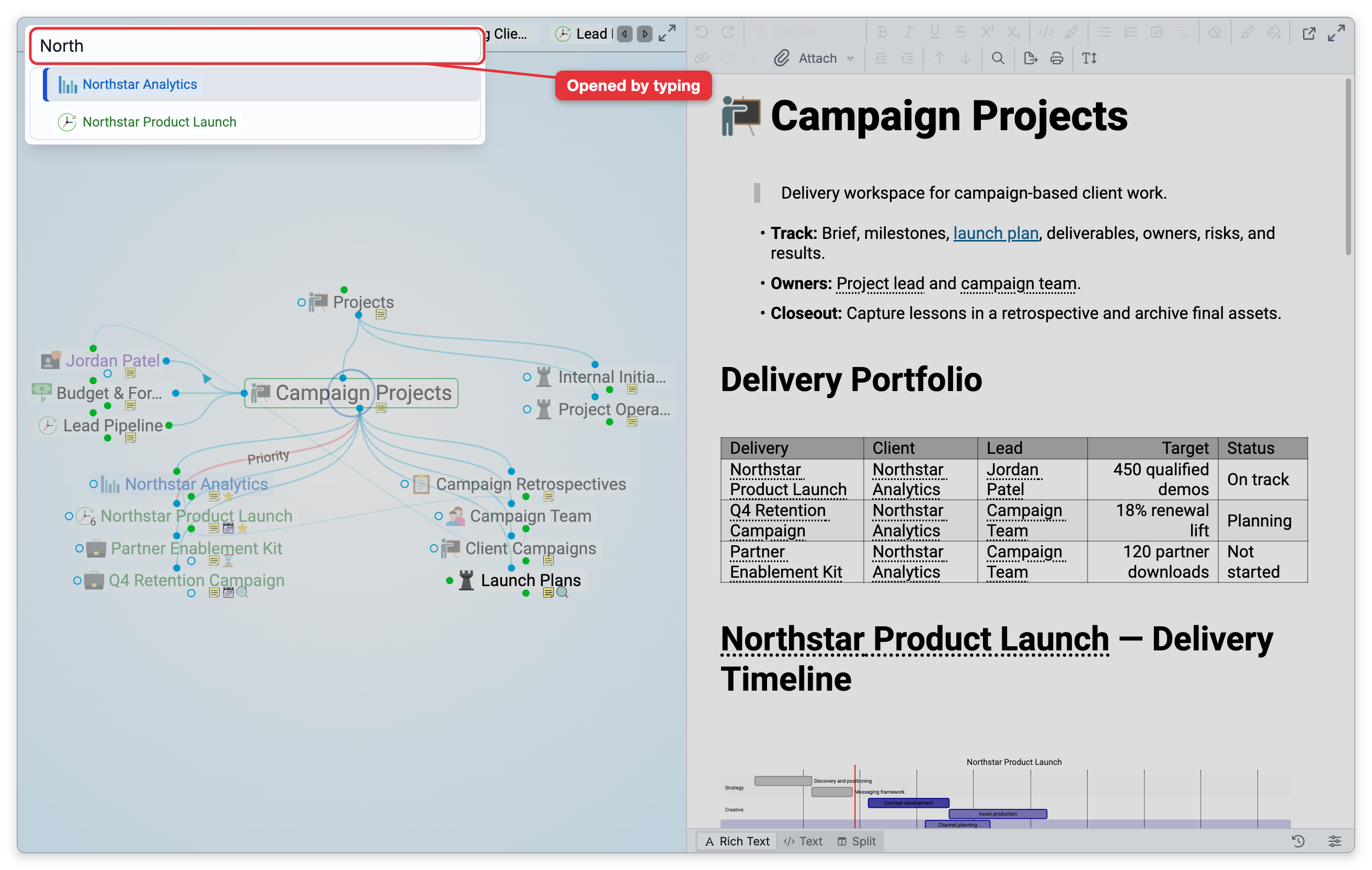
To close the box without choosing anything, click outside it. This search covers the current brain only and can't create a new thought.
- Pair it with Wander for a hands-off, screensaver-like tour of a brain — see Wander Mode.