Split and Window Layout
Overview
A brain window has two halves: the navigation side (the Plex, Cards, or Tree) and the content side (the open thought's notes and attachments). The window layout controls how the screen is divided between them — you can split it, give all the room to one side, or swap which side is where. This lets you focus on browsing, focus on reading and writing, or keep both in view.
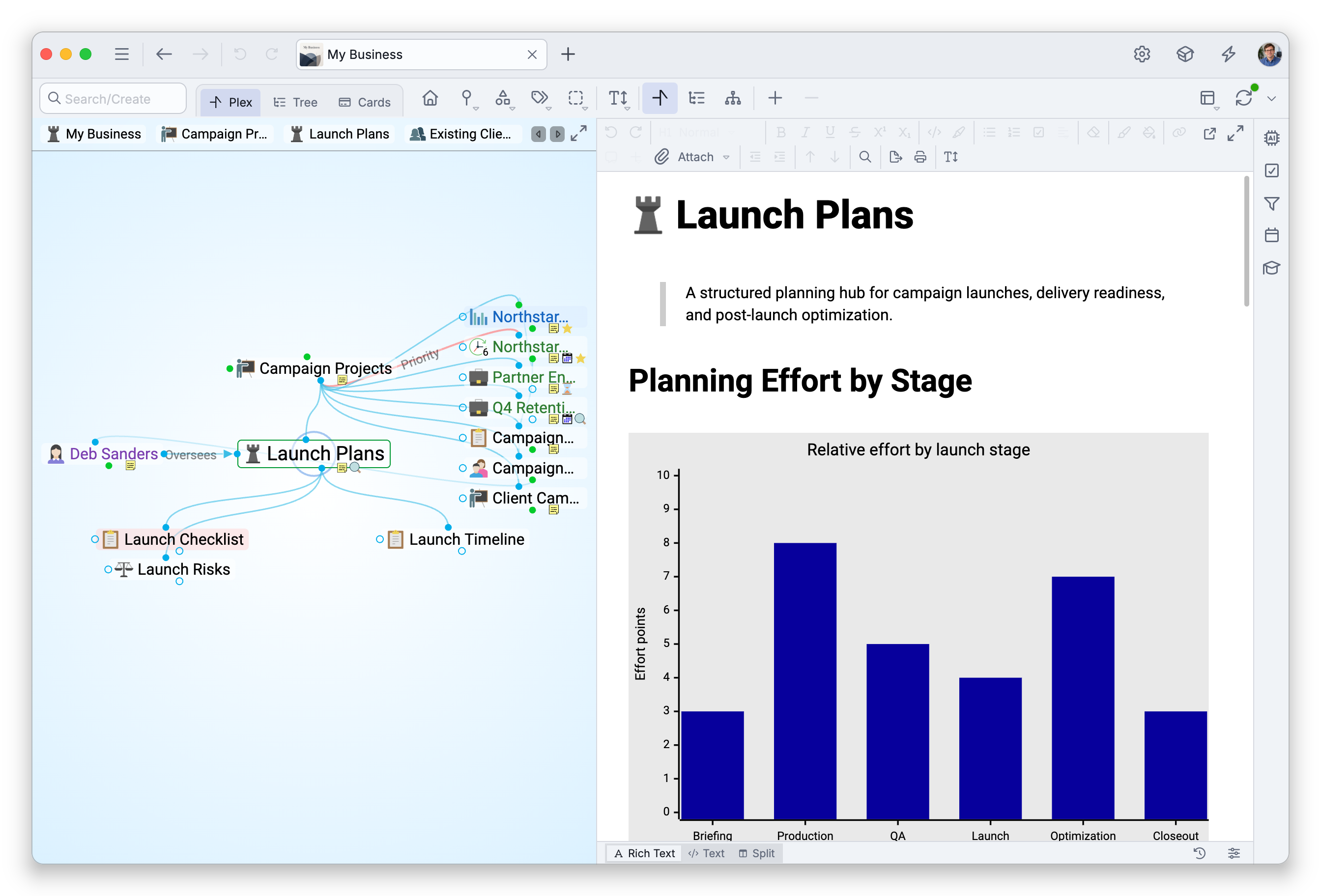
Splitting the Window
From the Window Layout menu (in the brain toolbar) or Main Menu > View > Set View Mode, choose how to split. The default shortcuts are:
| Action | What it does | Default shortcut |
|---|---|---|
| Split Best Fit | Split automatically based on the window's shape | Ctrl+Shift+E (⇧⌘E on Mac) |
| Split Horizontally | Stack navigation and content top/bottom | Ctrl+Shift+Q (⇧⌘Q on Mac) |
| Split Vertically | Place navigation and content side by side | Ctrl+Shift+R (⇧⌘R on Mac) |
In the in-app menus these three are grouped under Split and labeled Best Fit, Horizontally and Vertically; the Mac desktop app's menu bar uses the full names above.
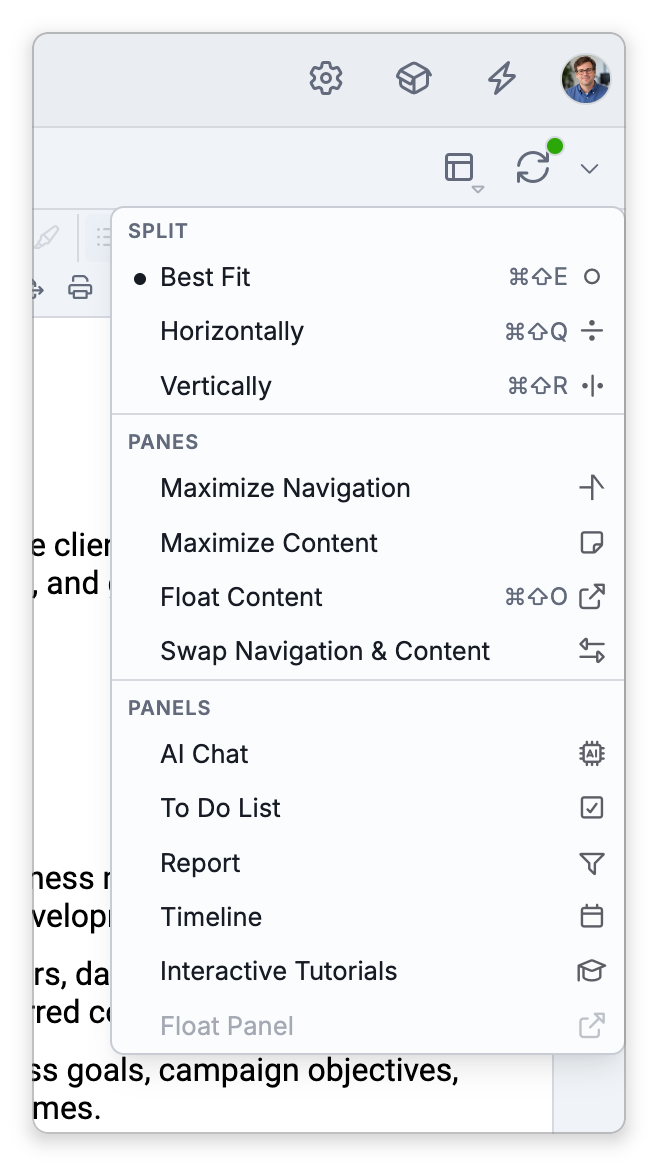
Best Fit places the two sides next to each other when the area they share is wider than it is tall, and stacks them when it is taller. In a narrow window, Split Vertically is shown stacked as well.
Resizing the Two Sides
To make the notes area bigger or smaller, drag the bar between the navigation side and the content side. Each side stops at a minimum size. If you keep dragging almost to the edge, that side closes and the other side is maximized.
Three presets set the navigation side to a fixed share of the space the two sides divide: Small Plex (35%), Medium Plex (55%) and Large Plex (70%). Their default shortcuts are Ctrl+Shift+A, Ctrl+Shift+S and Ctrl+Shift+D (⇧⌘A, ⇧⌘S and ⇧⌘D on Mac).
Maximizing One Side
- Maximize Navigation gives the whole window to the Plex/Cards/Tree and hides the notes.
- Maximize Content gives the whole window to the open thought's notes and attachments and hides the Plex.
Both are in the Window Layout menu and in Main Menu > View > Set View Mode, under Panes. Choosing the same option again returns you to the split view. Each side also has a small button in its top-right corner that does the same thing: Maximize Navigation on the navigation side and Maximize Content on the content side. While a side is maximized, its button reads Restore Navigation or Restore Content and brings back the split.
You can also double-click the empty background of either half to toggle it between maximized and split — controlled by the "Maximize the navigation/content area when double-clicking on their backgrounds" setting.
Swapping Sides
Swap Navigation & Content (in the same menus, under Panes) flips which side each half occupies — for example, moving the notes to the left and the map to the right — so you can match your preferred reading direction.
Double-clicking the bar between the two sides does the same swap. The swap is remembered, so if the sides seem to have traded places on their own, an accidental double-click on the bar can be the reason; double-click it again to swap them back.
The Layout Is Remembered for Each Navigation Mode
The Plex, Cards and Tree each keep their own layout: how the window is split, how much room navigation gets, which side is maximized, and whether the sides are swapped. That is why the layout can change when you switch navigation modes. To begin with, the Plex and Cards use Best Fit with the space divided evenly, and the Tree sits beside the content as a narrow column on the left.
Where the layout is saved depends on the brain:
- In a brain only you use, the layout is saved with the brain, so it syncs with the brain to your other devices. A tab that is already open keeps its own layout, so the saved layout is what a tab you open afterwards starts with.
- In a shared brain, or one you can only read, the layout is saved only on the device you're using. It isn't synced and doesn't change anyone else's layout. Reset Layout on This Device in Settings > Brain > Personal Settings puts it back to the brain's layout.
Keeping the Window on Top
In the desktop app, Always on Top keeps a brain window above the windows of your other apps. Choose Main Menu > View > Always on Top (on a Mac, it's also in the menu bar's Window menu). The default shortcut is Ctrl+Alt+P (⌥⌘P on Mac). It's a toggle, shown with a check mark while it's on, and it applies only to the brain window you're in; your other brain windows aren't affected. The window is still on top the next time you start TheBrain, until you turn the option off. The web app and the mobile apps don't have this command.
A content window you open with Open in New Content Window from a brain window that is always on top starts out kept above other windows too. Content windows have their own Keep above other windows pin — see Floating the Content Area and Content Windows.
- These layout choices affect how the window is divided, not the brain's content.
- Window layout is a desktop/web feature. On a phone the Plex fills the screen and the content area slides up over it — see Using TheBrain on a Phone.
- In the desktop app, the same menus offer Float Content, which moves the content side into a window of its own (default shortcut
Ctrl+Shift+O,⇧⌘Oon Mac). While the content floats, the split, maximize, and swap commands are unavailable, and docking the content brings your layout back. See Floating the Content Area.