Creating a Brain
Overview
Starting a new brain takes one step: give it a name. A brain can be about anything — a project, a topic, a part of your life — and you can always rename it later, so there's no need to overthink the name up front.
How to Create a Brain
- From the brains list, choose New Brain.
- Type a name for the brain under Enter New Brain Name.
- Choose Create.
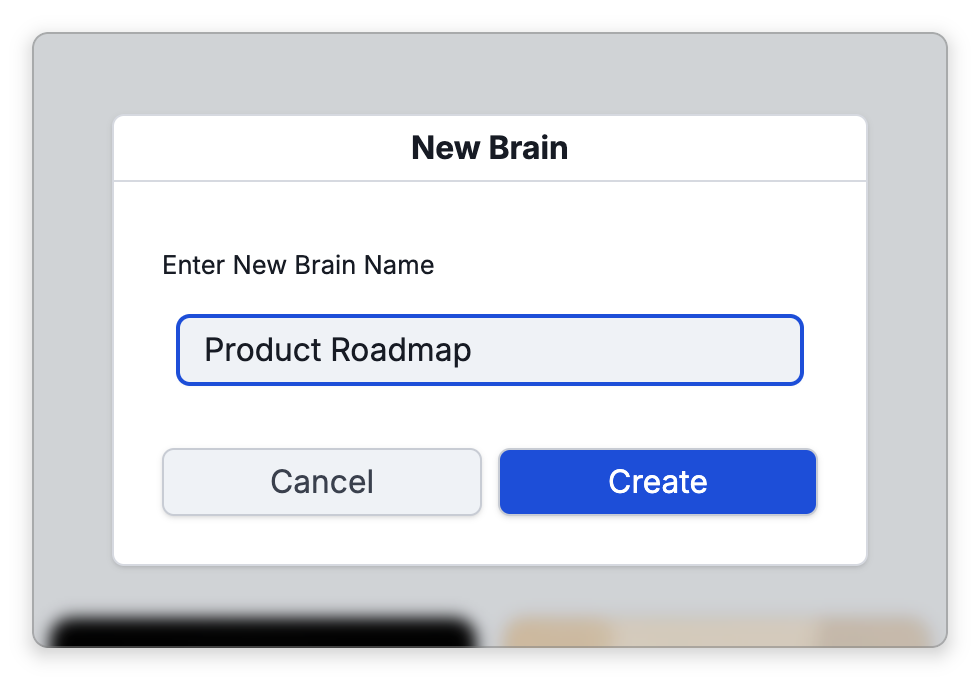
Your new brain opens, ready for its first thoughts. The New Brain dialog only asks for a name — there's nothing else to configure, and no template or generated-content step to step through.
How to Make a Copy of a Brain
TheBrain has no command that duplicates a brain. In the desktop and mobile apps, you can get a second brain with the same content by copying the content into a new brain through a brain archive:
- Back up the brain you want to copy to a brain archive (a
.brzfile) — see Backup to Brain Archive. - Create a new brain as described above, and leave it open.
- Open Main Menu > File > Import and choose Brain Archive.
- Before you pick the file, select the Add to "…" and link to "…" option, which names the open brain and its active thought, instead of Create a new brain.
- Pick the
.brzfile, and choose Import when TheBrain asks you to confirm.
The archive's thoughts, links, notes, and attachments are added to the new brain as copies, and the copied brain's home thought is linked to the thought that was active. Brain-wide settings, such as the brain's name, theme, and home thought, are not carried over, so the result is a copy of the content and not an exact clone.
Importing the archive with Create a new brain does not make a second copy. A brain archive restores the same brain it was made from, so the import stops with the message This brain already exists while that brain is still on the device (on the web, while it still exists in the cloud). See Backup to Brain Archive.
- To rename a brain or give it an icon later, see Renaming and Brain Icon.
- If you already have content elsewhere (an archive, Markdown, Obsidian, Evernote, and more), you can import it into a new brain instead — see Importing Brains.