Backup to Brain Archive
Overview
Back Up to Brain Archive saves a brain to a single compressed file — a .brz archive — that contains everything in the brain except external attachments. It's the simplest way to make a complete, portable backup you can keep safe, move to another machine, or re-import if you ever need to restore. It's available in the desktop and mobile apps and on the desktop web client (it's hidden on a phone browser), and it requires admin rights on the brain.
How to Back Up
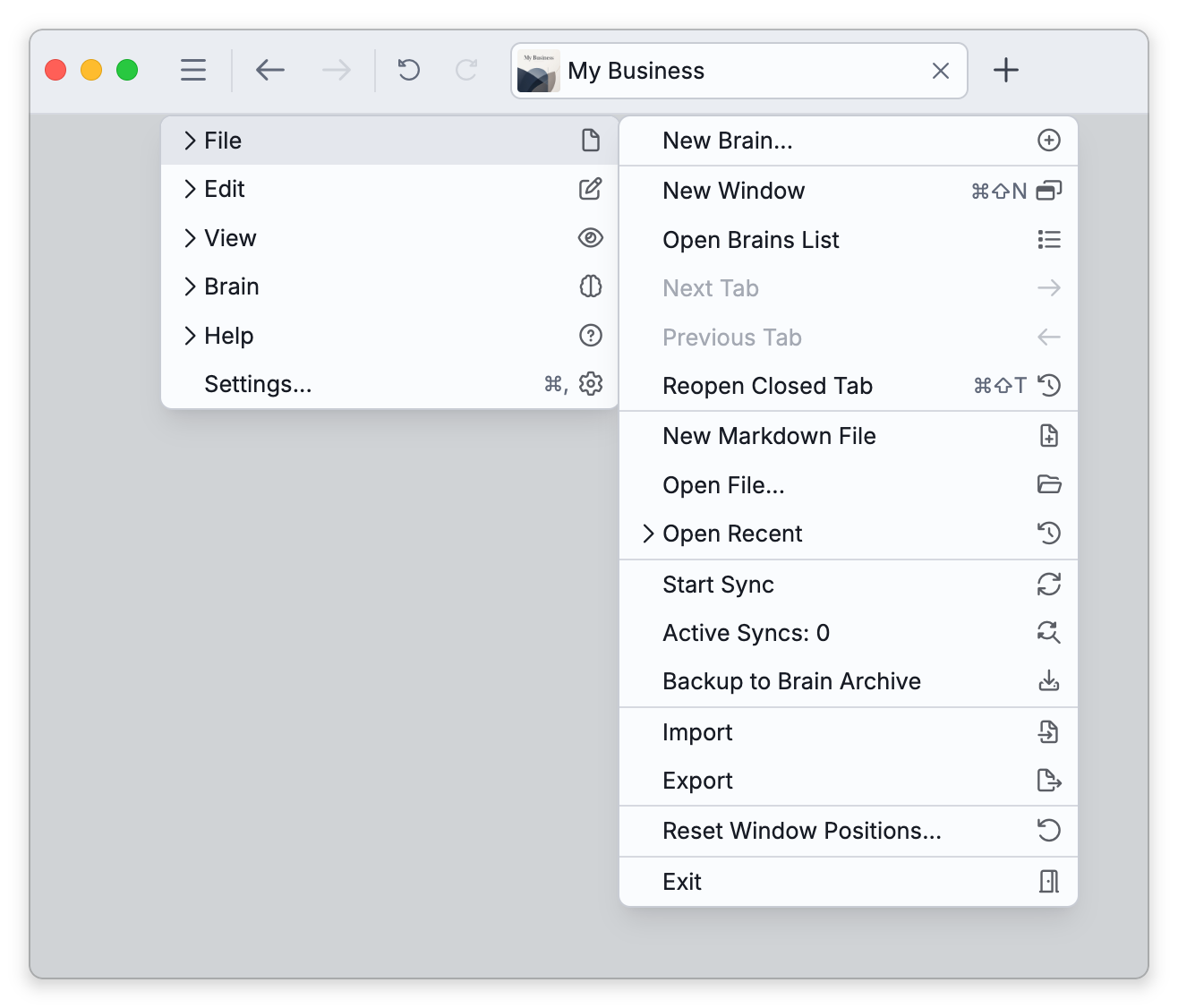
- Open Main Menu > File > Backup to Brain Archive (in the Mac menu bar, File > Back Up to Brain Archive…).
- In the installed apps, light-synced (remote) attachments aren't included in an archive, so when the brain has some, click Disable Light Sync to store all its attachments locally. Backup stays unavailable until you do. The dialog closes while TheBrain syncs the brain and downloads its attachments; open Backup to Brain Archive again once they are stored.
- In the installed apps, choose who may restore the archive under Access Control: Only allow permitted users to restore from exported file (the default) or Allow anyone to restore from the exported file. "Permitted users" means accounts already granted access to the original brain. TheBrain remembers the choice for your next backup, so check it each time you make an archive you intend to hand to someone else or use with a different account. On the web you don't get this choice, just a reminder to handle the file with care, because an archive contains your brain's contents; an archive made on the web is restricted as with Only allow permitted users to restore from exported file.
- In the desktop app, check the Location box, which shows the folder the archive will be saved in. Click Change to pick another folder, or type a path into the box.
- Click Backup. The dialog closes and a notification shows the progress while TheBrain generates the archive; you can cancel the backup from that notification.
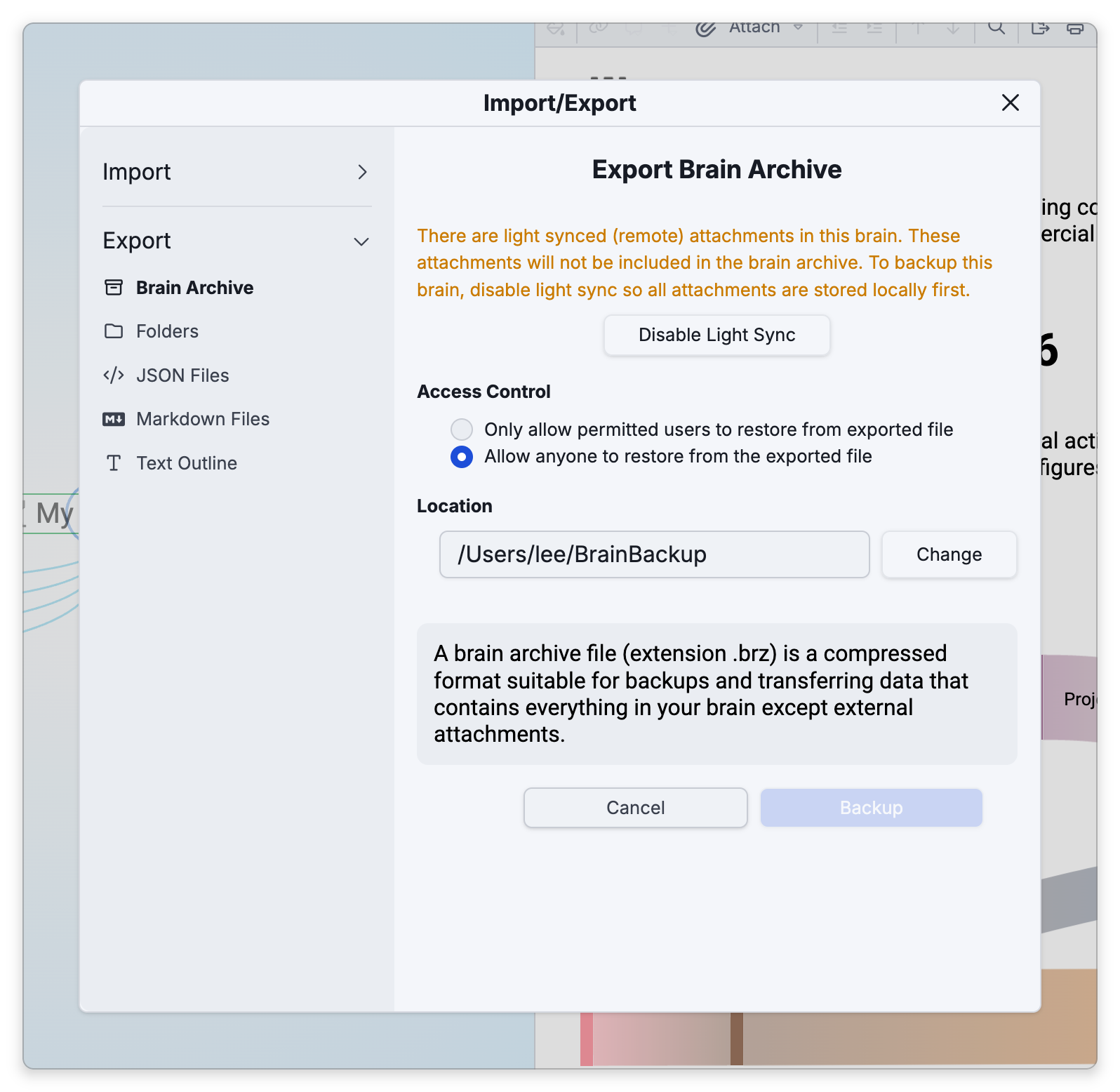
This is the export dialog focused on the Brain Archive format — see Exporting Brains for the other formats.
Where the File Is Saved and What It Is Called
The archive is named after the brain and the date: <brain name> YYYY-MM-DD.brz. If a file with that name is already there (a second backup on the same day, for example), the new one gets (1) added to its name, then (2), and so on.
- Desktop app — The file is saved in the Location folder. That box starts at the folder you last picked with Change on this computer, or at your Documents folder the first time. When the backup is done, the notification reads Backup created at "…" with the full path; click that text to open the folder that holds the file.
- Web — There is no location to choose. When the archive is ready, the notification shows a Download link for the file; click it to save the archive through your browser.
- iPhone, iPad, and Android — There is no Location box. Once the archive has been generated, your device asks where to save the file.
Restoring
To restore from a .brz file, import it — see Importing Brains (Brain Archive). A brain archive restores as its own complete brain, and it keeps the identity of the brain it was made from.
If the Import Says "This brain already exists"
Because the archive keeps the original brain's identity, importing it with Create a new brain fails with This brain already exists while a copy of that brain is still there. In the desktop and mobile apps, that means a copy stored on this device for the account you're signed in with. On the web, it means the brain still exists in the cloud. TheBrain won't create a second brain with the same identity. In the desktop and mobile apps there are two ways forward:
- Replace the copy on this device — Delete the copy stored on the device with Delete Local Brain (see Deleting a Brain), then import the archive again with Create a new brain. If the copy you're about to delete holds anything you might still want, back it up first.
- Bring the archive in as a copy — Open a different brain (a new, empty one works well), then import the archive with Add to … selected instead of Create a new brain. The archive's thoughts, links, notes, attachments, and events are added to that brain with new identities, linked under its active thought. The archive's own brain settings are not applied.
If the Import Says You Don't Have Permission
An Import failed notification reading This brain cannot be imported, because you do not have permission to access it. means the archive was made with Only allow permitted users to restore from exported file, or on the web. That choice limits restoring to the accounts that had access to the brain when the backup was made; any other account is refused. To import it anyway:
- Sign in with an account that had access to the brain when the backup was made, and import the archive again.
- Or ask someone with admin rights on the brain to back it up again in the desktop or mobile app with Allow anyone to restore from the exported file selected, and import that archive instead.