Importing Brains
Overview
You don't have to start from scratch — TheBrain can import content from a brain archive and from many other apps and formats. Importing can create a brand-new brain or add the imported content into a brain you already have.
How to Import
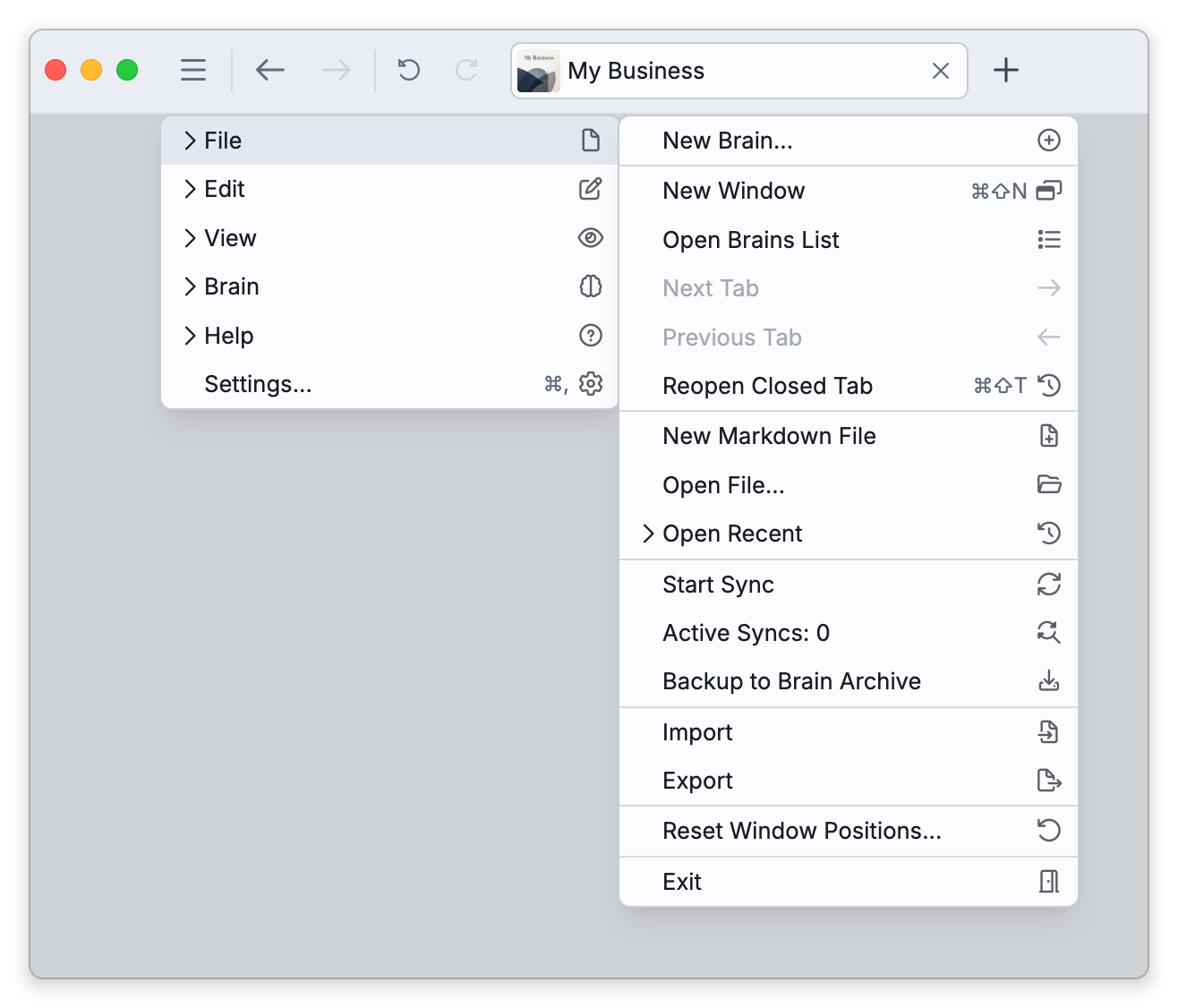
- Open Main Menu > File > Import (this opens the Import/Export dialog on the Import side). In the Mac menu bar the command is the File > Import Brain submenu, which has an item for most formats; OneNote, Apple Notes, Workflowy and Dynalist are chosen inside the dialog only.
- Choose the source format from the list on the left of the dialog. The dialog remembers your last-used format; the first time, it opens on Brain Archive.
- Choose where the content goes: Create a new brain, or Add to "…" and link to "…" to add it to the brain you have open (see Adding to the Brain You Have Open). Check which of the two is selected before you go on.
- Set the options the format offers (see Options in this topic). They are read at the moment the import starts.
- Last, choose the file or folder: click the box that reads Select file to upload (Select files to upload on the Evernote and Apple Notes tabs, Select folder to upload for the folder formats), or, on a computer, drag the file or folder onto that box.
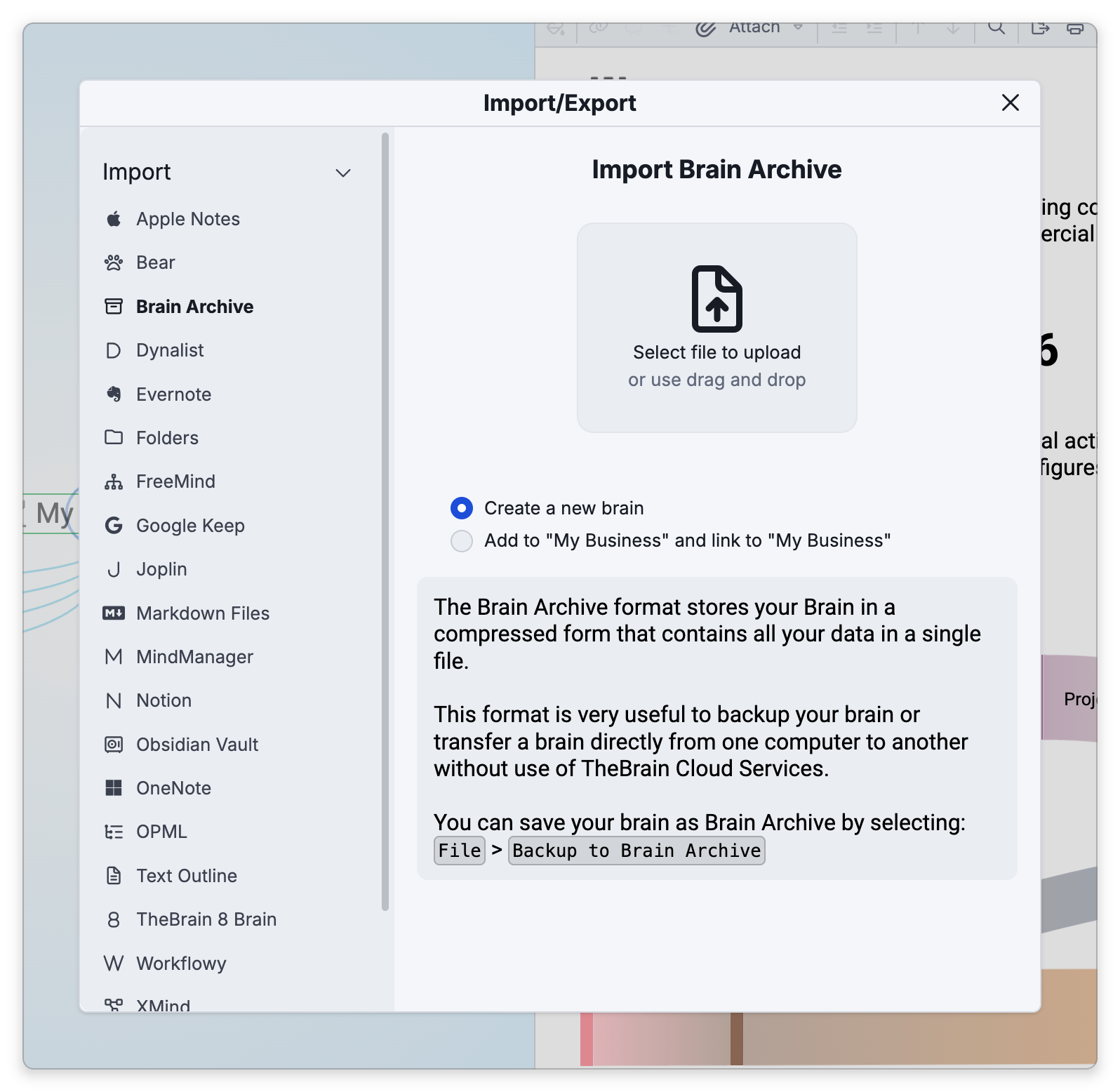
The import starts as soon as the file or folder is chosen. There is no separate Import button to click afterwards, so make the choices in steps 3 and 4 first. (A brain archive that you open from outside TheBrain is the exception, described below.) When you're creating a new brain, nothing more is asked: the dialog closes, an Import processing notification shows the progress, and it ends with Import complete and an Open imported brain link — or with Import failed and the reason.
Adding to the Brain You Have Open
In the desktop and mobile apps, Add to "…" and link to "…" brings the content into the brain you have open instead of a new brain. The option names that brain and its active thought. With no brain open — for example when the dialog is opened from the brains list — it reads Add to the current open brain and is grayed out.
- Where the content lands — The top thought of the imported content is linked as a child of the active thought. When the import has no single top thought, every imported thought that has no parent is linked under the active thought instead. So activate the thought you want the content under before you open the dialog.
- Confirmation — Because this adds to an existing brain, TheBrain asks first: Import "…" into "…"? This process might not be undoable. Choose Import to go ahead, or Cancel.
- Brain archives — Adding a brain archive to a different brain brings in its thoughts, links, notes, attachments, and events as copies with new identities. The archive's own brain settings are not applied.
Opening a Brain Archive From Your Computer
On the desktop app for Mac, Windows, and Linux, .brz brain archives are associated with TheBrain, so you can double-click one in your file manager (or open it with TheBrain). The Import/Export dialog opens on Brain Archive with that file already chosen. Nothing is imported until you confirm: choose Create a new brain (selected to start with) or add it to the brain you have open, then click Import — or Cancel to leave it. If the app isn't running, it starts first; if you're signed out, the dialog appears once you've signed in.
Supported Formats
The Import dialog lists its formats alphabetically; newer importers carry a Beta pill next to the panel title. Each tab also shows a description of the format, and for several other apps it gives the steps for getting your data out of that app. The steps below are the ones the tabs give.
- Apple Notes (beta) — one or more
.enexfiles produced by the Apple Notes Exporter tool, which the tab links to. Selecting several files imports them into one brain.- In the desktop app, keep the
(Attachments)folder the exporter writes next to each.enexfile where it is. TheBrain brings in the files your notes link to from that folder, placing images in the note and attaching other files to the thought. If some linked files can't be found there, the import-complete notification tells you how many. - Checklists come in as note checkboxes. A file holding a single note becomes a single thought, without an extra thought named after the file.
- A note that was locked in Apple Notes comes in with its title only, and its note explains that the content wasn't exported because the note was locked. To bring the content over, remove the lock in Apple Notes, export the note again, and import it again.
- In the desktop app, keep the
- Bear (beta) — a
.bear2bkbackup file. Create it in Bear with File > Backup Notes on a Mac, or Settings > Import & Export > Backup Notes on iPhone and iPad.- Every note becomes a thought under a Bear Import thought.
#tagsbecome tag thoughts (nested tags become a tag hierarchy),[[Note Title]]links become jump links, and images appear in the note. - Notes in Bear's trash are skipped. Locked notes are not imported, so unlock them in Bear before creating the backup.
- Every note becomes a thought under a Bear Import thought.
- Brain Archive — a complete TheBrain archive (
.brz). - Dynalist (beta) — an
.opmlexport. - Evernote — one or more
.enexfiles; selecting several imports them into one brain. Export them from Evernote with File > Export Note or Export Notebook.- Each
.enexfile becomes a thought named after the file, with its notes as child thoughts. With several files, those thoughts sit under one top thought. - Tags become tag thoughts, images appear in the note, and other attached files become attachments of the note's thought.
- Links between notes become thought links in the note and jump links between the thoughts. They're matched by note ID when the export includes IDs, and otherwise by note title where a match is found.
- Each
- Folders — a folder tree. Each folder becomes a thought, subfolders become its child thoughts, and the files inside a folder become attachments of that folder's thought — not a thought per file.
- Tick Create a thought for each file to give every file its own child thought instead, named after the file without its extension, with the file attached to it.
- Files are copied into the brain, and the originals are left where they are. Files and folders whose names start with a dot are skipped.
- The folder you choose gives the new brain its name and becomes its home thought.
- FreeMind — a
.mmmind map. - Google Keep (beta) — the
.zipfrom takeout.google.com. There, deselect everything, select only Keep, and export.- Every note becomes a thought under a Google Keep Import thought. Archived notes are grouped under an Archive thought, and notes in the trash are skipped.
- Labels become tag thoughts, checklists become checkboxes in the note, images appear in the note, and other files are attached to the thought. Saved web links become web link attachments, and note colors carry over as thought colors.
- Joplin (beta) — a
.jexexport. Create it in Joplin with File > Export all > JEX - Joplin Export File.- Each notebook becomes a thought, with its sub-notebooks and notes as child thoughts. Tags become tag thoughts, images appear in the note, and other files are attached to the note's thought. Links between notes become thought links in the note and jump links between the thoughts.
- Encrypted items are skipped, so disable end-to-end encryption in Joplin (or decrypt your notes) before exporting.
- Markdown Files — a folder of Markdown files, with wikilinks and front-matter handled. A note's front-matter
aliases:(oralias:) list becomes the thought's aliases, and wikilinks written with an alias resolve to that thought (see Thought Aliases). What becomes of folders, tags, links, and images is described under What a Markdown or Obsidian Import Creates in this topic. - MindManager — a
.mmapmind map. - Notion (beta) — the
.zipof a Notion "Markdown & CSV" export. To make it, open Settings in Notion's sidebar, select General under Workspace, choose Export all workspace content (or Export in a single page's ••• menu), and pick the Markdown & CSV format.- Each page becomes a thought with the page's content as its note, and database rows become thoughts under the database's thought.
- Links between pages become thought links in the note and jump links between the thoughts. Notion's internal page IDs are removed from names and links.
- Obsidian Vault — an Obsidian vault folder. Front-matter aliases are imported the same way as for Markdown Files, and the rest is described under What a Markdown or Obsidian Import Creates in this topic.
- OneNote (beta) — a notebook folder produced by the OneNote Md Exporter tool (in its Joplin Raw Directory format), which the tab links to.
- OPML — an
.opmloutline. - Text Outline — an indented
.txtoutline (tabs for hierarchy,-for notes,+for URLs). The full syntax is under Text Outline Format in this topic. - TheBrain 8 Brain — a legacy
.brainziparchive. - Workflowy (beta) — an
.opmlexport. - XMind — an
.xmindmind map.
What a Markdown or Obsidian Import Creates
Markdown Files and Obsidian Vault read a folder in the same way, with two differences that are pointed out here.
- Folders and notes — The folder you choose becomes the home thought. Each subfolder becomes a thought under its parent folder, and each
.mdfile becomes a thought under its folder, with the file's text as its note. A# Headingon the very first line of a file is left out of the note when it is the thought's name, so that the note doesn't repeat the name: a Markdown Files import names the thought from that heading, and in an Obsidian Vault import the heading is left out when it says the same as the file's name. A first-line heading that says something else stays in the note. That is also true of a file merged into its folder's thought, which keeps the folder's name. - Thought names — Obsidian Vault names each thought after its file. Markdown Files uses a
# Headingon the first line of the file when there is one, and the file name otherwise (so a file that begins with front matter is named after the file). - Tags —
#tagsin the text andtags:in the front matter become tag thoughts, assigned to the note's thought. A nested tag such as#work/urgentbecomes a tag hierarchy, with urgent under work. - Links between notes — Wikilinks such as
[[Note Name]]and Markdown links to.mdfiles become thought links inside the note. Between the thoughts themselves they become child links, jump links, or no link at all, according to Create plex links from note links as. Each of the two tabs has its own setting: Markdown Files starts on Children and Obsidian Vault starts on Jumps. A link to a note that isn't in the folder creates an empty placeholder thought with that name. - Images — An image that a note shows, written as
![[photo.png]]or, is brought in and shown in the note, as long as the image file is in the folder. - Other files — A file that no note shows or embeds becomes a thought of its own under its folder, with the file attached. A file that a note embeds without being an image, written as
![[report.pdf]], is attached to that note's thought. In an Obsidian Vault import, a file that a note shows or embeds also becomes a thought of its own, linked under each note that uses it. - Skipped — Files and folders whose names start with a dot, such as
.obsidian,.trash, and.git, are left out. - Merge folder and same-named .md file into a single thought — With this on, a folder that contains a note with the folder's own name (
Projects/Projects.md) becomes one thought that holds that note, instead of a folder thought with a same-named child.
Text Outline Format
A text outline is a plain .txt file in which each line is a thought.
- Hierarchy comes from tab characters at the start of a line, one tab per level. Spaces don't count as indentation. The first line must not be indented, and a line can be at most one tab deeper than the line above it.
- A line that starts with
-is a line of the note for the thought above it. Several such lines in a row make one note. - A line that starts with
+adds a web link to the thought above it. Name | Labelgives the thought a label.- A line that starts with
#refers to a thought named elsewhere in the outline. That one thought then appears under both parents, instead of a second thought with the same name being created. The Text Outline export writes a thought that has several parents the same way.
Because of those markers, a thought name can't begin with -, +, or #. Blank lines are ignored.
Projects
	Website | due in May
		- First line of the note
		- Second line of the note
		+ https://example.com
	Newsletter
People
	Ana
		# Newsletter
If the indentation breaks these rules, the import ends with Import failed and the general message An error occurred. Details have been logged.
Pasting an Outline
In the desktop app you can paste an outline without making a file. Copy two or more lines of text in this format, right-click empty space in the Plex, and choose Paste Text Outline as Thoughts. The thoughts are created under the active thought. That menu item is the Plex's paste command, which takes this name when the clipboard holds two or more lines of plain text rather than copied thoughts, files, or an image.
Options
The available options depend on the format:
- Folders — Create a thought for each file (off to start with).
- Markdown Files and Obsidian Vault — Create plex links from note links as (None, Children, or Jumps), and Merge folder and same-named .md file into a single thought (on by default).
- Name untitled notes using the first line of their content — offered for Evernote, Apple Notes, Joplin, OneNote, Notion, and Google Keep imports (on by default), so notes without titles get meaningful thought names.
- If some items couldn't be imported — for example encrypted Joplin notes — the import-complete notification says so and explains what to do.
- Attachment names longer than 150 characters are shortened when they're imported (keeping the file extension), so the brain can still sync.
- Imported brains save their notes in standard Markdown (see Standard Markdown Notes); a Brain Archive import keeps the archived brain's own format, and a brain created by the TheBrain 8 Brain import starts out on TheBrain's dialect. A newly imported brain may therefore require a current version of TheBrain on your other devices. When you add to an existing brain instead, notes converted from other apps and formats are saved in the note format that brain uses.
- Markdown files are often hard-wrapped, with each paragraph broken into lines of about the same width. Markdown Files, Obsidian Vault, Bear, Notion and Joplin imports join such paragraphs once, as the notes are imported, according to Wrapped lines in Settings > User > Markdown Files (see Markdown Files Settings). The imported notes then keep their lines like any other note.
- Import works on the web as well as the installed apps; on the web you choose the file or folder through your browser's upload.
- To go the other way and get content out of TheBrain, see Exporting Brains.