BrainBox
Overview
BrainBox is a quick-capture inbox that sits outside any one brain. When you have something to save — a note, a link, a file — but don't want to stop and decide exactly where it belongs, you send it to your BrainBox. Later, you open BrainBox and triage each item into the right brain, attaching it to a thought or turning it into a new one. It's the "capture now, organize later" half of TheBrain, and it needs a signed-in account.
Opening BrainBox
Open it from the BrainBox button (a box icon) in the top toolbar. Where it opens depends on where you are:
- Inside a brain — BrainBox opens over the brain you have open, so you can file its items onto that brain's active thought. In the mobile app it opens as a panel, and on the desktop app in a window of its own (see below).
- From the brains list — BrainBox opens as a full page of its own (the
/brainboxpage). The Open in new tab button at the top of the BrainBox that is open over a brain takes you to the same page. This page has no brain behind it, so it has no filing commands; use it to look through, open, rename, or delete items (in the web app you can also download files).
When there's nothing waiting, it shows an empty state ("Your BrainBox is empty.").
On the desktop app, BrainBox opens in a window of its own beside the brain window, and you can keep working in the brain while it is open. It belongs to the tab you opened it from — items are filed to that tab's active thought — and it closes when you close that tab or switch to another tab. Viewing an item shows it in the brain window and closes BrainBox; filing, copying, renaming, and deleting items leave it open.
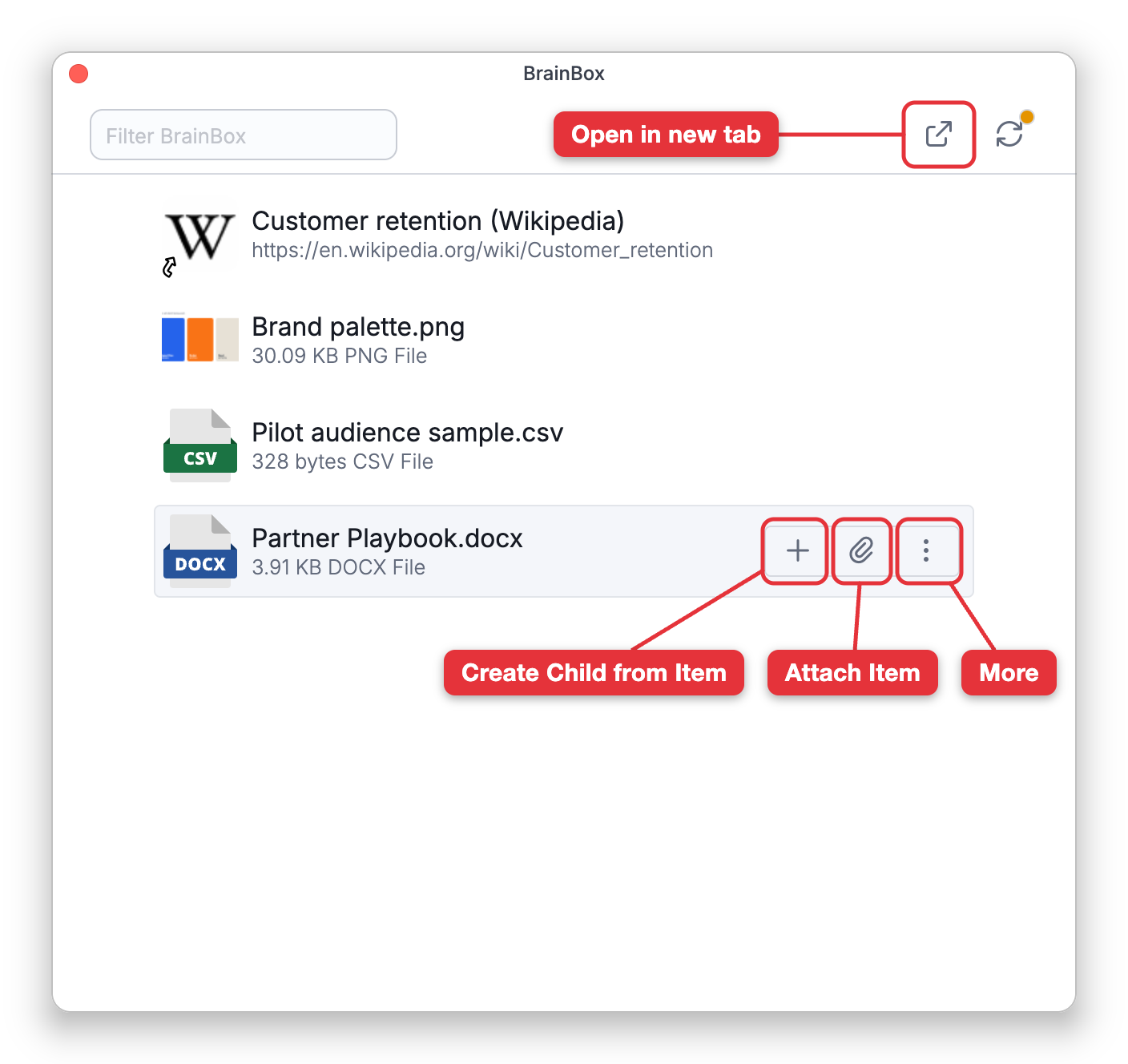
Getting Items Into BrainBox
- From the web (BrainBox Ultra) — The web capture form and its browser extension let you send a note, link, or page to your BrainBox with the Send to BrainBox option — or file it straight into a brain as a child of, or appended to, a chosen thought. See BrainBox Ultra Web Capture.
- From another app on your phone or tablet — With the mobile app installed, tap Share in the other app and choose TheBrain. The steps, and what each shared item becomes, are under Sharing to BrainBox from Another App on Your Phone below.
- From File Explorer on Windows — The desktop app adds a BrainBox entry to File Explorer's Send to menu: right-click one or more files and choose Send to > BrainBox. Folders are skipped, and a notice titled "Added to BrainBox" confirms. If you are signed out, the files are held and added when you sign in, as long as you don't quit the app in between.
- By dragging, in the desktop app — Drag files, folders, or web links onto the open BrainBox.
Files you add from your computer are copied into BrainBox, so the original stays where it was. The newest item is listed first. Dropping a link that is already in BrainBox, or capturing it again from the browser, moves it to the top instead of adding a second copy.
Sharing to BrainBox from Another App on Your Phone
To save a web page, a link, some text, a photo, or a file to TheBrain from another app on your phone or tablet:
- In the other app — a browser such as Safari or Chrome, your photos, your files — tap Share.
- Choose BrainBox in the share sheet. On iPhone and iPad it is Send to BrainBox, in the list of actions below the row of apps (tapping TheBrain in the row of apps sends to Quick Thoughts instead). On Android it is listed under TheBrain's icon as BrainBox (the Quick Thought entry beside it sends to Quick Thoughts instead; see Sharing to Quick Thoughts).
Each item you share is added to your BrainBox:
- A web page becomes a web link named after the page's title.
- A link that points at a file, such as a PDF, is downloaded and stored as a file.
- Text that isn't a web address is saved as a small text file.
- Files and images are stored as files.
On iPhone and iPad you can share several items at once. On Android, share one item at a time.
You need to be signed in. Anything you share while signed out — or, on iPhone and iPad, while TheBrain isn't running — waits on the device and is added once you sign in or open TheBrain. BrainBox then syncs.
Triaging Items Into a Brain
You file items from the BrainBox that is open over a brain, onto the thought you currently have active in that brain:
- Open the brain and activate the thought you want to file onto.
- Click the BrainBox button.
- Point at an item and click its plus button (Create Child from Item) or its paperclip button (Attach Item). The same commands are at the top of the item's right-click menu. In the mobile app, tap an item to open that menu.
The two commands do this:
- Attach Item — Add the item as an attachment on the active thought.
- Create Child from Item — Turn the item into a new child thought under the active thought. The new thought is named after the item — a file's name without its extension, or a link's name — and the item becomes its attachment.
If you opened BrainBox and there is no Attach Item or Create Child from Item, you are most likely on the full BrainBox page, which has no brain to file into: open a brain first and click the BrainBox button there. The filing commands also need a brain you can edit.
Filing Several Items at Once
In the BrainBox that is open over a brain, a click selects an item. Shift-click (⇧-click on Mac) another item to select the whole range between them; on Windows and Linux, Ctrl-click adds or removes a single item. Press Esc to clear the selection. With several items selected, the commands act on all of them:
- Attach Items — Attaches every selected item to the active thought.
- Create One Child from Selected Items — Creates a single new child thought, named after the item you used the command on, and attaches all the selected items to it.
- Create Children from Items — Creates one child thought for each selected item. This one is in the right-click menu.
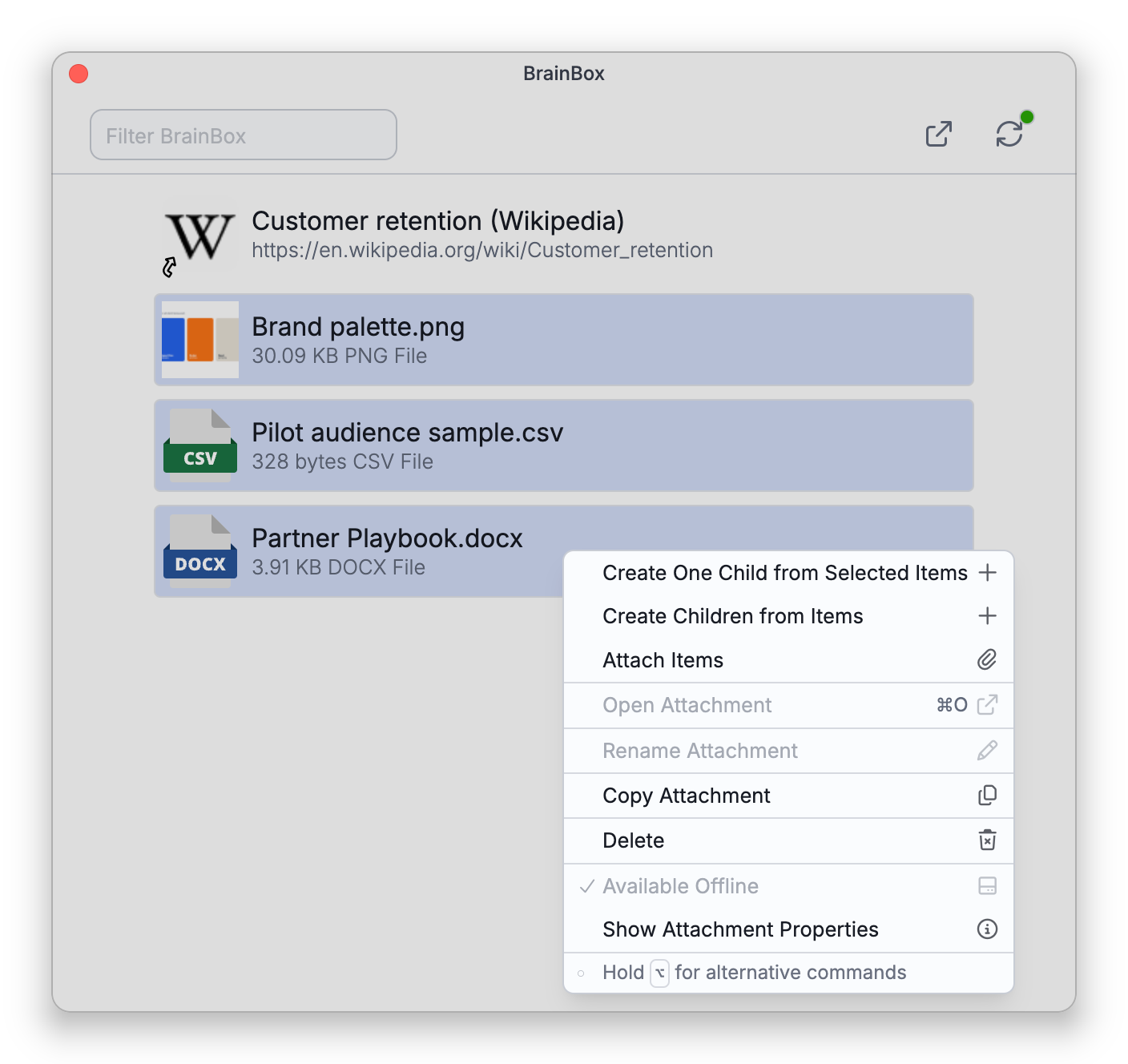
The items are filed oldest first. If the active thought is a thought type, the new thoughts are created with that type.
If you undo the change that filed an item (Main Menu > Edit > Undo in the brain), the item goes back into BrainBox, as long as nothing else has changed in BrainBox since; redo files it again.
Each BrainBox item also behaves much like any attachment — you can open or view it, rename it, or delete it (in the web app you can also download a file) — so you can clear out items once you've dealt with them. On the desktop app you can also copy a file item or show its properties; Cut isn't offered for BrainBox items, so file them instead. Deleting a BrainBox item asks you to confirm first, because the deletion can't be undone.
- Once you file a file from BrainBox into a brain, it is an ordinary attachment of that brain.