Spellcheck
Overview
TheBrain checks your spelling as you write notes — on by default — underlining words it doesn't recognize so you can fix them. It uses TheBrain's own spellchecker on every platform (not your browser's or operating system's), and you can teach it the words you use that aren't in its dictionary so it stops flagging them.
Spellcheck and Dictionaries
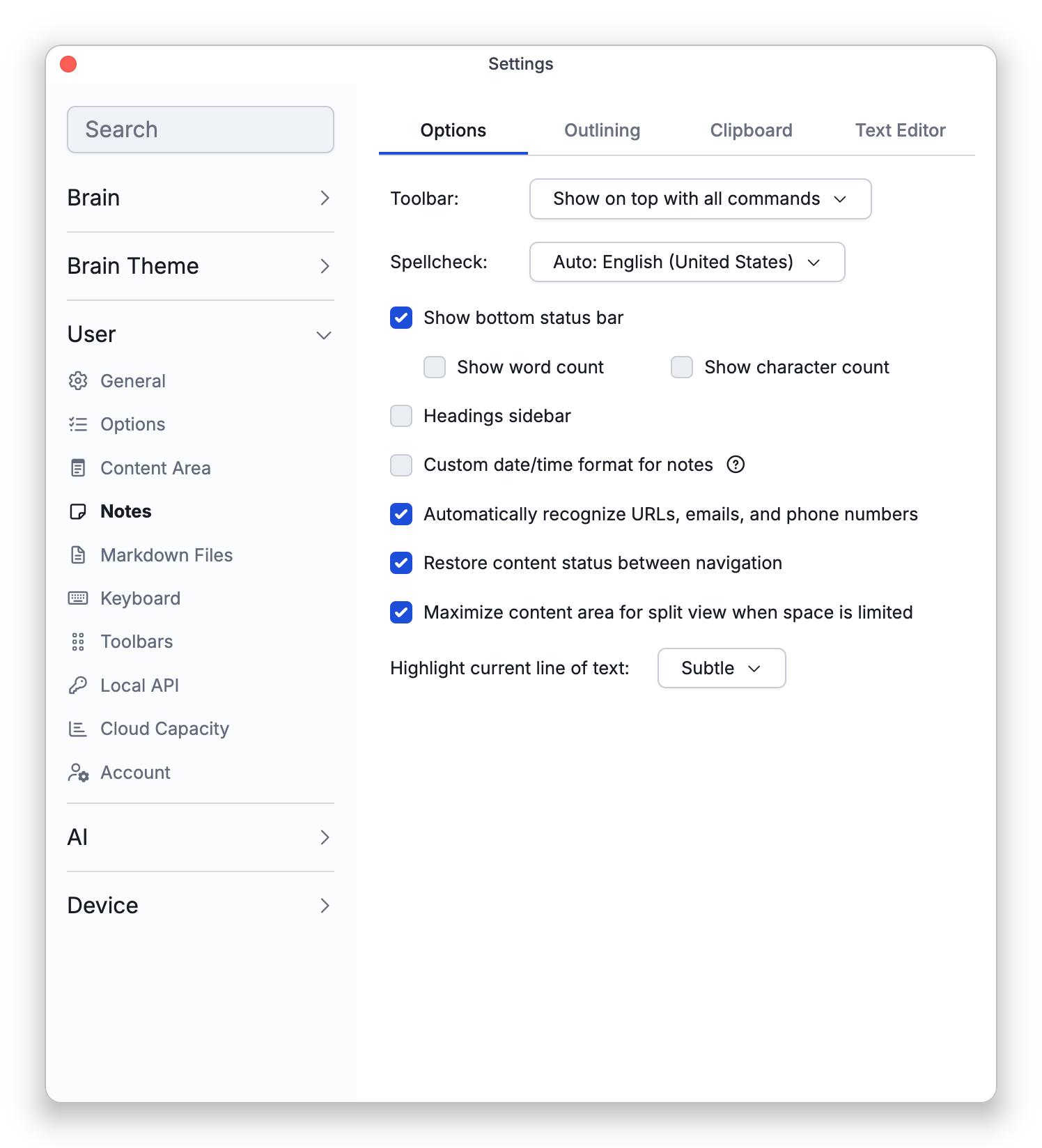
Spellcheck is controlled by the Spellcheck setting in Settings > User > Notes, on the Options tab:
- Automatic (the default) — checks against the dictionary for the language TheBrain's interface is set to, which is the Language setting in Settings > User > General. It does not look at the text you write, so notes written in another language are still checked in the interface language. With the default setting, the Spellcheck button reads Auto: followed by that language. When TheBrain has no dictionary for the interface language, it uses English (US).
- Specific languages — tick one or more language dictionaries; you can enable several at once, and suggestions are then grouped per dictionary. With several dictionaries in use, a word is flagged only when none of them accepts it.
- Disabled — turn spellchecking off.
How to Check Notes Written in Another Language
If you write in German, say, while TheBrain's interface is in English, Automatic checks your German against the English dictionary. To have it checked as German:
- Open Settings > User > Notes and stay on the Options tab.
- Click the Spellcheck button and tick the language you write in.
Your notes are then checked against that dictionary as well, and a word is flagged only when none of the dictionaries in use accepts it. You can tick more than one language if you write in several.
Where Dictionaries Come From
In the desktop and mobile apps, English (US) is built in. Every other dictionary is downloaded from TheBrain's servers the first time you use it, so you need to be signed in and online then; after that it stays on the device. When the list of languages can't be fetched because you're offline or signed out, the Spellcheck menu offers only English (US) and the dictionaries already downloaded. If a dictionary can't be loaded, a Dictionary Load Failed notification names it.
Fixing a Flagged Word
Right-click a word the checker has underlined to:
- Choose a suggested correction.
- Add to Dictionary so the word is remembered as correct from now on, on the device you're using. This is in the desktop and mobile apps only; in the web app you can still Ignore a flagged word.
- Ignore the word for now (it won't be flagged again this session).
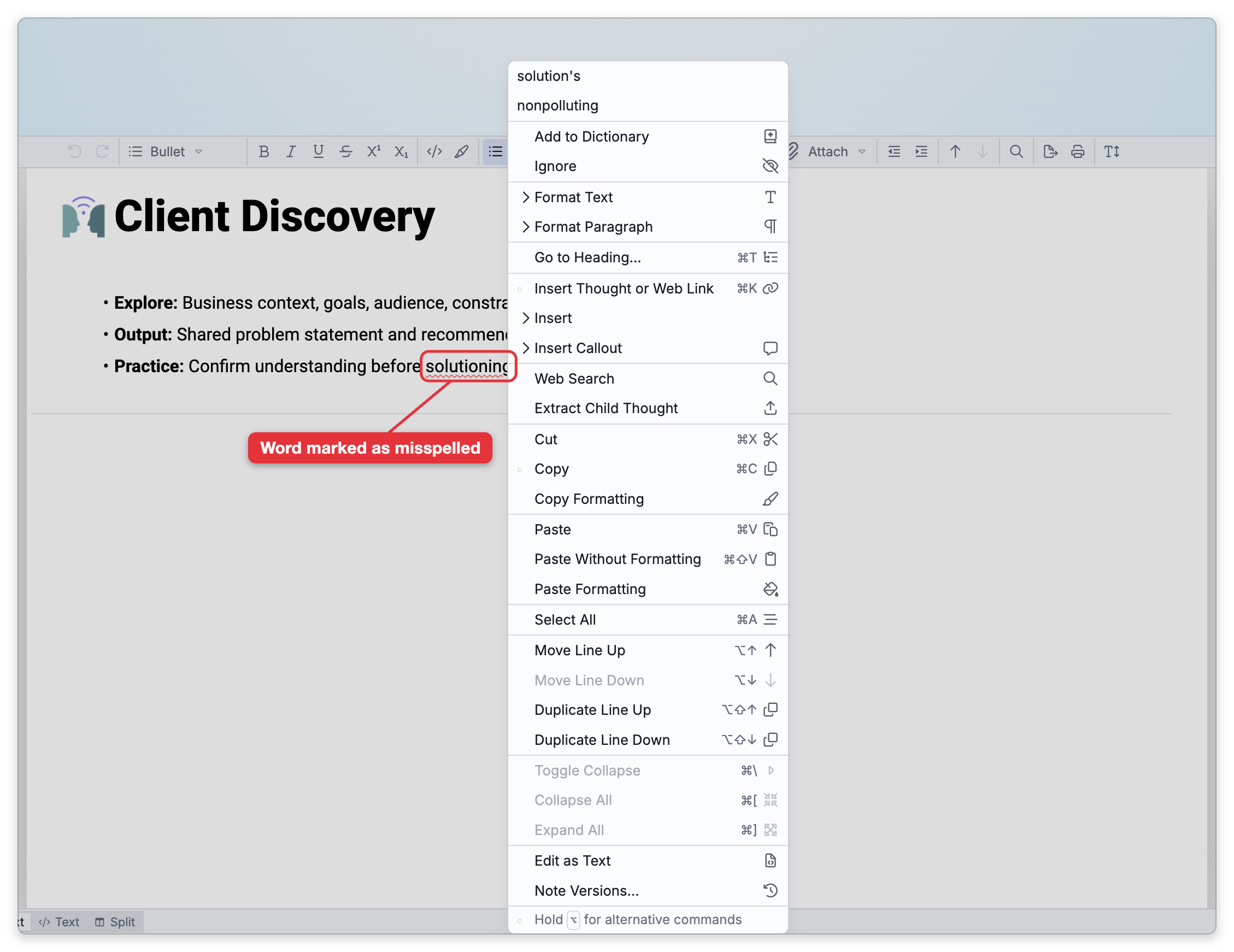
The suggestions sit at the top of the menu — up to five per enabled dictionary — and the note's usual right-click commands (formatting, insert, clipboard) follow below a separator, so you can act on the word without first clicking elsewhere.
What Spellcheck Doesn't Flag
Some text is skipped on purpose, so a word that looks wrong may never be underlined:
- Words written entirely in capitals, which are treated as acronyms, and words that contain a digit.
- Inline code and code blocks.
- Web addresses that begin with
https://,http://, or a similar prefix, email addresses, and phone numbers. A web address typed without that prefix, such aswww.example.com, is checked like ordinary words. - With several dictionaries in use, any word that at least one of them accepts.
- Anything in the raw-Markdown Text view, which doesn't check spelling; spellcheck works in the rich text view.
Words You Add to the Dictionary
Add to Dictionary saves the word on the device you're using. It's a single list that applies whichever languages you have ticked, and it ignores capitalization. The list isn't synced: words you add on one computer, phone, or tablet don't appear on your other devices, so add them there as well.
- There is also a Spellcheck toggle command that turns spellcheck on or off in one step — assign it a keyboard shortcut or toolbar button from the Settings Toggles command category. Toggling back on restores the languages you had chosen.
- The word you're currently typing isn't flagged mid-word — the underline appears a couple of seconds after you pause.