Quick Thoughts Capture Shortcuts
Overview
The Quick Thoughts panel inside TheBrain is where notes are sorted, but the point of Quick Thoughts is capturing without opening TheBrain at all. Each platform has its own fast lane: a browser extension, a global keyboard shortcut and tray icon on the desktop, and widgets, tiles, and app shortcuts on phones. Every one of them opens the same small capture card — a title bar reading Quick thought, a rich-text editor with a strip for web links and attached files above it, and a Send button — and every note they send lands in your account's Quick Thoughts inbox, where you file it later (see Quick Thoughts).
All the capture tools share a few habits:
- Send is explicit. Nothing reaches your inbox until you click Send (
Ctrl+Enter, or⌘Enteron Mac, in the extension and the desktop window). The status line reads Not sent yet while the card holds unsent text, Sending… as it goes, and Sent ✓ when it arrives. - Unsent text is never lost. If you close or dismiss the card mid-thought, the text is still there next time you open it, and the tool's launcher shows a small indicator that a note is waiting. Inside TheBrain, the Quick Thoughts panel shows Unsent note in the capture window with an Open link.
- A draft can be thrown away. While the card holds unsent text, links, or files, a trash button (Discard this note) appears beside the status line. Click or tap it once and it changes to Discard?; click it again within a few seconds to discard the text, the links, and the files. Pressing
Esc, clicking anywhere else, or waiting cancels. The card stays open, empty and ready for a new note, and in the extension the page you are on is offered as a link again. - Links ride along. Click Add link above the editor, paste a web address into the Paste a link box, and press
Enteror click Add — the link joins the note as a chip. Each chip can be renamed with its pencil button or removed with its x. A note can carry up to 20 links, and a note with links but no text can be sent too. When you file the note, its links become web link attachments on the destination thought. - Files ride along too. Click Attach file in the same strip (once the strip holds a chip, the button shows only its paperclip) and choose one or more files; on phones it offers Photos & videos or Files. In the desktop capture window you can also drag files from your computer onto the card to attach them. An image file dropped onto the note's text goes into the text as a picture instead; drop it on the strip above the text to attach it as a file. A folder cannot be attached: the card says so and asks you to attach the files inside it. Each file starts uploading at once and joins the note as a chip that shows its progress, so you can keep writing. In the browser extension and the iPhone and iPad capture card, Send waits for the files: until they have all uploaded, the button shows the progress instead (Uploading 1 file — 40%, or Waiting for connection while you are offline; on an iPhone, the shorter Uploading 40% or No connection) and cannot be clicked. In the desktop capture window and the Android capture card, Send doesn't wait: the note goes to your inbox right away and its files follow as they finish uploading, even after the window or card has closed (on Android 14 and later a notification shows the progress), while TheBrain on your other devices shows them as Uploading from this device. Everywhere, a file that cannot be uploaded turns into a red chip that says why, and the note cannot be sent until you remove that file. A note can carry up to 10 files, and a note with files but no text can be sent too. Attaching files needs the capture tool to be connected to your account. For the size limits, renaming and removing a file, and what happens to the files when you file the note, see Quick Thoughts.
- Offline is fine. Send always puts the note in a queue on the device first, so a note that cannot be delivered right away is safe. When the capture tool is connected to your account but TheBrain Cloud cannot be reached, the status reads Offline — 1 note queued in the extension and on phones, and Send failed (502) — 1 queued in the desktop capture window; the card stays open so you can read it. When the tool is not connected to an account yet, or you are signed out, the status begins Saved on this device and tells you to connect or sign in to sync. Queued notes are sent the next time you open the capture card with a connection, and whenever you send another note. On phones they are also sent each time you open the TheBrain app or come back to it.
- In the desktop and phone apps, the card always sends as the account it was written under. If a different account is signed in later, the note waits for the original account to sign back in.
The Browser Extension (Chrome, Firefox, and Safari)
The TheBrain Quick Thoughts extension adds a toolbar button that opens the capture card as a popup, on any page, without leaving the tab. It works in Chrome and other Chromium browsers (version 121 or later), in Firefox (version 140 or later), and in Safari on a Mac (version 16.4 or later).
Getting the extension
TheBrain links to the extension from a few places, each labeled Get the browser extension: in the desktop app under Settings > Device > General, on the tour card the Quick Thoughts panel shows while your inbox is empty (until you have taken the tour), and in the Quick Thoughts tour's browser extension step. Each one opens the Quick Thoughts page on thebrain.com in your web browser, which offers the extension from the store for the browser you are using. These links aren't shown on phones and tablets, whose browsers can't install the extension — use the phone capture tools described below instead.
In Safari, the extension comes with TheBrain's desktop app for Mac rather than from a store. To turn it on:
- Install the desktop app in your Applications folder and open it. Safari doesn't list the extension while the app is anywhere else.
- In Safari, choose Safari > Settings, open Extensions, and turn on TheBrain Quick Thoughts.
The extension is updated along with the desktop app.
Connecting the extension to your account
- Click the extension's toolbar button. Until it is connected, the popup shows Not connected to your TheBrain account yet — notes stay on this device. with a Connect… button. You can already write and send notes; they are kept locally until you connect.
- Click Connect…. A tab opens in the TheBrain web app on a page headed Connect Quick Thoughts, which says that the extension will be able to save quick thoughts to your account and that it cannot read or change anything else. Sign in if you are not already.
- Click Connect on that page. It reports Connected!, and the tab closes on its own. Any notes you sent before connecting are delivered the next time you open the popup.
Safari asks your permission before the extension can use a website. When you click Connect…, Safari asks to let the extension use TheBrain's site; allow it so the connection can finish. Safari can ask again when you click Send, if you allowed access for one day only or removed it later.
The connection gives the extension a limited credential that can only send quick thoughts to your account — it cannot read or change anything else. You can see and revoke it any time in the web app under Settings > User > Capture Devices, or disconnect from the extension's own options page with Disconnect. If the connection is revoked, the popup tells you that the device was disconnected and asks you to reconnect.
Capturing
- Click the toolbar button, or press the extension's shortcut — the default is
Alt+Shift+U(⌥⇧Uon Mac). You can change it in your browser's extension shortcut settings. - Write the note. The popup's status line shows the account you are sending to.
When you open the popup on a web page with an empty draft, that page is already there as a link chip, titled with the page's title — send it as is, add a few words, or click the chip's x to drop it. The chip is only kept with the draft once you start typing or change the links, so opening the popup on page after page doesn't pile up chips. If the draft already has text or links, the page is offered instead as an Add this page button in the link strip. Browser pages such as the new-tab page or settings are never offered.
- Click Send or press
Ctrl+Enter(⌘Enteron Mac).
The popup keeps whatever you typed but did not send, and the toolbar icon carries a dot while such a note is waiting. The popup follows your system's light or dark appearance; the button in its header switches between light, dark, and following the system.
The Desktop App (Windows, Mac, Linux)
The desktop app can open a capture window from anywhere on your computer. It is a small window that stays out of the way: press Esc or close it to hide it (the text stays). It stays above other windows while you work in them, until you turn that off with the pin button in its header. Because the desktop app already knows who you are, there is nothing to connect — notes go straight to the signed-in account. If you are signed out, the window says Sign in to TheBrain to sync — notes stay on this device. and holds the notes until you sign in.
Turning on the global shortcut
The shortcut is off by default, because a global shortcut takes that key combination away from every other program.
- Open Settings > Device > General.
- Under Quick capture, turn on Enable the global capture shortcut.
- The Shortcut field shows the default,
Alt+Shift+U(⌥⇧Uon Mac). To change it, click the field and press a new combination. It must include a modifier such asCtrlorAlt— a plain key, orShiftalone, is refused because it would swallow ordinary typing everywhere. Reset to default appears whenever the shortcut differs from the default.
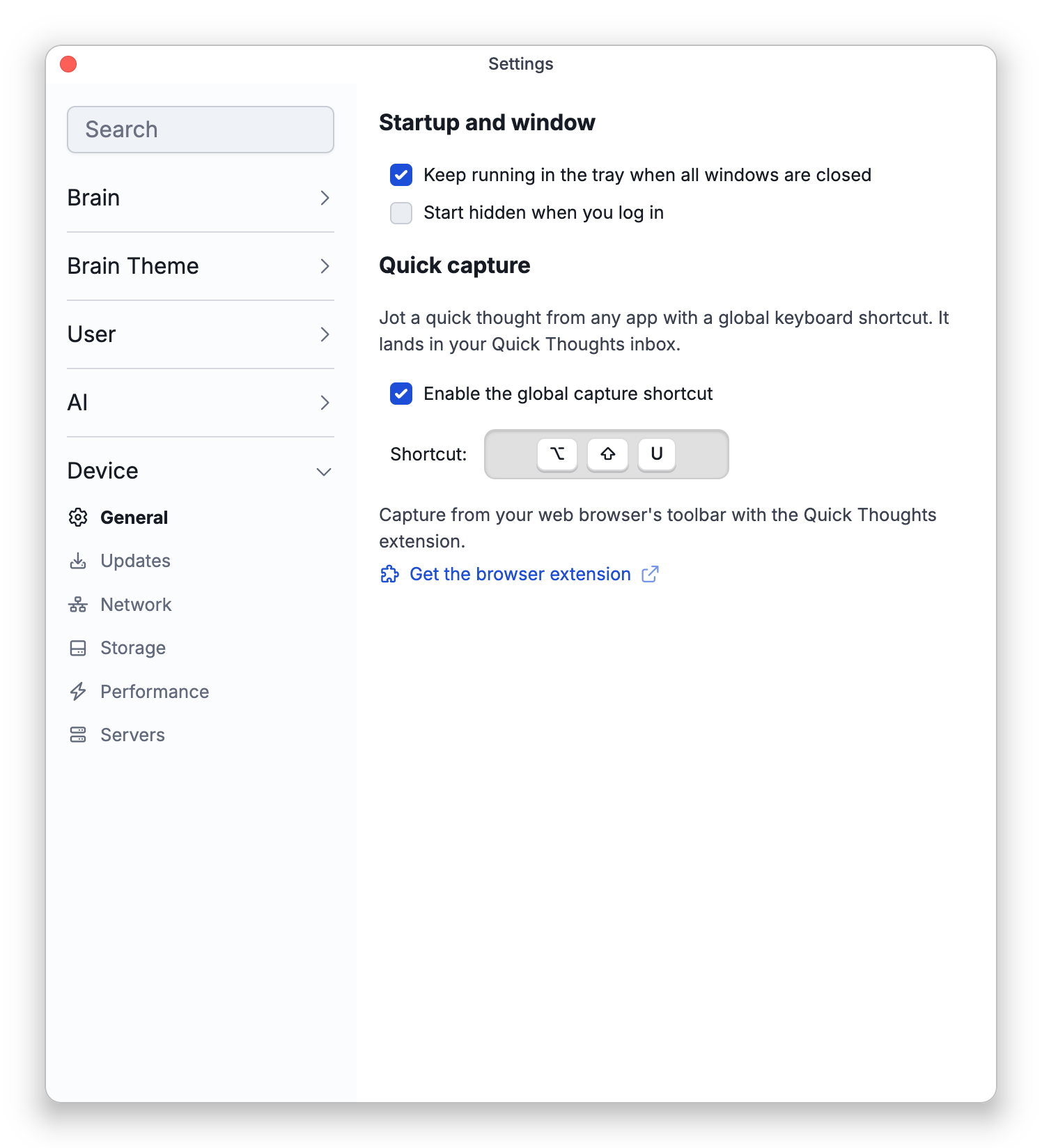
If the combination could not be registered — typically because another program already uses it — the page shows a warning, and you can choose another combination. On Linux with a Wayland desktop, global shortcuts generally cannot be registered at all; see Linux below.
The shortcut works while TheBrain is running, including when it is running only in the tray. While the desktop app holds Alt+Shift+U, it answers that combination even in your browser, ahead of the extension's identical default — same account, same inbox, so either is fine.
The tray icon and Quick Thought menu
With Keep running in the tray when all windows are closed turned on in Settings > Device > General (it is on by default), closing TheBrain's last window leaves it running as a tray icon (a menu bar icon on Mac) so the capture shortcut keeps working. The icon's menu has Quick Thought, which opens the capture window without a shortcut at all, alongside Open TheBrain and Quit TheBrain.
The tray icon wears a dot, and its tooltip reads TheBrain (unsent quick thought), while the capture window holds text you have not sent.
Start hidden when you log in, on the same settings page (shown where your system supports it), launches TheBrain in the tray at login, so the capture shortcut is ready before you open a window. It is off by default.
These two settings also decide whether TheBrain keeps running after you close its window and whether it starts when you log in. For quitting TheBrain completely and turning the tray icon off, see Tray Icon, Quitting, and Starting at Login.
Linux
Most Linux desktops now run Wayland, which does not let applications register global shortcuts, so the shortcut in Settings usually reports that it could not be registered. Use one of these instead:
- The launcher action. Right-click TheBrain's icon in your dock or application launcher and choose Quick Thought. This opens the capture window whether TheBrain is running or not.
- A system shortcut. Bind any key combination in your desktop's keyboard settings (or your compositor's configuration) to the same command the launcher action runs (with a Beta or Alpha install, the command begins
thebrain-betaorthebrain-alphainstead):
thebrain-stable --quick-thoughtIf TheBrain is already running, the command shows the capture window in that instance; if it is not, it starts TheBrain and then shows the capture window.
Android
TheBrain for Android offers three ways to open the capture card without opening the app:
- Quick Settings tile — Edit your Quick Settings panel and add the Quick Thought tile from TheBrain. Tap it to open the capture card from anywhere, even over another app.
- Home screen widget — Add the 1x1 Quick Thought widget (described as Jot a note into TheBrain instantly.) to your home screen or lock screen. Tapping it opens the card.
- App shortcut — Touch and hold TheBrain's app icon and choose Quick Thought.
The card uses the account signed in to the TheBrain app, so there is nothing to connect. If you have not signed in, it tells you to sign in to sync and keeps notes on the device until you do. Text you typed but did not send is restored next time; while it waits, the widget's label and the tile's subtitle change to Unsent thought and the widget shows a dot. The card also opens when you share something from another app and choose Quick Thought (see Sharing to Quick Thoughts).
iOS and iPadOS
TheBrain for iOS offers the capture card through the system's widget and control surfaces:
- Home Screen widget — Add the small Quick Thought widget from TheBrain (described as Jot a note into TheBrain instantly.), or Quick Thought (Blue), the same button on TheBrain blue. Tapping it opens the capture card.
- Lock Screen widgets — The same Quick Thought widget is available in the round and rectangular Lock Screen sizes.
- Control Center (iOS 18 and later) — Add the TheBrain Quick Thought control to Control Center. It can also be assigned to the Action button on iPhones that have one. It is not supported in the two Lock Screen corner-button slots; use the Lock Screen widget there instead.
- App shortcut — Touch and hold TheBrain's app icon and choose Quick Thought.
- Share — In another app, tap Share and choose TheBrain: a small Quick Thought sheet sends what you shared without opening TheBrain (see Sharing to Quick Thoughts).
As on Android, the card sends as the account signed in to the app, holds notes offline, and restores unsent text; on iOS the reminder about an unsent note is shown inside the app's Quick Thoughts panel.
Quick Thought Lite
Quick Thought Lite is the fastest way to jot plain text on an iPhone or iPad: iOS shows a small Quick Thought text box over whatever app you are using, and TheBrain never opens. Type or dictate your thought, tap Done, and the box closes; the note goes to the Quick Thoughts inbox of the account signed in to the TheBrain app. There is no confirmation message, by design, so you are straight back where you were.
Quick Thought Lite is a Shortcuts action, so you can start it from anywhere iOS runs shortcuts:
- Action button — On iPhones with an Action button, set the button to Shortcut in the Settings app and choose Quick Thought Lite.
- Siri — Say "Quick Thought in TheBrain" or "Add a Quick Thought in TheBrain".
- Spotlight — Search for Quick Thought Lite.
- Shortcuts app — Find it under TheBrain's shortcuts. From there you can also add it to your Home Screen as its own icon, or use it as a step in a shortcut of your own.
- Back Tap — In Settings > Accessibility > Touch > Back Tap, choose a double or triple tap and pick Quick Thought Lite.
- Control Center — Apple's own Shortcut control can run it. (TheBrain's TheBrain Quick Thought control and the widgets open the full capture card instead, because iOS does not let widgets and controls show a text box.)
Quick Thought Lite takes plain text only, with no pictures, files, or link chips; use the capture card or the Share menu for those. Markdown you type, such as a # heading or - list items, becomes formatting in the note, and the heading's text, without the #, becomes the note's title. If you are offline, the note is saved on the device and sent the next time you open TheBrain. If you are not signed in to the app, it is saved on the device and goes to the account that signs in next. A note over 5 MB is not saved, and iOS shows This Quick Thought is too long to send.
Using Quick Thought Lite in your own shortcuts
Because Quick Thought Lite is a Shortcuts action, you can build your own shortcuts that prepare some text and then send it to your inbox. In Quick Thought Lite's step, set Thought to the result of the step before it (tap the field and choose that result); if you leave it empty, the typing box appears instead. Apple's action names can differ slightly between iOS versions.
For example, this shortcut saves a readable copy of a Safari article, with its title and address, from Safari's Share menu:
- In the Shortcuts app, create a new shortcut, for example Clip to TheBrain. In its details, turn on Show in Share Sheet and let it receive Safari web pages and URLs.
- Add Get Article using Safari Reader, with Shortcut Input as its input.
- Add Get Details of Article and choose Title.
- Add Get Details of Article again and choose Body, with the article from step 2 as its input.
- Add Make Markdown from Rich Text, with the body as its input.
- Add a Text action containing a
#and the title, a blank line, the Shortcut Input, another blank line, and the Markdown from step 5. - Add Quick Thought Lite, with Thought set to that text.
To use it, open an article in Safari, tap Share, and choose Clip to TheBrain. The title line becomes the note's title, the address sits under it, and the article's formatting arrives intact. Pictures in the article come through as links to the website's images rather than as copies.
Managing Connected Capture Devices
In the web app, Settings > User > Capture Devices lists every extension or app that holds a capture credential for your account, with its name, its Access (Send only or Send and read), when it was Paired, and when it was Last Used. Click the x on a row and confirm Disconnect to revoke it. Notes that device already sent are kept, and you can connect the device again at any time. Disconnecting never touches your brains or your data.
- The capture card takes text, formatting, web links, tables, pictures, and attached files. In the extension popup and the desktop capture window you can paste a screenshot or a copied picture straight into the note. The card's toolbar also has an Insert menu with Insert Table and Insert Image. In the extension popup and the desktop capture window, toolbar buttons that do not fit in the row are moved into the More (…) menu at its end, and at the capture window's default size Insert is one of them. Insert Image opens a small panel with Choose image file… and a box for pasting an image address. A note that holds only a picture can be sent. Markdown you paste (headings, lists, quotes, code, tables) turns into formatting as it goes in, as it does in thought notes; in the browser extension that needs a connection, so offline it pastes as plain text. Large pictures are scaled down and re-compressed as they go in. A note over 5 MB is not sent: the status reads This note is too large to send (5 MB limit) and the note stays in the card, so you can remove some images or split it into two notes. Attached files upload separately and are not part of that limit.
- To send a web page, link, text, photo, or file from another app, use its Share button (on Windows, Send to; see Sharing to Quick Thoughts). BrainBox keeps its own share entries, which send to BrainBox instead (see BrainBox).
- The capture card's toolbar is a compact version of the notes toolbar; on phones it is a floating pill with a button to hide the keyboard.
- Only the extension offers the page you are on. The desktop capture window and the phone capture tools open blank, ready for typing; add links to them with Add link.