Keyboard Shortcuts
Overview
Almost every command in TheBrain can have a keyboard shortcut, and the Keyboard settings (under Settings > User) let you see them all and change them to suit how you work. The default shortcuts throughout this knowledge base are exactly that — defaults you can rebind here. The Keyboard settings are in the desktop and web apps, but not in the mobile apps.
Keyboard Symbols
Topics give each shortcut first as it is in Windows, and then as it is on a Mac, such as Ctrl+Z (⌘Z on Mac). The Mac form uses Apple's symbols for its modifier keys:
| Symbol | Mac key | Usual Windows key |
|---|---|---|
| ⌘ | Command | Ctrl |
| ⌥ | Option | Alt |
| ⇧ | Shift | Shift |
| ⌃ | Control | None. Control is a key of its own on a Mac, used by only a few shortcuts. |
Finding a Command
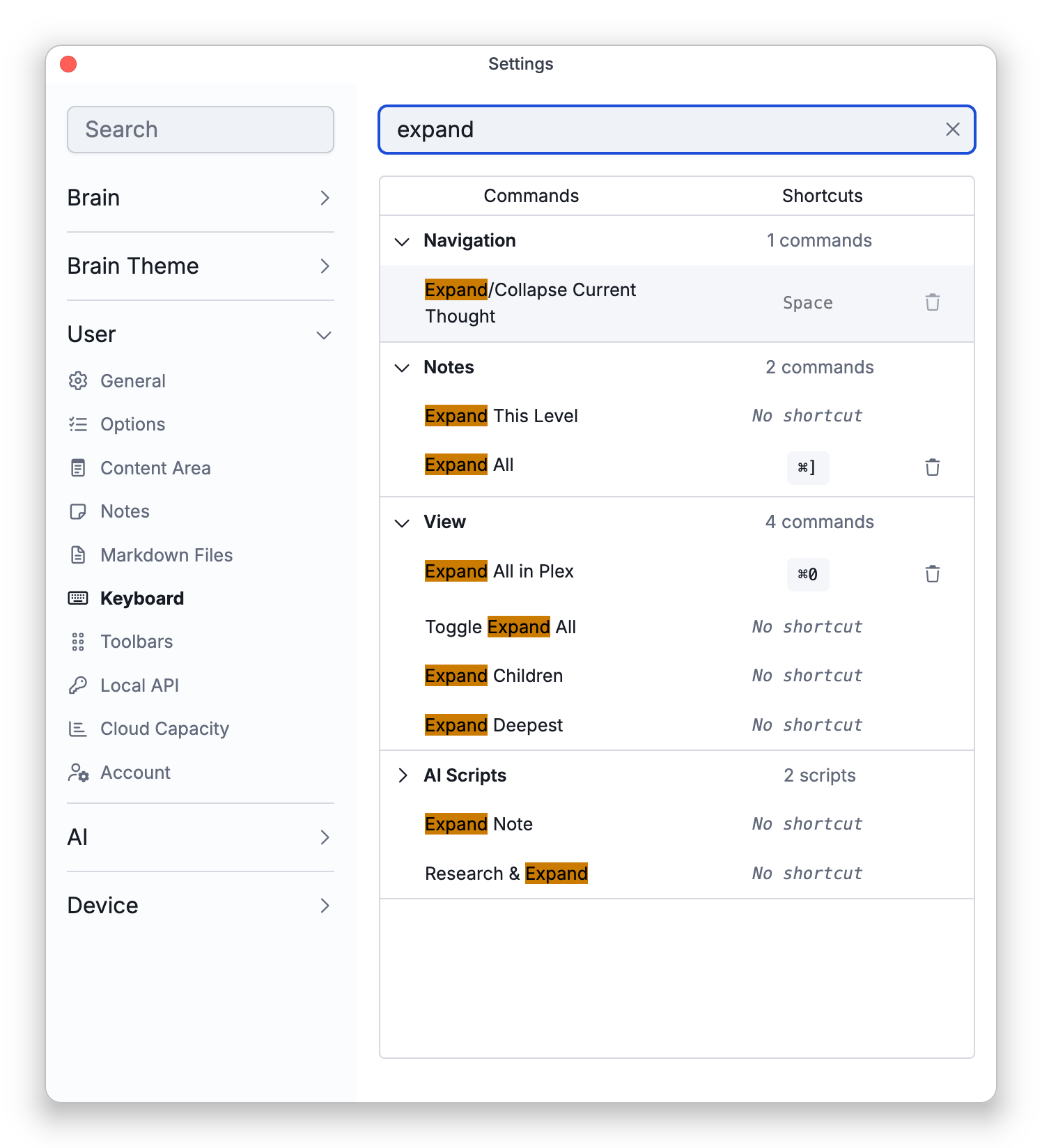
The Keyboard settings list commands by category, with a search commands box to find one quickly. Turn on Only Show Assigned to see just the commands that currently have a shortcut.
Rebinding a Shortcut
Click a command to edit its shortcut, then press the keys you want. TheBrain warns you if the combination conflicts with another command or is a reserved system shortcut. The Markdown file window's Save and Save As... are the exception: they work only in those windows, so they can share a combination with a command that works elsewhere (see Markdown File Windows). You can remove a single binding or clear all of a command's bindings. Some commands are fixed and can't be rebound. A default shortcut on a key you can't record here — such as Space, Enter, or an arrow key — can't be removed either, since there would be no way to add it back; you can still give the command other shortcuts.
Which Combinations Are Accepted
- A modifier plus another key — A shortcut combines at least one modifier key with another key. The modifier keys are
Ctrl,Alt, andShift, and on Linux also theSuperkey; on a Mac they are⌘,⌥,⇧, and⌃(see Keyboard Symbols). On Windows, the Windows key can't be part of a shortcut, and the dialog ignores it. - The Mac Control key — A shortcut that uses the Control key (
⌃) on a Mac works only on a Mac, because Windows and Linux have no key that corresponds to it. When you record one, the dialog shows Windows Preview: Not Available with the note This shortcut uses platform-specific keys and will not be available on Windows. You can still save it. - A single key — A key on its own is not accepted, except a function key (
F1,F2, and so on), which can be used alone. - Shift alone is not enough — When
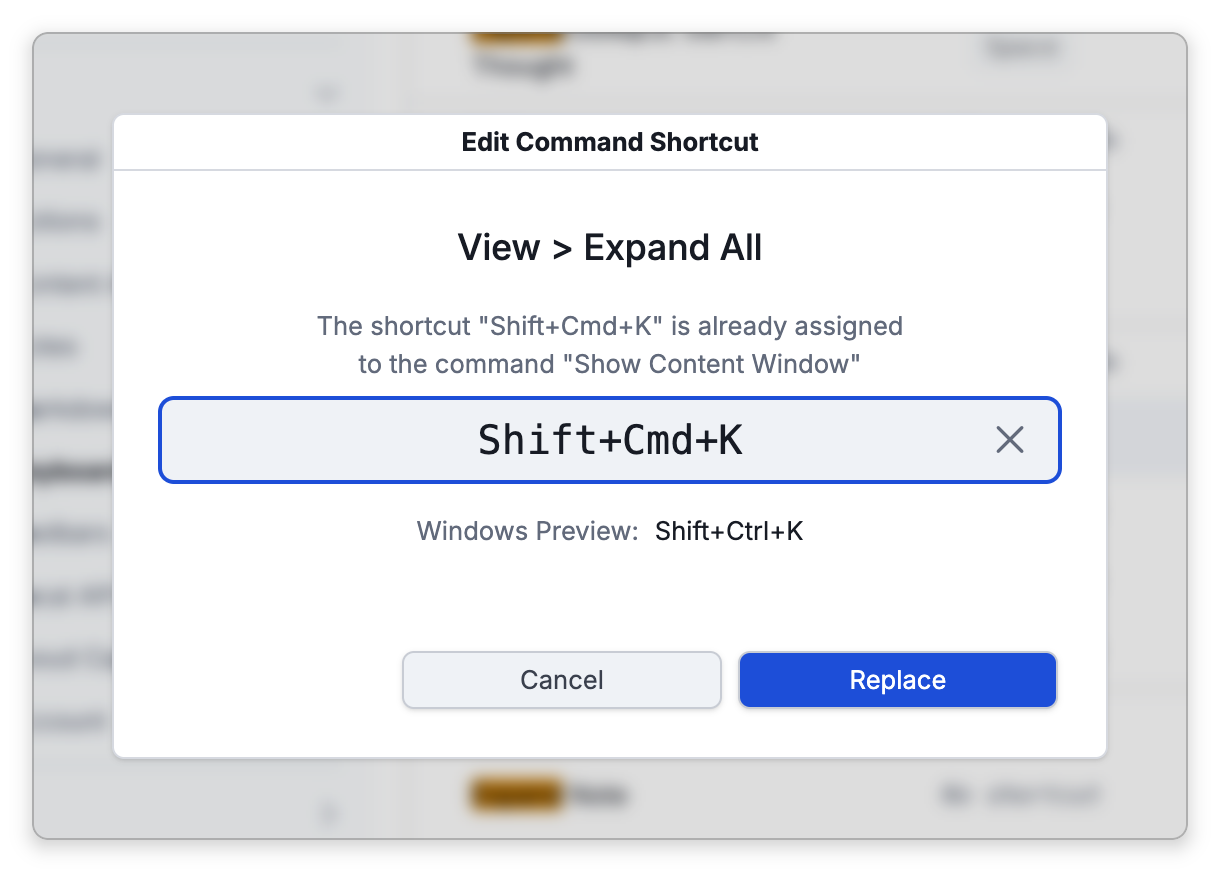
Shiftis the only modifier, as inShift+AorShift+F5, the dialog shows Additional modifier key required and you can't save. - A combination another command uses — The dialog names the command that has it, and the Save button becomes Replace. Replacing takes the combination away from that command and gives it to this one.
- Sharing between notes and the plex — A notes command and a command outside notes can use the same combination. The notes command runs while the note has focus, and the other one runs while the plex has focus.
- Combinations you can't save — Apart from that sharing, a combination that belongs to a fixed command can't be saved, and neither can a system shortcut.
Adding a shortcut keeps the ones the command already has. The dialog also previews the equivalent shortcut on the other platform (Mac or Windows) and warns you when it would not be available there.
Shortcuts on Your Other Devices
When you are signed in, your custom shortcuts are saved with your account and synced, so they follow you to your other devices and to the web app without exporting anything. A change made on one device reaches the others after it syncs. Your toolbar layouts are saved the same way (see Customizing Toolbars).
Shortcuts are saved in a form that works across platforms: a Ctrl shortcut on Windows or Linux is a ⌘ shortcut on a Mac, and Alt is ⌥. The Mac's Control key (⌃) is the exception. It has no counterpart on Windows or Linux, so a shortcut that uses it is available only on your Macs. If you want the command on a shortcut everywhere, add a second shortcut for it that doesn't use ⌃; a command can have more than one.
If you use the desktop app without signing in, your shortcuts and toolbar layouts are kept on that device only. When you create a new account from that device, they are copied into it.
Import, Export, and Reset
From the settings' actions menu (the … button) you can:
- Import Shortcuts from a file and Export Shortcuts to one, for example to copy your shortcuts into another account.
- Restore Default to reset all shortcuts to their shipped values (TheBrain confirms first).
- A plain key you never set — If a command shows a single key such as
1orGas its shortcut, and that shortcut can't be removed, it is a leftover from an earlier version of TheBrain. Current versions remove these leftovers automatically when they load your shortcuts, so update TheBrain on each device where you see one. A single key that is a default, such asSpace, is kept.