Light-Sync Attachments
Overview
A brain's attachments can be far larger than its thoughts and notes. Light sync attachments keeps a brain lightweight by loading attachments only as needed, rather than downloading every file to your device, which saves bandwidth and storage. It's a per-brain setting on the desktop and mobile apps (the web app has no attachment downloads to manage), and it's the difference between a brain that fits comfortably on a small device and one that doesn't.
Turning Light Sync On or Off
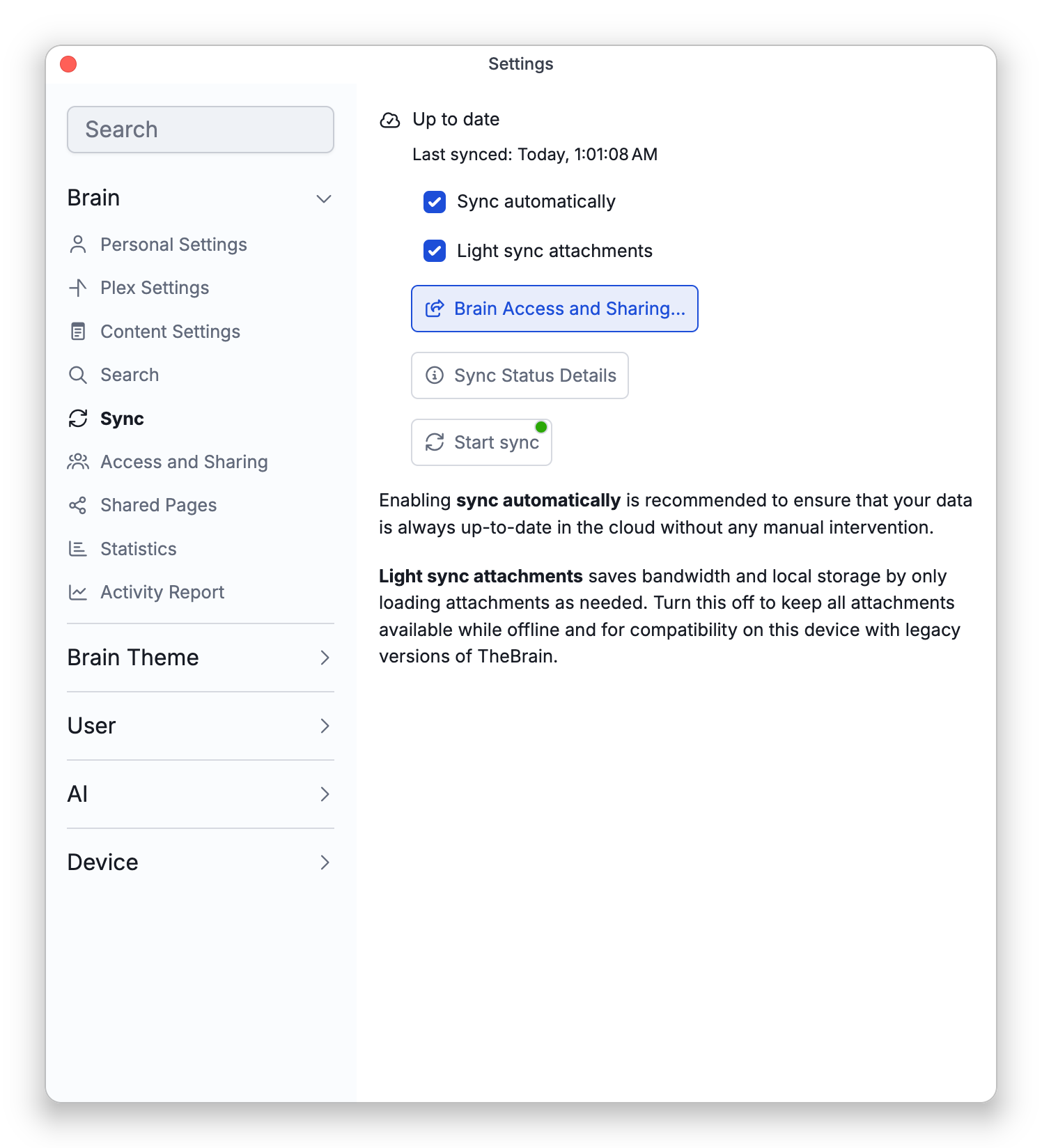
The Light sync attachments setting lives in the brain's sync settings:
- On — attachments load on demand; only thoughts, notes, and the files you actually open come down. You can still keep specific files on your device with the per-file Available Offline toggle — see Offline Attachments and Light Sync.
- Off (full sync) — every attachment is downloaded and kept locally, so the whole brain is available offline. Switching to full sync downloads all the outstanding attachments first.
To change it, open Settings > Brain > Sync, or click the arrow beside the Sync button in the brain toolbar (Sync status and settings), and tick or clear Light sync attachments. The same command is in the menu you get by right-clicking the brain in the brains list, and on the Mac desktop app it is also Brain > Light Sync Attachments in the menu bar. The checkbox appears once the brain is synced.
The Default, and What It Applies To
- Light sync is on by default. Every synced brain starts out light-synced on a device: a brain you download from the cloud, and a brain you upload once it has synced. It stays that way until you turn light sync off for that brain on that device.
- A brain that is only on this device keeps all its files. Light sync has nothing to do until the brain is synced, which is why the checkbox isn't offered before then.
- The setting is kept on each device. It is stored per brain on the device, like Sync automatically — it is not part of the brain or of your account. Turning light sync off on your computer does not change your phone or another computer, so set it on each device where you want something different.
- Turning light sync back on removes nothing. Files that are already on the device stay there. To free the space a file takes, remove its local copy with Available Offline — see Offline Attachments and Light Sync.
- Light-synced (not-yet-downloaded) attachments are excluded from some operations — for example, they aren't included in a brain archive, and you'll be prompted to download them before merging thoughts or before deleting a cloud brain.