Dates and Times in Notes
Overview
When you're keeping a log, a journal, or dated entries in a note, Insert Date drops the current date in at the cursor without breaking your flow. If the default format isn't what you want, you can define a custom date/time format so inserted dates always look the way you prefer.
Inserting a Date
Place your cursor where you want the date and use Insert Date — the default shortcut is Ctrl+D (⌘D on Mac), and it's also in the notes editor's Insert menu. With no custom format set, it inserts the current date and time in your device's regional format.
Customizing the Format
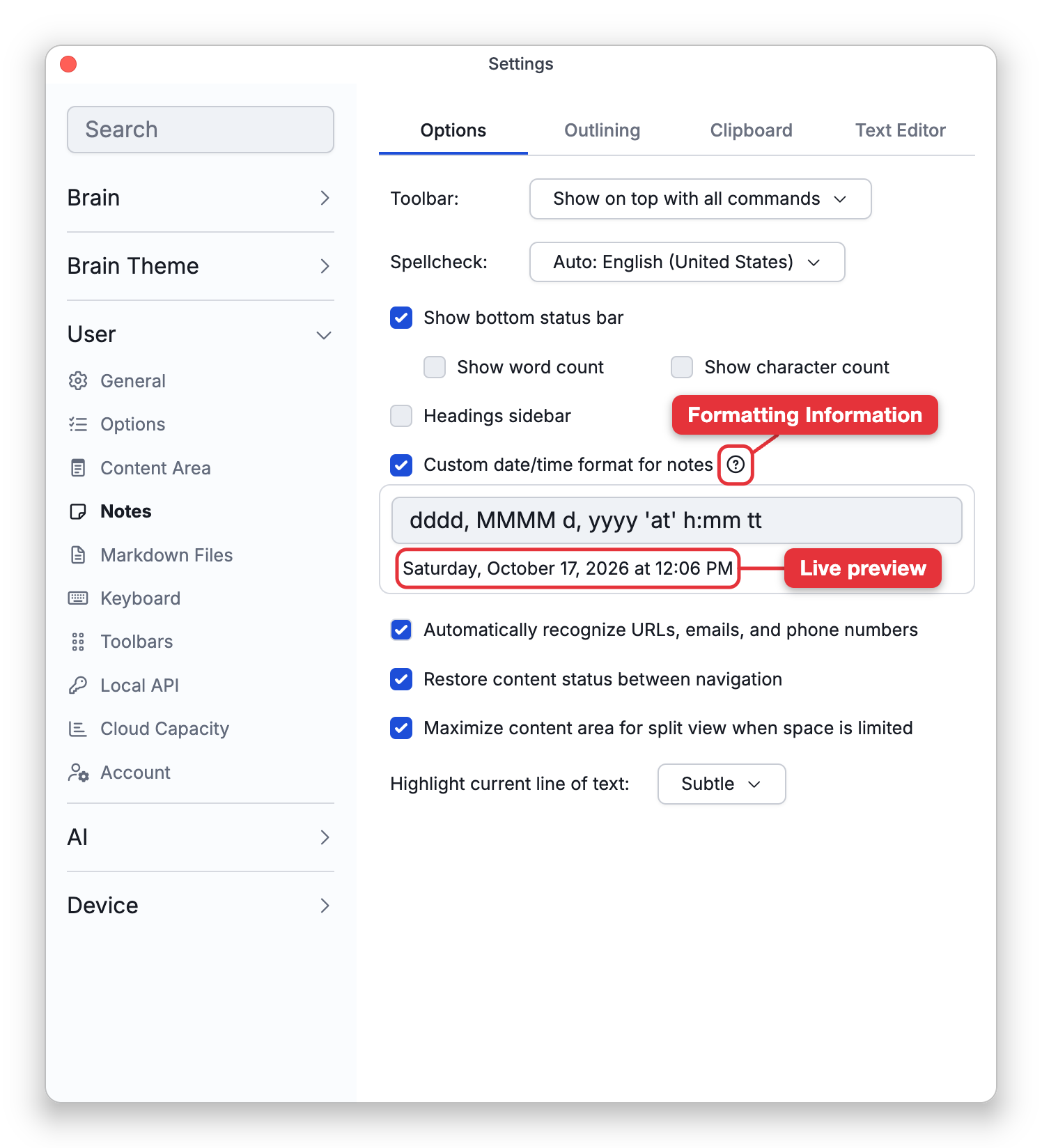
In Settings > User > Notes, on the Options tab, tick Custom date/time format for notes and type the format in the box that appears, using format tokens. The line under the box shows the current date and time in your format as you type, and the ? button beside the setting (Formatting Information) opens a page that explains the tokens. TheBrain uses standard format specifiers, including:
| Token | Means |
|---|---|
d / dd | Day of month (e.g. 5 / 05) |
ddd / dddd | Abbreviated / full weekday name |
M / MM | Month number |
MMM / MMMM | Abbreviated / full month name |
yy / yyyy | Two- / four-digit year |
H / HH | 24-hour hour |
h / hh | 12-hour hour |
m / mm | Minutes |
s / ss | Seconds |
tt | AM/PM designator |
Note that MM means month and mm means minutes — a common mix-up, so when your format seems to use mm for the month, the line under the box shows Possible month/minute mix-up, and its info button offers to correct the format. An invalid format is flagged too: the line under the box reads Invalid format instead of a preview. To include literal text in a format, wrap it in single or double quotes.