Encrypting Attachments
Overview
For sensitive files, the desktop app can encrypt an attachment with a password so its contents can't be read without that password, even by others who can see the thought in a shared brain. You choose a password when you encrypt, and you'll need that same password to open or decrypt the file later.
Encrypting
- Right-click the attachment and choose Encrypt.
- Enter a password twice — the dialog has a Re-enter the password field and won't proceed until both entries match. Optionally add a password hint to jog your memory later. The hint is shown in the decrypt dialog before any password is entered, so anyone who can open the attachment can read it; never put the password itself in the hint. You'll need this password to decrypt the file — TheBrain can't recover it for you.
- Acknowledge that the contents will be irretrievable if the password is lost, then confirm. The attachment is replaced with its encrypted form.
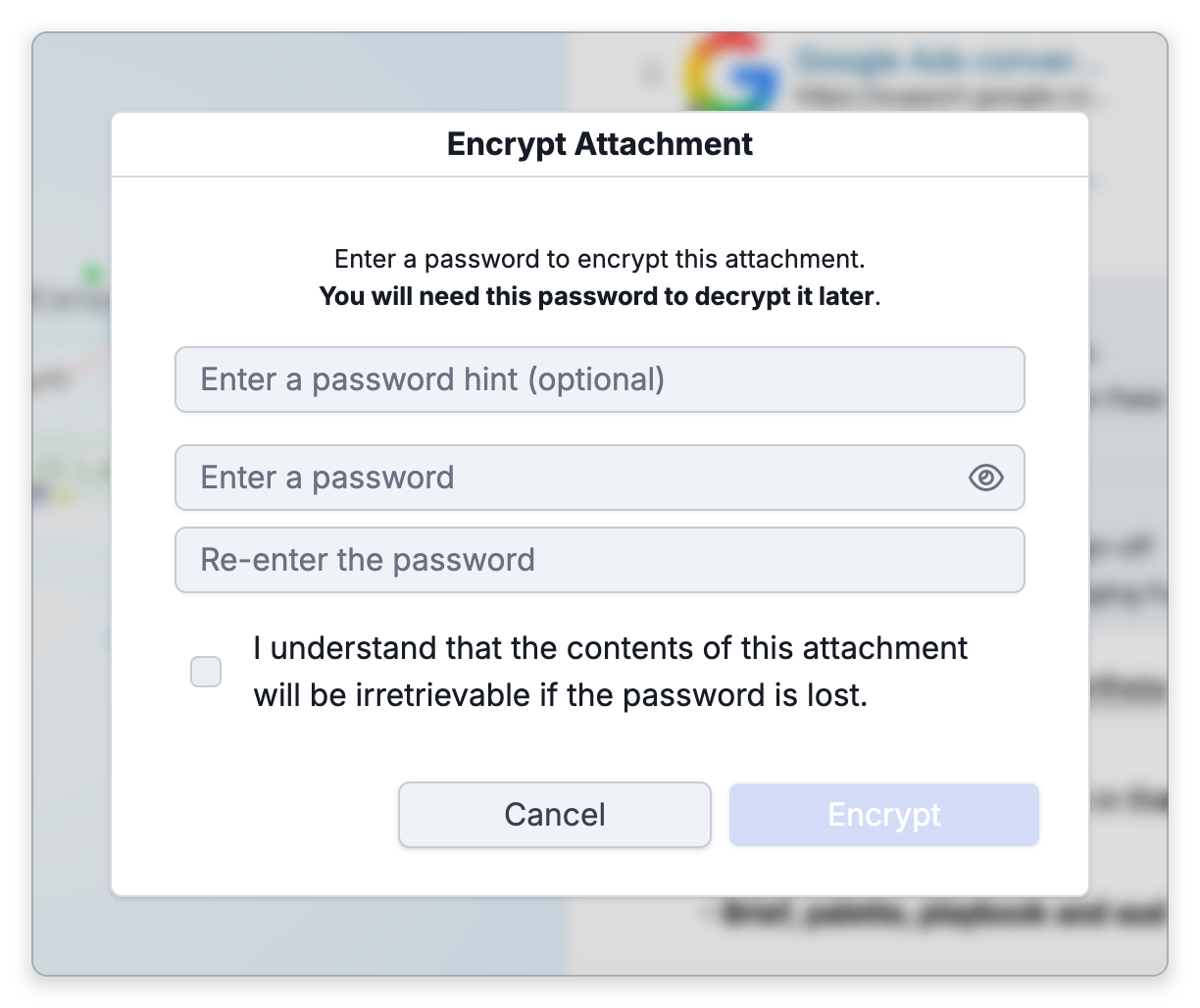
The encrypted attachment keeps its name with .brenc added to the end — report.pdf becomes report.pdf.brenc — and the unencrypted file is removed. A .brenc file is simply a file TheBrain has encrypted. Only a file stored in the brain can be encrypted, not a linked file, a folder, a web link, or a note.
Opening an Encrypted Attachment
On the desktop app, click the encrypted attachment, or right-click it and choose Decrypt. TheBrain asks for the password, makes a temporary decrypted copy, and shows that copy in its folder in Finder or File Explorer so you can open it in another app. The encrypted attachment itself stays as it is.
- Changes to the temporary copy are not saved back to the encrypted attachment. The first time you decrypt this way after starting TheBrain, you tick a box to confirm you understand that.
- Temporary decrypted copies are deleted automatically when you quit TheBrain. To remove them sooner, choose Main Menu > File > Remove Decrypted File Copies (the command appears while a copy exists).
- While a temporary copy is still there and the encrypted file hasn't changed, opening the attachment again shows the same copy without asking for the password. If you share the computer, remove the copies when you're done.
Editing an Encrypted File
Because edits to the temporary copy are discarded, change an encrypted file this way:
- Right-click it and choose Decrypt Permanently, then enter the password. This replaces the encrypted file with the decrypted file, so it's no longer protected.
- Open and edit the file as usual.
- Right-click it and choose Encrypt to protect it again.
On the Mobile App and the Web App
An encrypted attachment syncs to your other devices still encrypted.
- Mobile app — Tap the encrypted attachment and enter its password (the hint is shown). TheBrain then hands a temporary decrypted copy to your device to open, in its file viewer or another app. Changes made there are not saved back to the encrypted attachment. The Encrypt, Decrypt, and Decrypt Permanently commands aren't on the mobile app.
- Web app — The web app can't decrypt. An encrypted attachment can only be downloaded there in its encrypted
.brencform; to read it, open the brain in the desktop or mobile app.
- Encrypting or decrypting needs the file's bytes on this device. On a light-synced brain where the file hasn't downloaded yet, you'll see Attachment Not Available — connect to the internet and try again.
- Encrypted attachments show a distinctive padlock file icon, are never shown as image thumbnails, and can't be used as a thought icon while encrypted.
- To keep whole thoughts out of shared and AI access, see Private Thoughts.