Math Expressions
Overview
TheBrain supports rendering mathematical expressions in notes using LaTeX syntax powered by MathJax. Type standard LaTeX math notation and it renders as beautifully formatted equations — fractions, integrals, matrices, chemical formulas, and more.
For a comprehensive reference of all supported commands, see the MathJax TeX command reference.
How to Insert a Math Expression
- In the notes editor, choose Insert Mathematical Expression from the toolbar's Insert menu or from the right-click menu's Insert submenu, or type
$$. - Type your LaTeX expression in the input field, or pick a starting point from the Template… menu — seven ready-made expressions (Quadratic formula, Infinite series, Integral, Limit, Matrix, Piecewise function, Euler's identity). Picking a template over an expression you've written asks before replacing it. A live preview above the input field shows the result as you type.
- Click Save, or press
Ctrl+Enter(⌘Enteron Mac) — the Save button shows the shortcut. The expression renders inline with your text.
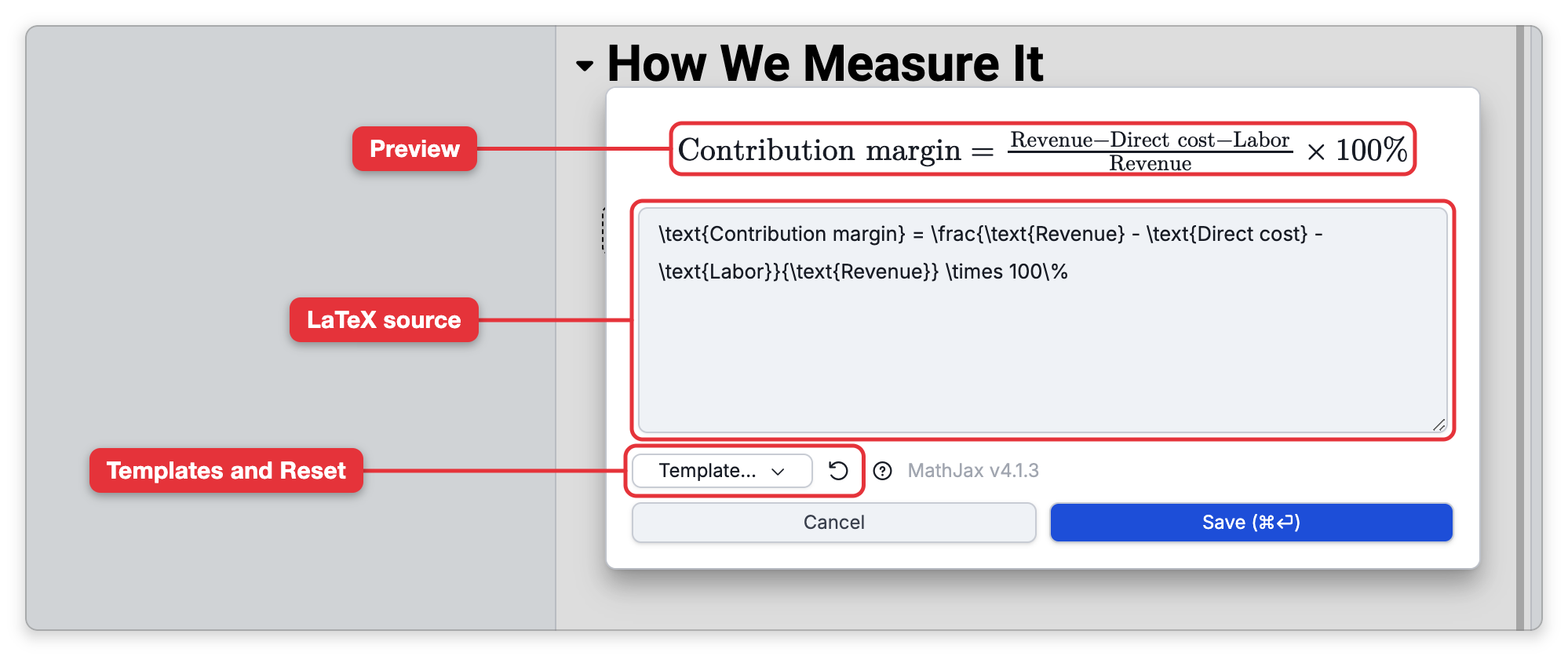
Pressing Enter on its own does not save. The input field holds several lines, so Enter and Shift+Enter (⇧Enter on Mac) both start a new line in the LaTeX source. Clicking outside the math editor saves, the same as Save. To close the math editor without keeping your changes, click Cancel, or press Esc while the cursor is in the input field.
A Reset button returns the expression to how it was when the editor opened (it asks first). On phones the math editor fills the screen and makes room for the on-screen keyboard.
How to Edit or Delete a Math Expression
Clicking an expression once does not open the math editor. The first click only selects the expression, and it gets a dashed outline. You can also select it by moving onto it with the arrow keys.
- To edit it — Click the selected expression a second time, or press
Enter. Typing a lowercase letter or a digit opens the math editor too. A double-click selects and opens in one go. On a touch screen, tap the expression and then tap it again. - To delete it — With the expression selected, press
BackspaceorDelete. - To leave it as it is — Press
Escor an arrow key to move the cursor off the expression.
Inline vs. Display Math
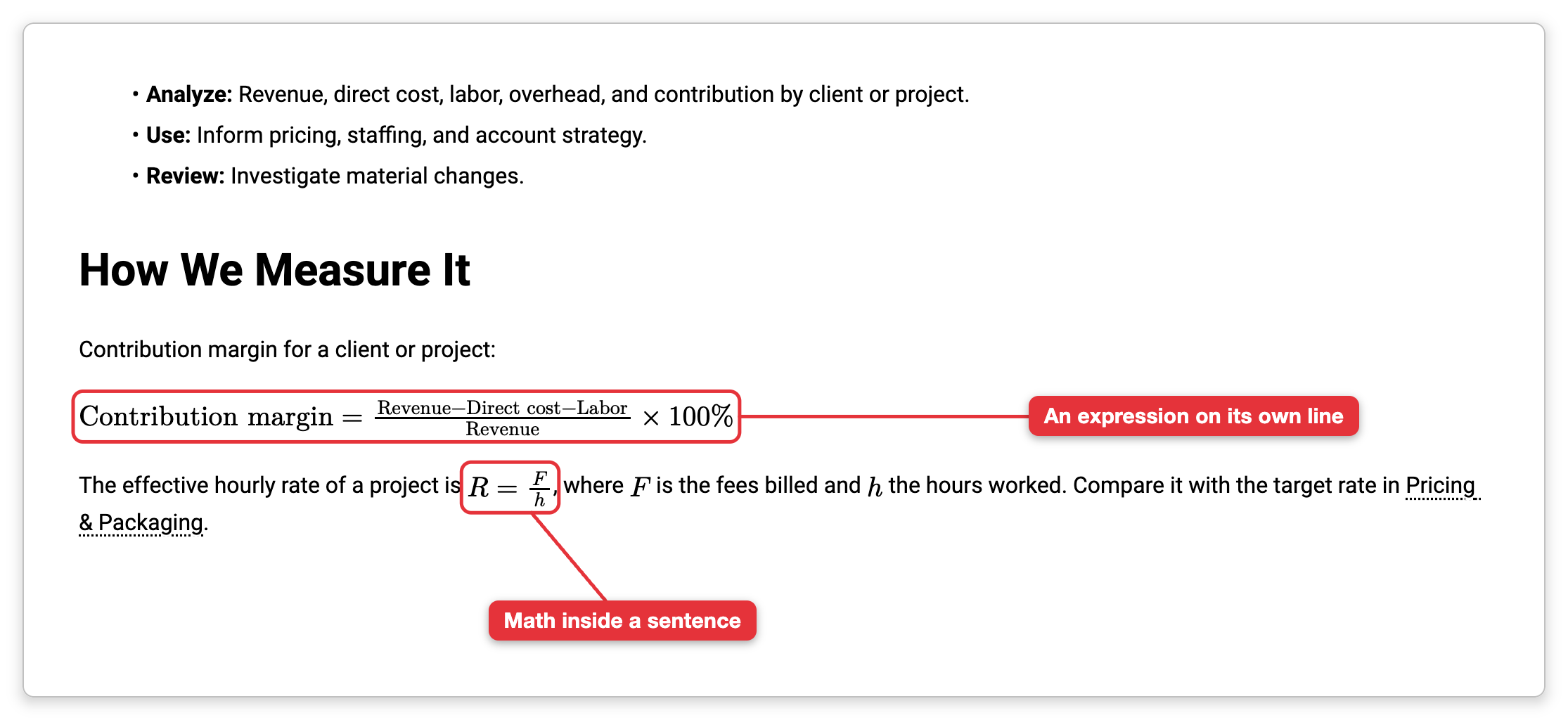
- Inline math — Renders within the flow of text, sized to match the surrounding line. Every single-line expression is shown this way, even one on a line of its own.
- Display math — Used automatically when your expression contains line breaks (
\\) and you haven't already chosen an environment yourself. The lines are stacked in display style and each one is centered (equivalent to wrapping the content in\displaylines{}), but the expression stays in the line of text where you put it rather than becoming a centered block.
Basic Syntax
| What you type | What renders |
|---|---|
x^2 + y^2 = z^2 | Pythagorean theorem |
\frac{a}{b} | Fraction |
\sqrt{x} | Square root |
\sum_{n=1}^{\infty} \frac{1}{n^2} | Summation |
\int_0^\infty e^{-x} dx | Integral |
\alpha, \beta, \gamma, \theta | Greek letters |
\leq, \geq, \neq, \approx | Comparison operators |
\mathbb{R}, \mathcal{L}, \mathfrak{g} | Special fonts |
Multi-line Expressions
Use \\ to break an expression across multiple lines. Each line is automatically centered:
a = b + c \\
d = e + f
A new line in the math editor's source is only for readability: as in standard LaTeX, it is treated as whitespace. To produce a visible line break in the rendered output, type \\ (either on its own line or inline). For alignment, use a standard environment like aligned, cases, or a matrix environment, and \\ separates rows the usual way.
Available Extensions
TheBrain includes the full set of MathJax TeX extensions. Most work automatically — just use their commands. Here are some commonly used ones:
Chemistry (mhchem)
Write chemical formulas and reactions with \ce{}:
| Expression | Description |
|---|---|
\ce{H2O} | Water |
\ce{CO2 + C -> 2CO} | Reaction |
\ce{2H2 + O2 ->[\text{heat}] 2H2O} | Reaction with conditions |
\ce{Hg^2+ ->[I-] HgI2} | Ionic reaction |
\ce{^{227}_{90}Th+} | Isotope notation |
Cancel
Strike through parts of an expression to show cancellation:
| Expression | Description |
|---|---|
\cancel{x} | Forward slash |
\bcancel{x} | Backward slash |
\xcancel{x} | X-shaped |
Enclose
Draw shapes around expressions:
| Expression | Description |
|---|---|
\enclose{circle}{x} | Circle |
\enclose{box}{x + y} | Box |
Color
| Expression | Description |
|---|---|
\color{red}{x^2} | Colored text |
\bbox[yellow, 5px]{E = mc^2} | Background color with padding |
Braket (Dirac Notation)
| Expression | Description |
|---|---|
\ket{\psi} | Ket |
\bra{\phi} | Bra |
For an inner product, separate the two with a bar: \braket{\phi|\psi}.
Other Extensions
These also work automatically:
- boldsymbol —
\boldsymbol{\alpha}for bold math symbols - amscd — Commutative diagrams
- mathtools — Extended math tools beyond AMS
- extpfeil — Extensible arrows
- unicode —
\unicode{x263A}for Unicode characters - textcomp — Text companion symbols
- cases — Extended cases environment
- empheq — Emphasized equations
Physics Extension
The physics extension provides shorthand notation for vectors, derivatives, and other physics operations. Because it redefines common commands like \sin and \cos, it is not loaded automatically, as in MathJax itself — you must opt in.
Add \require{physics} at the beginning of your expression to enable it:
| Expression | Description |
|---|---|
\require{physics} \va{a} | Vector arrow |
\require{physics} \vu{x} | Unit vector |
\require{physics} \dv{f}{x} | Derivative |
\require{physics} \pdv{f}{x}{y} | Partial derivative |
\require{physics} \abs{x} | Absolute value |
\require{physics} \norm{x} | Norm |
You only need \require{physics} once per expression.
Matrices
Use standard LaTeX matrix environments:
\begin{pmatrix} a & b \\ c & d \end{pmatrix}Available matrix styles: pmatrix (parentheses), bmatrix (brackets), vmatrix (vertical bars), Bmatrix (braces), matrix (no delimiters).
- Math expressions are stored as LaTeX source text, so they remain editable and searchable.
- If an expression doesn't render, check for typos in the LaTeX syntax — MathJax flags the expression instead of rendering it when it hits an error.