Writing and Formatting Notes
Overview
Every thought in TheBrain has its own note — a full rich-text document attached to the thought, shown in the content area. This is where the substance of a thought lives: write as much or as little as you like, format it the way you would in a word processor, and it's saved for you automatically as you go. Notes can also hold links, images, tables, math, and more, each covered in its own topic.
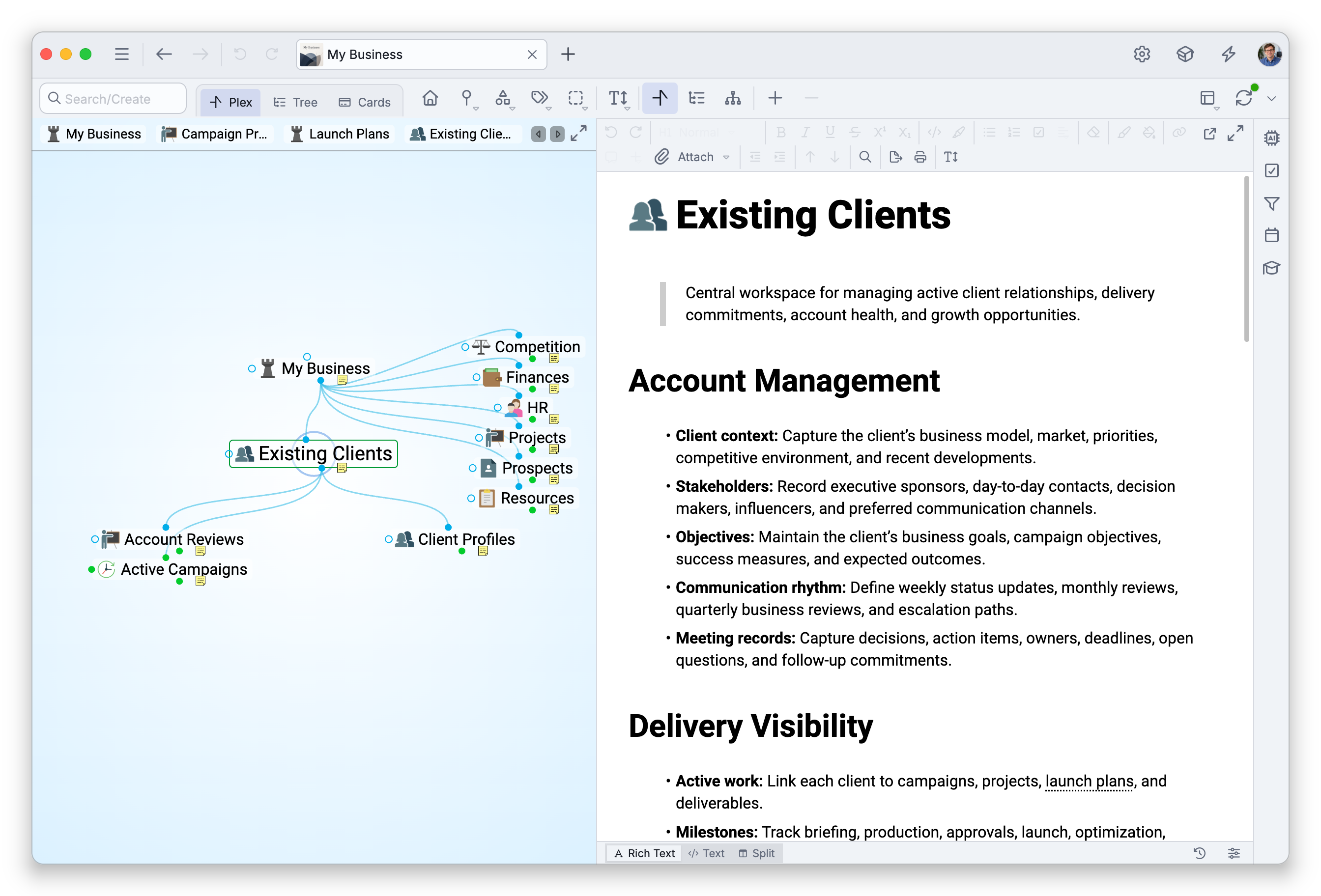

Character Formatting
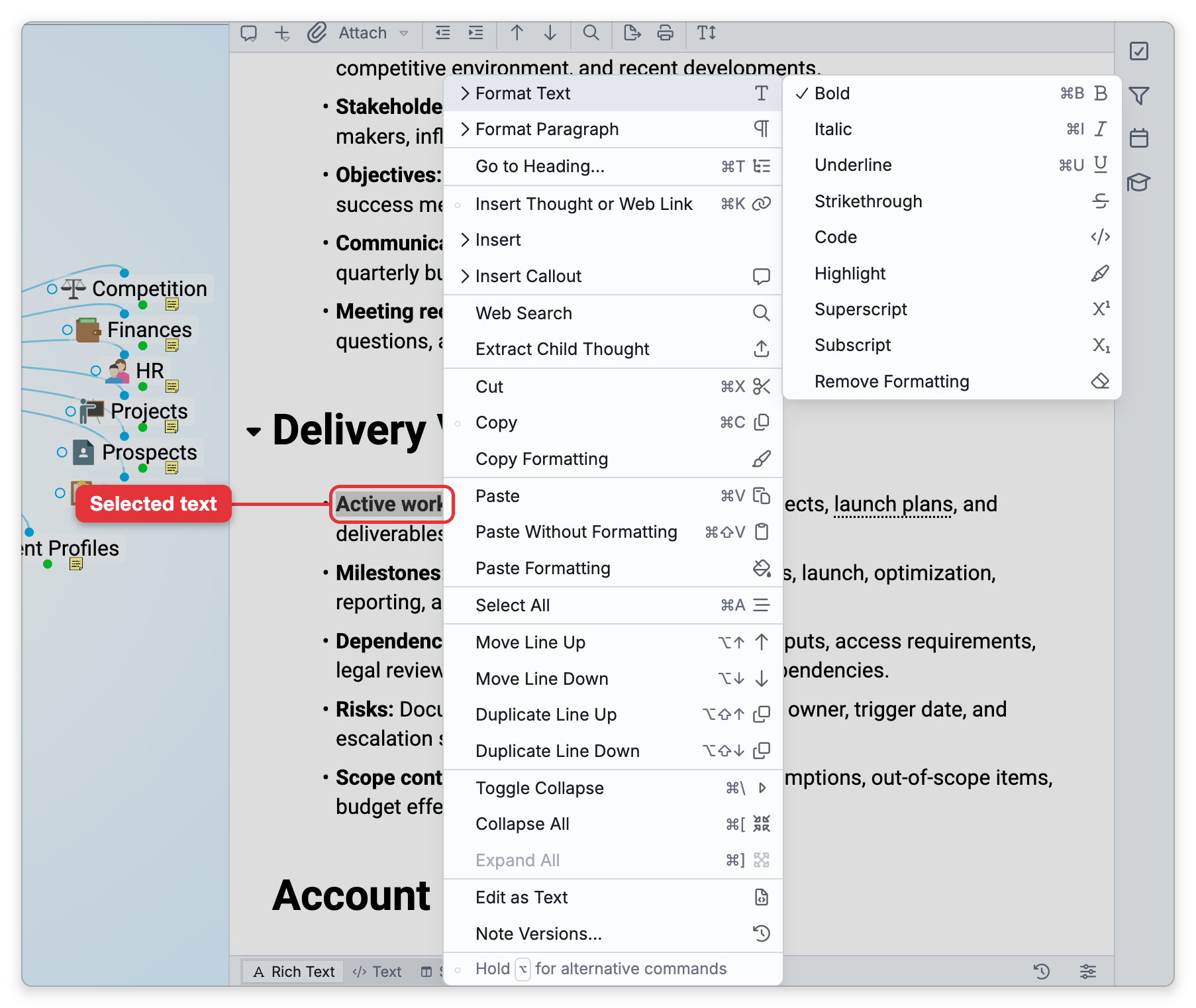
Select text and apply inline formatting. The formats with default shortcuts are:
| Format | Default shortcut |
|---|---|
| Bold | Ctrl+B (⌘B on Mac) |
| Italic | Ctrl+I (⌘I on Mac) |
| Underline | Ctrl+U (⌘U on Mac) |
Strikethrough, Superscript, Subscript, and Code (inline) are on the toolbar and in the right-click Format Text menu. None of these has a default shortcut. On a wide window the toolbar shows Underline, Strikethrough, Superscript, and Subscript as their own buttons; as the window narrows they move into a Text Style menu on the toolbar, and on the narrowest layouts (including phones) into its More (…) menu. Remove Formatting clears formatting from the selection, and Copy Formatting / Paste Formatting let you carry one passage's formatting to another.
Paragraph Formatting
Apply these to whole paragraphs from the Format Paragraph controls:
- Headings 1–6 and Normal text.
- Bulleted List, Numbered List, and Checklist. (Lists behave as outlines — see Outline Lists.)
- Code Block for multi-line code.
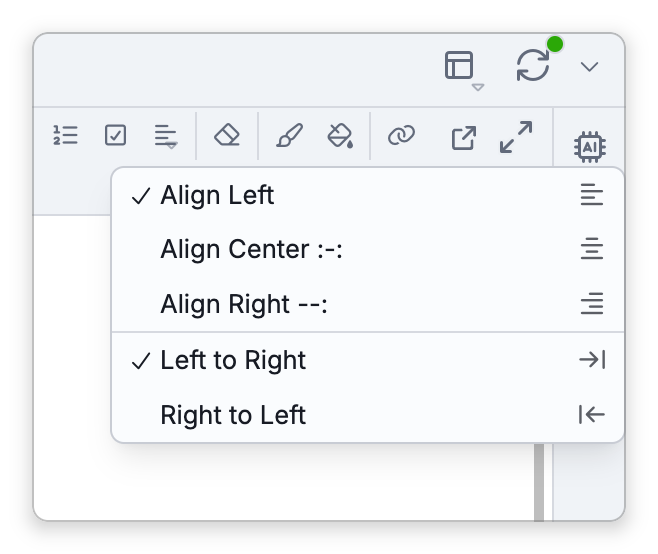
- Align Left, Align Center, Align Right (in the toolbar's Text Align menu).
- Indent (
Ctrl+.,⌘.on Mac) and Outdent (Ctrl+Shift+.,⇧⌘.on Mac). In the rich-text editor,TabandShift+Tab(⇧Tabon Mac) do the same to the current line: a list item changes level (see Outline Lists), an ordinary paragraph becomes a quote, and a quoted line nests or un-nests one level. In a callout,TabandShift+Tabmove the whole callout, andShift+Tabon a callout that is not nested removes it (see Callouts in Notes). On a heading,TabandShift+Tabstep the heading level instead. - Quotes have no toolbar button. Make one by typing
>followed by a space at the start of a line (see Markdown in Notes), or by indenting an ordinary paragraph as described above.
Line Breaks, and Leaving a List or Code Block
- A new line inside the same paragraph or list item — press
Shift+Enter(⇧Enteron Mac). It adds a line break that stays inside the current paragraph, list item, or quote, where plainEnterstarts a new line or a new list item. The same command is Insert Line Break in the notes toolbar's Insert menu. On an iPhone or iPad, while the on-screen keyboard is showing,Shift+Enteracts like plainEnter, so use Insert Line Break there; with a hardware keyboard attached,Shift+Enterworks as usual. - Getting out of a list — press
Enteron an empty list item. The bullet, number, or checkbox is removed and the line becomes ordinary text. - Getting out of a quote — press
Enteron an empty quoted line, which steps back out of the quote. A callout is different:Enteradds lines inside it, and↓on its last line is the way out (see Callouts in Notes). - Getting out of a code block — move the cursor out with the arrow keys:
↓from the block's last line, or↑from its first. When the code block is the last or first thing in the note, or sits directly against a quote, callout, or table, TheBrain adds an empty normal line there for you to type on. If you move away without typing on that line, it's removed again.
Spacing Between Lines
Lines you separate with Enter sit a little apart, by the brain's Line gap, while the lines that a long line wraps into and lines broken with Shift+Enter (⇧Enter on Mac) keep the normal line spacing. To start a new paragraph, leave an empty line between the two, as you would in a word processor. A heading gets a little extra space above it. Both Line spacing and Line gap are set for each brain, on the Notes tab of Settings > Brain > Content Settings (see Brain Content Settings).
Text Direction
Each paragraph's writing direction is detected automatically from its first letter, so Hebrew, Arabic, and other right-to-left text lays out correctly on its own — line by line, alongside left-to-right paragraphs in the same note. To override the detection for a paragraph (say, a right-to-left sentence that happens to begin with a number or a Latin word), choose Right to Left or Left to Right from the toolbar's Text Align menu or from the right-click menu's Format Paragraph submenu. The choice applies to the selected paragraphs and has no default shortcut. Choosing Right to Left on a paragraph you haven't aligned also aligns it to the right. Code blocks always run left to right. Thought names and labels get the same automatic detection wherever they're shown, but without a manual override.
Color, Highlight, and Inline Code
From the editor toolbar you can set a Text Color, a Background Color, apply a Highlight, or mark text as Inline Code. Highlight is also in the right-click Format Text menu. It has no default shortcut, but you can give it one in Settings > User > Keyboard, and the toolbar button's tooltip then shows it.
Auto-Save
In the rich-text editor, notes save automatically — there's no Save button. The note is saved shortly after you stop typing, and it's also saved immediately if you switch away or close the app, so you won't lose work. The Text and Split views work differently: they have no timed save, and keep your edits until you click Save, switch views, or leave the note (see The Text Editor (Text and Split Views)). Use Undo (Ctrl+Z, ⌘Z on Mac) and Redo (Ctrl+Shift+Z or Ctrl+Y, ⇧⌘Z or ⌘Y on Mac) to step through your edits.
Note Views and the Status Bar
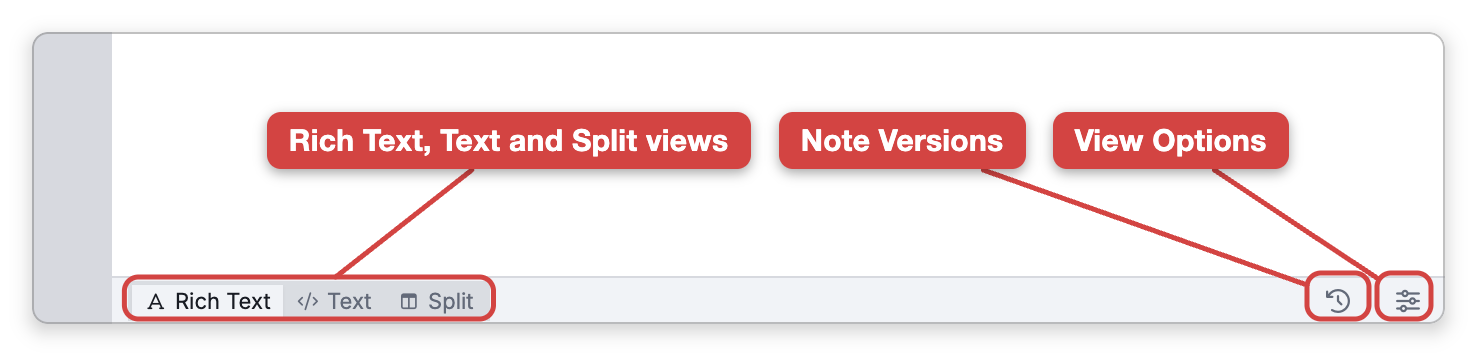
Everywhere but on phones, in a brain you can edit, a status bar under the note offers three views of it: Rich Text (the normal formatted editor), Text (the note's raw Markdown in a plain-text editor), and Split (the text editor side by side with a live preview). Your caret, scroll position, and selection carry over when you switch views.
- The Text view is a full editor for the note's own Markdown: syntax highlighting, line numbers (on by default), smart indentation and Markdown-aware editing (see The Text Editor for the full set), its own Find & Replace (
Ctrl+F,⌘Fon Mac), an Actions menu of whole-text transformations (Alter Case, Make Paragraphs, Hard Wrap at 80, Sort Lines, Reverse Lines, Remove Duplicate Lines, Collapse Blank Lines, Trim Trailing Whitespace, Straighten Quotes), word-wrap and auto-indent toggles, and Save / Discard Changes buttons — switching views also saves your edits. It shows the note's file as stored, including any YAML frontmatter at the top, which the rich view keeps hidden. You can also reach it by right-clicking the note and choosing Edit as Text. - The Split view scrolls both panes together, clicking a line in the preview selects its source line in the text pane, and the line your caret is on is highlighted in both panes. When the window is tight, entering Split view temporarily maximizes the content area; the Maximize content area for split view when space is limited setting (on by default) controls this.
- The status bar can also show a word count and character count (both off by default) and, in the Text and Split views, a Ln, Col position indicator. At its right end, a clock button opens the note's earlier versions (see Note Versions). Turn the counters and the bar itself on or off from the View Options button (the sliders) at the right end of the status bar — Word count, Character count and Show status bar — or with Show bottom status bar in Settings > User > Notes. Right-clicking the notes toolbar, the status bar, the properties, or the area below the note opens the same View Options menu, which also holds the toolbar position (On top, On top with all commands, On bottom), the sections below the note, the Headings Sidebar, and Notes Settings.... When the status bar is hidden, View Options is on the notes toolbar instead, and the same menu is always at Main Menu > View > Note View Options.
Two related preferences in Settings > User > Notes: the Toolbar setting places the notes toolbar above the note (Show on top, or Show on top with all commands to stop it condensing when narrow) or inside the bottom status bar (Show on bottom); and Highlight current line of text (Subtle, Strong, or Disable) tints the line the cursor is on in both the rich and text editors.
Collapsing and Expanding Sections
You can fold a long note by collapsing parts of it — a heading with everything under it, a list item with its sub-items, or a foldable callout — and expanding them again. Six commands do it:
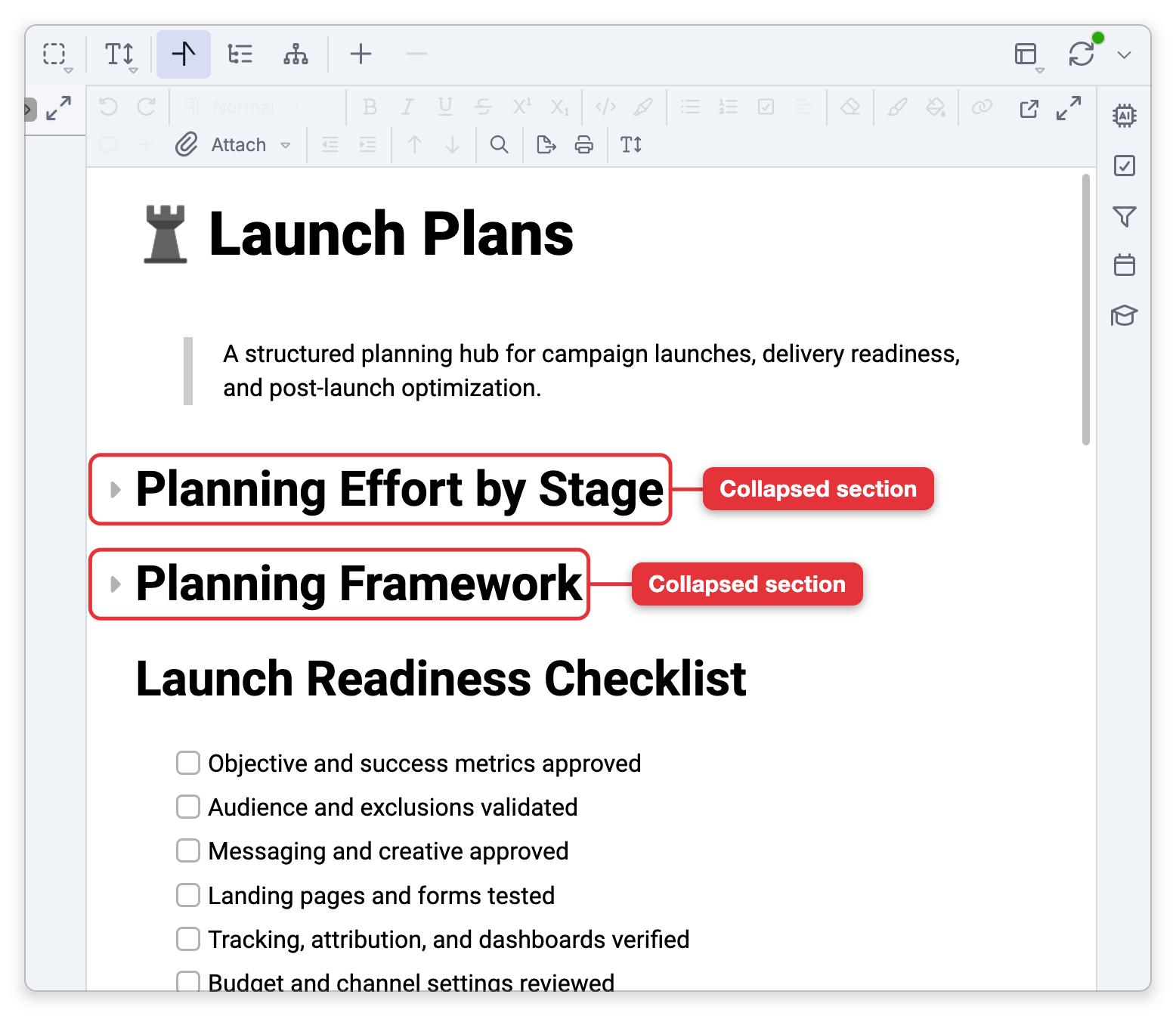
| Command | Default shortcut | What it does |
|---|---|---|
| Toggle Collapse | Ctrl+\ (⌘\ on Mac) | Collapses or expands the section at the cursor |
| Collapse All | Ctrl+[ (⌘[ on Mac) | Collapses every section of the note, except any that would hide the line your cursor is on — those stay open |
| Expand All | Ctrl+] (⌘] on Mac) | Expands every section of the note |
| Collapse Others | Ctrl+Shift+[ (⇧⌘[ on Mac) | Collapses every section except the ones your cursor or selection is in, and expands those — so only the part you're working on stays open |
| Collapse This Level | None | Collapses the sub-sections inside the section at the cursor |
| Expand This Level | None | Expands the section at the cursor and everything inside it |
Toggle Collapse, Collapse All, and Expand All are also in the note's right-click menu. In the Mac desktop app, all six are in the menu bar under Note > Outline. To run Collapse This Level or Expand This Level from the keyboard, give them a shortcut in Settings > User > Keyboard.
If Collapsing Does Nothing
The collapse commands do nothing while Show outline controls is set to Never. That setting is in Settings > User > Notes, on the Outlining tab, and TheBrain keeps two separate values for it:
- On a computer the default is On text hover, so collapsing works unless you've chosen Never.
- On phones and tablets the setting has a value of its own, offers only Always and Never, and defaults to Never. That's why collapsing does nothing on an iPad or a phone until you open the setting there and choose Always.
What Is Remembered
Collapsed headings, list items and callouts are remembered on the device you're using, so the note opens with them still collapsed next time (on the web, your browser remembers them). They aren't saved in the note or synced, so your other devices and the other people in a shared brain see the note as they left it. If the note was changed somewhere else in the meantime, a collapsed section that can't be found with confidence opens up rather than hiding the wrong part of the note.
- Most formatting can also be produced by typing Markdown as you write — see Markdown in Notes.
- The toolbar also holds Find and Replace (
Ctrl+F,⌘Fon Mac), the Insert menu (image, embed thought note, table, date, horizontal rule, line break, mathematical expression, diagram, footnote, table of contents, with diagram and footnote only in brains that save standard Markdown), a Note Text Scale control, and Export / Print — printing isn't offered on phones and tablets, and exporting needs the installed TheBrain app on a computer, phone, or tablet (see Exporting and Printing Notes). Toolbar menus and button tooltips show each command's keyboard shortcut. - Move and duplicate lines — Move Line Up / Down (default
Alt+↑/Alt+↓,⌥↑/⌥↓on Mac) moves the current line or selection, and Duplicate Line Up / Down (defaultAlt+Shift+↑/Alt+Shift+↓,⌥⇧↑/⌥⇧↓on Mac) copies it. Both work in the rich, Text, and Split views. In the rich editor's default Outliner list mode, list items carry their sub-items along (see Outline Lists); in the Text and Split views, they act only on the current line or the selected lines. - The note's right-click menu can also Copy as Markdown, Copy as HTML Source, or Copy as Plain Text (
Ctrl+Shift+C,⇧⌘Con Mac). The three Copy-as options appear when you holdShift(⌥on Mac) as you open the menu.