Outline Lists — Indent, Outdent, and Move
Overview
By default, bulleted and numbered lists in notes behave as outlines: each item has both a level (how far it's indented) and a parent (the item it lives under), and an item's sub-items travel with it. The keyboard shortcuts for reorganizing a list fall into two groups — ones that change an item's level in the hierarchy (Tab / Shift+Tab, ⇧Tab on Mac), and ones that change its order while carrying its sub-items along (Alt+↑ / Alt+↓, ⌥↑ / ⌥↓ on Mac).
This is the Outliner list mode. If you would rather edit lists line by line, like ordinary text, switch the Lists setting to Separate lines — see Choosing a List Mode at the end.
Shortcuts at a Glance
| Action | Windows / Linux | Mac | What it does |
|---|---|---|---|
| Indent (demote) | Tab | Tab | Makes the item (with its sub-items) a child of the bullet above it |
| Outdent (promote) | Shift+Tab | ⇧Tab | Raises the item (with its sub-items) one level in the hierarchy |
| Move up | Alt+↑ | ⌥↑ | Moves the item and all its sub-items above the previous sibling |
| Move down | Alt+↓ | ⌥↓ | Moves the item and all its sub-items below the next sibling |
| Duplicate | Alt+Shift+↑ / Alt+Shift+↓ | ⌥⇧↑ / ⌥⇧↓ | Copies the item and all its sub-items above or below itself |
The same commands are on the notes toolbar (Indent, Outdent, Move Up, Move Down) and in the note's right-click menu.
Bullets Aren't Independent Lines — They're a Hierarchy
A bullet isn't just "the third line on the page" — it's "an item that belongs to the one above it." Consider this list:
* Smoothie
    * Banana
    * Strawberries
    * Yogurt
* Cleanup
    * Rinse blender
    * Wipe counter
Here, Banana, Strawberries, and Yogurt are all sub-items of Smoothie.
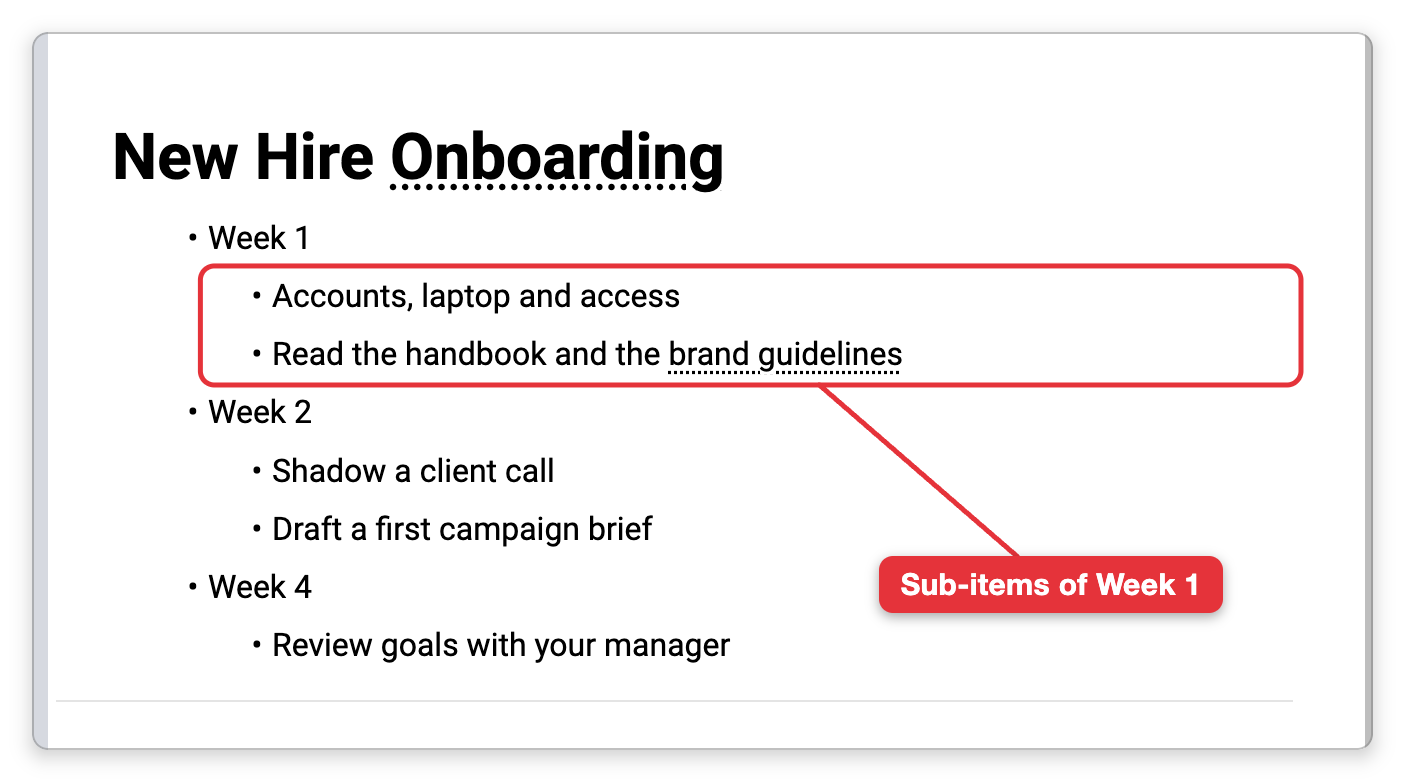
The same structure in a note: under the heading New Hire Onboarding, Week 1, Week 2, and Week 4 each have indented sub-items.
Outdenting Promotes an Item in Place
Shift+Tab (⇧Tab on Mac) doesn't slide an item up or down the list. It promotes it: the item stays on its line and moves up one level in the hierarchy, becoming a sibling of what used to be its parent. This is the usual outliner convention.
Because the item stays where it is, the items that followed it at its old level are now indented one level deeper than it — so they become its sub-items. Outdent Banana and you get:
* Smoothie
* Banana          ← now a top-level item
    * Strawberries   ← now sub-items of Banana
    * Yogurt
* Cleanup
    * Rinse blender
    * Wipe counter
Banana kept its place on the page and adopted Strawberries and Yogurt. That's handy when you are splitting a group in two — outdent the first item of the second half and everything after it comes along — but it isn't what you want if the item should stand on its own.
Outdenting to the Bottom of the Group Instead
If you would rather the item leave its former siblings untouched, turn on Outdent moves the item below its former siblings first in Settings > User > Notes, on the Outlining tab (it only appears while Lists is set to Outliner). With it on, Shift+Tab first moves the item to the end of its group and then raises its level, so nothing gets re-parented:
* Smoothie
    * Strawberries
    * Yogurt
* Banana          ← moved below its former siblings, then promoted
* Cleanup
    * Rinse blender
    * Wipe counter
Either way, an item's own sub-items always come with it — outdenting only ever changes what happens to the siblings that followed it.
Moving an Item Up or Down
Indent and outdent change an item's level in the hierarchy. When you instead want to reorder items — move one above or below another without changing how deeply it's nested — use the move commands: Alt+↑ (move up) and Alt+↓ (move down), ⌥↑ and ⌥↓ on Mac. Adding Shift duplicates instead of moving: Alt+Shift+↑ / Alt+Shift+↓ (⌥⇧↑ / ⌥⇧↓ on Mac) copy the item and its sub-items above or below itself.
Move Carries the Whole Branch With It
"Move" doesn't move a single line — it moves the item together with all of its sub-items. The item and everything nested beneath it travel as one block, and every item keeps its relative level inside that block.
Take this list:
* Breakfast
    * Eggs
    * Toast
* Smoothie
    * Banana
    * Strawberries
    * Yogurt
* Cleanup
If your cursor is on Smoothie and you press Alt+↑ (⌥↑ on Mac), the entire Smoothie group — Smoothie and its three ingredients — jumps above Breakfast as a single unit:
* Smoothie
    * Banana
    * Strawberries
    * Yogurt
* Breakfast
    * Eggs
    * Toast
* Cleanup
The ingredients stayed attached to "Smoothie" and kept their indentation. You moved the branch, not just the heading.
Moving a Child Reorders It Within Its Group
Move also works at deeper levels. If your cursor is on Banana and you press Alt+↓ (⌥↓ on Mac), it swaps places with "Strawberries" — but it stays inside the Smoothie group at the same level:
* Smoothie
    * Strawberries
    * Banana
    * Yogurt
Move never changes an item's level. As long as the item has a sibling (an item sharing the same parent) to pass in that direction, it only changes the item's order among its siblings, and the item stays in its group.
Move vs. Indent at a Boundary
If an item is already the last child in its group and you press Alt+↓ (⌥↓ on Mac), there is no sibling left to pass, so it trades places with the line below instead. It keeps its level, so it lands in the next group: with the cursor on Yogurt, it moves below Cleanup and becomes one of Cleanup's sub-items. Alt+↑ (⌥↑ on Mac) on the first child of a group does the same upward, moving the item above its parent and into the group before it. To make an item part of a different group on purpose, indent or outdent it (Tab / Shift+Tab, ⇧Tab on Mac); to change the order of things within a group, move it (Alt+↑ / Alt+↓, ⌥↑ / ⌥↓ on Mac).
Choosing a List Mode
The Lists setting in Settings > User > Notes, on the Outlining tab, picks between two editing models. The setting panel describes what each does to the move, duplicate, indent, and outdent commands, and the change applies right away to any note you have open.
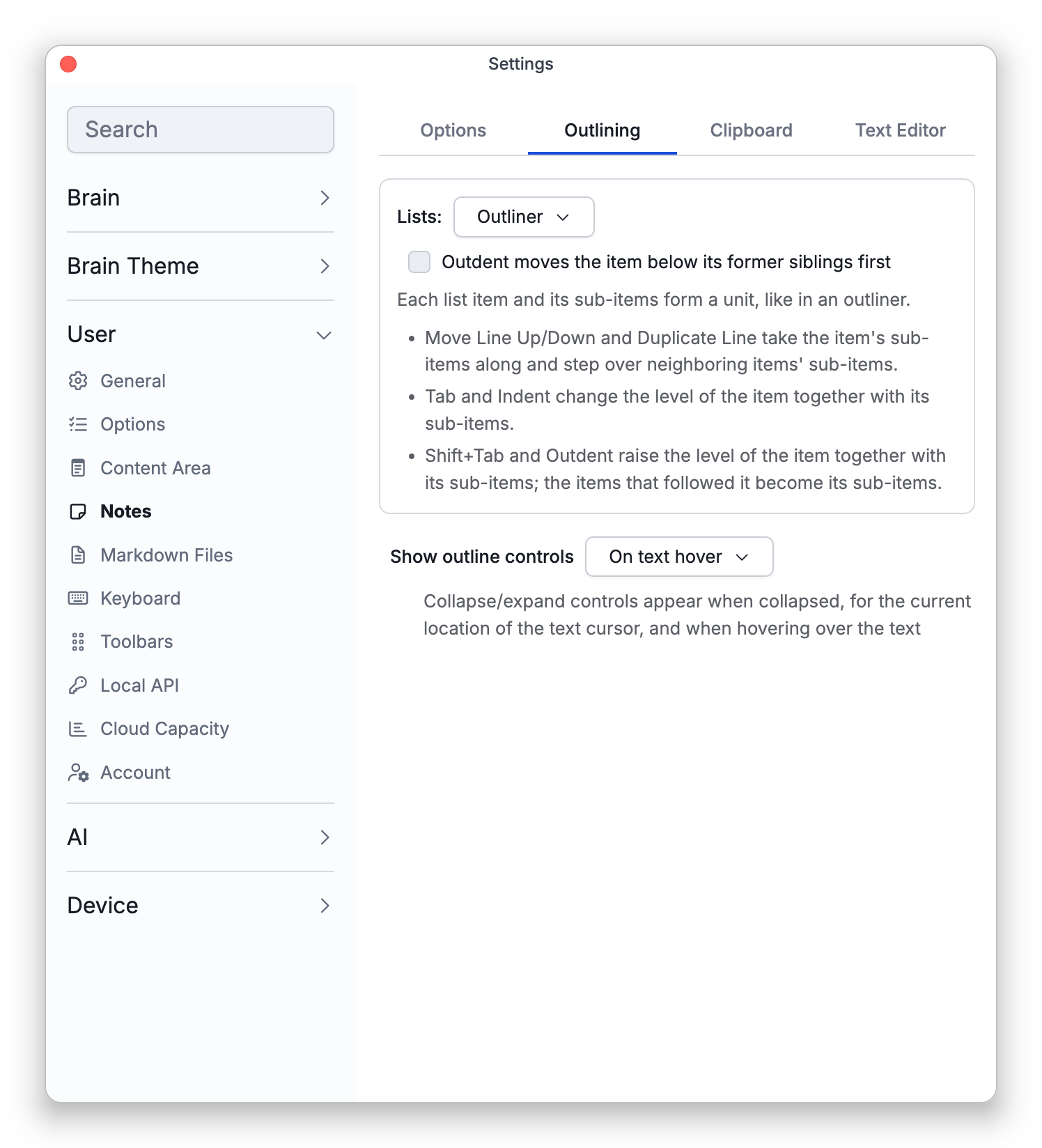
- Outliner (the default) — Each list item and its sub-items form a unit, as described throughout this article: Move Line Up/Down and Duplicate Line take the item's sub-items along and step over neighboring items' sub-items;
Taband Indent change the level of the item together with its sub-items;Shift+Tab(⇧Tabon Mac) and Outdent raise the item with its sub-items (in place, or below its former siblings first if that option is on). - Separate lines — Each line in a list is edited on its own, like ordinary text: Move Line Up/Down and Duplicate Line affect only the current line, and
Tab/Shift+Tab(or Indent / Outdent) change the level of the current line only. The lines below stay where they are, whatever their level.