Deleting a Brain
Overview
Deleting a brain is permanent and cannot be undone, so TheBrain treats it carefully. There are two kinds of deletion depending on where the copy lives — the local copy on your device and the remote (cloud) copy — and both require you to confirm that you understand what you're doing.
Local vs. Remote
- Delete Local Brain — removes the copy stored on your device's local filesystem. (Available on the desktop and mobile apps.)
- Delete Remote Brain (shown as Delete Brain on the web and in the Mac menu bar) — removes the brain's content from the server. This affects the cloud copy that syncs across your devices.
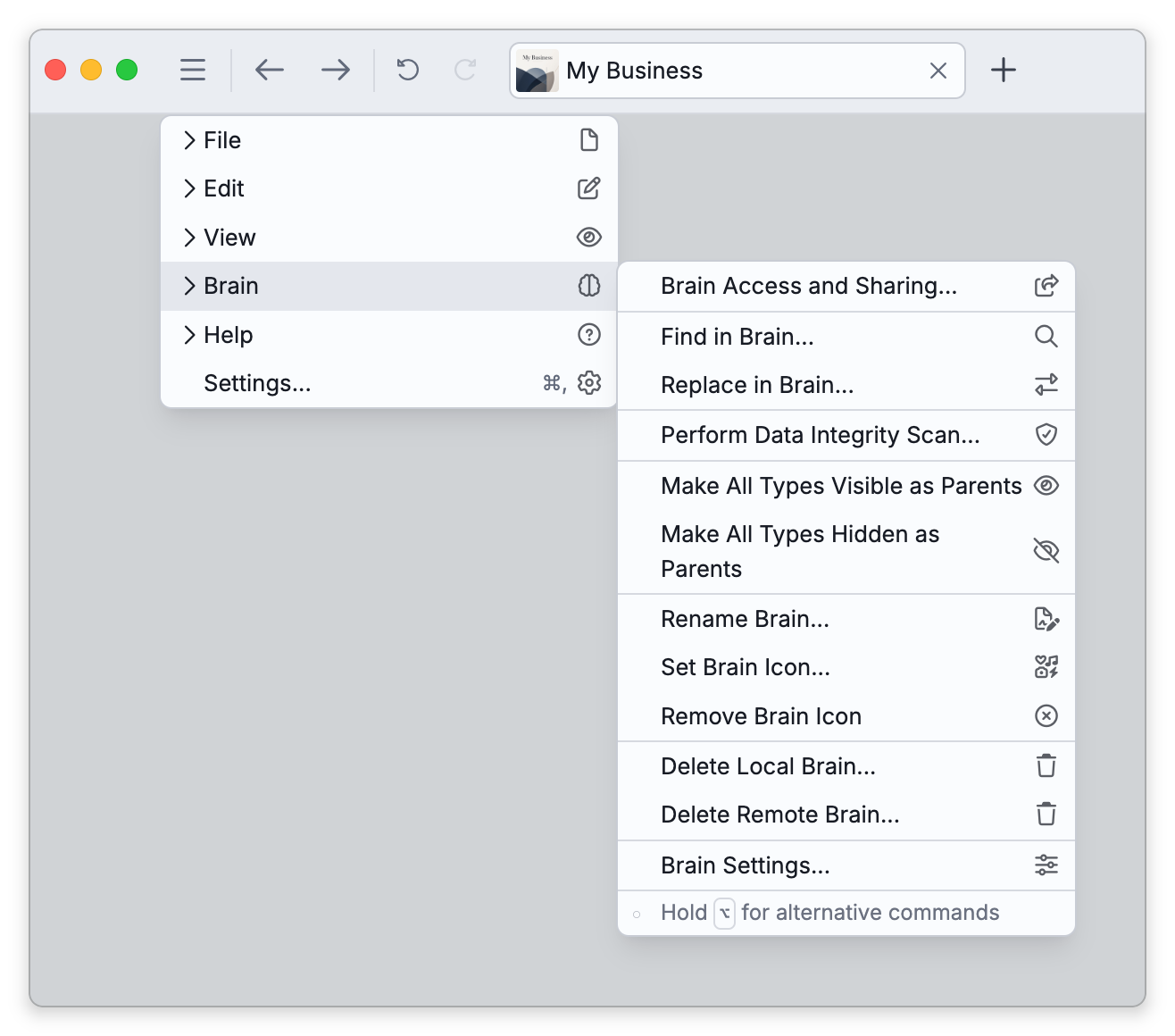
Deleting the remote (cloud) copy requires admin access to the brain. Deleting your own local copy does not — anyone can remove the copy stored on their device.
What Each Deletion Leaves Behind
The two deletions are independent: neither one removes the other copy.
Delete Local Brain removes only the copy on the device you are using. The brain's files are deleted from the device directly; they are not moved to the Recycle Bin or Trash. Nothing in the cloud changes, and nobody else's copy changes.
- If the brain was synced — the cloud copy and the copies on other devices stay as they are. The brain remains in your brains list as a Remote brain, and selecting it offers to download it again. Changes you made on this device that had not synced yet are lost with the local copy, because the deletion does not sync first. Sync before you delete if the device holds work you want to keep.
- If the brain was never synced (a Local brain) — the local copy was the only copy, so the brain is gone.
Delete Remote Brain removes the brain from the cloud for everyone who had access to it, and frees the cloud storage it used.
- Your downloaded copy stays. Deleting the remote brain from the desktop or mobile app does not delete the copy on that device. The copy stays in your brains list and becomes a Local brain, with no cloud copy behind it.
- Other people's downloaded copies stay too. A copy that someone already downloaded to a device, including your own other devices, is not removed. It stays on that device as a local brain.
- Anything that was only in the cloud is gone. People who used the brain only on the web, or who had not downloaded it, no longer have it.
How to Delete
- Right-click the brain in the brains list and choose the delete option (or use Main Menu > Brain).
- In the confirmation dialog, read the warning — it spells out that this cannot be undone — and tick both boxes: Delete all of the information in this brain and I understand that this cannot be undone.
- Choose Delete.
- Back up first if you're unsure. You can save a brain to an archive before deleting it — see Backup to Brain Archive.
- If Delete Local Brain stops with the message Could not proceed because a file contained in this brain is open. Please close all files and try again., a file in the brain's folder is in use, usually because another program has it open. None of the brain's files have been deleted; close the file and delete again.
- If a brain uses light-synced attachments, deleting the remote copy can leave those attachments undownloadable. On the desktop and mobile apps TheBrain blocks the deletion until you either Disable Light Sync (so all attachments are stored locally) or delete the local copy first; on the web it shows this as a warning.