Syncing Brains
Overview
On the desktop and mobile apps, a brain has a copy on your device and a copy in the cloud. Syncing reconciles the two so your work is backed up and available on every device you use. (The web app is always working against the cloud directly, so syncing is a desktop/mobile concern.)
Syncing a Brain
Sync from the Sync button in the brain toolbar. The button also doubles as a status indicator — its icon shows a sync running, finished or failed, and a colored dot on it shows whether changes are waiting (see Sync Status below). What happens when you sync depends on the brain's state:
- A local brain (not yet in the cloud) asks Do you want to upload this local brain?, then syncs.
- A remote brain (in the cloud but not downloaded) asks to download it.
- A synced brain reconciles changes both ways.
Auto-Sync
With Sync automatically turned on for a brain, TheBrain syncs it for you as you work, so you don't have to click Sync. TheBrain turns it on for you the first time a brain is uploaded to the cloud or downloaded to a device, so most synced brains already have it.
When an Automatic Sync Happens
Automatic sync runs while the app is running, and it covers every brain on this device that is synced and has Sync automatically on. A brain does not have to be open: the brains you have closed are synced too. When several accounts are signed in on this device, only the brains and BrainBox of the account you are using sync automatically, and those of the other accounts wait until you switch back to them (see Managing Your Account). TheBrain starts a sync of a brain when all of these are true:
- A few minutes have passed since the brain last synced successfully — whether that sync was automatic or one you started. A brain that hasn't synced since you started the app doesn't wait for its first sync.
- The brain hasn't been changed for a little while — TheBrain waits for a pause instead of syncing while you are in the middle of editing. If you keep making changes, the sync waits until you stop.
- The cloud can be reached — while you are offline, automatic sync waits, and it picks up again when the connection returns.
In practice each of these brains syncs every few minutes, or a little later when you are editing it steadily. Each automatic sync works in both directions: it sends your changes and brings down changes made on other devices or by other people. Your changes are not sent the instant you make them, so click Sync when you want them in the cloud right away.
When You Switch Away from TheBrain
Those regular syncs are not the only trigger. On the desktop app, TheBrain also asks for an automatic sync when the TheBrain window you are working in loses focus — for example when you switch to another application. That request covers the same brains — every synced brain of the account you are using that has Sync automatically on, open or not — and it doesn't wait for the usual interval. The other conditions still apply: the cloud has to be reachable, and a brain you changed very recently is skipped. So an edit you made just before switching away is not sent at that moment; it goes up with a later automatic sync, or when you click Sync.
On phones and tablets, the app makes the same request as it leaves the foreground, though the system may pause the app before a sync finishes.
On iPhone and iPad, TheBrain also tries to sync the brains you have open as you leave the app.
When It Doesn't Run
- The app isn't running — TheBrain has to be running for automatic sync to happen. Syncing picks up again the next time you start it.
- The brain isn't synced yet — a brain that is only on this device has to be uploaded with Sync first, and a brain that is only in the cloud has to be downloaded before it can sync here.
- You canceled a sync — automatic sync leaves that brain alone until you start a sync of it yourself or restart TheBrain.
- Syncs keep failing — after repeated failed syncs, TheBrain shows Skipping auto-sync due to previous errors. and the regular automatic syncs of that brain stop, though a sync is still requested when you switch away from TheBrain. Click Sync to try again; once a sync succeeds, automatic sync resumes.
- You are over a cloud capacity limit — automatic sync tries less often until a sync succeeds. See Cloud Capacity.
How to Turn Automatic Sync On or Off
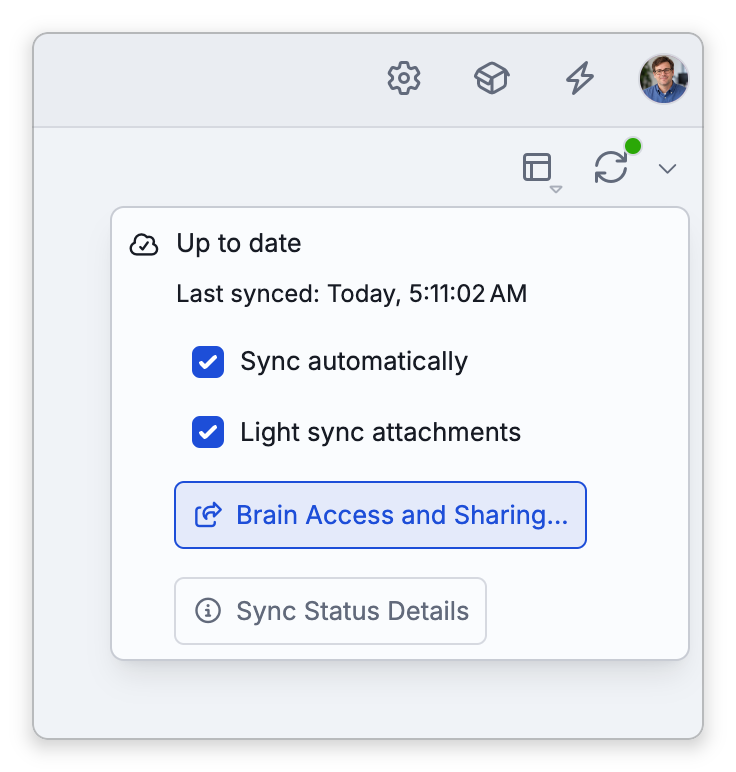
- Click the arrow beside the Sync button in the brain toolbar (Sync status and settings).
- Tick or clear Sync automatically.
The same checkbox is in Settings > Brain > Sync, and on the Mac desktop app it is also Brain > Sync Automatically in the menu bar. Some menus label it Auto Sync. The checkbox appears once the brain is synced.
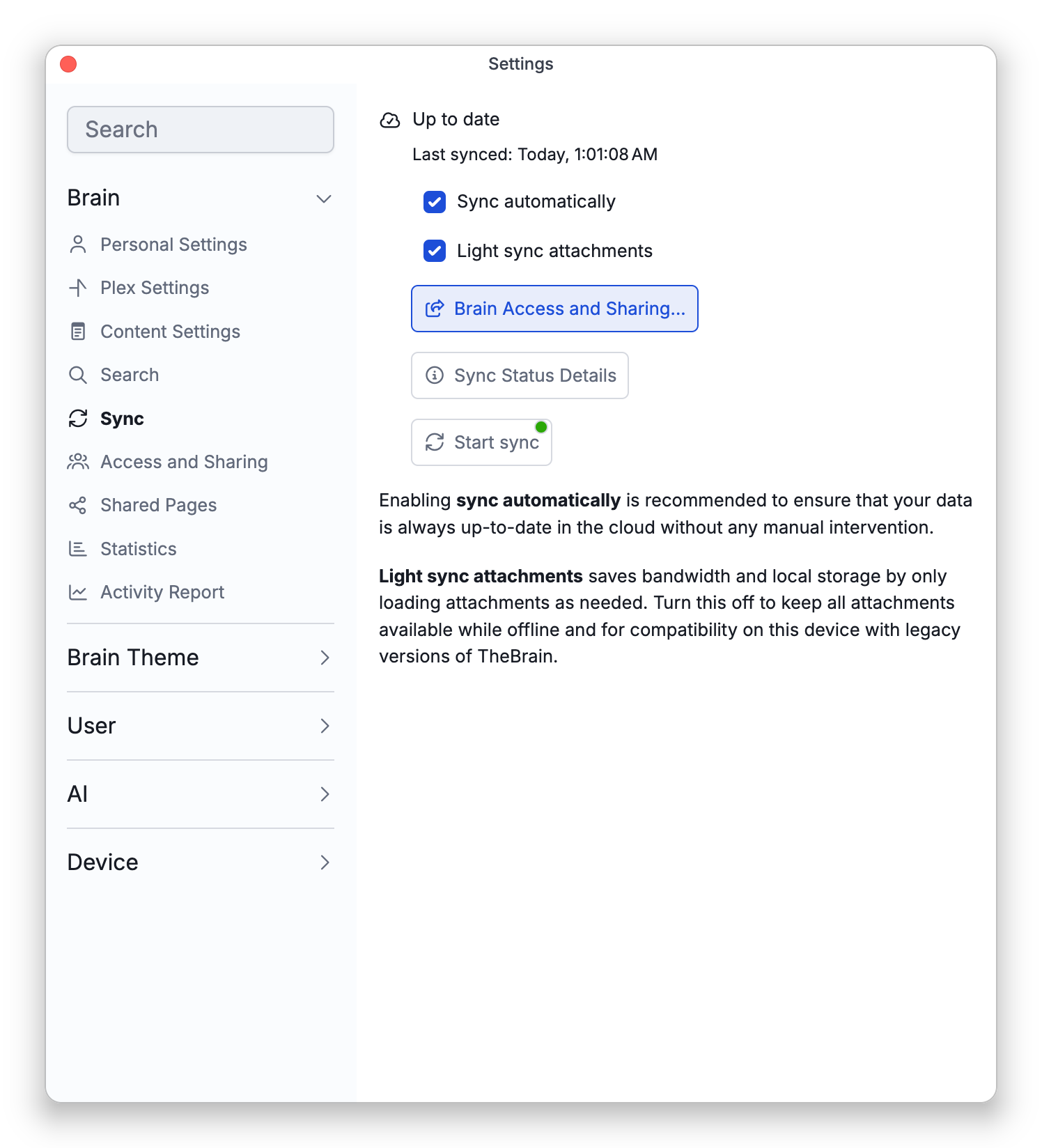
The setting is kept per brain on each device, so a brain can sync automatically on your computer and only when you ask on your phone. Leaving it on is recommended for brains you change often.
Sync Status
TheBrain shows where a brain stands — for example Up to date, Local changes, Remote changes, Local and remote changes, Checking for changes…, Syncing…, or Last synced with a time. Click the arrow beside the Sync button (Sync status and settings) to read the brain's current status; Settings > Brain > Sync shows the same thing. In the brains list, each synced brain carries a badge instead, such as Synced, Unsynced changes, Update available, or Sync blocked. For a full picture, the Sync Status Details view (opened from Active Syncs: N in the account menu, where N is the number of syncs running; on the desktop app it opens in a window of its own) lists Active Syncs, Pending Syncs and Recent Syncs — handy when several brains are syncing at once. When two devices or people sync the same brain at the same moment, the server takes them one at a time, and the waiting sync shows Waiting for another sync of this brain to finish... until its turn comes.
The Dot on the Sync Button
For a synced brain that is not syncing at the moment, the Sync button in the brain toolbar carries a small colored dot:
- Green — nothing was waiting at the last check: the brain is up to date.
- Orange — changes are waiting: yours that have not been sent, changes from elsewhere that have not been received, or both.
- Red — sync is blocked: the cloud is refusing to sync this brain until something is fixed.
TheBrain rechecks regularly, and the dot turns orange as soon as you change something. The check needs the cloud: when TheBrain can't reach it, the dot doesn't turn red, and it is not a reliable sign that your changes have been sent.
When Sync Is Blocked
When the dot is red, or the brains list shows Sync blocked, click the arrow beside the Sync button (or open Settings > Brain > Sync) and read the first line. It gives the reason — for example a cloud capacity limit, a device clock that is set wrong, a brain that cannot be synced without TeamBrain Services, or a brain that needs a newer version of TheBrain. Deal with that, then sync again.
If a brain won't sync with the message This brain cannot be synced without TeamBrain Services, it has more than one Writer/Admin — co-editing a brain requires TeamBrain, and each Writer or Admin needs TeamBrain on their own account. Either get that person TeamBrain (a seat in a TeamBrain subscription, or a TeamBrain or Max plan of their own, since Max includes TeamBrain) or reduce Writer/Admin access to a single user. See Brain Access and Sharing.
If another device upgraded the brain to a format this copy of the app can't read (for example by switching it to standard Markdown, or by adding the brain's first thought alias), this copy is told which version it needs — sync is refused with This brain requires TheBrain … or later. Update TheBrain software before syncing., and an open brain closes with This brain needs a newer version of TheBrain. Update the app and open it again.
How to Cancel a Sync
- Open Sync Status Details: click the Sync button while that brain is syncing, or click the arrow beside it and choose Sync Status Details, or choose Active Syncs: N in the account menu (it is also in Main Menu > File, and on a phone on the Actions tab of the brain's side panel).
- Click the X beside the sync, under Active Syncs or Pending Syncs.
A sync that was running shows Aborting sync... and then appears under Recent Syncs marked Canceled. A sync that was still waiting for its turn is simply taken out of the queue. To run a canceled sync again, click its Canceled entry or click Sync; TheBrain offers to Resume it or Start Over. Until you start a sync of that brain yourself or restart TheBrain, automatic sync leaves it alone.
On the desktop app, the X on the sync progress banner near the top of the window only hides the banner. It does not cancel the sync.
- If a sync is interrupted, TheBrain offers to Resume it (or Start Over) the next time you sync. An automatic sync resumes it without asking.
- BrainBox is synced separately from your brains, frequently while you are signed in.
- To save space and bandwidth on large brains, see Light-Sync Attachments; for working without a connection, see Working Offline and Sync Recovery.