Upgrading and Purchase
Overview
When you want a larger plan — or need to renew or update billing — TheBrain handles it through your account. You can subscribe, manage your payment details, and cancel renewal whenever you like. For what the paid plans actually change, see Plans and Cloud Services.
Upgrading
Start from an Upgrade prompt (for example on the Cloud Capacity screen when you're near your allowance), from Upgrade Now in the account menu, which is there while you have no paid services, or from Settings > User > Account — the Upgrade or Renew Services action appears there while you're on the free plan or your services have expired.
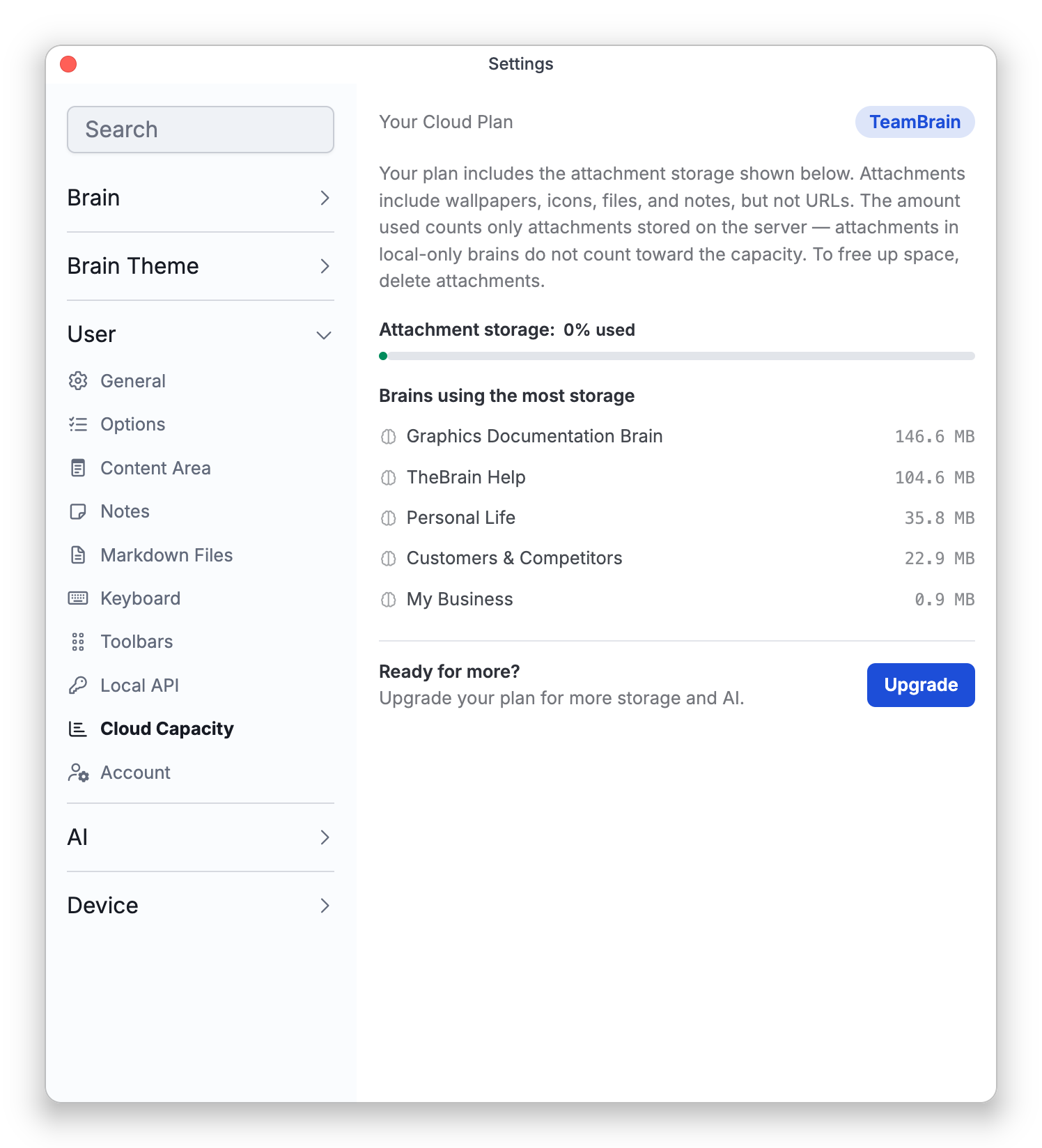
What happens next depends on your platform:
- Web and desktop — TheBrain opens the plan store on
thebrain.comin your browser, pre-filled with your account email. Complete the purchase there and it applies to your account. - Android — Upgrade or Renew Services and Upgrade Now start an email to TheBrain in your email app, asking for information about upgrading, with your account email in it.
- iOS — Upgrade or Renew Services and Upgrade Now open an in-app purchase dialog that offers monthly or annual billing through the App Store, with links to the terms and privacy policy. After purchase TheBrain confirms it; if a purchase doesn't apply right away, the Restore purchases option re-checks it.
Seeing When Your Plan Renews or Expires
Your expiry date is shown in several places, and the renewal details in one:
- The account menu (top-right corner) — while your services are active, it shows a line such as Pro Services Expire (the wording names your plan) followed by the date.
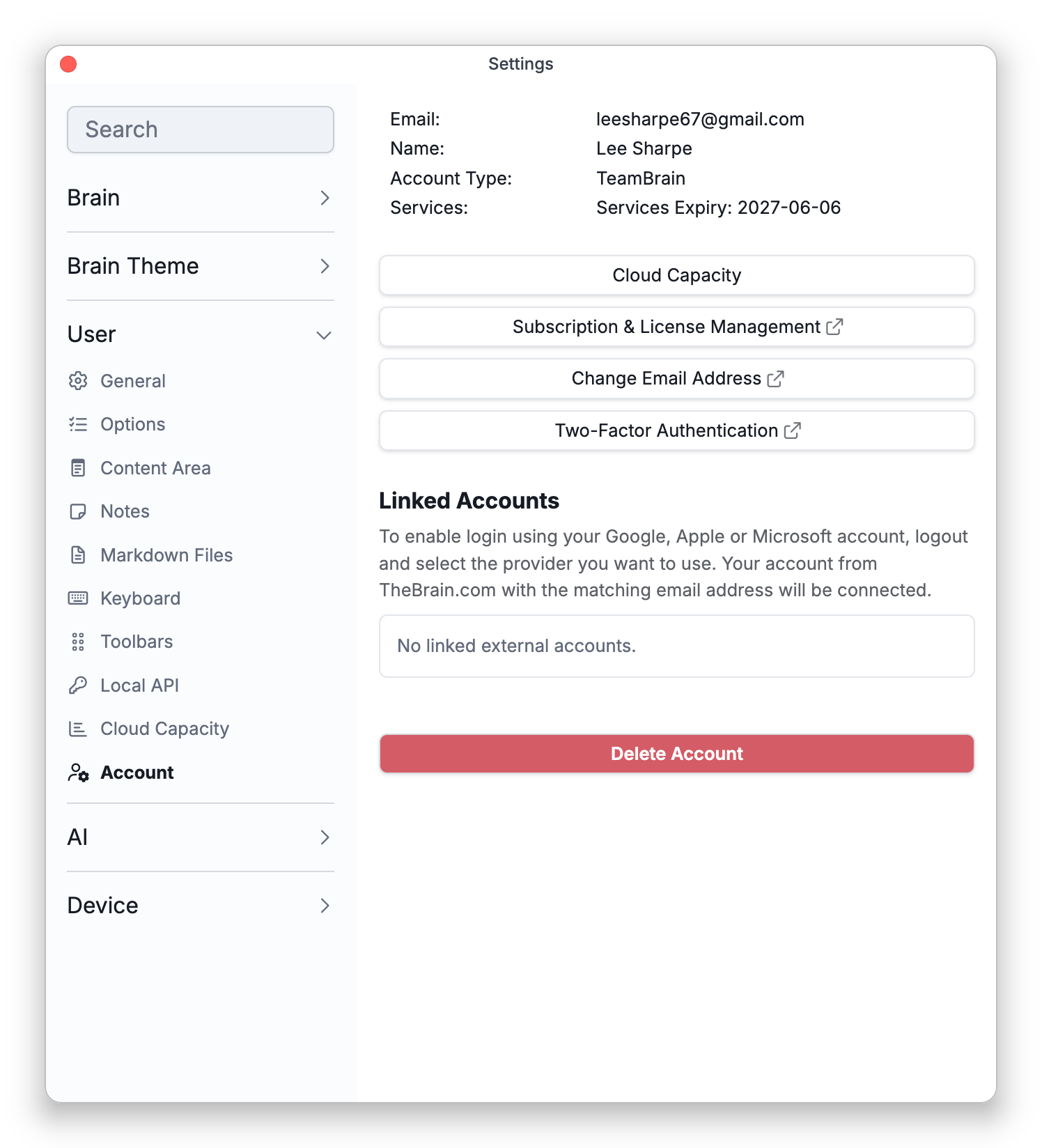
- Settings > User > Account — the Services line reads Services Expiry and the date. Once a paid plan has lapsed, it reads Expired and the date instead.
- About TheBrain — in the desktop and mobile apps, this shows the same expiry line as the account menu.
- Settings > User > Account > Subscription & License Management — the place to see the renewal itself. Each subscription is listed with one of three statuses: Renews, with the next payment date and the renewal amount in US dollars, when it renews automatically; Expires, with the date and No auto-renew, when it is not set to renew (for example after Cancel Renewal); or Expired, with the date. The renewal details load a moment after the list opens, so the line may briefly read just Expires and the date.
Managing Payment and Renewal
Open Settings > User > Account > Subscription & License Management (on the desktop and mobile apps this opens your account pages in the browser). For a subscription you administer, choose Payment Info to:
- Update Card — change the credit card on file.
- Cancel Renewal — stop the subscription from renewing; your services continue until the current term ends.
- When paid services lapse, nothing is deleted — your account returns to the free plan's allowances.
- For seat-based management on team plans, see TeamBrain Overview.