Managing Your Account
Overview
Settings > User > Account is the home for your account itself — your details, how you sign in, your subscription, and account-level actions like deleting the account. You can also reach account tools from the account menu in the top-right corner, which includes Account Info & Tools, Switch Users and Log Out.
Your Account Details
The Account settings display your email, name, account type, and current services, including the date your services expire (for the renewal date and amount, see Upgrading and Purchase). These details are shown, not edited in place:
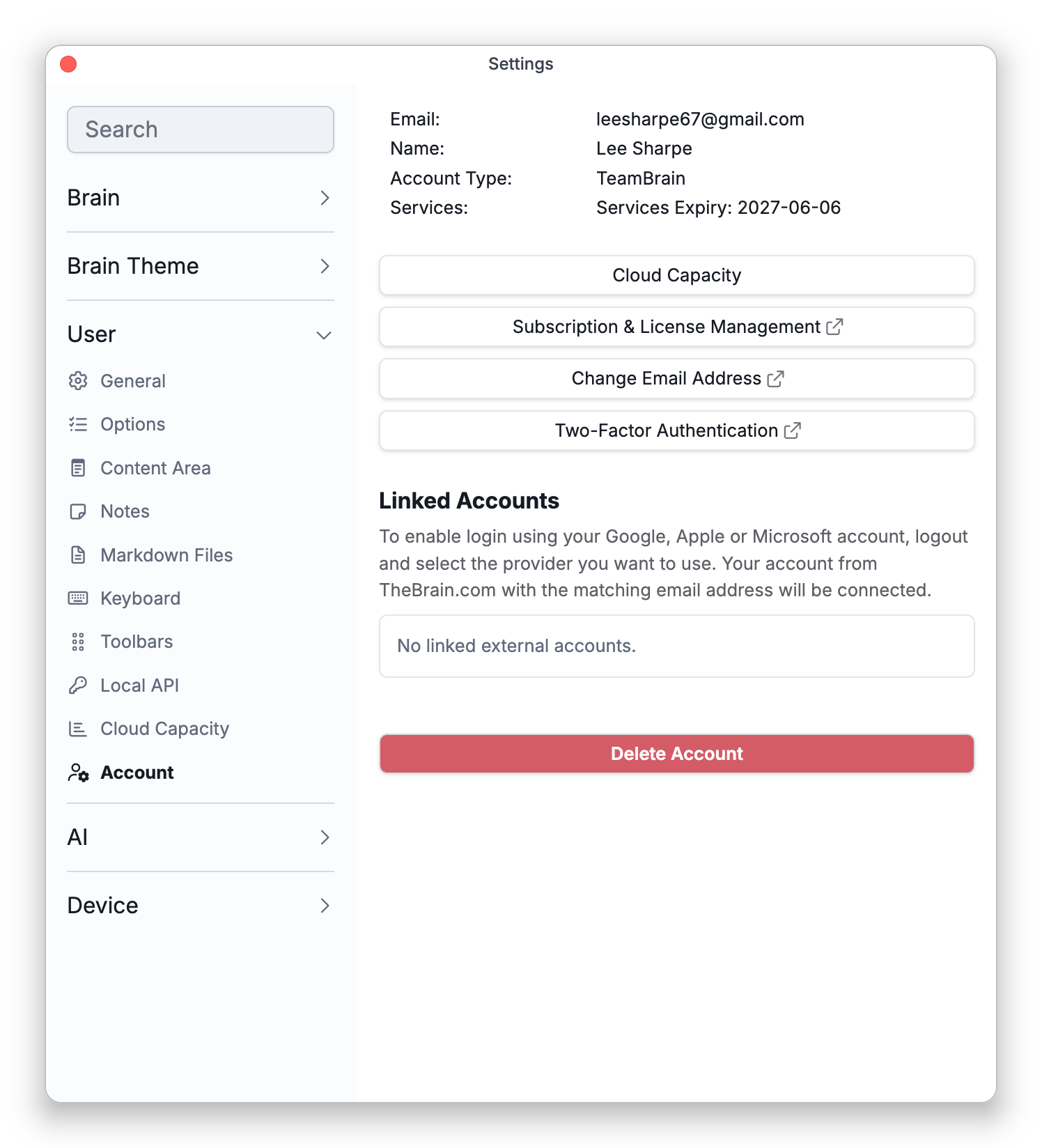
- To change your email, use Change Email Address (see Account Actions).
- To set or change your password, use Reset Password on the login page — see Signing In.
Linked Accounts
If you sign in with Google, Apple, or Microsoft, those linked accounts are listed here with the provider, email, and when they were linked, and you can unlink one (with a confirmation). You can't unlink your last external account without first setting a password, so you always keep a way in. See Signing In.
How to Link a Google, Apple, or Microsoft Login
There is no Link button in Settings. A login is linked from the login screen, by signing in with the provider and then confirming with your TheBrain password:
- Log Out, and on the login screen choose Google, Apple, or Microsoft under Or continue with; if the login screen first lists accounts that are still signed in, choose Use another account to get to these buttons. Sign in with that provider. (In the desktop and mobile apps the provider's page opens in your browser.)
- When the provider's email address matches your TheBrain account, the login screen returns with your email filled in and the message This email is already linked to an account for TheBrain. Log in to connect your Google account. (naming the provider you chose).
- Enter your TheBrain password and choose Login and Link. Plain Login signs you in without linking.
Finish step 3 soon after signing in with the provider; if it has expired, start again from step 1. Afterwards the login appears under Linked Accounts, and you can sign in either way.
Two things can get in the way:
- A different email address — the link is offered only when the provider's email address is the same as the one on your TheBrain account. If the provider's address matches no TheBrain account, signing in with it creates a new, separate account instead of linking. To link, the two addresses have to match first; your TheBrain address is changed with Change Email Address.
- No password yet — step 3 needs a TheBrain password. If your account doesn't have one (for example because it was created by signing in with a provider), set one first with Reset Password on the login screen.
After unlinking a login you can link it again the same way.
Account Actions
- Subscription & License Management and (on free or expired accounts) Upgrade or Renew Services — manage your plan (see Upgrading and Purchase).
- Cloud Capacity — jump to your storage and sync allowances (see Cloud Capacity).
- Change Email Address and Two-Factor Authentication — see Email Verification and Two-Factor Authentication.
- Delete Account — permanently delete your account.
To sign out, use Log Out in the top-right account menu. Signing out doesn't delete anything; your account and brains remain.
To use more than one account, choose Switch Users > Log In as Another User... in the same menu and log in. The account you were using stays signed in, so Switch Users then lists both accounts, with a check on the one in use, and choosing the other switches to it without a password. Only one account is in use at a time. A switch saves your work and then shows the other account: in the desktop and mobile apps with the tabs it had open last, and on the web at its brains list. Log Out signs out only the account in use, and Log Out All Accounts, at the end of Switch Users, signs out all of them.
Deleting Your Account
Deleting is permanent and can't be undone — you confirm by typing DELETE MY ACCOUNT. If you're the admin of any remote brains, you must delete them or transfer admin rights to someone else first; the dialog lists the brains that block deletion. After deletion you're signed out automatically.
- Some of these actions (subscription management, change email, two-factor) open in your browser on the desktop and mobile apps.
- On TeamBrain enterprise servers, subscription management, capacity, upgrade, and account deletion are handled by your organization and don't appear here.