Shared Thought Pages
Overview
Shared Thought Pages allow publishing individual thoughts as clean, standalone web pages that anyone can view with a link. Each shared page displays the thought's name, label, and notes in a readable format — without exposing the rest of the brain. This is the way to share a note with someone who doesn't use TheBrain: they need only the link, not an account.
URL Structure
Each shared page gets a unique URL:
https://app.thebrain.com/s/{username}/{slug}- username — The sanitized TheBrain username of the link creator.
- URL path — An auto-generated URL-friendly identifier based on the thought name. This can be customized.
Who Can Create Shared Pages
Creating and removing shared pages requires brain-admin access — a Writer can't create them — and a brain that is synced to the cloud: local-only brains can't have shared pages. Anyone with the brain open can view the Shared Pages management list, but only a page's owner or a brain admin can change or delete an existing page.
How to Share a Thought
- Navigate to the thought you want to share.
- Click the share button next to the thought name (the share icon with a dropdown indicator).
- From the dropdown menu, select Share Thought Page.
- The shared page is created and the URL is copied to your clipboard automatically.
- A notification confirms the link has been copied.
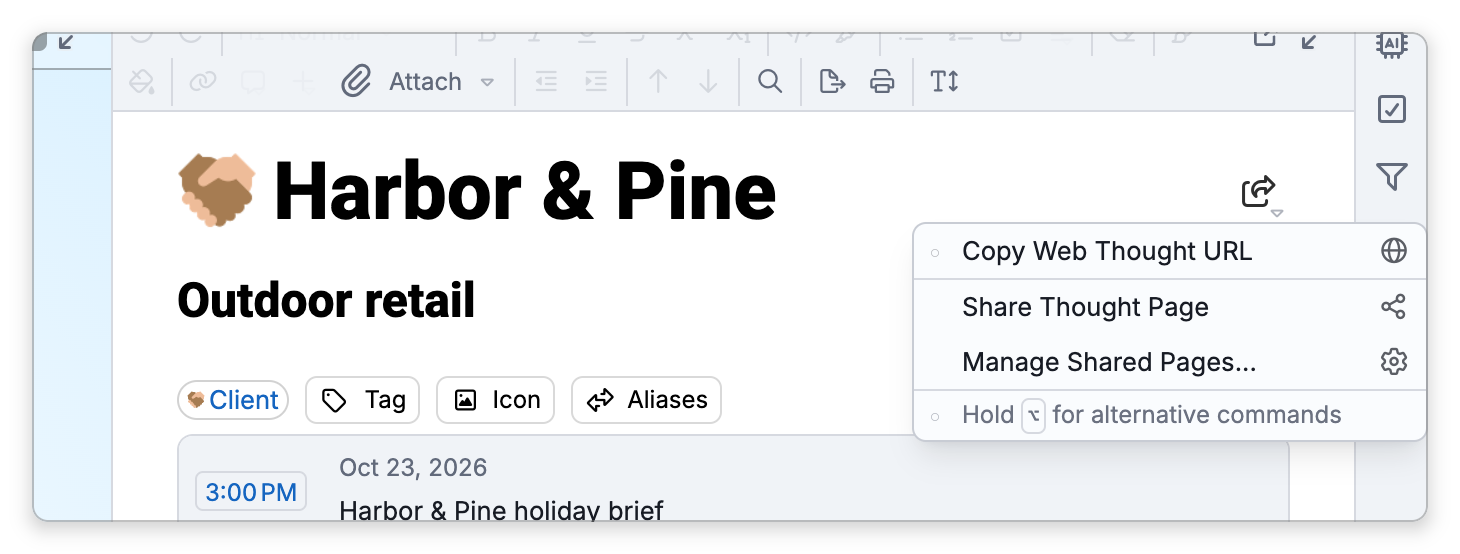
If a shared page already exists for the thought, selecting "Share Thought Page" again will copy the existing URL to the clipboard without creating a duplicate.
Private thoughts can't be shared: Share Thought Page is disabled while the active thought is private. To share a private thought, first make it public.
Share Button Indicator
When a thought has an active shared page, the share button next to the thought name appears in a selected/highlighted state. This serves as a visual reminder that changes to this thought's notes will be visible to anyone with the shared link.
How to Remove a Shared Page
- Click the share button next to the thought name.
- Select Remove Shared Page from the dropdown menu.
- Confirm the removal when prompted.
Once removed, the shared URL stops working immediately. Anyone who visits the link will no longer see the content.
Managing Shared Pages
Quick Actions (Share Menu)
The share button dropdown provides quick access to:
- Copy Web Thought URL — Copies the standard TheBrain web link for the thought (requires brain access to view).
- Copy Local Thought URL — Copies a
brain://protocol link for opening in the desktop app. It is a desktop-app command, and for a brain that is in the cloud it shows only while you holdShift(⌥on Mac) with the menu open — see Copy Thought Links. - Share Thought Page — Creates a shared page or copies the existing shared URL.
- Remove Shared Page — Deletes the shared page (only visible when one exists).
- Manage Shared Pages — Opens the settings dialog to the Shared Pages management tab.
Settings Dialog
The Shared Pages tab in Settings shows all shared pages for the currently open brain across all users. This tab is only visible when a brain is open.
The table view provides:
- Active toggle — Enable or disable a shared page without deleting it. Inactive pages return a "not found" response but can be re-enabled later.
- Thought name — Click to navigate to the thought in the brain.
- URL path — Click to edit the path portion of the URL. Press
Enterto save orEscto cancel. - View count — How many times the shared page has been viewed.
- Created date — When the shared page was first created.
- Public/Login toggle — Toggle between public access (globe icon) and requiring a TheBrain login (key icon).
- Context menu — Copy link, duplicate (create a second shared link to the same thought with a different URL path), or delete.
User Filter
A user filter dropdown at the top of the table lets you show only shared pages from a specific user, or select "All Users" to see everything.
Sorting
Click any column header to sort the table. Click again to reverse the sort direction. The default sort is by creation date (newest first).
How Links in Notes Behave on Shared Pages
When someone views a shared thought page, links to other thoughts within the brain are handled as follows:
- Links to other shared thoughts — These are preserved and rewritten to point to the other thought's shared page URL (
/s/{username}/{slug}), allowing viewers to navigate between shared pages. - Links to non-shared thoughts — These are stripped and appear as plain text. The display text is preserved but the hyperlink is removed, since the viewer cannot access that thought.
- Public or Unlisted brains — If the brain's visibility is set to Public or Unlisted, all thought links are preserved as-is, since viewers can open any thought in the brain that isn't private.
- Unlinked mentions — Thought names that TheBrain marks in the text without a link follow the same rules as linked thoughts: mentions of shared thoughts become navigable links, while mentions of non-shared thoughts appear as plain text.
- External links — Links to websites, emails, and other non-brain URLs are always preserved.
- Embedded notes — A note that embeds another thought's note (see Embedded Notes) shows the embedded content on the shared page only when viewers of the page can reach that thought. In a brain that isn't public or unlisted, that means the embedded thought has a shared page of its own; any other embed shows Missing thought: followed by the thought's name, even to viewers who have access to the brain. In a public or unlisted brain, an embedded private note shows Missing thought: in the same way, unless the page is set to Requires Login and the viewer has access to the brain.
Read-Only Experience
Shared thought pages are strictly read-only. Viewers see the thought's name, label, notes, and attachments — but they cannot navigate to related thoughts, types, or tags. The brain's graph structure is not exposed.
No toolbar is shown on a shared page. A small TheBrain logo on the page acts as a credit: clicking it shows Created by followed by the username of the person who shared the page, and a Made with TheBrain link. The username is the one in the page's address, and it is shown automatically.
If you want viewers to explore the brain — navigating between thoughts, browsing types and tags, etc. — make the brain Public or Unlisted instead and share the standard web link.
When a Shared Page Is Out of Date
A shared page is served from the copy of the brain in TheBrain's cloud, so it shows the thought as the cloud has it. Changes to the thought's name or notes reach the page without sharing it again:
- Edits made in the web app change the cloud copy directly, so they are on the page the next time it is loaded.
- Edits made in the desktop or mobile app change the copy on your device first, and reach the page once the brain has synced.
If the thought itself hasn't reached the cloud yet — for example, a thought you created and shared in the desktop app before the brain synced — visitors see Content Not Yet Available instead of the page.
In either case the fix is the same: sync the brain (click Sync, or wait for automatic sync), then reload the page. See Syncing Brains.
Access Control
Shared pages offer two access levels, configurable per link:
- Public (default) — Anyone with the URL can view the page. No login required.
- Requires Login — Viewers must be signed in to a TheBrain account and have at least read access to the brain to view the page. This allows sharing within a team or organization while keeping the content private from the general public.
- Shared pages are tied to a user account within a brain. They work across the web client and the installed apps.