Copy Thought Links
Overview
Every thought can be linked to from outside itself. The share button next to a thought's name copies a link you can paste elsewhere — a web link for sharing and opening in a browser, or a local brain:// link for opening straight in the desktop app. This is how you point someone (or another note, document, or app) at a specific thought.
The Two Link Types
From the share button's menu:
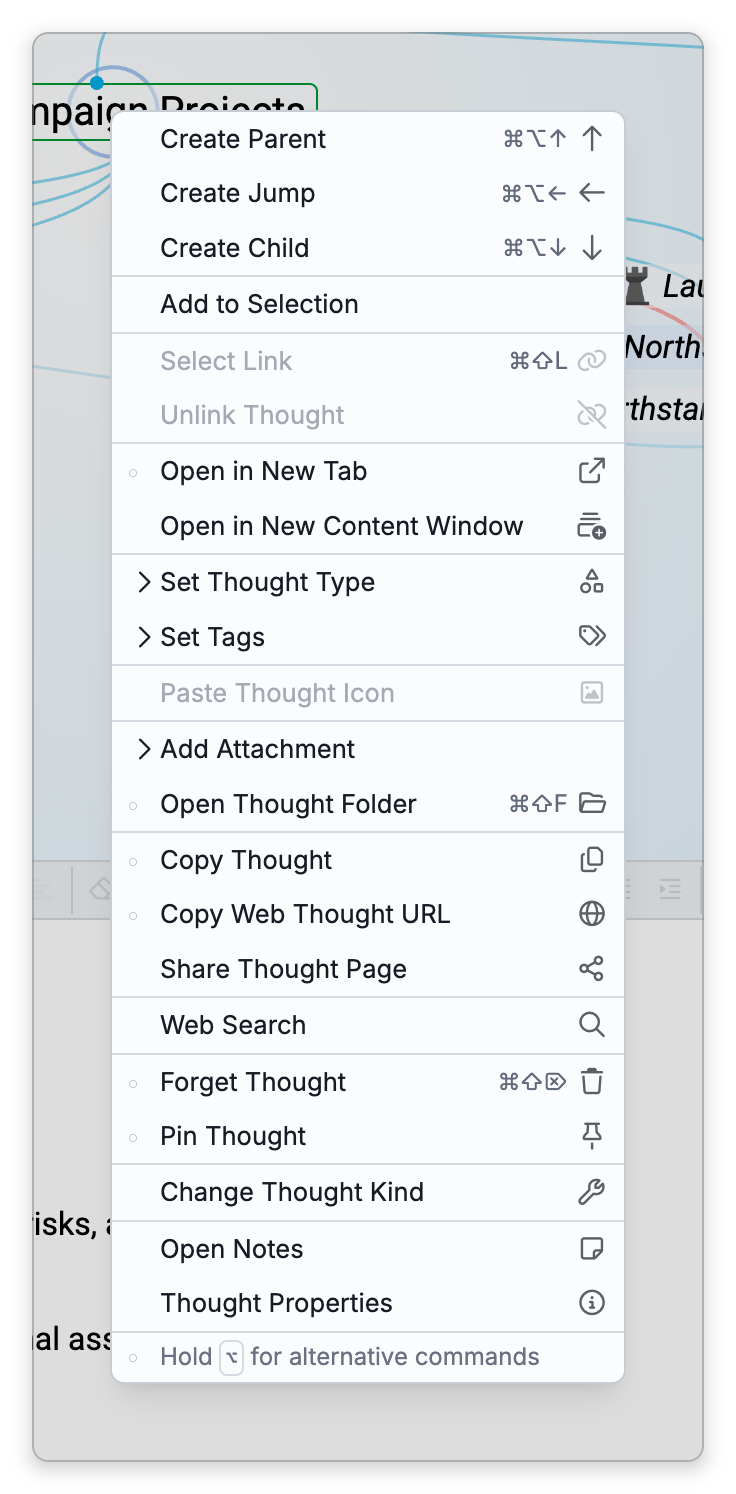
- Copy Web Thought URL — Copies a web link to the thought. Opening it loads the thought in TheBrain's web app; the person opening it needs access to the brain to see it. In the mobile app, if the brain isn't in the cloud yet, TheBrain offers to upload it first so the link will work; the desktop app doesn't offer the web link for such a brain (see below).
- Copy Local Thought URL — Copies a
brain://link that opens the thought directly in the desktop app on a device that has the brain. This command exists only in the desktop app, and for a brain that is in the cloud it is hidden until you hold a key (see Finding Copy Local Thought URL below).
Copying the web link shows a confirmation notification (Web thought URL copied to clipboard); the local link is copied without a notification.
Finding Copy Local Thought URL
In the desktop app the share menu shows only one of the two commands at a time, depending on the brain:
- A brain that is in the cloud — the menu shows Copy Web Thought URL. Hold
Shift(⌥on Mac) while the menu is open and it is replaced by Copy Local Thought URL. The line at the bottom of the menu is the reminder: Hold Shift for alternative commands, with⌥in place of Shift on a Mac. - A brain that exists only on this device — the menu shows Copy Local Thought URL straight away, and doesn't offer the web one.
A thought's right-click menu lists the same two commands and behaves the same way. In the Mac desktop app, the Thought menu in the menu bar lists both commands without any key held. Neither command has a default keyboard shortcut.
Related Share-Menu Actions
The same share menu also publishes a thought as a public page and manages those pages:
- Share Thought Page / Remove Shared Page / Manage Shared Pages — see Shared Thought Pages.
- A copied link points at the original thought — it doesn't copy the thought's content. To duplicate a thought instead, see Copying and Duplicating Thoughts.
- To link from a note to a thought in another brain, copy the thought with Copy Thought and paste it into the note; it arrives as a link showing the thought's name. See Links in Notes.
- To show a thought to people who don't have access to the brain, share it as a page instead — see Shared Thought Pages.