Embedded Notes
Overview
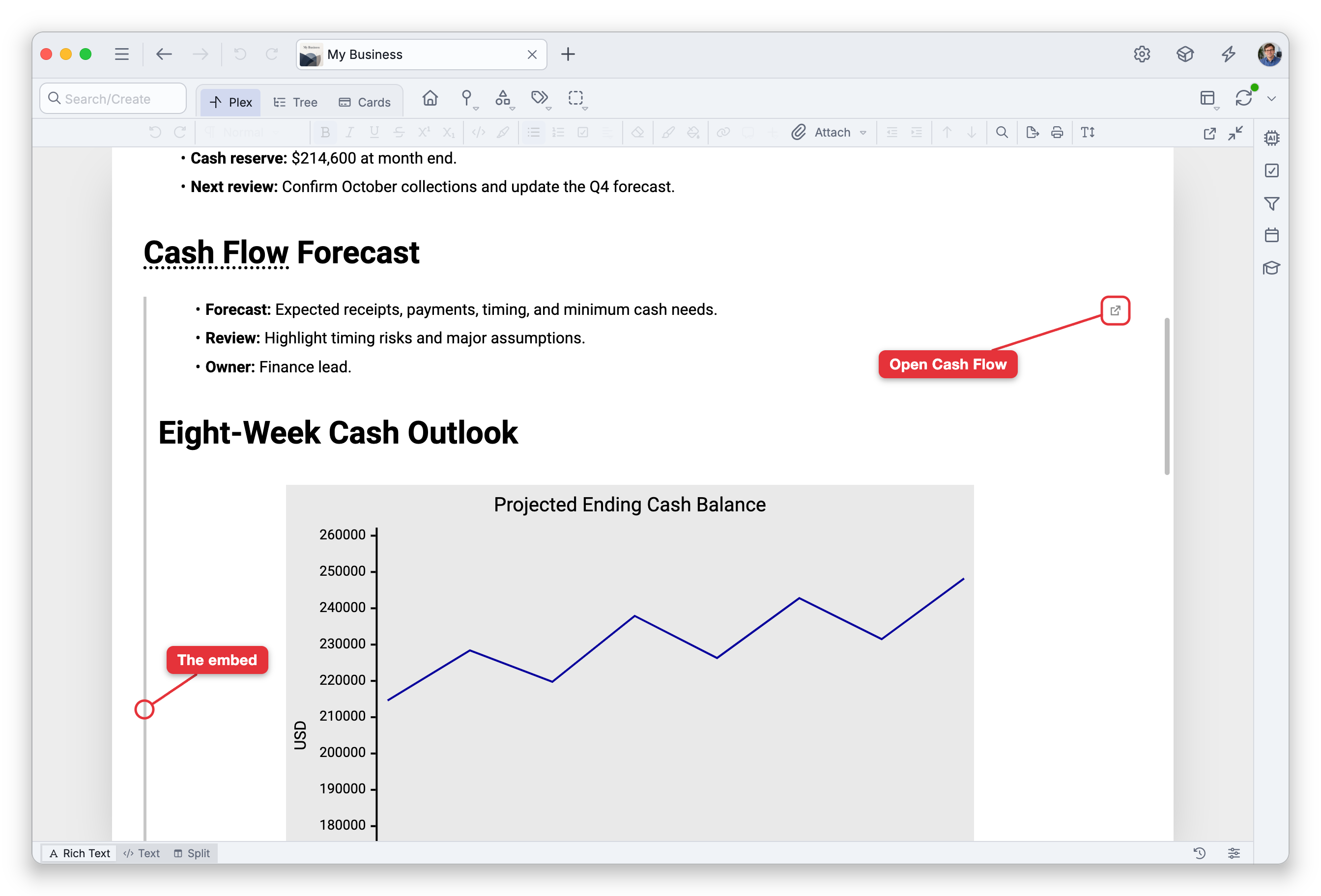
An embedded note shows another thought's note inside the note you're writing. The embedded content is live: it always reflects the source thought's note as it is now, so a project overview can pull in the notes of the pieces it's made of, and a meeting note can show the current state of a decision without copying it. The embed is read-only in place; you change what it shows by editing the source thought's note.
How to Embed a Thought's Note
- In the notes editor, put the cursor on the line where the embed should go.
- Open the toolbar's Insert menu and choose Embed Thought Note.
- In the thought picker (its search box reads Enter Thought to Embed), find and choose the thought.
The thought's note appears in place as a block marked by a thin bar along its left edge. You can also hold Shift (⌥ on Mac) while right-clicking in the note to reveal Embed Thought Note in the menu, where Insert Thought or Web Link normally sits. On the Mac desktop app, the menu bar's Note > Insert menu offers Embed Thought Note… as well. The command isn't offered inside a table cell. There's no default keyboard shortcut; you can assign one in Settings > User > Keyboard (see Keyboard Shortcuts).
Working with an Embed
- Open the source — A small control in the embed's top-right corner opens the source thought; pointing at it shows the thought's name. Links inside the embedded content open with a single click, even while you're editing the note that holds the embed.
- Right-click the embed for its own menu: Activate Source Thought, Convert Embed to Link (replaces the embed with an ordinary link to the thought, using its current name), and Delete Embed (removes the embed and leaves the rest of the note alone).
- Turn a link into an embed — A thought link's menu offers Convert Link to Embed for links to thoughts in the same brain (not inside a table).
- Edit the content by opening the source thought and editing its note there. The embed picks up the change shortly after the source note saves, and renaming the source thought updates the corner control's name too.
- The embed behaves as a single block. Clicking it, or arrowing onto it with the keyboard, selects the whole embed; with it selected,
Enteropens the source thought,BackspaceorDeleteremoves the embed and nothing else, andEscor an arrow key moves the cursor back into the text before or after it. You can't type into an embed — to place text right before or after one, arrow past it and start typing there.
Nesting and Placeholders
An embedded note can itself contain embeds, up to ten levels deep. Anything deeper — or an embed that leads back to a note already being shown, including a note embedding itself — shows Nested too deeply instead of content.
Other states show a short placeholder in place of the content:
| Placeholder | When it appears |
|---|---|
| No notes | The source thought exists but its note is empty. |
| Missing thought: followed by the name | The source thought no longer exists, or the viewer can't access it — for example a private thought seen by someone who isn't logged in with access to the brain (see Private Thoughts and Embeds below). |
| Not available | The source is a private thought while private thoughts are hidden, a forgotten thought while forgotten thoughts are hidden, or a thought in a different brain — only thoughts in the same brain can be embedded. |
Private Thoughts and Embeds
You can embed the note of a private thought, and what viewers see depends on whether they have access to that thought:
- Logged in with access — When you, or anyone on the brain's access list, view the note in the brain while logged in, the embed shows the private thought's note just like any other embed.
- Not logged in, or no access — When someone without access to the private thought views the note, such as a visitor to a public or unlisted brain, the private content is not displayed. In its place the embed shows Missing thought: followed by the thought's name.
A shared thought page has rules of its own: an embed there can show Missing thought: even to viewers who have access to the brain, and a private note can show only on a page set to Requires Login. See How Links in Notes Behave on Shared Pages in Shared Thought Pages.
This lets you keep a private thought's note in one place and still embed it in notes you share, knowing the private content only appears for people who are allowed to see it. See Private Thoughts, Brain Access and Sharing, and Shared Thought Pages.
Embeds in Backlinks
When a note embeds a thought's note, the source thought lists that note in its backlinks area under an Embeds heading (Embed when there's just one), separately from ordinary Backlinks. Turn the backlinks display on with Backlinks in the View Options menu — see Links in Notes.
Exporting and Printing
Export Notes, printing, and the export preview show embedded notes expanded in place, following the same depth and privacy rules as the editor; the corner control is left out. For PDF and HTML exports the dialog offers Side bars on embeds, under Options, which marks each embedded note with a bar down its left. It starts off, so the embedded content flows as if it had been typed in place. In those files a link to a thought that the document embeds goes to its embedded note, even from inside another embedded note, unless you turn off Links go to embeds, also under Options. Markdown and Text exports keep each embed as a link to its source thought rather than expanding it.
- Spellcheck, find and replace, and mention detection don't reach inside embedded content — they apply to the source note when you edit it there.
- Search matches text in the thought that owns the note, not text that only appears there through an embed.
- Embedding works in both note formats — standard Markdown and TheBrain's deprecated dialect. In the note's Markdown an embed is a single line that refers to the source thought, so the note itself stays plain text.