The Plex
Overview
The Plex is the visual map at the heart of TheBrain — the network you see when you open a brain. Whatever thought you are currently looking at sits in the center as the active thought, and the thoughts linked to it are arranged around it. The moment you activate a different thought, the Plex re-centers on it and animates the connections into place, so you are always looking at the neighborhood of wherever you are.
This is what makes a brain feel like a map rather than a folder tree: you navigate by following links from thought to thought, and the Plex always shows you where you are and what is one step away.
How to Read the Plex
The Plex arranges related thoughts around the active thought by the direction of their link. In the Normal layout:
- Parents appear above the active thought. A parent is something the active thought belongs to.
- Children appear below. Children are grouped together under their parent.
- Jumps appear to the left. A jump is a lateral relationship — a connection that doesn't form a parent/child group.
- Siblings appear to the right. Siblings are the other children of the active thought's parents — the thoughts that share a parent with it. They are not its jumps, which sit on the left.
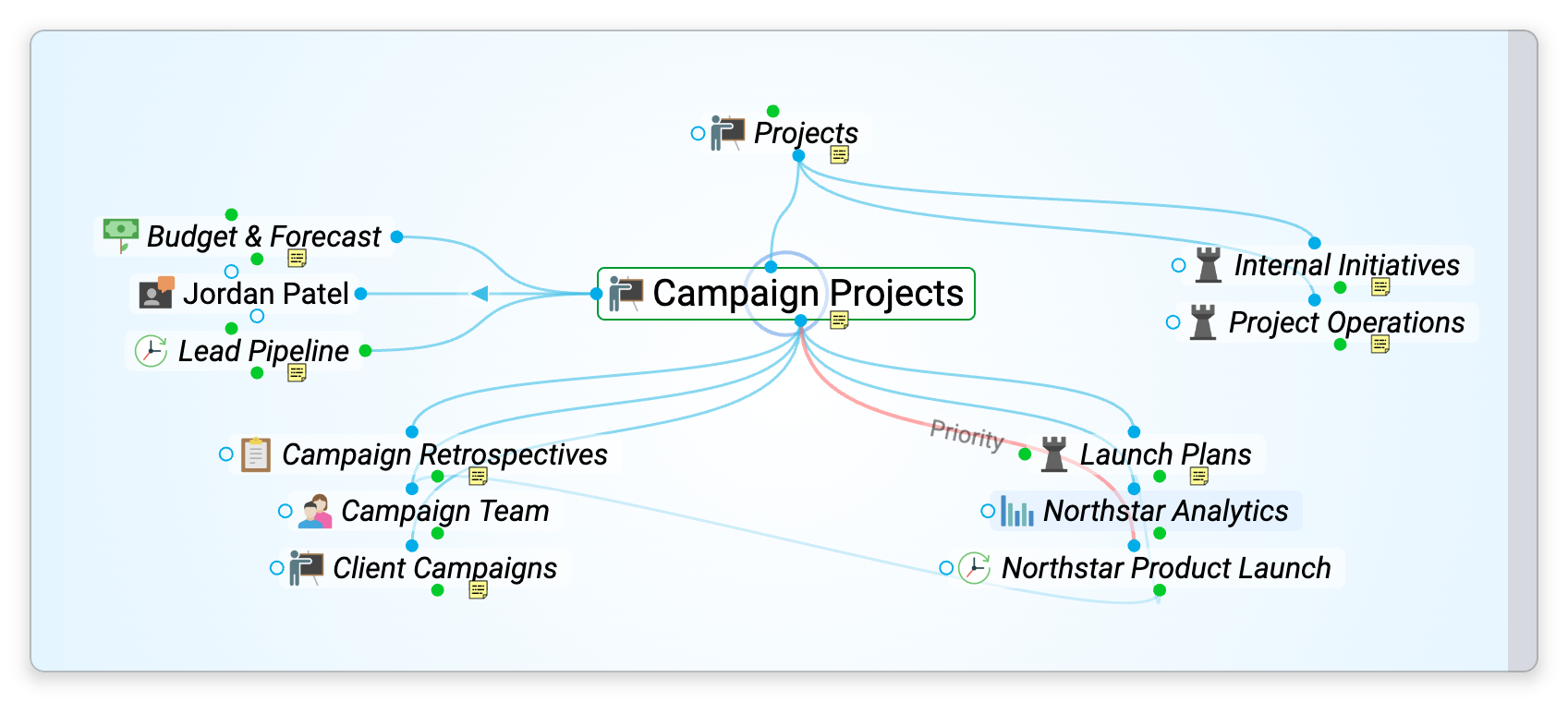
Siblings are shown only in the Normal layout; the Outline and Mind Map layouts leave them out. They are also left out when the active thought has more than 50 parents. To hide them yourself, turn off Show siblings in normal view and mapped links under Thought Behavior in Settings > User > General (it is on by default).
Each direction has a gate — the area where related thoughts in that direction live and where you add new ones. To learn how to create and link thoughts through these gates, see Creating Thoughts and Links.
How to Navigate
- Activate a thought — In the Normal layout, click any thought surrounding the active one. It moves to the center and the Plex re-centers around it. The Outline and Mind Map layouts need a second click, as described below.
- Follow links — Keep clicking outward to travel across the brain along its connections.
- Search to jump anywhere — Use the search box in the brain toolbar to activate any thought directly, no matter how far away it is (see Finding and Creating Thoughts).
Clicking in the Outline and Mind Map Layouts
In the Outline and Mind Map layouts, the first click on a thought only focuses it. The content area shows that thought's notes and attachments, but it does not become the active thought and the map stays where it is, so you can look at a thought's content without moving the map. To activate the thought, click it a second time or press Enter. To put the focus back on the active thought without navigating, click the active thought itself.
How to See Thoughts That Don't Fit
A thought can have more parents, children, jumps or siblings than there is room to show. In the Normal layout, each of those groups gets its own scrollbar when it holds more thoughts than fit:
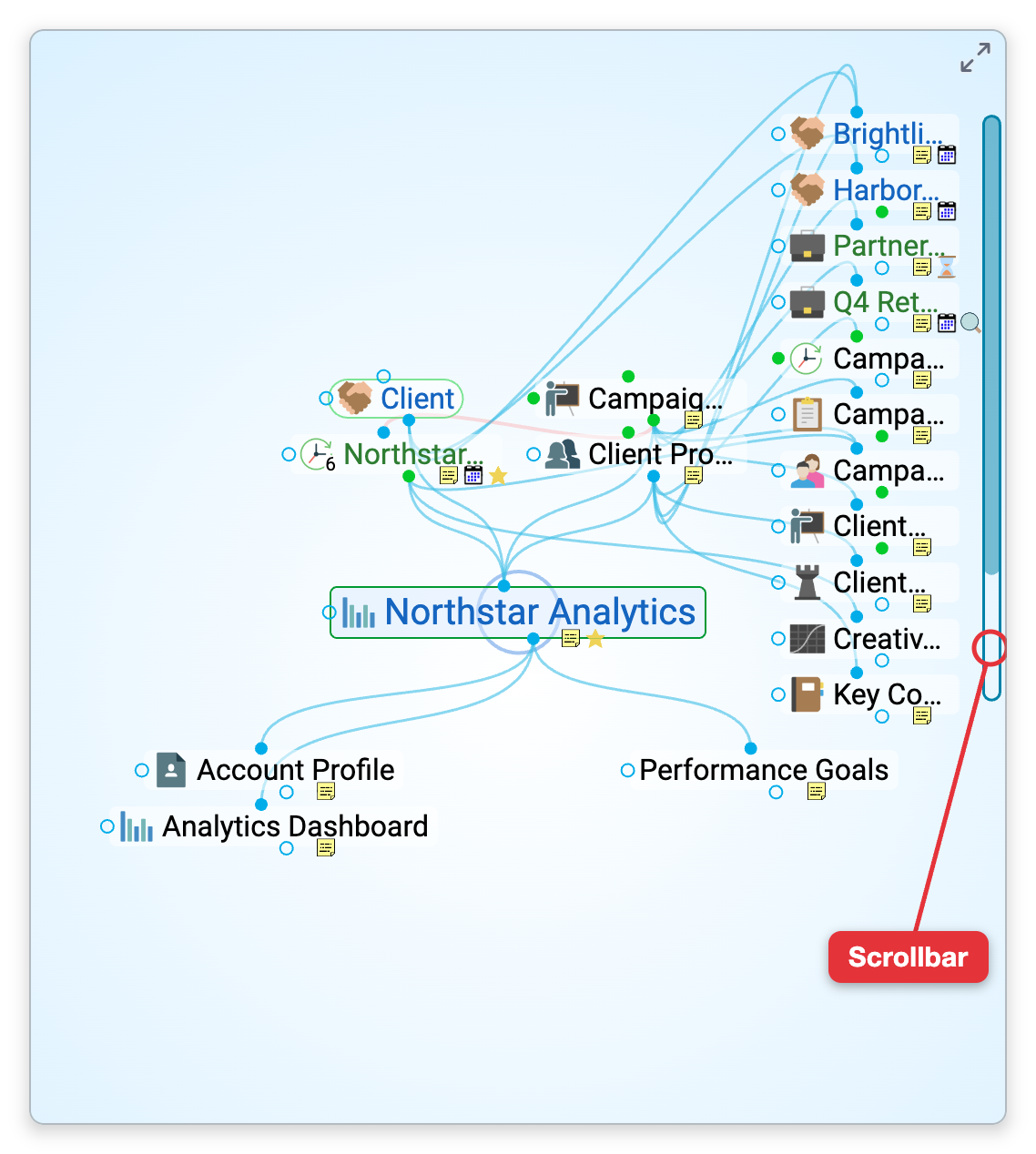
- Scroll one group — Turn the mouse wheel while pointing at the group, or drag its scrollbar.
- Scroll with the keyboard — Keep pressing an arrow key past the edge of the group; the group scrolls to bring in the next thoughts.
- Give a group more room — Drag empty background up or down (with two fingers on a touch screen). The active thought moves up or down with it, leaving more space for the children or for the parents.
In the Outline and Mind Map layouts the whole map moves instead: drag empty background (one finger on a touch screen), or turn the mouse wheel, to pan it.
How to Navigate with the Keyboard
You can move around the Plex without the mouse. Whenever you are not typing in a note or another text field, and no dialog or search results are open, the arrow keys move a ring from thought to thought:
- In the Normal layout —
↑goes to the parents,↓to the children,←to the jumps, and→to the siblings. Once the ring is in a group, the arrows move among its thoughts, and stepping back toward the center returns to the active thought. - In the Outline and Mind Map layouts — An arrow moves the ring to the nearest thought in that direction.
Enteractivates the thought the ring is on.- The
Menukey, orCtrl+Enter(⌘Enteron Mac), opens the right-click menu of the thought the ring is on. Spaceexpands or collapses that thought in the Outline and Mind Map layouts (see Expand and Collapse).Escremoves the ring and puts the keyboard back on the active thought.
To move the keyboard between the Plex and your notes, use the Focus Plex/Search and Focus Notes commands. The default shortcut for Focus Plex/Search is Ctrl+S (⌘S on Mac), and for Focus Notes it is Ctrl+N (⌘N on Mac). In the Mac desktop app they are also in the menu bar under Go, as Focus Plex and Focus Notes.
Layouts
The Plex can arrange thoughts in several layouts. Switch between them from the brain toolbar or the View menu. The default keyboard shortcuts are:
| Layout | What it looks like | Default shortcut |
|---|---|---|
| Normal | The standard map: parents above the active thought, children below, jumps to the left and siblings to the right | Alt+1 (⌥1 on Mac) |
| Outline | An expandable indented outline of the hierarchy | Alt+2 (⌥2 on Mac) |
| Mind Map | A mind map with the active thought in the middle and its branches spreading out to both sides | Alt+3 (⌥3 on Mac) |
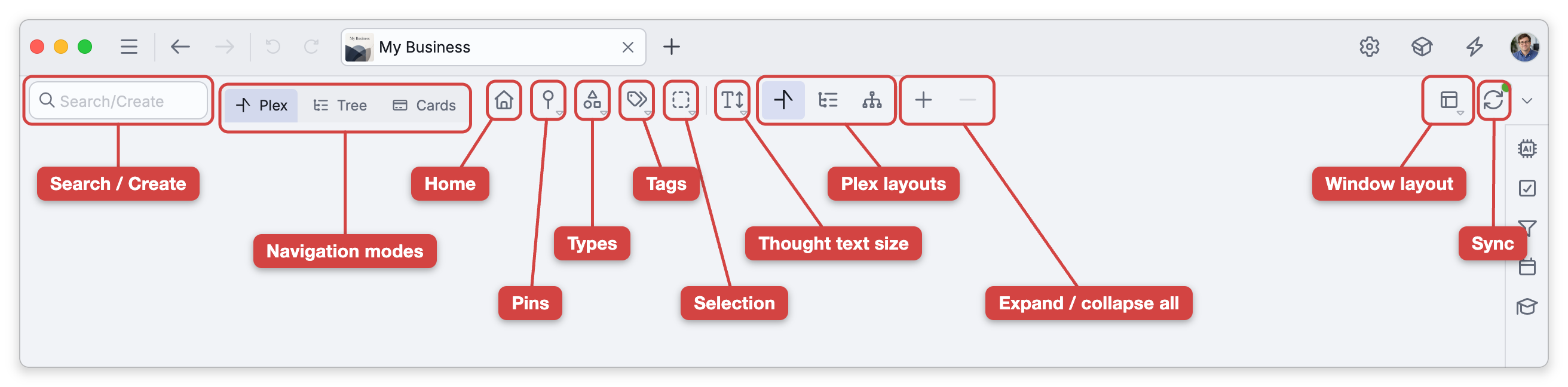
The Plex is one of several navigation modes (Plex, Cards, Tree). See Navigation Modes for how they differ and how to switch.
Expanding, Collapsing, and Sizing
- Expand All reveals more of the surrounding network at once; Collapse All brings it back to just the immediate neighbors. The defaults are
Ctrl+0(⌘0on Mac) to expand all andCtrl+9(⌘9on Mac) to collapse all. - Nav Text Scale in the brain toolbar opens a slider that makes the thought text in the Plex (and Tree) bigger or smaller, shown as a percentage. In the Mac desktop app, the menu bar's View > Text Size menu sets it to one of five sizes, from Extra Small to Extra Large.
- Pinch to resize the text — Pinch with two fingers on a touch screen or a trackpad, or hold
Ctrl(⌃on Mac) and scroll a mouse wheel, to change that same text scale straight from the Plex. Two rings show the size you are heading for, and the new size is applied when you finish. This works in every Plex layout. The text scale is also the Nav text scale slider in Settings > Brain > Personal Settings; in a shared brain, changing it affects only your own view. - Label size — When you hover a thought with the mouse, its label (if it has one) appears in a small chip just beneath the thought. The Label size slider in Settings > Brain > Plex Settings, under Display, scales that chip from 75% to 150% (100% by default) on top of the text scale, and is saved with the brain.
- Plex size — how much of the space the navigation pane takes when split with the content area — can be set to Small Plex, Medium Plex, or Large Plex with keyboard shortcuts, or by dragging the bar between the two panes. The default shortcuts are
Ctrl+Shift+A,Ctrl+Shift+SandCtrl+Shift+D(⇧⌘A,⇧⌘Sand⇧⌘Don Mac). See Split and Window Layout.
Focus Modes
- Presentation Mode (desktop and web) hides the surrounding chrome for a clean, full-screen view of the Plex. The default shortcut is
Ctrl+Alt+F(⌥⌘Fon Mac). - Wander automatically drifts from thought to thought on its own — a relaxed way to rediscover a brain. Start it from the View menu or by right-clicking empty space in the Plex.
- The Plex is the default view, but a brain's content (notes and attachments) appears alongside it in the content area. You can split the screen between navigation and content, or maximize either one — see Split and Window Layout.
- On a phone the Plex fills the screen and the content area slides up over it. Tap the notes button (a notepad icon) on the action bar at the bottom of the screen to open the active thought's notes and attachments, and tap it again to return to the Plex. See Using TheBrain on a Phone.
- The row of thoughts along the bottom of the Plex is the past thoughts list, the thoughts you visited or created most recently — see Past Thoughts List.
- All keyboard shortcuts above are the shipped defaults and can be changed in Settings > User > Keyboard (the Keyboard tab isn't offered in the mobile app).