Finding and Creating Thoughts
Overview
The search box in the brain toolbar is how you get anywhere in a brain instantly. Type part of a thought's name and matching thoughts appear; pick one to activate it and the Plex re-centers on it, no matter how far away it was. The same box doubles as a create box — if what you typed doesn't match an existing thought, you can turn it into a new one on the spot. It's labeled Search/Create for exactly this reason.
Finding a Thought
- Click the search box in the brain toolbar and start typing. On a computer you can skip the click: while the Plex has the focus, whatever you type goes straight into the search box.
- Thoughts whose names match appear immediately, on every keystroke, under Thoughts and Links. The first one is highlighted as soon as it appears, so you can press
Enterto activate the top match without waiting for anything else. - Once you pause typing, TheBrain runs its full search and fills in the rest: further thought matches are added beneath the ones already showing, and matches inside notes and attachments arrive under Notes and Attachments. While that part is still running, a spinner sits beside that heading and the pane reads Searching...; No results found. appears only after the full search has finished with nothing to show.
- Click a result to activate that thought.
When the box is empty, it can show your Recent Searches and Recent Thoughts to get you back where you were quickly.

Searching from the Keyboard
On a computer, in a browser or the desktop app, you can search without touching the mouse:
- Just start typing — Whenever the Plex has the focus, the search box is already listening. (Phones and tablets don't do this, because it would bring up the on-screen keyboard.)
- Jump to the search box — The default shortcut for Focus Plex/Search is
Ctrl+S(⌘Son Mac). It moves the keyboard focus to the Plex and its search box, for example after you've been typing in a note. Press it again to open the search panel with your Recent Searches and Recent Thoughts. - Move through the results —
↑and↓move the highlight,Enteropens the highlighted result, andEsccloses the search. - Switch tabs and sections —
TabandShift+Tab(⇧Tabon Mac) cycle through the result tabs,Shift+↑andShift+↓(⇧↑and⇧↓on Mac) jump from one section of the panel to the next, andShift+PgUpandShift+PgDn(⇧PgUpand⇧PgDnon Mac) jump to the top or bottom of a section.
A bar along the bottom of the results panel shows the main keys, and its ? button lists the rest.
Phrases, AND, OR, and NOT
An ordinary search finds whatever contains all of the words you typed, in any order, and each word only needs to match the beginning of a word — so proj plan finds Project Planning. When you need to be more exact:
| To find | Type | Example |
|---|---|---|
| Words next to each other, as an exact phrase | Double quotes around them | "machine learning" |
| Either word | OR between them | python OR rust |
| One word without another | NOT, or a minus sign or exclamation mark directly in front of the word to exclude | budget NOT draft, budget -draft or budget !draft |
| A combination | Parentheses around a group | (python OR rust) AND NOT draft |
- Type
AND,ORandNOTin capital letters; in lower case they don't work as operators.ANDis optional, because a space already means "and". - Inside quotes and parentheses, type whole words. Matching on the beginning of a word applies only to plain words outside them.
- Phrases and operators apply to note and attachment text as well as to names, so
"quarterly budget" -draftfinds notes that contain that phrase and don't mention draft. - A search that uses quotes, operators or parentheses is answered by the full search only, so its results appear once you pause typing rather than on every keystroke.
- The exclamation mark excludes a word only when it comes after the first word. At the very start of a search, as in
!Important, it is taken as part of a name, and thoughts named that way rank first in the immediate results.
Searching Inside Attachments
Search doesn't stop at names and notes: it also reads the text inside files attached to your thoughts, and lists those matches under Notes and Attachments.
- Files whose text is searched — Files stored in the brain (copied into it rather than linked), of these types: PDF, Word (
.docx), PowerPoint (.pptx), Excel (.xlsx), RTF, OpenDocument text (.odt), HTML (.html), email (.eml), CSV, plain text (.txtand.logfiles), Markdown (.md), Org (.org), Jupyter notebooks (.ipynb), and mind maps from MindManager, XMind, FreeMind, iMindMap, iThoughts, MindMeister, SimpleMind, MindGenius and MindNode. - Files found by name only — Every other type, including the older Office formats (
.doc,.xls,.ppt) and images; text in a picture isn't read. Linked files that live outside the brain, files inside a folder stored in the brain, and folders are also found by name only, whatever their type. Files inside a linked folder aren't found at all; only the folder itself is found, by its name. - Limits — The text of a file larger than 50 MB isn't searched, though the file is still found by its name, and in a very long document roughly the first million characters are searched.
- Light sync — The desktop and mobile apps read a file's text from the copy on your device, so a light-synced file that hasn't been downloaded yet may be found by its name only.
When the match is inside one of a thought's attachments, the result names that attachment beneath the thought. Opening the result outlines that attachment in the thought's attachment list so you can find it among the others; the outline clears when you click the attachment, click away from the content area, or move to another thought. With a mouse, hovering the result previews the matching file.
Creating a Thought from the Search Box
If none of the results are what you want, create a new thought from what you typed. Once you've typed something in a brain you can edit, a Create Child button appears beside the search box. Click it — or press Enter while it's highlighted, as it is automatically when nothing matches — and the new thought becomes a child of the active thought. If what you typed is a full web address, starting with https:// or http://, the new thought gets that address attached to it as a web link, and it is renamed to the page's title once that has been fetched. By default a title like Some Article - Wikipedia becomes the name Some Article with the label Wikipedia; to keep the whole title as the name, turn off Split URL titles into name and label under Settings > User > General (see General and Appearance).
To choose a different relationship, hold a modifier key and the button changes to match:
| Hold | The button reads | The new thought is |
|---|---|---|
| Nothing | Create Child | A child of the active thought |
Shift (⇧ on Mac) | Create Parent | A parent of the active thought |
Ctrl (⌃ on Mac) | Create Jump | A jump of the active thought |
Ctrl+Shift (⌃⇧ on Mac) | Create Orphan | Unconnected |
The hint beside the button, Hold Ctrl and/or Shift for other link types, is a reminder of these keys.
Ctrl+Enter (⌘Enter on Mac) creates the thought straight away, even while a search result is highlighted. Because holding Ctrl switches the button to Create Jump, on Windows and Linux Ctrl+Enter creates a jump thought rather than a child, and Ctrl+Shift+Enter creates an orphan. On a Mac, ⌘Enter creates what the button shows: a child, unless you're also holding ⇧ or ⌃.
In a narrow window and on phones, where search opens in a panel of its own, there is a single Create button instead. It opens a menu with Child, Parent, Jump and Orphan.
The Create button always makes a new thought — even if a thought by that name already exists, this creates a separate one, it does not link to the existing thought. To connect a thought that already exists, use Create Link on its result row instead, as described next.
Linking an Existing Thought from the Results
You can link a thought that already exists to the active thought straight from the search panel, without creating anything:
- Search for the thought, or leave the box empty to see Recent Thoughts.
- Point at the thought's row. A link icon, Create Link, appears at the right end of the row. On phones and tablets it is always showing.
- Click it and choose Link as Child, Link as Parent or Link as Jump.
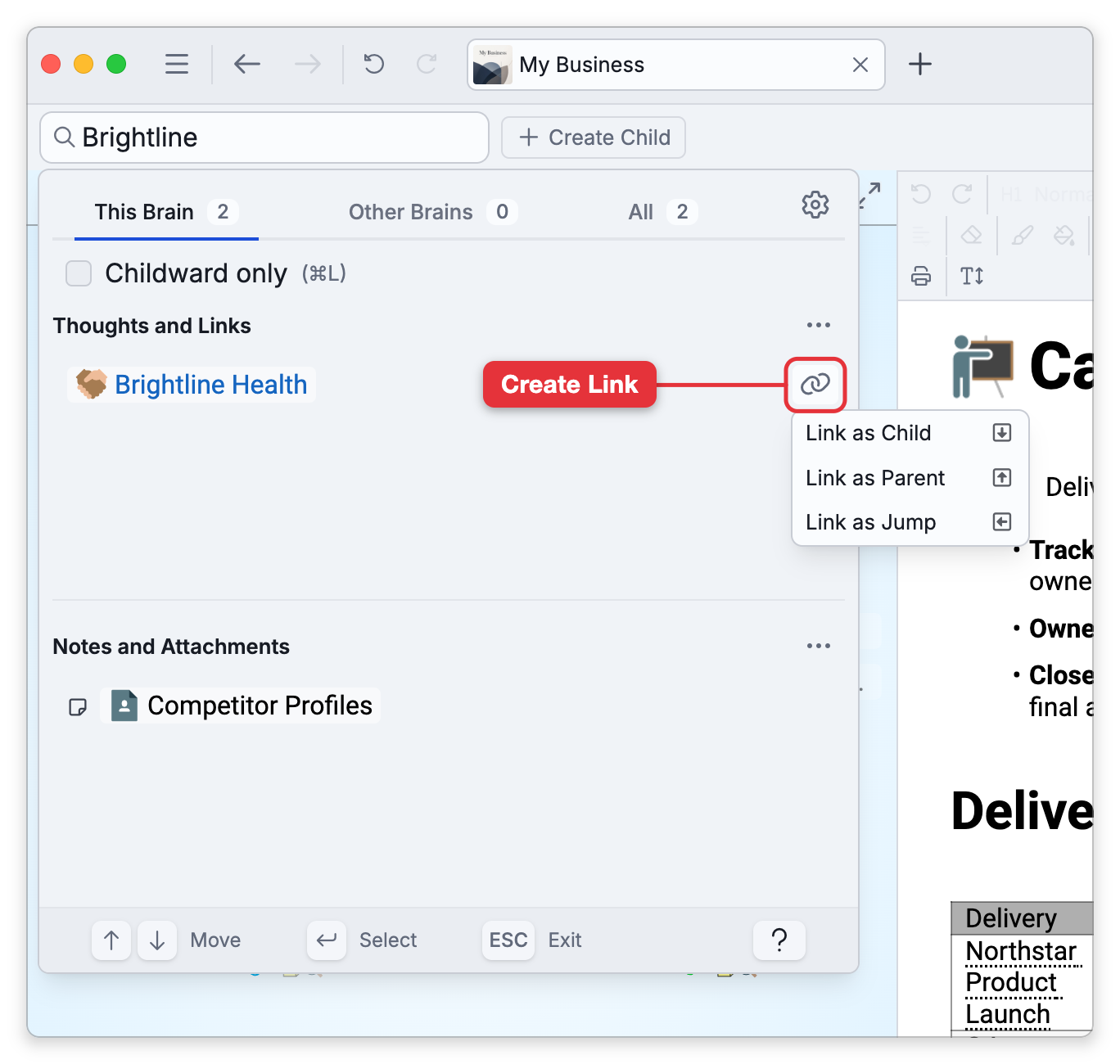
The thought you found becomes a child, parent or jump of the active thought, the search closes, and the active thought stays active. Clicking the row itself, rather than the icon, still just activates that thought.
Create Link is offered on thought rows from the brain you're in: under Thoughts and Links, under Notes and Attachments (where it links the thought that owns the note or file), and in Recent Thoughts. It needs a brain you can edit. Results from other brains, and rows that are links rather than thoughts, don't have it. For the other ways to connect two existing thoughts, see Creating Thoughts and Links (Linking Two Existing Thoughts).
If Search Doesn't Find Something
When search can't find a thought or some note text that you know exists, check these in turn:
- Forgotten and private thoughts — Search follows the brain's current view. A forgotten thought is found only while Show Forgotten Thoughts is on, and a private thought can be hidden from the results by Hide Private Thoughts.
- A ticked narrowing box — Childward only or Selection only, just under the result tabs, limits the results to part of the brain. Untick it to search the whole brain — see Search Filters.
- The tab you're on — Matches from your other brains are on the Other Brains tab, not on This Brain — see Searching Other and Public Brains.
- Text in notes and files — Names, aliases and labels match as you type, but text inside notes and attachments is searched only after you pause typing, and appears under Notes and Attachments.
- Indexing still running — A line in the results that reads This brain is being indexed. Results may be missing until the process completes. or The search index is warming up. Please try again in a few minutes. means the search index isn't ready. Wait, then search again.
- Exact text — Search matches words and the starts of words, so it doesn't find text in the middle of a word, punctuation, or a pattern. Choose Find Exact Text in this Brain... from Search Options (the gear menu by the results) to hand your search to Find in Brain, which matches the exact characters — see Find in Brain.
- Still missing — Rebuild the brain's search index — see Rebuilding the Search Index.
- Each results section — Thoughts and Links and Notes and Attachments — has a More Actions (…) button at the right end of its header with Add Results to Selection and Remove Results from Selection, which add every thought listed in that section to your current selection, or take them out of it. That's a quick way to build a selection from a search — see Selecting Multiple Thoughts. The commands can be given shortcuts in Settings > User > Keyboard, where they're listed as Add Title Search Results to Selection and Add Content Search Results to Selection (and their Remove counterparts).
- A thought's aliases and label are matched like its name. When that's what your search hit, the result shows the thought's real name followed, in smaller muted text, by the alias or label that matched — so a search for "USA" can land on United States. See Thought Aliases.