Customizing Toolbars
Overview
TheBrain's toolbars are yours to arrange. In Settings > User > Toolbars you can choose which buttons appear, what order they're in, and add separators and spacing — so the actions you use most are right where you want them.
You can customize toolbars this way in the desktop and web apps and on tablets, but not on phones. On a phone you customize the action bar at the bottom of the screen instead — see Using TheBrain on a Phone.
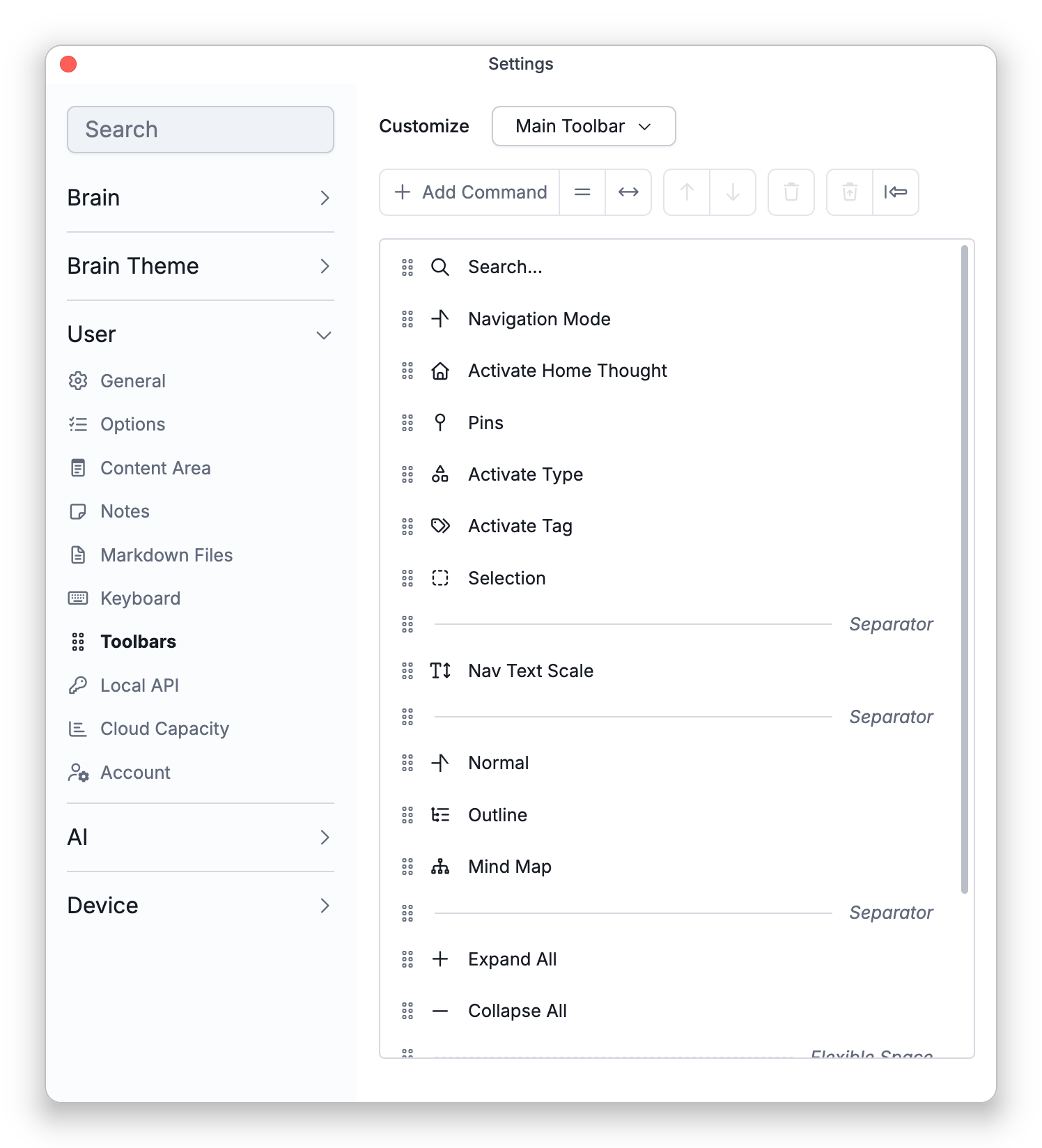
Customizing a Toolbar
- Open Settings > User > Toolbars and pick the toolbar to edit from the Customize dropdown: the Main Toolbar, the Window Toolbar at the top of the window (the one with the main menu button), or the Side Toolbar.
- Build it up:
- Add Command — add a button for any command that can run on the platform you're using, including your AI scripts (see AI Scripts). Commands that a menu reveals only while you hold a modifier key work as ordinary toolbar buttons, with no modifier needed.
- Add Separator / Add Flexible Space — group and space buttons.
- Move Up / Move Down (or drag) — reorder items.
- Remove / Restore — take a button off, or bring a removed one back.
- Reset returns a toolbar to its default layout (TheBrain confirms first).
- A couple of essentials can't be removed — the search control stays on the main toolbar and the main menu button stays on the Window Toolbar.
- When you are signed in, your toolbar layouts are saved with your account and synced, so they follow you to your other devices and to the web app. If you use the desktop app without signing in, they are kept on that device only.