Settings Overview
Overview
Settings is the one place to configure TheBrain — from how the app looks to how thoughts behave to your account. It's organized into sections down the side, and a search box helps you jump straight to a setting without hunting through tabs.
Opening Settings
Open Settings from the toolbar (gear) or the main menu. The default shortcut is Ctrl+, (⌘, on Mac). TheBrain remembers the last section you had open.

On the desktop app, Settings opens in a window of its own beside the brain window, and you can keep working in the brain while it is open. It belongs to the tab you opened it from: it closes when you close that tab or switch to another tab.
The Sections
Settings is grouped into:
- Brain — settings for the open brain (your personal view of it, content options, sync, statistics, and more). Available when a brain is open. These settings belong to the brain and apply to everyone who uses it, with one exception. Its first page, Personal Settings, holds how you view the brain; in a shared brain those choices affect only you (see Personal Settings). Plex Settings sets how thoughts are drawn in the Plex (see Plex Settings), and Content Settings covers the brain's notes, note format, and attachments (see Brain Content Settings).
- Brain Theme — the look of the open brain, available when a brain is open. Like the brain's settings, it applies to everyone who uses the brain (see Brain Themes Overview).
- User — your personal preferences, which follow your account: General, Options (search, timeline, and calendar preferences; see Options Settings), Content Area, Notes, Markdown Files (see Markdown Files Settings), Keyboard, and Toolbars, plus Cloud Capacity and Account when you're signed in. The web app also has API Keys and Capture Devices when you're signed in, and the desktop app has Local API. The Keyboard tab is hidden in the mobile apps, and Toolbars is hidden on phones.
- AI — Cerebro settings (see AI Settings).
- Device — device-specific settings (on the desktop and mobile apps; most of its pages, such as updates, network, and storage, are on the desktop app only). On the desktop app its pages include General, for the tray icon and starting at login (see Tray Icon, Quitting, and Starting at Login); Network, for a proxy server (see Network and Proxy Settings); Storage (see Storage Location); and, on the desktop and mobile apps, Performance, whose Tab pool size sets how many tabs stay active in the background for faster switching (not on phones), and Servers, the list of servers the app can sign in to (see Signing In to a Private Server).
Some panes are further divided into sub-tabs — for example User > Notes (Options, Outlining, Clipboard, and Text Editor) and Brain > Content Settings (Notes, Note Format, and Attachments).
Finding a Setting
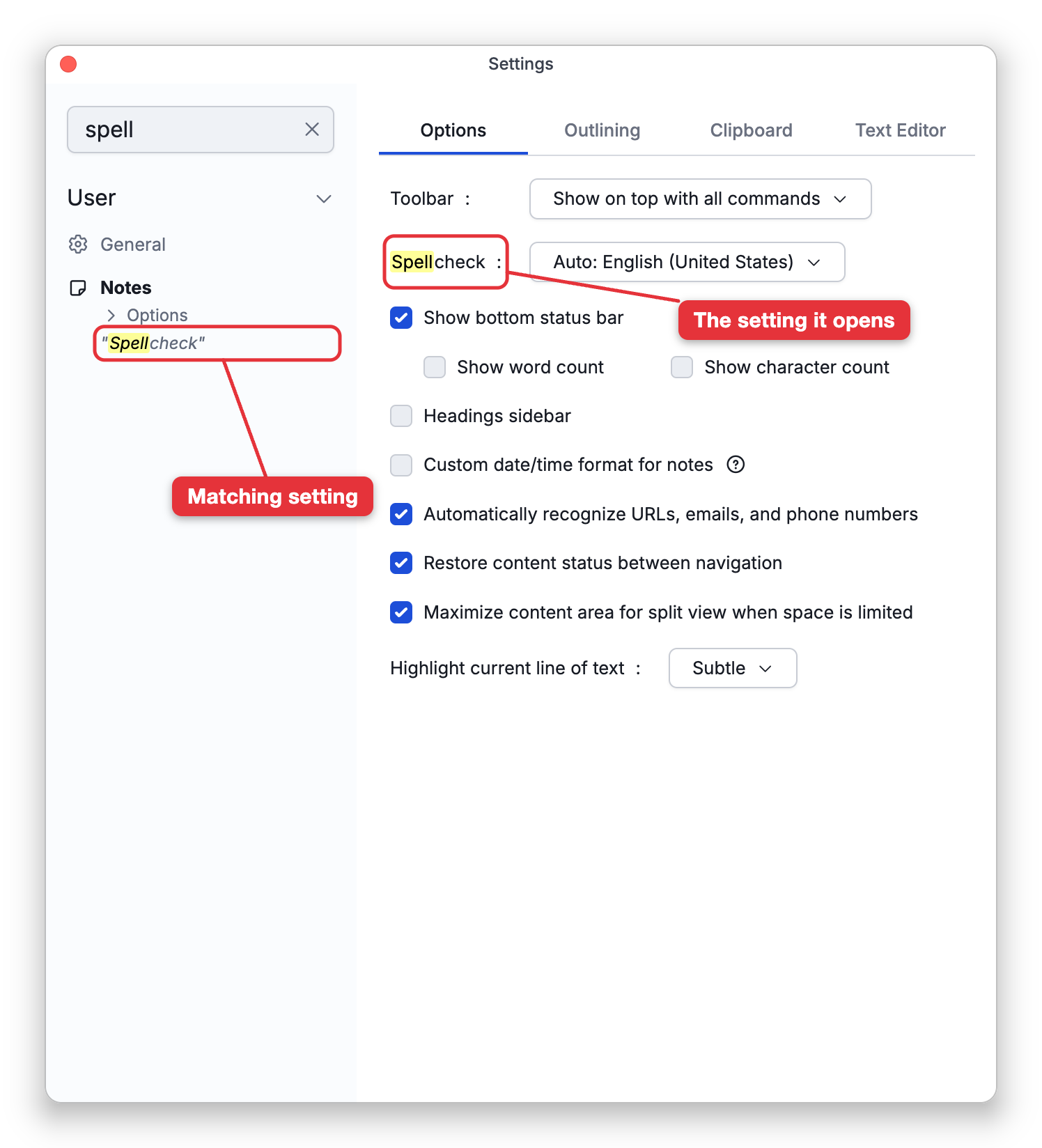
Use the search box at the top to filter to matching settings. Type a couple of characters and TheBrain narrows the list; picking a match opens the right pane on the right sub-tab.