Diagrams in Notes
Overview
Notes can hold diagrams — flowcharts, sequence diagrams, Gantt charts, mind maps, pie charts, timelines, and more — written in the widely used Mermaid text language. You describe the diagram in a few lines of text and TheBrain draws it; the drawing updates whenever you edit the text. Because a diagram is stored in the note as an ordinary Mermaid code block, the same notes render in other Mermaid-aware tools such as Obsidian, GitHub, and GitLab, and diagrams written elsewhere render in TheBrain.
Diagram colors follow your content theme automatically, so diagrams stay readable in both light and dark themes.
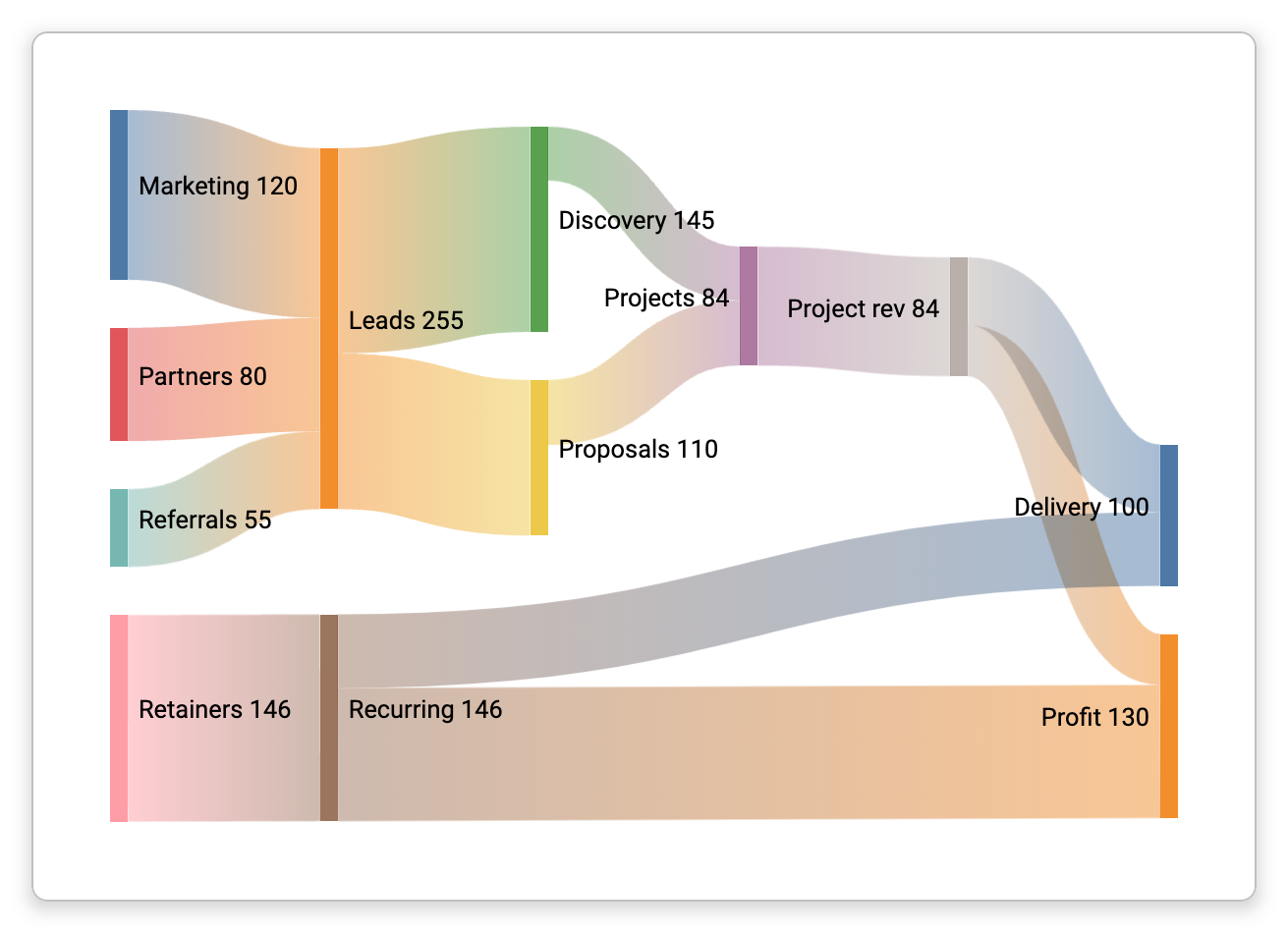
Inserting diagrams requires the brain to save notes in standard Markdown. Notes containing diagrams are readable in any brain, and an existing diagram can always be opened and edited.
How to insert a diagram
- Right-click in the note and choose Insert > Insert Diagram, or use the notes toolbar's Insert menu. On the Mac desktop app it is also in the menu bar under Note > Insert > Diagram.
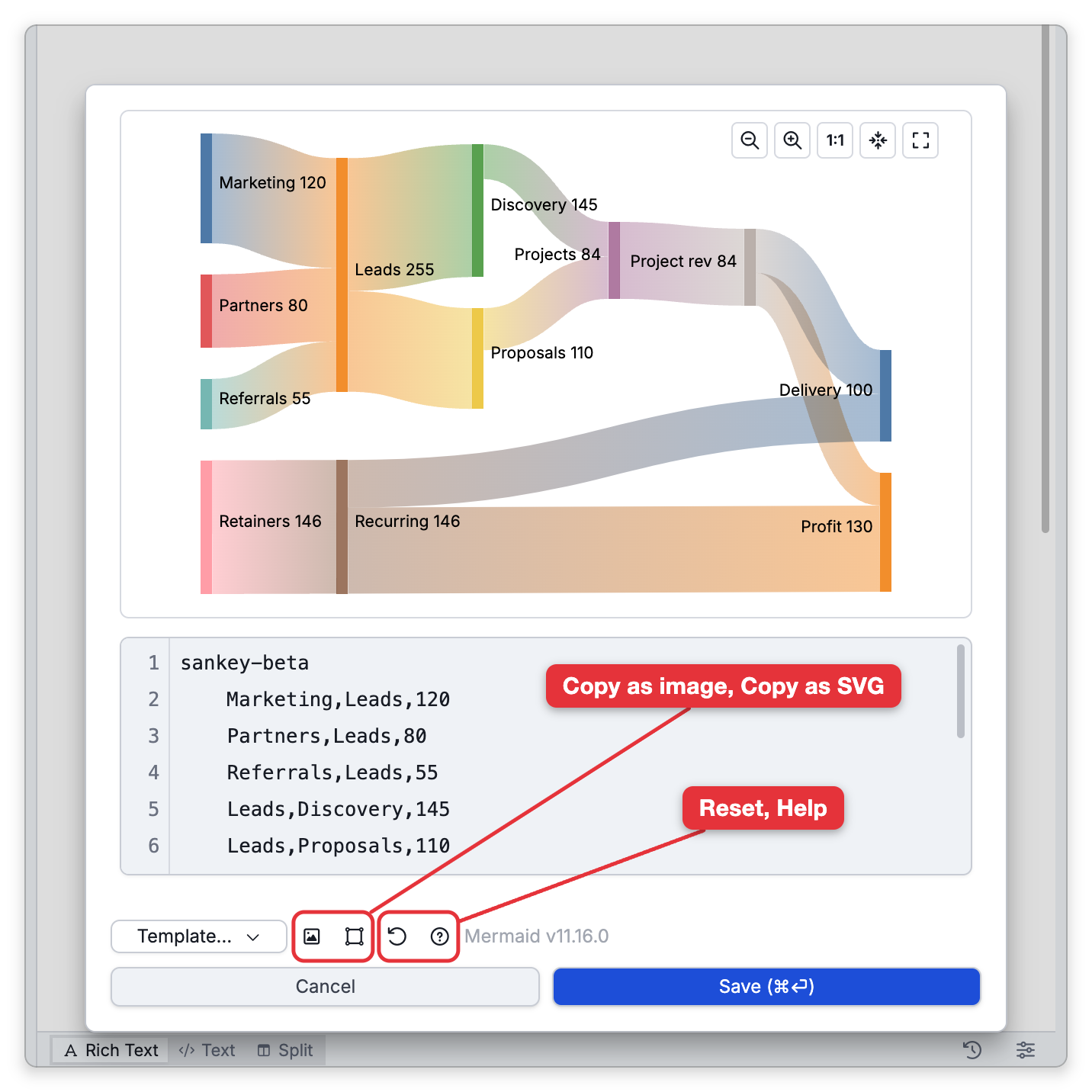
- The diagram editor opens with a live preview on top and the text source below. A starter Flowchart is filled in so you see a drawing immediately.
- Pick a different starting point from the Template… menu if you like — there are eighteen ready-made starters (Flowchart, Sequence, Class, State, Entity relationship, Gantt, Mind map, Pie, Timeline, Git graph, User journey, Quadrant chart, XY chart, Kanban board, Sankey, Block, Architecture, Requirement), each a small working example.
- Edit the text; the preview redraws as you type. If a line doesn't parse, the message under the editor names the line, and the last good drawing stays visible (dimmed) until the text parses again.
- Press Save (
Ctrl+Enter,⌘Enteron Mac).Esccancels.
The Help button opens the Mermaid documentation in your browser, where the full diagram language is described.
If you don't see Insert Diagram: in a brain that hasn't switched to standard Markdown, Enable Footnotes and Diagrams… appears instead at the bottom of the Insert menu that right-clicking in the note opens — it explains the requirement and takes you to the brain's Note Format settings. The notes toolbar's Insert menu just leaves Insert Diagram out. Diagrams can't be inserted inside table cells.
How to edit an existing diagram
- Click the diagram once to select it, then click it again to open the editor. On touch screens, tap twice the same way.
- With the keyboard, arrow onto the diagram and press
Enter.
In the editor's preview you can zoom with the mouse wheel, drag to pan, and use the view buttons (Zoom in, Zoom out, Actual size, Zoom to fit, Fill the window); double-click the drawing to reset the view. Copy as image and Copy as SVG put the rendered drawing on the clipboard for use in other apps, and Reset returns the text to what it was when the editor opened.
On phones the diagram editor fills the screen and makes room for the on-screen keyboard.
How to delete a diagram
- Click the diagram once so that it is selected. A selected diagram has a dashed outline. With the keyboard, arrow onto the diagram instead.
- Press
BackspaceorDelete.
Press the key after the first click. A second click on a selected diagram opens the diagram editor instead, and so does pressing Enter or typing a lowercase letter or a digit. Esc or an arrow key moves the cursor off the diagram and leaves it in the note. If you delete a diagram by mistake, Undo brings it back.
When a Mermaid code block shows as code
A fenced code block is drawn as a diagram only when all of these are true:
- Its opening line is three or more backticks followed by exactly the lowercase word
mermaidand nothing else. A fence written as```Mermaid,``` mermaid(with a space),```mermaid-exampleor```mermaidwith more text after the word stays an ordinary code block. (Inside a callout, every line of the block starts with the callout's>marker, and the fence comes right after it.) - The block has a closing fence.
- The block is not inside a table cell.
A diagram whose text grows very long is too large to draw, and TheBrain says so with the message Diagram source is too large to render.
In the rich text editor you cannot make a diagram by typing a fence. The third backtick turns the line into a plain code block at once, so whatever you type next, including the word mermaid, is code. Use Insert > Insert Diagram instead, or switch the note to the Text view and write the fence there.
- Wide diagrams scroll inside their own frame rather than widening the note.
- Diagrams render in read-only and shared views, and in HTML, PDF, and print output.
- Diagrams are drawings of their text — Find & Replace in the note does not reach inside them.