Standard Markdown Notes
Overview
Every note in TheBrain is stored as a Markdown file, which makes your writing portable. Historically that file used TheBrain's own Markdown dialect, with a few markers that only TheBrain understood — so opening the file in another Markdown editor showed some things incorrectly, and editing it there could damage the formatting.
Notes can now be saved as standard Markdown instead: GitHub-flavored Markdown, plus a small set of note-taking extensions. Those are additions to Markdown that note-taking apps commonly implement — highlighting (==highlighted==), callouts (> [!NOTE]), and image sizing — the kind of thing you'll find in apps such as Obsidian, Joplin, and Typora, with GitHub rendering the callout form as well. A note saved this way reads correctly in those tools, in VS Code, or in any other Markdown editor — and comes back into TheBrain intact if you edit it there.
Standard Markdown is where TheBrain is heading. TheBrain's own Markdown dialect is deprecated, and a future release will stop saving notes in it altogether — every brain will write standard Markdown. Notes already written in the older format will still open and read correctly; what goes away is TheBrain writing new ones that way. Switching a brain now simply gets you there sooner.
Which Brains Use It
- Brains created by importing use standard Markdown from the start — imports from Obsidian, Notion, Evernote, a folder of Markdown files, and the other supported formats. (Restoring a brain archive keeps whatever the archived brain used, and a brain created by the TheBrain 8 Brain import starts out on TheBrain's dialect.)
- Brains you create fresh, and existing brains, keep TheBrain's dialect until you switch them. A brain you make with New Brain does not start out in standard Markdown. Nothing changes until you choose to.
- Importing into a brain you already have doesn't change that brain's format. Only an import that creates a new brain sets it.
To see which one a brain uses, open Settings > Brain > Content Settings and pick the Note Format tab. A brain that saves standard Markdown says Notes in this brain are saved as standard Markdown. there; a brain still on TheBrain's dialect shows the Switch to Standard Markdown… button instead.
How to Switch an Existing Brain
- Open Settings > Brain > Content Settings and pick the Note Format tab.
- Choose Switch to Standard Markdown….
- Read the confirmation and tick both acknowledgements — I understand this change is permanent for this brain, and that you will update all of your devices, including mobile devices, to the version the dialog names — then choose Switch.
Once switched, the tab shows a plain statement that the brain saves standard Markdown — there's no toggle, because the change can't be undone. (If you got here from Enable Footnotes and Diagrams… in the Insert submenu of the note's right-click menu, it lands on this same tab.)
What Happens After You Switch
- Notes convert one at a time, as you edit them. A note you never touch stays exactly as it is. A note is converted when you edit and save it in the rich editor, or when you edit it in Text or Split view, which show it converted as soon as you open them.
- Older versions of TheBrain can't open the brain afterwards. The switch stamps the brain with a minimum app version, and a device on an older version is told to update. This is why the switch asks for confirmation, and why it's permanent.
The Note Format Tab
The tab shows a table of the brain's notes by format — Standard Markdown, Legacy Markdown, Legacy HTML, and an All notes total — with each format's size and count. Click a non-zero count to list the thoughts holding notes in that format; from the list you can jump to a thought or Add All to Selection.
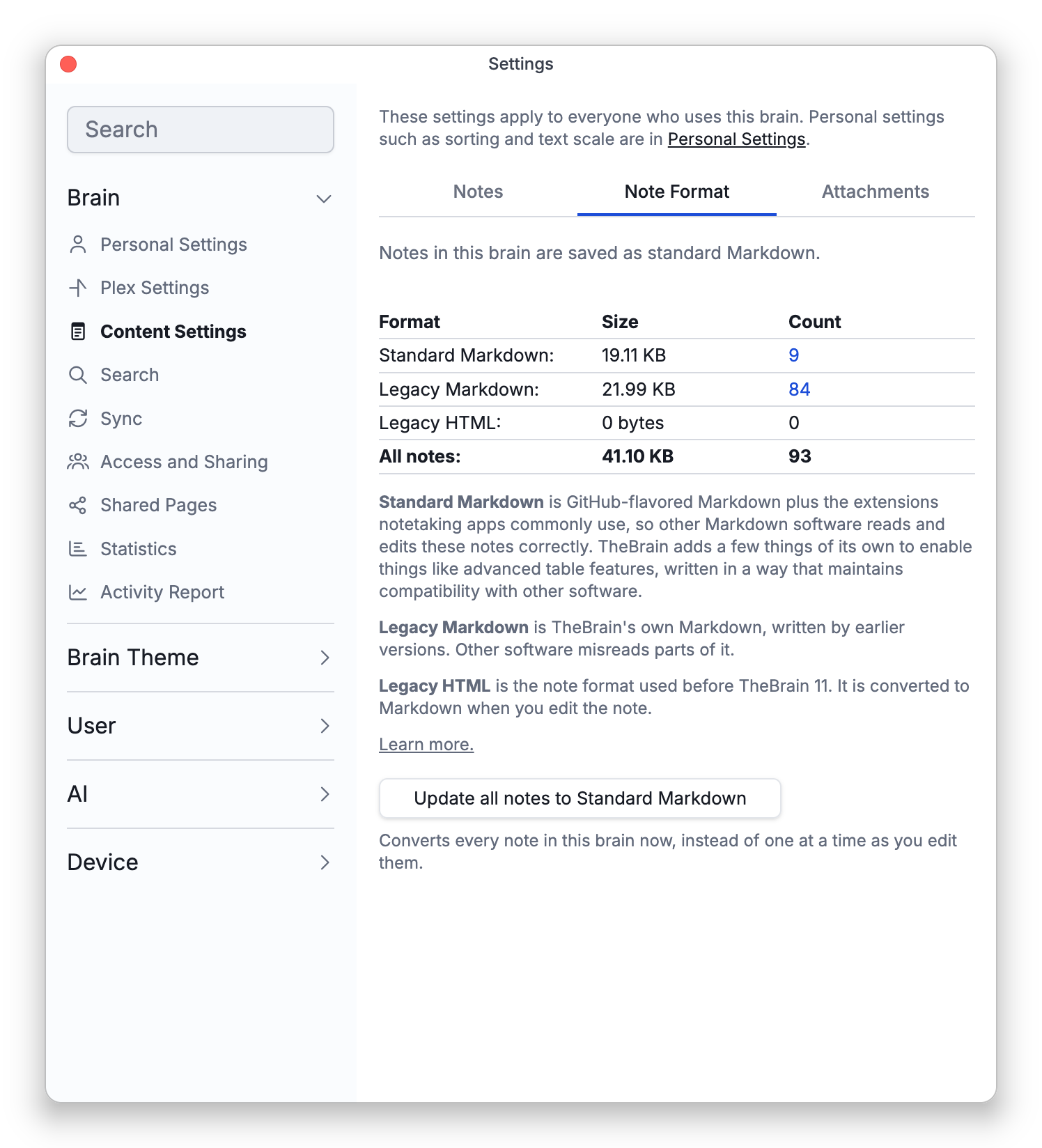
While the brain still holds legacy notes, an Update all notes to Standard Markdown button offers to convert every note now instead of one at a time as you edit; it becomes available once the brain has switched. Its confirmation is headed Not Recommended — converting everything at once rewrites, re-indexes, and re-syncs every note, which is normally unnecessary; the only reason to do it is compatibility with external editors. It can't be undone, and it runs in the background with a progress notification that keeps going after you close Settings.
What Changes in the File
The note looks the same in the editor — only the file's syntax changes. If you read your notes as text, these are the differences you'll see:
| In the editor | TheBrain Markdown | Standard Markdown |
|---|---|---|
| Bullet | * | - |
| Unchecked box | - | - [ ] |
| Checked box | + | - [x] |
| Underline | _{text}_ | <u>text</u> |
| Strikethrough | -{text}- | ~~text~~ |
| Superscript / subscript | ^text^ / ~text~ | <sup>text</sup> / <sub>text</sub> |
| Text color, background, font | :{text:(style="…"):}: | <span style="…">text</span> |
| Inline math | $$x$$ | $x$ |
| Table | no separator row | a separator row of dashes below the header |
| Table of contents | [/toc/] | a real list of links between <!-- toc --> and <!-- tocstop --> |
| Image size | a suffix on the image address | the size after the alt text, separated by a bar |
| Line alignment | :-: and similar at the start of a line | an invisible <!--tb:block align:center--> comment |
Written out, a table's separator row looks like | --- | --- |, and an image shown at 55% of its size looks like .
Highlights (==highlighted==) and callouts (> [!NOTE]) are already written the common note-taking way and don't change.
A few things have no standard equivalent, so they're preserved in ways other tools still handle sensibly. A table with a cell containing a list, a heading, a quote, or a code block is written as an HTML table, which keeps its structure visible everywhere; several lines of ordinary text in a cell stay in the plain pipe table, joined by <br>. Column widths and table colors ride in an invisible comment above the table, so other editors ignore them and TheBrain still reads them back.
Those invisible comments all look like <!--tb:block align:center--> — a kind, then a list of properties that is a CSS declaration list, so anyone writing a tool can parse it with what they already have. Other Markdown applications show nothing for them and preserve them untouched, so a note keeps its alignment and table colors even after a round trip through another editor. They are used only where writing real HTML would cost something: an HTML wrapper around a paragraph would stop the Markdown inside it from working, and writing a styled table as HTML would take away the plain pipe table that other editors let you edit by hand.
Reference-Style Links
A reference-style link is written [text][label], with a line such as [label]: https://example.com elsewhere in the note. In a brain that saves standard Markdown, these show as ordinary links (images written ![alt][label] show as images), and saving writes them back the same way. TheBrain writes all of those address lines together at the end of the note, so one you placed elsewhere moves there. An address line that no link uses stays as visible text.
Links you create in TheBrain are written inline, as [text](address). A reference-style link is also written inline once you change it with Edit Link or paste an address over it; other links that share its label keep the address line. TheBrain's own Markdown dialect has no reference-style links, so in a brain that hasn't switched they show as plain text.
Working With Notes as Text
In a brain that uses standard Markdown, Text view and Split view always show standard Markdown. If the note was still stored in the older format, opening it as text shows it converted, and editing it there saves it converted — so what you read and edit is what other tools will see.
How to Find a Note's File on Your Computer
In the desktop app, a brain stored on your computer keeps each thought's files in a folder of its own. The thought's note is the file named Notes.md at the top of that folder, beside the thought's attachments. The folder is named with the thought's internal ID, not its name, so the practical way to reach it is from the thought:
- Right-click the thought and choose Open Thought Folder — the default shortcut is
Ctrl+Shift+F(⇧⌘Fon Mac). - The folder opens in your file manager. Open
Notes.mdfrom there in Obsidian, VS Code, or any other editor.
Hold Shift (⌥ on Mac) while the menu is open and the command becomes Copy Folder Path, which copies the folder's location instead of opening it.
- Images pasted into a note are kept in a hidden
.data/md-imagesfolder inside the same thought folder. - In a brain that hasn't switched to standard Markdown,
Notes.mdholds TheBrain's own dialect, which other Markdown apps don't fully understand. - The web app and the phone and tablet apps have no Open Thought Folder command.
- Settings > Device > Storage shows the folder that holds all of your brain data (see Storage Location), and Settings > Brain > Statistics shows which folder inside it belongs to the brain (see Brain Statistics).
Markdown Files Attached to a Thought
You can attach .md files to a thought as well as writing the thought's own note. Older attached files were often written in TheBrain's Markdown. When you open one in a brain that uses standard Markdown and it looks like the older format, TheBrain offers to convert it. Decline and the file is left untouched; the offer returns next time you open it.
Copying, Importing, and Exporting
- Copy as Markdown always copies standard Markdown, whatever the brain uses, so what you paste elsewhere is portable. Copy as Plain Text still copies unformatted text.
- Importing keeps the syntax the source was written in. An Obsidian vault, Notion export, or folder of Markdown files imports with its task lists, emphasis, and tables intact rather than being rewritten. The one exception is hard-wrapped files, whose paragraphs are broken into lines of a fixed width: depending on Wrapped lines in Settings > User > Markdown Files, their paragraphs are joined as they're imported (see Markdown Files Settings).
- Exporting a brain as Markdown Files writes each note in the format it is stored in. Notes saved as standard Markdown export as standard Markdown; notes still in the older format export in that format unless you tick Convert to CommonMark in the export dialog (see Exporting Brains).
- Your note's properties (the
---block some tools write at the top of a file, also called frontmatter) are preserved untouched. TheBrain doesn't create or edit them, so properties you set in Obsidian survive editing the note in TheBrain. - One difference from strict Markdown is deliberate: a single line break stays a line break, the way it looks in the editor. This matches what note-taking apps normally do. In a strict Markdown viewer such as GitHub's file preview, the lines of a paragraph may run together. Markdown files written in other apps are often hard-wrapped the other way, with each paragraph broken into short lines; for those, see Wrapped Lines in Markdown Files Settings.
- To edit a Markdown file that isn't in a brain, open it in a window of its own in the desktop app (see Markdown File Windows).